Download and Installation - DOCX Editor SDK Extension
16 Jul 20262 minutes to read
Syncfusion® publishes the Visual Studio extension at the Visual Studio Marketplace link below. You can either install it directly from Visual Studio or download and install it from the Visual Studio Marketplace.
Prerequisites
The following software prerequisites must be installed to install the Syncfusion® DOCX Editor SDK extension, as well as to create, add snippets, convert, and upgrade applications.
Install through the Visual Studio Manage Extensions
The steps below explain how to install the Syncfusion® DOCX Editor SDK extensions from Visual Studio Manage Extensions.
-
Open Visual Studio 2022.
-
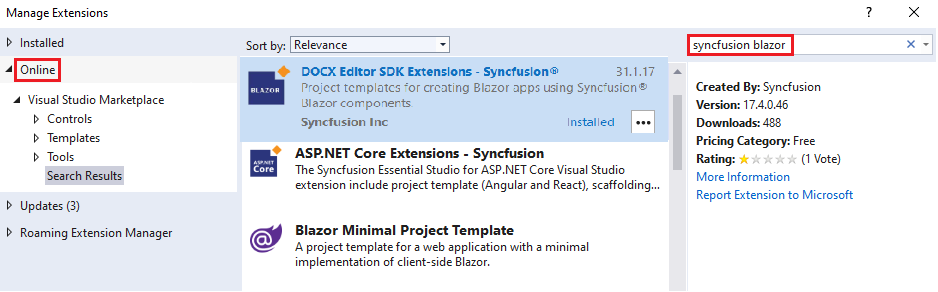
Navigate to Extensions -> Manage Extensions to open the Manage Extensions window.
-
On the left, click the Online tab and type “DOCX Editor SDK - Syncfusion®” in the search box.
-
Click the Download button in the “Syncfusion® DOCX Editor SDK Template Studio” extension.
-
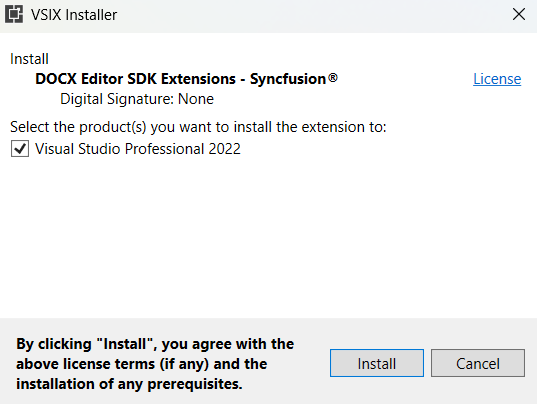
Close all Visual Studio instances after downloading the extension to begin the installation process. You will see the following VSIX installation prompt.
-
Click the Modify button.
-
After the installation is complete, open Visual Studio.
-
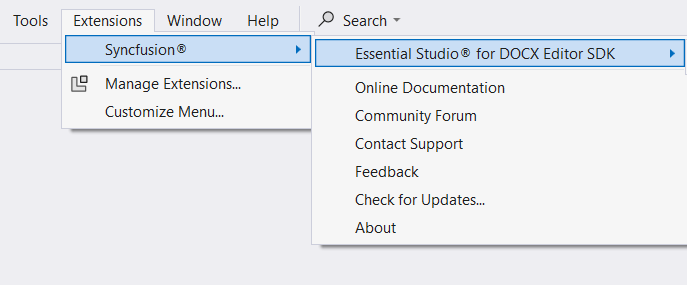
Now, under the Extensions menu, you can use the Syncfusion® extensions from Visual Studio.
Install from the Visual Studio Marketplace
The steps below illustrate how to download and install the Syncfusion® DOCX Editor SDK extension from the Visual Studio Marketplace.
-
Download the Syncfusion® DOCX Editor SDK Extension from the Visual Studio Marketplace link below.
-
Close all Visual Studio instances running, if any.
-
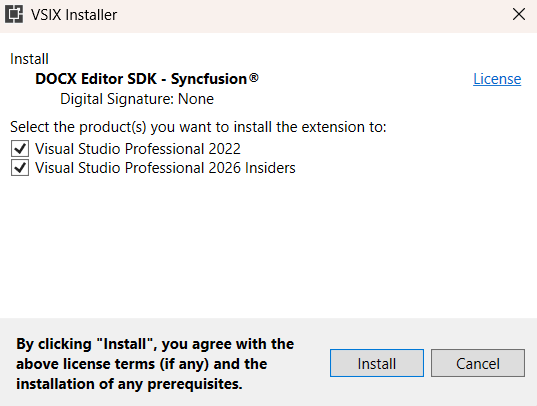
Double-click to install the downloaded VSIX file. You will see the VSIX installation prompt with a checkbox to select the Visual Studio version in which to install the extension.
-
Click the Install button.
-
After the installation is complete, open Visual Studio. You can now use the Syncfusion® extensions in Visual Studio from the Extensions menu.