Download and Installation - DOCX Editor SDK
17 Jul 20262 minutes to read
Syncfusion® publishes the Syncfusion® DOCX Editor SDK extension in the Visual Studio Code marketplace. You can either install it directly from Visual Studio Code or download and install it from the Visual Studio Code marketplace.
Prerequisites
The following software prerequisites must be installed to install the Syncfusion® DOCX Editor SDK:
The instructions below describe the process of installing the Syncfusion® DOCX Editor SDK extension.
Install through the Visual Studio Code Extension
-
Open Visual Studio Code.
-
Navigate to View > Extensions, and the Extensions view will appear on the left side of the window.
-
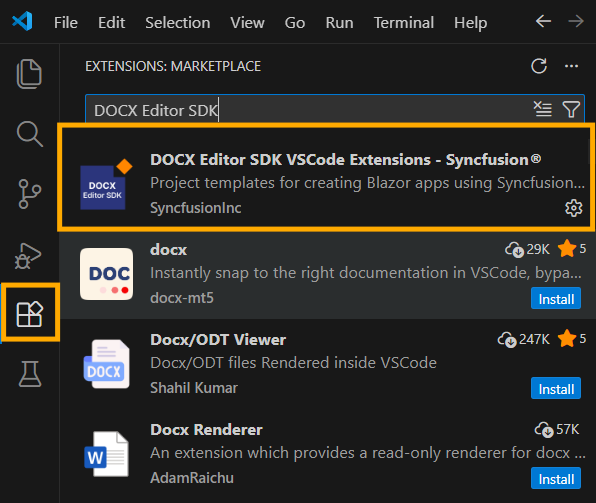
Search for “Syncfusion DOCX Editor SDK” in the search box and click the Install button. You can find the Syncfusion® DOCX Editor SDK extension in the Visual Studio Code Marketplace.
-
Reload Visual Studio Code after installation by using the Reload Window command in the Command Palette.

-
Now, you can create a new Syncfusion® DOCX Editor SDK application by using the Syncfusion® DOCX Editor SDK extension from the Command Palette. Find the Syncfusion DOCX Editor SDK Template Studio: Launch command in the Command Palette to open the Syncfusion DOCX Editor SDK Template Studio wizard.

Install from the Visual Studio Code Marketplace
-
Open the Syncfusion® DOCX Editor SDK Extensions page in the Visual Studio Code Marketplace.
-
Click Install from the Visual Studio Code Marketplace. The browser displays a popup window with information such as “Open Visual Studio Code”. When you click Open Visual Studio Code, click the Install button to install the selected extension.
-
Reload Visual Studio Code.
Manually Installing an Extension in Visual Studio Code
-
Install the extension by downloading it from the Visual Studio Code Marketplace and then installing it from a local file within VS Code. To do this, download the “DOCX-Editor-SDK-VSCode-Extensions.vsix” file from the Visual Studio Code Marketplace.
-
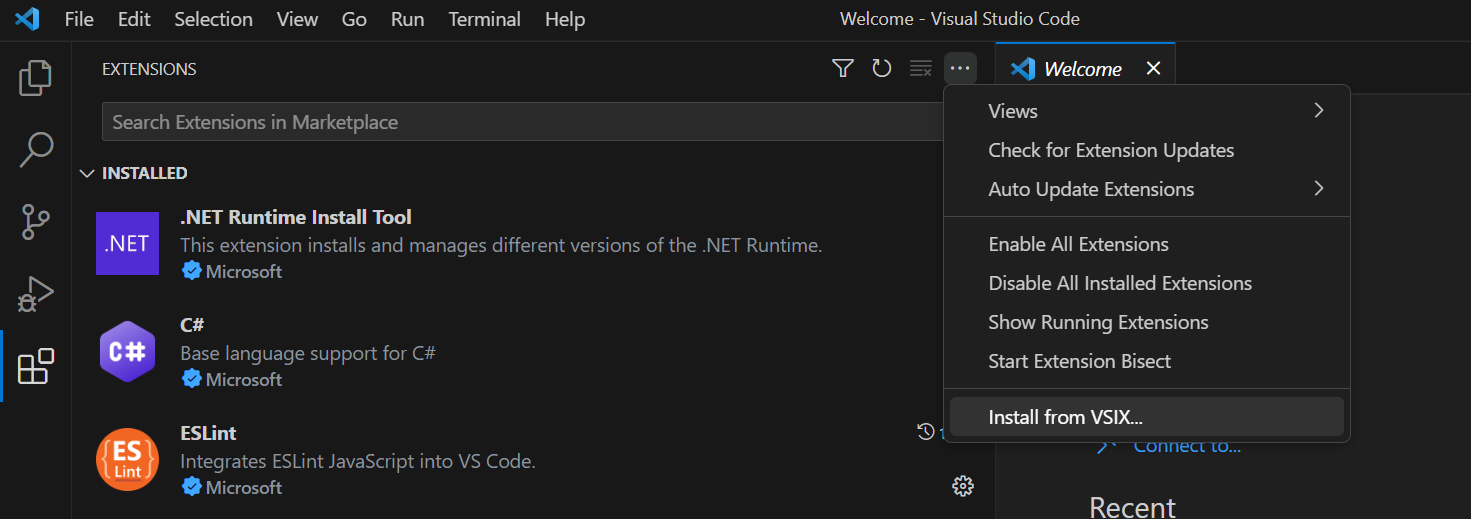
In VS Code, go to the Extensions view by clicking on the Extensions icon in the Activity Bar, click on the three dots (ellipsis) in the top-right corner, and select “Install from VSIX.”
-
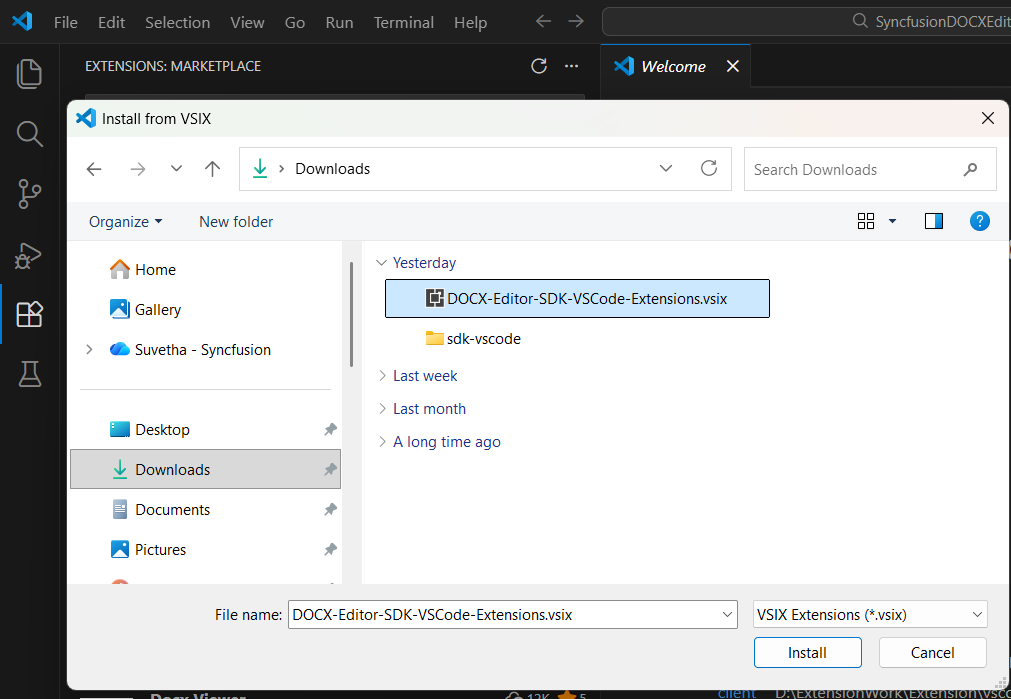
Browse to the downloaded DOCX-Editor-SDK-VSCode-Extensions.vsix file and install it.