How to Deploy TypeScript DOCX Editor Java Web API in Azure App
28 Aug 20261 minute to read
Prerequisites
Have an Azure account and Azure CLI set up in your environment.
You can get the example web service project from GitHub and then perform the following steps to create the packages and host in the Azure app service.
Step 1: Clean the package using the following command.
mvn clean packageStep 2: Run the application locally using the following command.
mvn spring-boot:runStep 3: Build the package using the following command.
mvn packageThe above package generation command creates the tomcat-0.0.1-SNAPSHOT.war in the following location in the sample folder.
target/tomcat-0.0.1-SNAPSHOT.war
Step 4: Create an Azure app service with Java & Tomcat. For example, create the app service name as documenteditorjava.
Step 5: After creating the app service, navigate to Advanced Tools options under Development Tools.
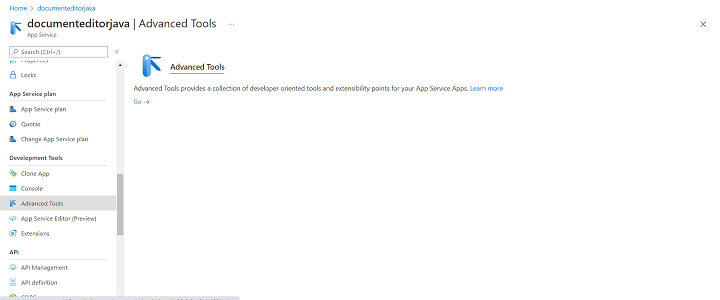
Then, click Go and select the CMD options under Debug console.
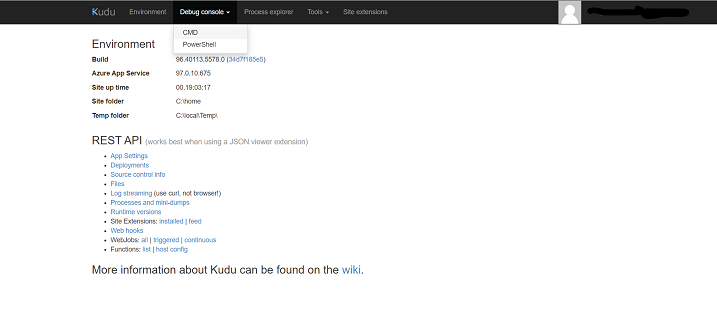
Step 6: Once the file manager is opened, please navigate to
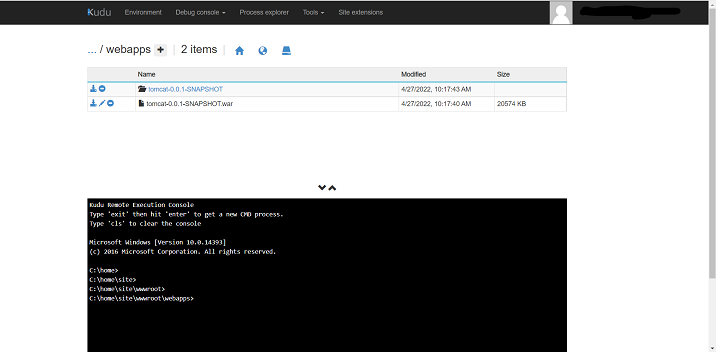
site -> wwwroot -> webapps
Step 7: Now, upload the generated war file tomcat-0.0.1-SNAPSHOT.war. The uploaded war file gets extracted automatically and is shown as below:
Step 8: Browse to the app.
Browse to the deployed app at http://<app_name>.azurewebsites.net, for example, http://documenteditorjava.azurewebsites.net. Browse this link, and it will navigate to the DOCX Editor Web API control http://documenteditorjava.azurewebsites.net/tomcat-0.0.1-SNAPSHOT. It returns the default GET method response.
Append the app service running URL http://documenteditorjava.azurewebsites.net/tomcat-0.0.1-SNAPSHOT to the service URL in the client-side DOCX Editor control. For more information about the DOCX Editor control, refer to this getting started page.