How can I help you?
Getting started with JavaScript (ES6) Document editor control
13 Feb 202613 minutes to read
This section briefly explains how to create a simple Document editor component and configure its available functionalities in TypeScript, using Essential® JS 2 quickstart seed repository.
This application uses the latest version of webpack-cli integrated with
webpack.config.jsconfiguration. For more information about webpack and its features, refer to the webpack documentation.
Dependencies
The following list shows the minimum dependencies required to use the Document Editor:
|-- @syncfusion/ej2-documenteditor
|-- @syncfusion/ej2-base
|-- @syncfusion/ej2-buttons
|-- @syncfusion/ej2-calendars
|-- @syncfusion/ej2-compression
|-- @syncfusion/ej2-dropdowns
|-- @syncfusion/ej2-file-utils
|-- @syncfusion/ej2-inputs
|-- @syncfusion/ej2-navigations
|-- @syncfusion/ej2-office-chart
|-- @syncfusion/ej2-charts
|-- @syncfusion/ej2-popups
|-- @syncfusion/ej2-splitbuttonsServer-side dependencies
The Document editor component requires server-side interactions for the following operations:
- Open file formats other than SFDT
- Paste with formatting
- Restrict editing
- Spell check
- Save as file formats other than SFDT and DOCX
Note: If you don’t require the above functionalities, you can deploy the component as a pure client-side solution without any server-side interactions.
For detailed information about server-side dependencies, refer to the Web Services Overview page.
Set up development environment
Open the command prompt from the required directory and run the following command to clone the Syncfusion® JavaScript (Essential® JS 2) quickstart project from GitHub:
git clone https://github.com/SyncfusionExamples/ej2-quickstart-webpack- ej2-quickstartAfter cloning the application in the ej2-quickstart folder, run the following command to navigate to the project directory:
cd ej2-quickstartAdd Syncfusion® JavaScript packages
Syncfusion® JavaScript (Essential® JS 2) packages are available on the npmjs.com public registry. You can install all Syncfusion® JavaScript (Essential® JS 2) controls in a single @syncfusion/ej2 package or individual packages for each control.
The quickstart application is preconfigured with the dependent @syncfusion/ej2 package in the ~/package.json file. Use the following command to install the dependent npm packages:
npm installImport the Syncfusion® CSS styles
Syncfusion® JavaScript controls come with built-in themes, which are available in the installed packages. It’s easy to adapt the Syncfusion® JavaScript controls to match the style of your application by referring to one of the built-in themes.
The quickstart application is preconfigured to use the Material theme in the ~/src/styles/styles.css file, as shown below:
@import "../../node_modules/@syncfusion/ej2/material.css";Note: To learn more about built-in themes and CSS reference for individual controls, refer to the themes section.
Adding component
You can add either the DocumentEditorContainer component with predefined toolbar and properties pane options or the DocumentEditor component with customizable options.
Note: Starting from version
v19.3.0.x, the accuracy of text size measurements has been optimized to match Microsoft Word pagination for most documents. This improvement is enabled by default. You can disable it to retain the pagination behavior of older versions if needed.
Document editor component
The Document editor component is used to create, view, and edit Word documents. With this component, you can customize the UI options based on your requirements to modify documents.
Adding Document editor component
You can start adding the Essential® JS 2 Document editor component to the application. Add the DocumentEditor component in the app.ts and index.html files using the following code.
Place the following code in the app.ts file:
import { DocumentEditor } from '@syncfusion/ej2-documenteditor';
// Initialize Document editor component
let documenteditor: DocumentEditor = new DocumentEditor({
isReadOnly: false,
height: '370px',
serviceUrl: 'https://document.syncfusion.com/web-services/docx-editor/api/documenteditor/'
});
// Enable all built-in modules
documenteditor.enableAllModules();
// Render the Document editor component
documenteditor.appendTo('#DocumentEditor');The Web API hosted link
https://document.syncfusion.com/web-services/docx-editor/api/documenteditor/used in the Document editor’s serviceUrl property is intended solely for demonstration and evaluation purposes. For production deployment, host your own web service with the required server configurations. Refer to the GitHub Web Service example or use the Docker image for hosting your own web service.
Add an HTML div element to act as the DocumentEditor element in the index.html file:
<!DOCTYPE html>
<html lang="en">
<head>
<title>Essential JS 2 Document editor</title>
<meta charset="utf-8" />
<meta name="viewport" content="width=device-width, initial-scale=1.0, user-scalable=no" />
<meta name="description" content="Essential JS 2" />
<meta name="author" content="Syncfusion" />
<link rel="shortcut icon" href="resources/favicon.ico" />
<link href="https://maxcdn.bootstrapcdn.com/bootstrap/3.3.7/css/bootstrap.min.css" rel="stylesheet" />
</head>
<body>
<!-- Element which will render as DocumentEditor -->
<div id="DocumentEditor"></div>
</body>
</html>Run the Document editor application
The quickstart project is configured to compile and run the application in the browser. Use the following command to run the application:
npm startThe Document editor output will be displayed as follows:
import { DocumentEditor } from '@syncfusion/ej2-documenteditor';
// Initialize Document Editor component.
let documenteditor: DocumentEditor = new DocumentEditor({ isReadOnly: false, height: '370px', serviceUrl: 'https://document.syncfusion.com/web-services/docx-editor/api/documenteditor/' });
// Enable all built in modules.
documenteditor.enableAllModules();
// Render the Document Editor component.
documenteditor.appendTo('#DocumentEditor');<!DOCTYPE html>
<html lang="en">
<head>
<title>EJ2 Animation</title>
<meta charset="utf-8" />
<meta name="viewport" content="width=device-width, initial-scale=1.0" />
<meta name="description" content="Typescript UI Controls" />
<meta name="author" content="Syncfusion" />
<link href="index.css" rel="stylesheet" />
<link href="https://cdn.syncfusion.com/ej2/32.2.3/ej2-documenteditor/styles/fabric.css" rel="stylesheet" />
<link href="https://cdn.syncfusion.com/ej2/32.2.3/ej2-buttons/styles/fabric.css" rel="stylesheet" />
<link href="https://cdn.syncfusion.com/ej2/32.2.3/ej2-base/styles/fabric.css" rel="stylesheet" />
<link href="https://cdn.syncfusion.com/ej2/32.2.3/ej2-dropdowns/styles/fabric.css" rel="stylesheet" />
<link href="https://cdn.syncfusion.com/ej2/32.2.3/ej2-inputs/styles/fabric.css" rel="stylesheet" />
<link href="https://cdn.syncfusion.com/ej2/32.2.3/ej2-lists/styles/fabric.css" rel="stylesheet" />
<link href="https://cdn.syncfusion.com/ej2/32.2.3/ej2-navigations/styles/fabric.css" rel="stylesheet" />
<link href="https://cdn.syncfusion.com/ej2/32.2.3/ej2-popups/styles/fabric.css" rel="stylesheet" />
<link href="https://cdn.syncfusion.com/ej2/32.2.3/ej2-splitbuttons/styles/fabric.css" rel="stylesheet" />
<script src="https://cdnjs.cloudflare.com/ajax/libs/systemjs/0.19.38/system.js"></script>
<script src="systemjs.config.js"></script>
<script src="https://cdn.syncfusion.com/ej2/syncfusion-helper.js" type ="text/javascript"></script>
</head>
<body>
<div id='loader'>Loading....</div>
<div id='container'>
<div id='DocumentEditor' style="height:420px">
</div>
</div>
</body>
</html>Document editor Container component
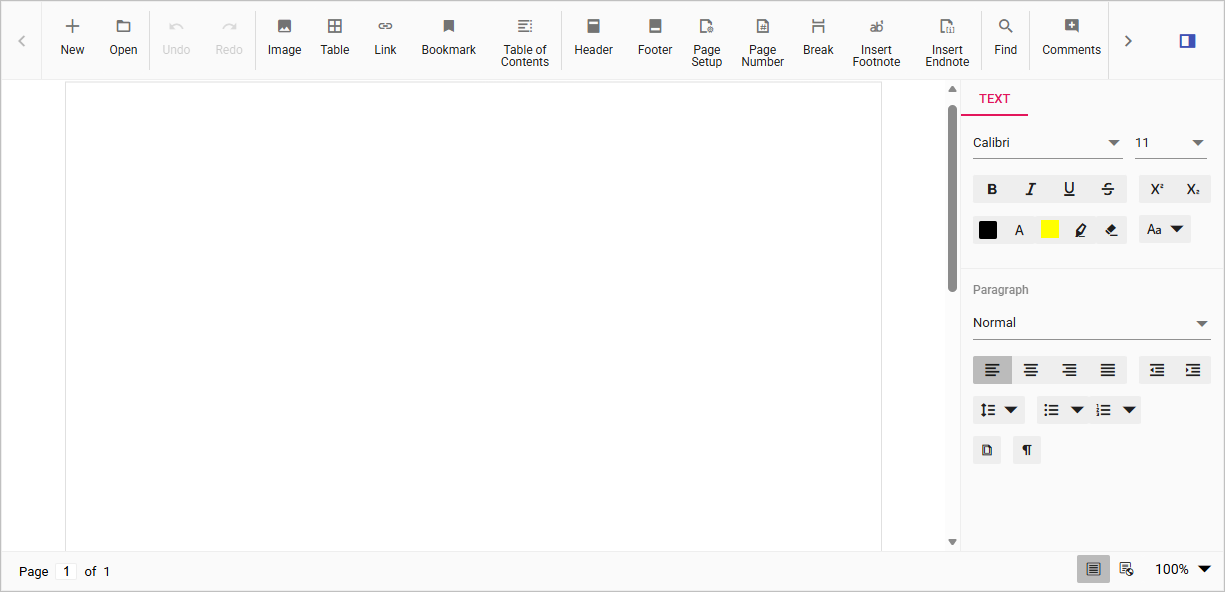
The DocumentEditorContainer is a predefined component that wraps the DocumentEditor, toolbar, properties pane, and status bar into a single component. The toolbar and properties pane allow users to view and modify documents through public APIs available in the DocumentEditor.
Adding Document editor Container component
You can start adding the Essential® JS 2 documenteditor container component to the application. Add the DocumentEditorContainer component in the app.ts and index.html files using the following code.
Place the following code in the app.ts file:
import { DocumentEditorContainer, Toolbar } from '@syncfusion/ej2-documenteditor';
DocumentEditorContainer.Inject(Toolbar);
let documenteditor: DocumentEditorContainer = new DocumentEditorContainer({
enableToolbar: true,
height: '390px',
serviceUrl: 'https://document.syncfusion.com/web-services/docx-editor/api/documenteditor/'
});
documenteditor.appendTo('#DocumentEditor');The Web API hosted link
https://document.syncfusion.com/web-services/docx-editor/api/documenteditor/used in the Document editor’s serviceUrl property is intended solely for demonstration and evaluation purposes. For production deployment, host your own web service with the required server configurations. Refer to the GitHub Web Service example or use the Docker image for hosting your own web service.
Add an HTML div element to act as the DocumentEditorContainer element in the index.html file:
<!DOCTYPE html>
<html lang="en">
<head>
<title>Essential JS 2 Document editor</title>
<meta charset="utf-8" />
<meta name="viewport" content="width=device-width, initial-scale=1.0, user-scalable=no" />
<meta name="description" content="Essential JS 2" />
<meta name="author" content="Syncfusion" />
<link rel="shortcut icon" href="resources/favicon.ico" />
<link href="https://maxcdn.bootstrapcdn.com/bootstrap/3.3.7/css/bootstrap.min.css" rel="stylesheet" />
</head>
<body>
<!-- Element which will render as DocumentEditorContainer -->
<div id="DocumentEditor"></div>
</body>
</html>Run the Document editor Container application
The quickstart project is configured to compile and run the application in the browser. Use the following command to run the application:
npm startThe DocumentEditorContainer output will be displayed as follows:
import { DocumentEditorContainer, Toolbar } from '@syncfusion/ej2-documenteditor';
// Inject require modules.
DocumentEditorContainer.Inject(Toolbar);
//Initialize Document Editor component
let documenteditor: DocumentEditorContainer = new DocumentEditorContainer({ enableToolbar: true, height: '590px', serviceUrl: 'https://document.syncfusion.com/web-services/docx-editor/api/documenteditor/' });
// Render Document Editor component.
documenteditor.appendTo('#DocumentEditor');<!DOCTYPE html>
<html lang="en">
<head>
<title>EJ2 Animation</title>
<meta charset="utf-8" />
<meta name="viewport" content="width=device-width, initial-scale=1.0" />
<meta name="description" content="Typescript UI Controls" />
<meta name="author" content="Syncfusion" />
<link href="index.css" rel="stylesheet" />
<link href="https://cdn.syncfusion.com/ej2/32.2.3/ej2-documenteditor/styles/fabric.css" rel="stylesheet" />
<link href="https://cdn.syncfusion.com/ej2/32.2.3/ej2-buttons/styles/fabric.css" rel="stylesheet" />
<link href="https://cdn.syncfusion.com/ej2/32.2.3/ej2-base/styles/fabric.css" rel="stylesheet" />
<link href="https://cdn.syncfusion.com/ej2/32.2.3/ej2-dropdowns/styles/fabric.css" rel="stylesheet" />
<link href="https://cdn.syncfusion.com/ej2/32.2.3/ej2-inputs/styles/fabric.css" rel="stylesheet" />
<link href="https://cdn.syncfusion.com/ej2/32.2.3/ej2-lists/styles/fabric.css" rel="stylesheet" />
<link href="https://cdn.syncfusion.com/ej2/32.2.3/ej2-navigations/styles/fabric.css" rel="stylesheet" />
<link href="https://cdn.syncfusion.com/ej2/32.2.3/ej2-popups/styles/fabric.css" rel="stylesheet" />
<link href="https://cdn.syncfusion.com/ej2/32.2.3/ej2-splitbuttons/styles/fabric.css" rel="stylesheet" />
<script src="https://cdnjs.cloudflare.com/ajax/libs/systemjs/0.19.38/system.js"></script>
<script src="systemjs.config.js"></script>
<script src="https://cdn.syncfusion.com/ej2/syncfusion-helper.js" type ="text/javascript"></script>
</head>
<body>
<div id='loader'>Loading....</div>
<div id='container'>
<div id='DocumentEditor' style="height:420px">
</div>
</div>
</body>
</html>