Tables in JavaScript DOCX Editor
12 Sep 202613 minutes to read
Tables are an efficient way to present information. JavaScript DOCX Editor (Document Editor) can display and edit tables. You can select and edit tables through keyboard, mouse, or touch interactions. DOCX Editor exposes a rich set of APIs to perform these operations programmatically.
Create a table
You can create and insert a table at the cursor position by specifying the required number of rows and columns.
Refer to the following sample code.
documenteditor.editor.insertTable(3, 3);Set the maximum number of rows when inserting a table
You can use the maximumRows property to set the maximum number of rows allowed while inserting a table in the DOCX Editor component.
Refer to the following sample code.
let container: DocumentEditorContainer = new DocumentEditorContainer({ documentEditorSettings: { maximumRows: 4 } });When the maximum row limit is reached, an alert will appear, as follows:
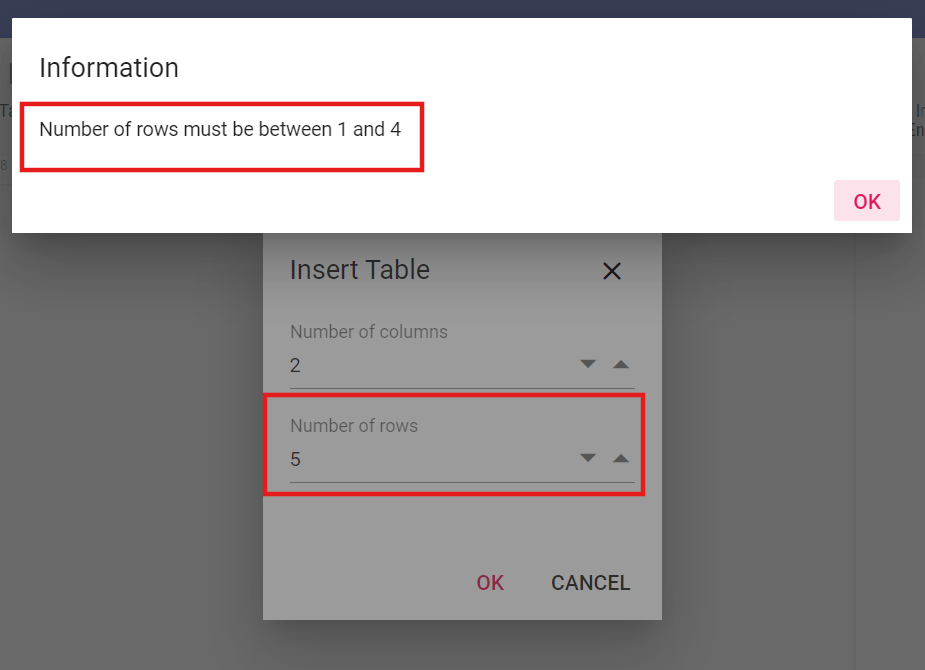
The maximum value of the Row property is 32767, as per the Microsoft Word application, and you can set any value less than or equal to 32767 to this property.
Set the maximum number of Columns when inserting a table
You can use the maximumColumns property to set the maximum number of columns allowed while inserting a table in the DOCX Editor component.
Refer to the following sample code.
let container: DocumentEditorContainer = new DocumentEditorContainer({ documentEditorSettings: { maximumColumns: 4 } });When the maximum column limit is reached, an alert will appear, as follows:
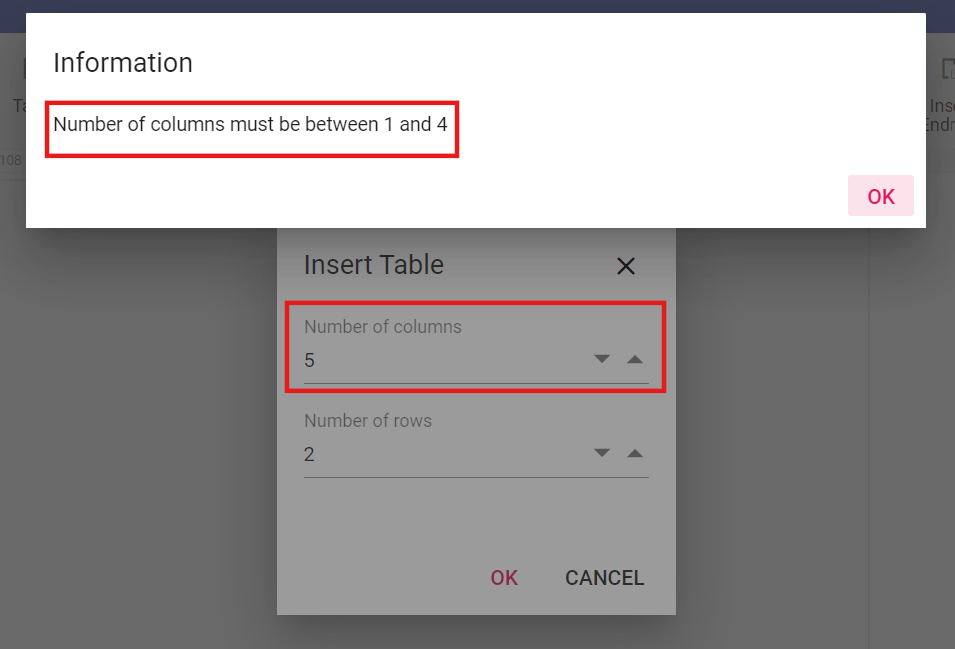
The maximum value of the Column property is 63, as per the Microsoft Word application, and you can set any value less than or equal to 63 to this property.
Insert rows
You can add a row (or several rows) above or below the row at the cursor position by using the insertRow method. This method accepts the following parameters:
| Parameter | Type | Description |
|---|---|---|
| above (optional) | boolean | Optional. Defaults to false and inserts below the row at the cursor position. |
| count (optional) | number | Optional. Defaults to 1. |
Refer to the following sample code.
// Inserts a row below the row at the cursor position.
documenteditor.editor.insertRow();

// Inserts a row above the row at the cursor position.
documenteditor.editor.insertRow(true);

// Inserts three rows above the row at the cursor position.
documenteditor.editor.insertRow(true, 3);
Insert columns
You can add a column (or several columns) to the left or right of the column at the cursor position by using the insertColumn method. This method accepts the following parameters:
| Parameter | Type | Description |
|---|---|---|
| left (optional) | boolean | Optional. Defaults to false and inserts to the right of the column at the cursor position. |
| count (optional) | number | Optional. Defaults to 1. |
Refer to the following sample code.
// Insert a column to the right of the column at the cursor position.
documenteditor.editor.insertColumn();

// Insert a column to the left of the column at the cursor position.
documenteditor.editor.insertColumn(true);

// Insert two columns to the left of the column at the cursor position.
documenteditor.editor.insertColumn(true, 2);
Select an entire table
If the cursor position is inside a table, you can select the entire table by using the following sample code.
documenteditor.selection.selectTable();Select row
You can select the entire row at the cursor position by using the following sample code.
documenteditor.selection.selectRow();If the current selection spans cells of different rows, all these rows will be selected.
Select column
You can select the entire column at the cursor position by using the following sample code.
documenteditor.selection.selectColumn();If the current selection spans cells of different columns, all these columns will be selected.
Select cell
You can select the cell at the cursor position by using the following sample code.
documenteditor.selection.selectCell();Delete table
DOCX Editor allows you to delete the entire table. You can use the deleteTable() method of the editor instance if the selection is in a table. Refer to the following sample code.
documenteditor.editor.deleteTable();Delete row
DOCX Editor allows you to delete the selected number of rows. You can use the deleteRow() method of the editor instance to delete the selected number of rows if the selection is in a table. Refer to the following sample code.
documenteditor.editor.deleteRow();Delete column
DOCX Editor allows you to delete the selected number of columns. You can use the deleteColumn() method of the editor instance to delete the selected number of columns if the selection is in a table. Refer to the following sample code.
documenteditor.editor.deleteColumn();Merge cells
You can merge cells vertically, horizontally, or a combination of both into a single cell. To vertically merge the cells, the columns within the selection should be aligned in the left and right directions. To horizontally merge the cells, the rows within the selection should be aligned in the top and bottom directions.
Refer to the following sample code.
documenteditor.editor.mergeCells();Positioning the table
DOCX Editor preserves the position properties of the table and displays the table based on the position properties. It does not support modifying the position properties. However, the table moves automatically with the surrounding text if it is positioned relative to the paragraph.
How to work with tables
The following sample demonstrates how to delete the table rows or columns, merge cells, and bind the API to a button.
var documenteditor = new ej.documenteditor.DocumentEditor({
  isReadOnly: false,
  enableSelection: true,
  enableEditorHistory: true,
  enableEditor: true,
  enableTableDialog: true,
  enableContextMenu: true,
  enableSfdtExport: true,
  height: '370px'
});
function toolbarButtonClick(arg) {
  switch (arg.item.id) {
    case 'table':
      //Insert table API to add table
      documenteditor.editor.insertTable(3, 2);
      break;
    case 'insert_above':
      //Insert the specified number of rows to the table above to the row at cursor position
      documenteditor.editor.insertRow(true, 2);
      break;
    case 'insert_below':
      //Insert the specified number of rows to the table below to the row at cursor position
      documenteditor.editor.insertRow();
      break;
    case 'insert_left':
      //Insert the specified number of columns to the table left to the column at cursor position
      documenteditor.editor.insertColumn(true, 2);
      break;
    case 'insert_right':
      //Insert the specified number of columns to the table right to the column at cursor position
      documenteditor.editor.insertColumn();
      break;
    case 'delete_table':
      //Delete the entire table
      documenteditor.editor.deleteTable();
      break;
    case 'delete_row':
      //Delete the selected number of rows
      documenteditor.editor.deleteRow();
      break;
    case 'delete_column':
      //Delete the selected number of columns
      documenteditor.editor.deleteColumn();
      break;
    case 'merge_cell':
      //Merge the selected cells into one (both vertically and horizontally)
      documenteditor.editor.mergeCells();
      break;
    case 'table_dialog':
      //Opens insert table dialog
      documenteditor.showDialog('Table');
      break;
  }
}
var toolBar = new ej.navigations.Toolbar({
  clicked: toolbarButtonClick,
  items: [
    {
      prefixIcon: 'e-de-ctnr-table e-icons',
      tooltipText: 'Insert Table',
      id: 'table',
    },
    {type: 'Separator' },
    {
      prefixIcon: 'e-de-ctnr-insertabove e-icons',
      tooltipText: 'Insert new row above',
      id: 'insert_above',
    },
    {
      prefixIcon: 'e-de-ctnr-insertbelow e-icons',
      tooltipText: 'Insert new row below',
      id: 'insert_below',
    },
    {type: 'Separator' },
    {
      prefixIcon: 'e-de-ctnr-insertleft e-icons',
      tooltipText: 'Insert new column to the left',
      id: 'insert_left',
    },
    {
      prefixIcon: 'e-de-ctnr-insertright e-icons',
      tooltipText: 'Insert new column to the right',
      id: 'insert_right',
    },
    {type: 'Separator' },
    {
      prefixIcon: 'e-icons e-de-delete-table',
      tooltipText: 'Delete Entire table',
      id: 'delete_table',
    },
    {
      prefixIcon: 'e-de-ctnr-deleterows e-icons',
      tooltipText: 'Delete the selected row',
      id: 'delete_row',
    },
    {
      prefixIcon: 'e-de-ctnr-deletecolumns e-icons',
      tooltipText: 'Delete the selected column',
      id: 'delete_column',
    },
    {type: 'Separator' },
    {
      prefixIcon: 'e-de-ctnr-mergecell e-icons',
      tooltipText: 'Merge the selected cells',
      id: 'merge_cell',
    },
    {type: 'Separator' },
    {
      text: 'Dialog',
      tooltipText: 'Open insert table dialog',
      id: 'table_dialog',
    },
  ],
});
toolBar.appendTo('#toolbar');
documenteditor.appendTo('#DocumentEditor');
documenteditor.editor.insertTable(2, 2);
<!DOCTYPE html><html lang="en"><head>
<title>EJ2 Animation</title>
<meta charset="utf-8">
<meta name="viewport" content="width=device-width, initial-scale=1.0">
<meta name="description" content="Typescript UI Controls">
<meta name="author" content="Syncfusion">
<link href="index.css" rel="stylesheet">
<link href="https://cdn.syncfusion.com/ej2/35.1.37/ej2-documenteditor/styles/fabric.css" rel="stylesheet">
<link href="https://cdn.syncfusion.com/ej2/35.1.37/ej2-buttons/styles/fabric.css" rel="stylesheet">
<link href="https://cdn.syncfusion.com/ej2/35.1.37/ej2-base/styles/fabric.css" rel="stylesheet">
<link href="https://cdn.syncfusion.com/ej2/35.1.37/ej2-dropdowns/styles/fabric.css" rel="stylesheet">
<link href="https://cdn.syncfusion.com/ej2/35.1.37/ej2-inputs/styles/fabric.css" rel="stylesheet">
<link href="https://cdn.syncfusion.com/ej2/35.1.37/ej2-lists/styles/fabric.css" rel="stylesheet">
<link href="https://cdn.syncfusion.com/ej2/35.1.37/ej2-navigations/styles/fabric.css" rel="stylesheet">
<link href="https://cdn.syncfusion.com/ej2/35.1.37/ej2-popups/styles/fabric.css" rel="stylesheet">
<link href="https://cdn.syncfusion.com/ej2/35.1.37/ej2-splitbuttons/styles/fabric.css" rel="stylesheet">
<script src="https://cdn.syncfusion.com/ej2/35.1.37/dist/ej2.min.js" type="text/javascript"></script>
<script src="https://cdn.syncfusion.com/ej2/syncfusion-helper.js" type ="text/javascript"></script>
</head>
<body>
<div id="container">
<div id="toolbar"></div>
<div id="DocumentEditor">
</div>
</div>
<script>
var ele = document.getElementById('container');
if(ele) {
ele.style.visibility = "visible";
}
</script>
<script src="index.js" type="text/javascript"></script>
</body></html>