How can I help you?
Getting Started with Blazor DOCX Editor in Blazor Server
29 Apr 20266 minutes to read
Syncfusion® DOCX Editor (Document Editor) enables you to create, edit, view, and print Word documents in web applications. This section guides you through the steps to get started and create a DOCX Editor in a Blazor Server application.
Steps to create a Blazor Server DOCX Editor
This section explains how to include the Blazor Document Editor component in a Blazor Server app using Visual Studio and Visual Studio Code.
Prerequisites
Create a new Blazor Server App in Visual Studio
You can create a Blazor Server App using Visual Studio via Microsoft Templates.
Install Syncfusion® Blazor Nuget packages
To add Blazor Document Editor component in the application, follow the steps below.
- open NuGet package manager in Visual Studio (Tools → NuGet Package Manager → Manage NuGet Packages for Solution),
- search and install the following packages
- Syncfusion.Blazor.WordProcessor
- Syncfusion.Blazor.Themes Alternatively, use the following Package Manager commands.
Install-Package Syncfusion.Blazor.WordProcessor -Version 33.2.3
Install-Package Syncfusion.Blazor.Themes -Version 33.2.3
NOTE
Syncfusion® Blazor DOCX Editor are available on nuget.org. Refer to the NuGet packages topic for available NuGet packages and component details.
Prerequisites
Create a new Blazor Server App in Visual Studio Code
You can create a Blazor Server App using Visual Studio Code via Microsoft Templates.
Alternatively, you can create a Server application using the following commands in the terminal(Ctrl+`).
dotnet new blazorserver -o BlazorApp
cd BlazorApp
Install Syncfusion® Blazor Nuget packages
- Press Ctrl+` to open the integrated terminal in Visual Studio Code.
- Ensure the terminal is at the project root directory where the
.csprojfile is located. - Run the following command to install
dotnet add package Syncfusion.Blazor.WordProcessor -v 33.2.3
dotnet add package Syncfusion.Blazor.Themes -v 33.2.3
dotnet restore
NOTE
Syncfusion® Blazor DOCX Editor are available on nuget.org. Refer to NuGet packages topic for available NuGet packages list with component details.
Register Syncfusion® Blazor Services
Open ~/_Imports.razor file and import the Syncfusion.Blazor and Syncfusion.Blazor.DocumentEditor namespaces.
@using Syncfusion.Blazor
@using Syncfusion.Blazor.DocumentEditor
Now, register the Syncfusion® Blazor service in the ~/Program.cs file of your Blazor Server app.
using Microsoft.AspNetCore.Components;
using Microsoft.AspNetCore.Components.Web;
using Syncfusion.Blazor;

var builder = WebApplication.CreateBuilder(args);

// Add services to the container.
builder.Services.AddRazorPages();
builder.Services.AddServerSideBlazor().AddHubOptions(o => { o.MaximumReceiveMessageSize = 102400000; });

// Add Syncfusion Blazor service to the container.
builder.Services.AddSyncfusionBlazor();

var app = builder.Build();
Add Themes and Script References
Add the following stylesheet and script to the head section. The theme stylesheet and script can be accessed from NuGet through Static Web Assets. Reference the stylesheet and script in the <head> of the main page as follows:
-
For .NET 6 Blazor Server app, include it in ~/Pages/_Layout.cshtml file.
-
For .NET 7 Blazor Server app, include it in the ~/Pages/_Host.cshtml file.
<head>
    ....
    <link href="_content/Syncfusion.Blazor.Themes/bootstrap5.css" rel="stylesheet" />
    <script src="_content/Syncfusion.Blazor.WordProcessor/scripts/syncfusion-blazor-documenteditor.min.js" type="text/javascript"></script>
</head>
NOTE
Check out the Blazor Themes topic to discover various methods (Static Web Assets, CDN, and CRG) for referencing themes in your Blazor application. Also, check out the Adding Script Reference topic to learn different approaches for adding script references in your Blazor application.
Add the Syncfusion® Document Editor component
Add the Syncfusion® Blazor Document Editor component in the ~/Pages/Index.razor file.
<SfDocumentEditorContainer EnableToolbar=true></SfDocumentEditorContainer>Run the application
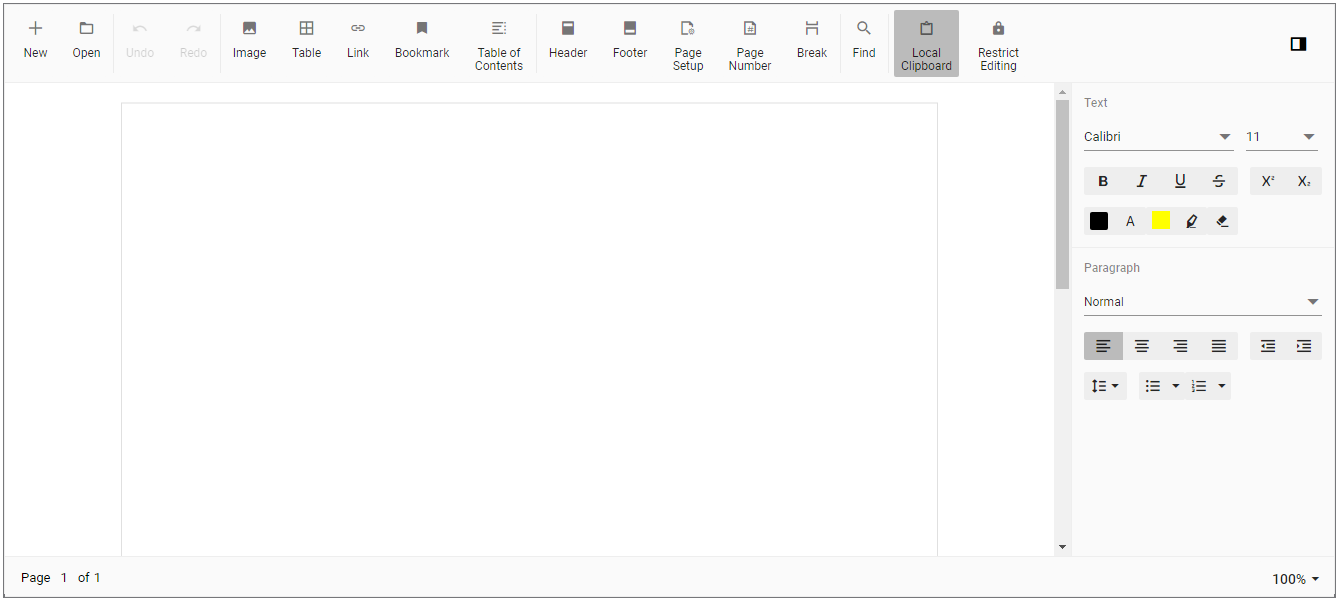
Press Ctrl+F5 (Windows) or ⌘+F5 (macOS) to launch the application. This will render the Syncfusion® Blazor DocumentEditor component in your default web browser.
Load an Existing Document
To load an existing document during control initialization, use the following code example, which opens a Word document. Convert it to SFDT and load it in the editor.
@using System.IO;
@using Syncfusion.Blazor.DocumentEditor;

<SfDocumentEditorContainer @ref="container" EnableToolbar=true>
    <DocumentEditorContainerEvents Created="OnCreated"></DocumentEditorContainerEvents>
</SfDocumentEditorContainer>

@code {
    SfDocumentEditorContainer container;

    public void OnCreated(object args)
    {
        string filePath = "wwwroot/data/GettingStarted.docx";
        using (FileStream fileStream = new FileStream(filePath, System.IO.FileMode.Open, System.IO.FileAccess.Read))
        {
            WordDocument document = WordDocument.Load(fileStream, ImportFormatType.Docx);
            string json = JsonSerializer.Serialize(document);
            document.Dispose();
            //To observe the memory go down, null out the reference of document variable.
            document = null;
            SfDocumentEditor editor = container.DocumentEditor;
            editor.OpenAsync(json);
            //To observe the memory go down, null out the reference of json variable.
            json = null;
        }
    }
}
You can download a complete working sample from GitHub.
Video tutorial
To get started quickly with the Blazor Document Editor component, watch the following video.