Getting Started with Angular DOCX Editor
27 Aug 20268 minutes to read
Angular DOCX Editor (Document Editor) enables you to create, edit, view, and print Word documents in web applications. This section guides you through the steps to get started and create a DOCX Editor in an Angular application.
Prerequisites
- Node.js 24+ (LTS recommended).
- Syncfusion CLI.
Create a new Angular application using Syncfusion CLI
You can create an Angular application using the Syncfusion CLI. The CLI provides two ways to create a project:
Non-interactive mode
Non-interactive mode allows you to create a project directly using a single command with the required command-line arguments.
sf new syncfusion-angular-app --framework angular --template docx-editor --theme tailwind3In this mode, the project configuration is passed directly in the command. The above command creates an Angular application configured with the Syncfusion® DOCX Editor component.
Interactive mode
sfWhen you run the sf command, the CLI prompts you to select the required project configuration. To create an Angular application with the Syncfusion® DOCX Editor component, select the following options:
√ Project name? ... syncfusion-angular-app
√ Choose Framework: » Angular
√ Choose Template: » DOCX Editor
√ Choose Theme: » Tailwind3
√ Choose Style Format: » CSS
√ Would you like to integrate the Syncfusion MCP Server (AI Assistant) into this project? ... no
√ Would you like to install Syncfusion Component Skills for AI-powered development? ... no
√ Install dependencies and start app now? ... no
The above selections generate an Angular application configured with the Syncfusion® DOCX Editor component. You can choose different values for language, theme, style format, MCP setup, and skills installation based on your project requirements.
The Syncfusion® CLI creates the project with a predefined template. After the project is generated, you can customize or replace the component code based on your application requirements.
Run the project
Once the project is created, navigate to the project directory and run the following commands in your terminal.
cd syncfusion-angular-app
npm install
ng serve
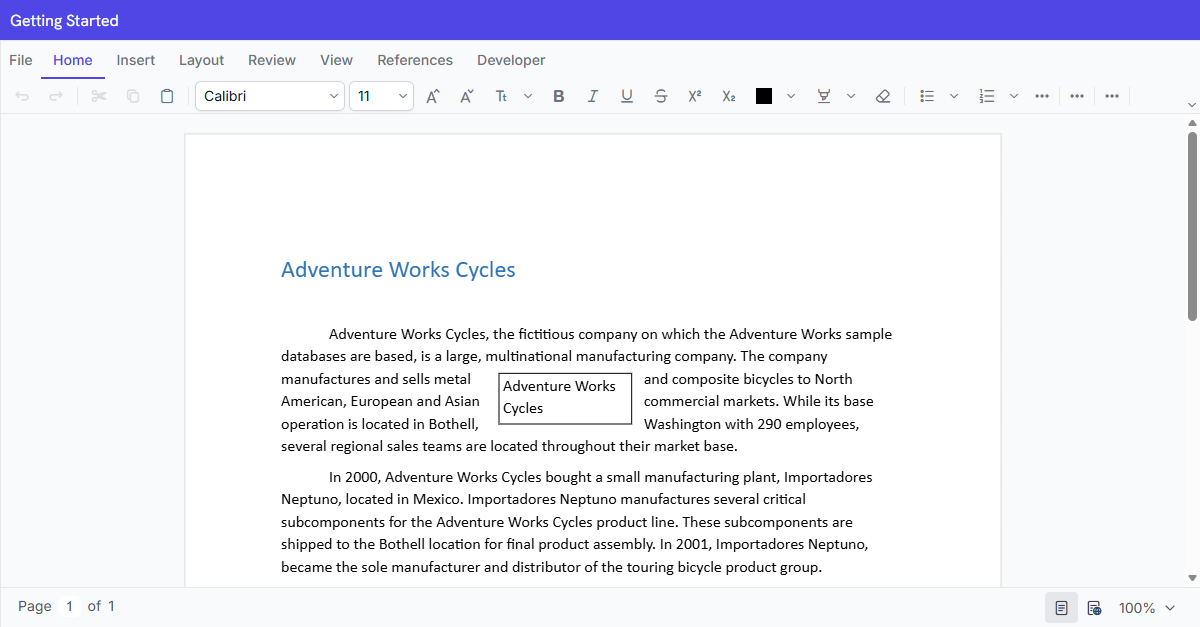
The output will appear as follows:
Prerequisites
Setup Angular environment
You can use Angular CLI to set up your Angular application. To install Angular CLI, use the following command:
npm install -g @angular/cli
Create an Angular application
Step 1: Start a new Angular application using the Angular CLI command below:
ng new documenteditor-app
Step 2: This command will prompt you to configure settings like enabling Angular routing and choosing a stylesheet format.
? Which stylesheet system would you like to use?
❯ CSS             [ https://developer.mozilla.org/docs/Web/CSS                     ]
  Tailwind CSS    [ https://tailwindcss.com                                        ]
  Sass (SCSS)     [ https://sass-lang.com/documentation/syntax#scss                ]
  Sass (Indented) [ https://sass-lang.com/documentation/syntax#the-indented-syntax ]
  Less            [ http://lesscss.org                                             ]
In this guide, CSS is selected as the stylesheet format.
Step 3: During project setup, when prompted for the server-side rendering (SSR) option, choose the appropriate configuration.
? Do you want to enable Server-Side Rendering (SSR) and Static Site Generation (SSG/Prerendering)? (y/N) N
Step 4: Select the required AI tool or ‘none’ if you do not need any AI tool.
? Which AI tools do you want to configure with Angular best practices? https://angular.dev/ai/develop-with-ai
❯ None
  Agents.md      [ https://agents.md/                                               ]
  Claude         [ https://docs.anthropic.com/en/docs/claude-code/memory            ]
  Cursor         [ https://docs.cursor.com/en/context/rules                         ]
  Gemini         [ https://ai.google.dev/gemini-api/docs                            ]
  GitHub Copilot [ https://code.visualstudio.com/docs/copilot/copilot-customization ]
  JetBrains AI   [ https://www.jetbrains.com/help/junie/customize-guidelines.html   ]
Step 5: Navigate to the created project folder.
cd documenteditor-app
Install the DOCX Editor packages
The DOCX Editor package is available in the public npm registry and can be installed directly from npmjs.com.
To install the DOCX Editor component, use the following command:
npm install @syncfusion/ej2-angular-documenteditor --save
Register a Syncfusion License Key
Before initializing the Angular DOCX Editor control, generate a Syncfusion license key and register it in your application.
Import the required CSS styles
Themes for DOCX Editor can be applied using CSS or SASS files from the npm theme packages, CDN, CRG, or Theme Studio. For more information, see the themes documentation.
This guide uses the Tailwind 3 theme as an example, sourced from the theme package. In this package, each component includes an index.css file that automatically loads all the required dependency styles. To install the Tailwind 3 theme package, use the following command:
npm install @syncfusion/ej2-tailwind3-theme
By default, projects include an src/styles.css file with default styles. These default styles may conflict with Syncfusion component styles. Clear all content from the src/styles.css file to prevent style conflicts.
The required styles for the DOCX Editor are imported in the src/styles.css file:
@import "../node_modules/@syncfusion/ej2-tailwind3-theme/styles/document-editor/index.css";
@import "../node_modules/@syncfusion/ej2-tailwind3-theme/styles/document-editor-container/index.css";
Initialize the DOCX Editor
Modify src/app/app.ts to render the DOCX Editor component by adding the Angular DOCX Editor selector in its template section.
import { Component } from '@angular/core';
import {
  DocumentEditorContainerModule,
  ToolbarService
} from '@syncfusion/ej2-angular-documenteditor';

@Component({
  selector: 'app-root',
  standalone: true,
  imports: [DocumentEditorContainerModule],
  providers: [ToolbarService],
  template: `
    <!-- Use the following service URL only for demo purposes -->
    <ejs-documenteditorcontainer
      serviceUrl="https://document.syncfusion.com/web-services/docx-editor/api/documenteditor/"
      height="600px"
      style="display: block"
      [enableToolbar]="true">
    </ejs-documenteditorcontainer>
  `
})
export class App {}
The hosted Web API URL is for demo and evaluation purposes only. For production, host your own web service using the GitHub Web Service example or the Docker image.
Run the application
Run the application using the following command:
ng serve --open
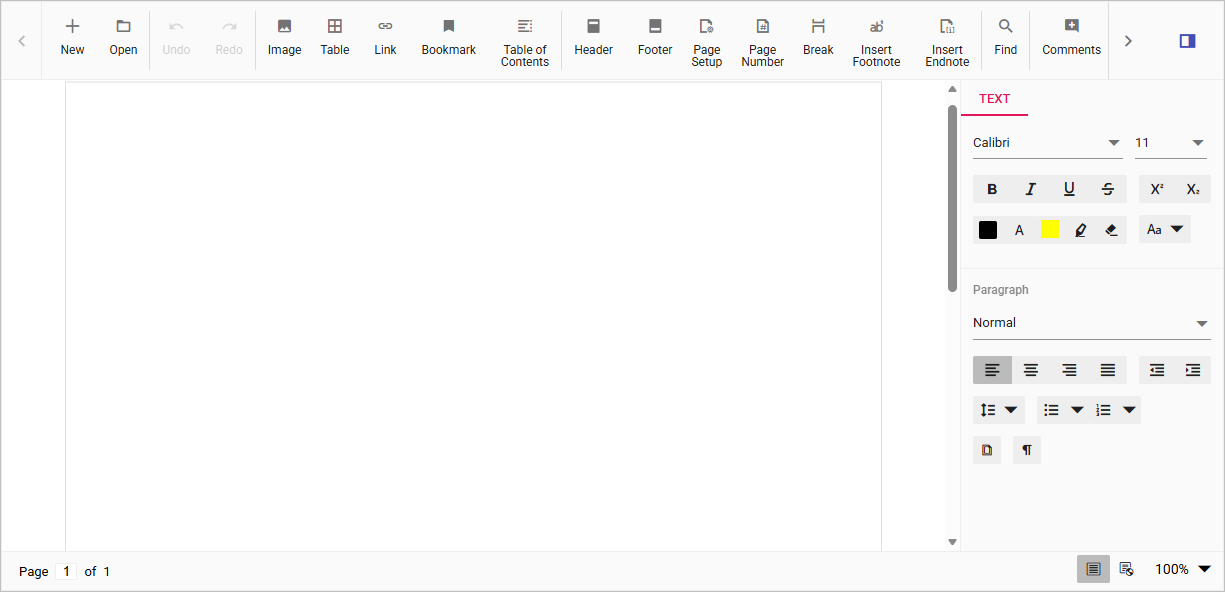
After the application starts, open the localhost URL shown in the terminal. The DOCX Editor is rendered in the browser with a toolbar and an editable document area, as shown below.
You can also explore the DOCX Editor interactively using the live sample below.
Server-side dependencies
The DOCX Editor component requires server-side interactions for the following operations:
- Open file formats other than SFDT
- Paste with formatting
- Restrict editing
- Spell check
- Save as file formats other than SFDT and DOCX
If you don’t require the above functionalities, you can deploy the component as a pure client-side solution without any server-side interactions.
For detailed information about server-side dependencies, refer to the Web Services Overview page.
Looking for the full Angular DOCX Editor component overview, features, pricing, and documentation? Visit the Angular DOCX Editor page.
Online Demo
Explore how to create, edit, and print Word documents in the Angular DOCX Editor in this live demo here.
Getting Started Video
Follow this quick walkthrough to install, configure, and start using the Angular DOCX Editor in your application.