How can I help you?
Getting started with React DOCX Editor
27 May 20265 minutes to read
Syncfusion® React DOCX Editor (Document Editor) enables you to create, edit, view, and print Word documents in web applications. This section guides you through the steps to get started and create a DOCX Editor in a React application.
Steps to create a React DOCX Editor
Prerequisites
System requirements for Document Editor
Create a new React application
To set up a React application in a TypeScript environment, run the following commands:
npm create vite@latest documenteditor-app -- --template react-ts
cd documenteditor-app
Install the Document Editor packages
The Document Editor package is available in the public npm registry and can be installed directly from npmjs.com.
To install the Document Editor component, use the following command:
npm install @syncfusion/ej2-react-documenteditor --save
Add CSS reference
Add the Document Editor component and its dependent component styles available in the node_modules/@syncfusion package folder. Reference these styles in the src/index.css file.
@import '../node_modules/@syncfusion/ej2-base/styles/tailwind3.css';
@import '../node_modules/@syncfusion/ej2-buttons/styles/tailwind3.css';
@import '../node_modules/@syncfusion/ej2-inputs/styles/tailwind3.css';
@import '../node_modules/@syncfusion/ej2-popups/styles/tailwind3.css';
@import '../node_modules/@syncfusion/ej2-lists/styles/tailwind3.css';
@import '../node_modules/@syncfusion/ej2-navigations/styles/tailwind3.css';
@import '../node_modules/@syncfusion/ej2-splitbuttons/styles/tailwind3.css';
@import '../node_modules/@syncfusion/ej2-dropdowns/styles/tailwind3.css';
@import '../node_modules/@syncfusion/ej2-react-documenteditor/styles/tailwind3.css';
Add the Document Editor component
Add the Document Editor component to your application. In the src/App.tsx file, add the following code to initialize the component:
import * as React from 'react';
import {
  DocumentEditorContainerComponent,
  Toolbar
} from '@syncfusion/ej2-react-documenteditor';

DocumentEditorContainerComponent.Inject(Toolbar);

function App() {
  return (
<DocumentEditorContainerComponent
            id="container"
            height="590px"
            // Use the following service URL only for demo purposes
            serviceUrl="https://document.syncfusion.com/web-services/docx-editor/api/documenteditor/"
            enableToolbar={true}
        />
  );
}

export default App;
NOTE
The hosted Web API URL is for demo and evaluation purposes only. For production, host your own web service using the GitHub Web Service example or the Docker image.
Run the application
Run the application using the following command:
npm run dev
Prerequisites
System requirements for Document Editor
Create a new React application
To set up a React application in a JavaScript environment, run the following commands:
npm create vite@latest documenteditor-app -- --template react
cd documenteditor-app
Install the Document Editor packages
The Document Editor package is available in the public npm registry and can be installed directly from npmjs.com.
To install the Document Editor component, use the following command:
npm install @syncfusion/ej2-react-documenteditor --save
Add CSS reference
Add the Document Editor component and its dependent component styles available in the node_modules/@syncfusion package folder. Reference these styles in the src/index.css file:
@import '../node_modules/@syncfusion/ej2-base/styles/tailwind3.css';
@import '../node_modules/@syncfusion/ej2-buttons/styles/tailwind3.css';
@import '../node_modules/@syncfusion/ej2-inputs/styles/tailwind3.css';
@import '../node_modules/@syncfusion/ej2-popups/styles/tailwind3.css';
@import '../node_modules/@syncfusion/ej2-lists/styles/tailwind3.css';
@import '../node_modules/@syncfusion/ej2-navigations/styles/tailwind3.css';
@import '../node_modules/@syncfusion/ej2-splitbuttons/styles/tailwind3.css';
@import '../node_modules/@syncfusion/ej2-dropdowns/styles/tailwind3.css';
@import '../node_modules/@syncfusion/ej2-react-documenteditor/styles/tailwind3.css';
Add the Document Editor component
Add the Document Editor component to your application. In the src/App.jsx file, add the following code to initialize the component:
import { DocumentEditorContainerComponent, Toolbar } from '@syncfusion/ej2-react-documenteditor';

DocumentEditorContainerComponent.Inject(Toolbar);

function App() {
    return (
        <DocumentEditorContainerComponent
            id="container"
            height="590px"
            // Use the following service URL only for demo purposes
            serviceUrl="https://document.syncfusion.com/web-services/docx-editor/api/documenteditor/"
            enableToolbar={true}
        />
    );
}

export default App;
NOTE
The hosted Web API URL is for demo and evaluation purposes only. For production, host your own web service using the GitHub Web Service example or the Docker image.
Run the application
Run the application using the following command:
npm run dev
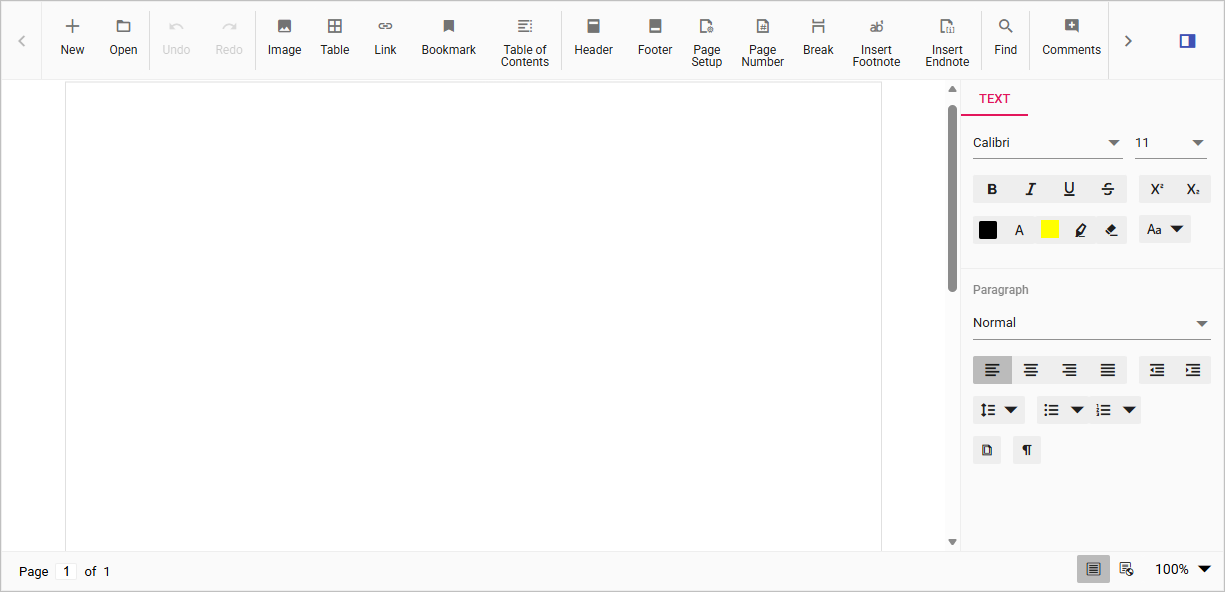
After the application starts, open the localhost URL shown in the terminal. The React Document Editor is rendered in the browser with a toolbar and an editable document area, as shown below.
You can also explore the Document Editor interactively using the live sample below.
NOTE
Video tutorial
To get started quickly with Document Editor component, you can check the video below.
Server-side dependencies
The Document Editor component requires server-side interactions for the following operations:
- Open file formats other than SFDT
- Paste with formatting
- Restrict editing
- Spell check
- Save as file formats other than SFDT and DOCX
NOTE
If you don’t require the above functionalities, you can deploy the component as a pure client-side solution without any server-side interactions.
For detailed information about server-side dependencies, refer to the Web Services Overview page.