Create Word documents in ASP.NET Core Web API
13 Aug 202610 minutes to read
Syncfusion® Essential® DocIO is a .NET Word library used to create, read, and edit Word documents programmatically without Microsoft Word or interop dependencies. Using this library, you can create a Word document in ASP.NET Core Web API.
Steps to create Word document programmatically
The below steps illustrate creating a simple Word document in ASP.NET Core Web API.
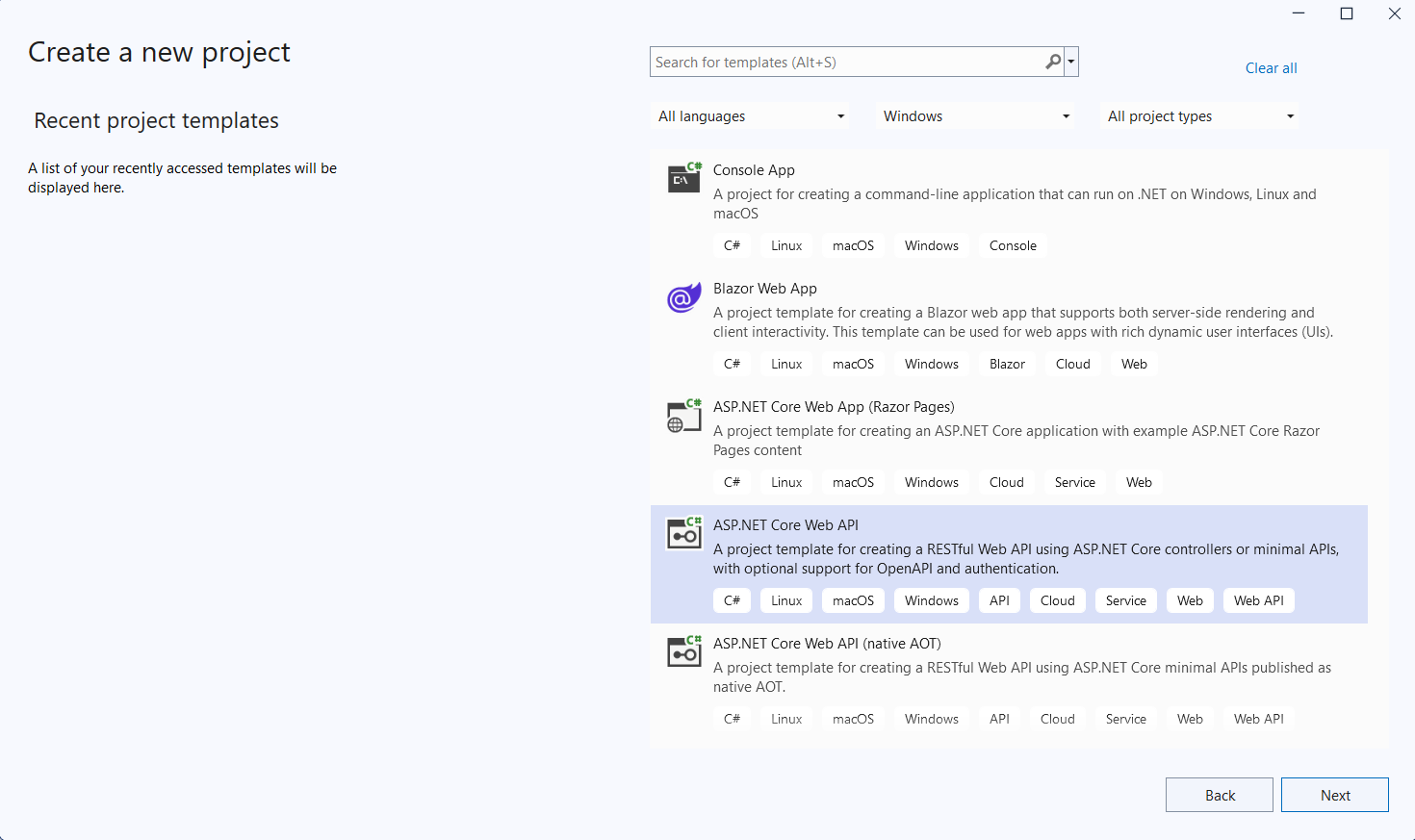
Step 1: Create a new C# ASP.NET Core Web API project.
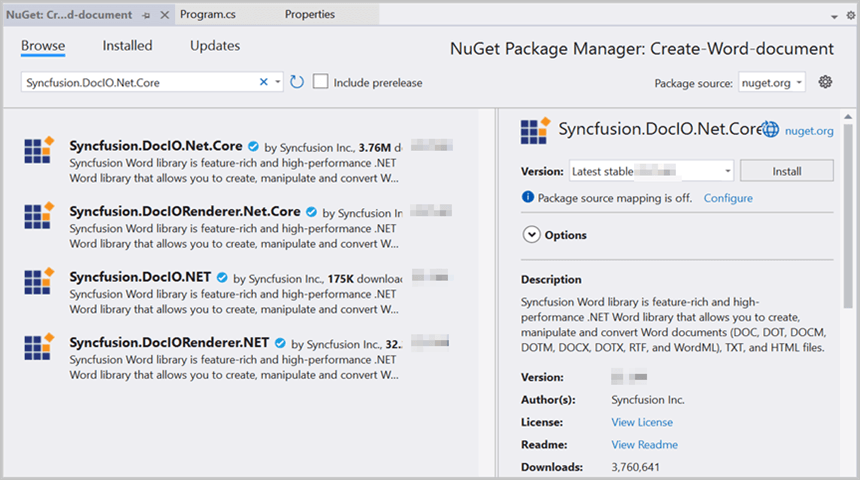
Step 2: Install the Syncfusion.DocIO.Net.Core NuGet package as a reference to your project from NuGet.org.
Starting with v16.2.0.x, if you reference Syncfusion® assemblies from the trial setup or from the NuGet feed, you must add a reference to the Syncfusion.Licensing assembly and include a valid license key in your application.
Install the Syncfusion.Licensing NuGet package and register the license key during application startup.
Syncfusion.Licensing.SyncfusionLicenseProvider.RegisterLicense("YOUR_LICENSE_KEY");For more information about generating and registering a license key, refer to the Syncfusion® licensing documentation.
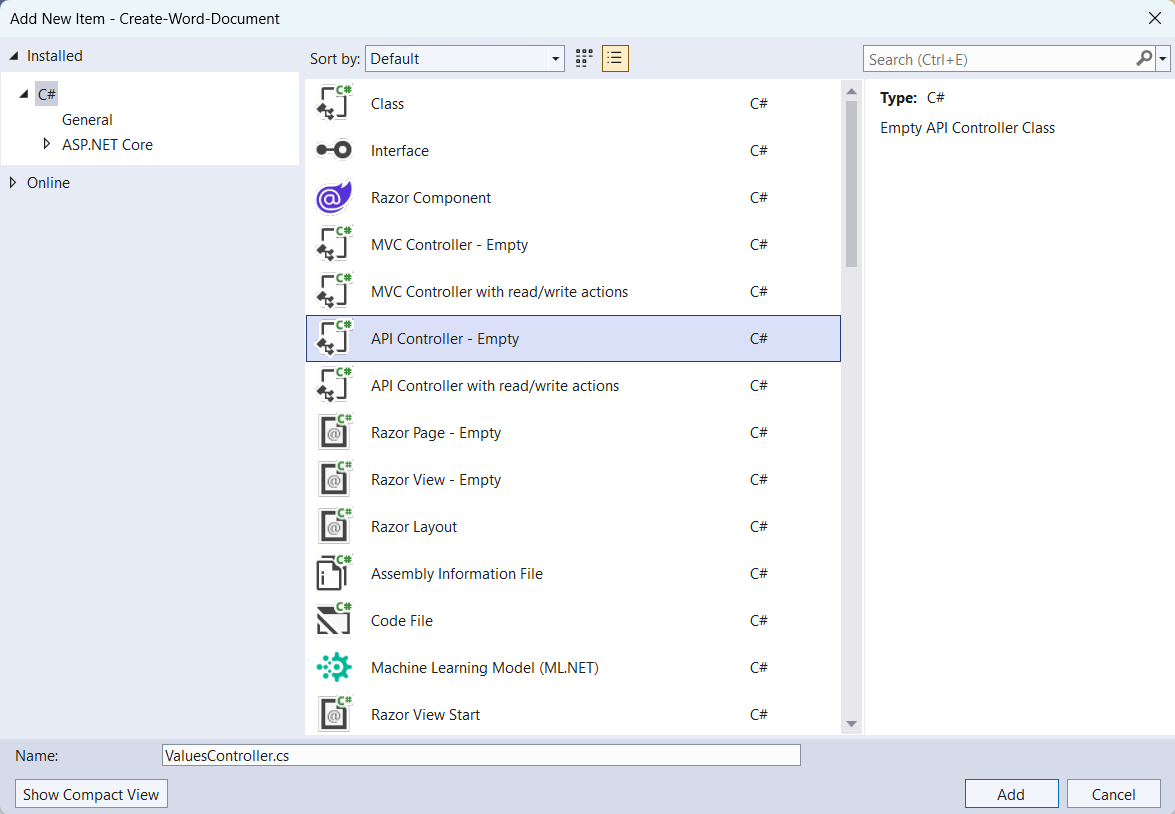
Step 3: Add a new empty API controller file named ValuesController.cs to the project.
Step 4: Include the following namespaces in the ValuesController.cs file.
using Microsoft.AspNetCore.Mvc;
using Syncfusion.DocIO;
using Syncfusion.DocIO.DLS;
Step 5: Add a new action method CreateDocument in ValuesController.cs and include the below code snippet to create an Word file and download it.
[HttpGet]
 [Route("api/Word")]
 public IActionResult CreateDocument()
 {
     try
     {
         var fileDownloadName = "Output.docx";
         const string contentType = "application/vnd.openxmlformats-officedocument.wordprocessingml.document";
         var stream = GenerateWordDocument();
         stream.Position = 0;
         return File(stream, contentType, fileDownloadName);
     }
     catch (Exception ex)
     {
         // Log or handle the exception
         return BadRequest("Error occurred while creating Word file: " + ex.Message);
     }
 }
Step 6: Implement the GenerateWordDocument method in ValuesController.cs.
public static MemoryStream GenerateWordDocument()
 {
     //Creating a new document
     WordDocument document = new WordDocument();
     //Adding a new section to the document
     WSection section = document.AddSection() as WSection;
     //Set Margin of the section
     section.PageSetup.Margins.All = 72;
     //Set page size of the section
     section.PageSetup.PageSize = new Syncfusion.Drawing.SizeF(612, 792);

     //Create Paragraph styles
     WParagraphStyle style = document.AddParagraphStyle("Normal") as WParagraphStyle;
     style.CharacterFormat.FontName = "Calibri";
     style.CharacterFormat.FontSize = 11f;
     style.ParagraphFormat.BeforeSpacing = 0;
     style.ParagraphFormat.AfterSpacing = 8;
     style.ParagraphFormat.LineSpacing = 13.8f;

     style = document.AddParagraphStyle("Heading 1") as WParagraphStyle;
     style.ApplyBaseStyle("Normal");
     style.CharacterFormat.FontName = "Calibri Light";
     style.CharacterFormat.FontSize = 16f;
     style.CharacterFormat.TextColor = Syncfusion.Drawing.Color.FromArgb(46, 116, 181);
     style.ParagraphFormat.BeforeSpacing = 12;
     style.ParagraphFormat.AfterSpacing = 0;
     style.ParagraphFormat.Keep = true;
     style.ParagraphFormat.KeepFollow = true;
     style.ParagraphFormat.OutlineLevel = OutlineLevel.Level1;

     //Add the header paragraph
     IWParagraph paragraph = section.HeadersFooters.Header.AddParagraph();
     paragraph.ApplyStyle("Normal");
     paragraph.ParagraphFormat.HorizontalAlignment = HorizontalAlignment.Left;
     WTextRange textRange = paragraph.AppendText("Adventure Works Cycles") as WTextRange;
     textRange.CharacterFormat.FontSize = 12f;
     textRange.CharacterFormat.FontName = "Calibri";
     textRange.CharacterFormat.TextColor = Syncfusion.Drawing.Color.Red;

     //Appends paragraph
     paragraph = section.AddParagraph();
     paragraph.ApplyStyle("Heading 1");
     paragraph.ParagraphFormat.HorizontalAlignment = HorizontalAlignment.Center;
     textRange = paragraph.AppendText("Adventure Works Cycles") as WTextRange;
     textRange.CharacterFormat.FontSize = 18f;
     textRange.CharacterFormat.FontName = "Calibri";

     //Appends paragraph
     paragraph = section.AddParagraph();
     paragraph.ParagraphFormat.FirstLineIndent = 36;
     paragraph.BreakCharacterFormat.FontSize = 12f;
     textRange = paragraph.AppendText("Adventure Works Cycles, the fictitious company on which the AdventureWorks sample databases are based, is a large, multinational manufacturing company. The company manufactures and sells metal and composite bicycles to North American, European and Asian commercial markets. While its base operation is in Bothell, Washington with 290 employees, several regional sales teams are located throughout their market base.") as WTextRange;
     textRange.CharacterFormat.FontSize = 12f;

     //Appends paragraph
     paragraph = section.AddParagraph();
     paragraph.ParagraphFormat.FirstLineIndent = 36;
     paragraph.BreakCharacterFormat.FontSize = 12f;
     textRange = paragraph.AppendText("In 2000, AdventureWorks Cycles bought a small manufacturing plant, Importadores Neptuno, located in Mexico. Importadores Neptuno manufactures several critical subcomponents for the AdventureWorks Cycles product line. These subcomponents are shipped to the Bothell location for final product assembly. In 2001, Importadores Neptuno, became the sole manufacturer and distributor of the touring bicycle product group.") as WTextRange;
     textRange.CharacterFormat.FontSize = 12f;

     //Saving the Word Document to the MemoryStream
     MemoryStream stream = new MemoryStream();
     document.Save(stream, FormatType.Docx);
     document.Close();
     //Set the position as '0'.
     stream.Position = 0;
     return stream;
 }
Step 7: Build the project.
Click on Build → Build Solution or press Ctrl+Shift+B to build the project.
Step 8: Run the project.
Click the Start button (green arrow) or press F5 to run the app.
A complete working sample is available on GitHub.
Steps for accessing the Web API using HTTP requests
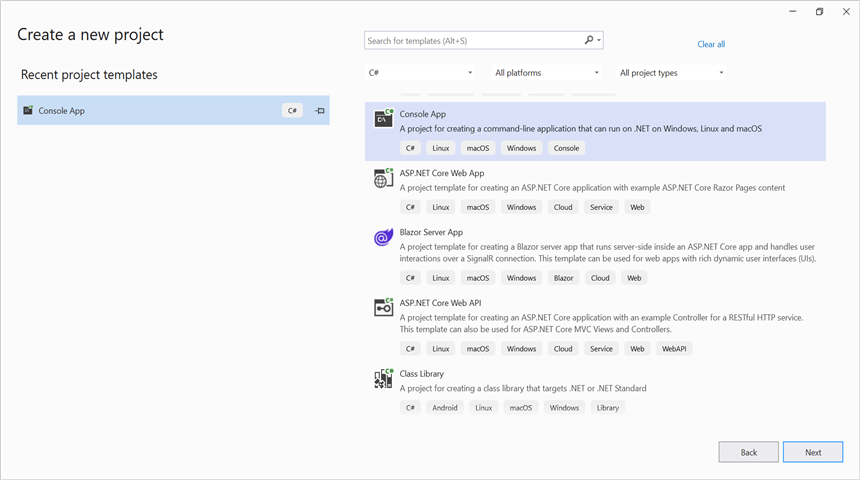
Step 1: Create a console application.
Ensure your ASP.NET Core Web API is running on the specified port before running this client. The port number comes from the Web API’s
launchSettings.jsonadjust it to match your environment.
Step 2: Add the below code snippet in the Program.cs file for accessing the Web API using HTTP requests. This example uses C# top-level statements with await (supported in .NET 6+ and later).
This method sends a GET request to the Web API endpoint to retrieve and save the generated Word document.
// Create an HttpClient instance
 using (HttpClient client = new HttpClient())
 {
     try
     {
         // Send a GET request to a URL
         HttpResponseMessage response = await client.GetAsync("https://localhost:7152/api/Values/api/Word");
         // Check if the response is successful
         if (response.IsSuccessStatusCode)
         {
             // Read the content as a string
             Stream responseBody = await response.Content.ReadAsStreamAsync();
             FileStream fileStream = File.Create("../../../Output/Output.docx");
             responseBody.CopyTo(fileStream);
             fileStream.Close();
         }
         else
         {
             Console.WriteLine("HTTP error status code: " + response.StatusCode);
         }
     }
     catch (HttpRequestException e)
     {
         Console.WriteLine("Request exception: " + e.Message);
     }
 }
Step 3: Build the project.
Click on Build → Build Solution or press Ctrl+Shift+B to build the project.
Step 4: Run the project.
Click the Start button (green arrow) or press F5 to run the app.
A complete working sample is available on GitHub.
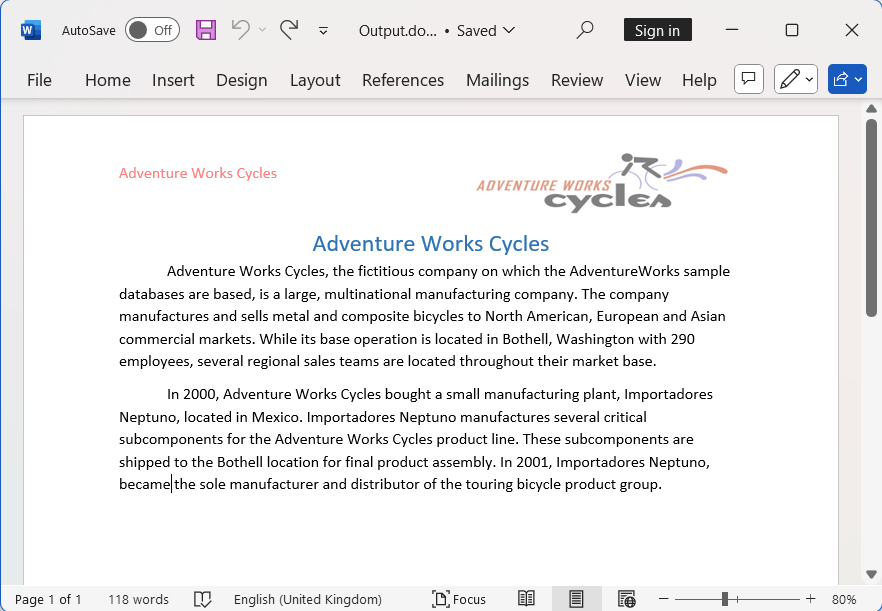
Upon executing the program, the Word document will be generated as follows.
Looking for the full .NET Word Library overview, features, pricing, and documentation? Visit the .NET Word Library page.
An online sample link to create a Word document in ASP.NET Core.