Convert Word Document to PDF in Xamarin
13 Aug 20267 minutes to read
Syncfusion® DocIO is a .NET Word library used to create, read, edit, and convert Word documents programmatically without Microsoft Word or interop dependencies. Using this library, you can convert a Word document to PDF in Xamarin.
Platform status: Xamarin and Xamarin.Forms are in maintenance mode. Microsoft recommends migrating to .NET MAUI for new development. For an equivalent guide for .NET MAUI, refer to Convert Word Document to PDF in .NET MAUI.
Prerequisites
- Visual Studio 2022 (or later) with the Mobile development with .NET workload installed.
- Xamarin.Forms supported target platforms (iOS, Android, and/or UWP) configured in the Visual Studio installer.
- A valid Syncfusion license key registered in your application (required from Syncfusion® v16.2.0.x onwards).
Steps to convert Word document to PDF in Xamarin
Step 1: Create a new Xamarin.Forms application project.
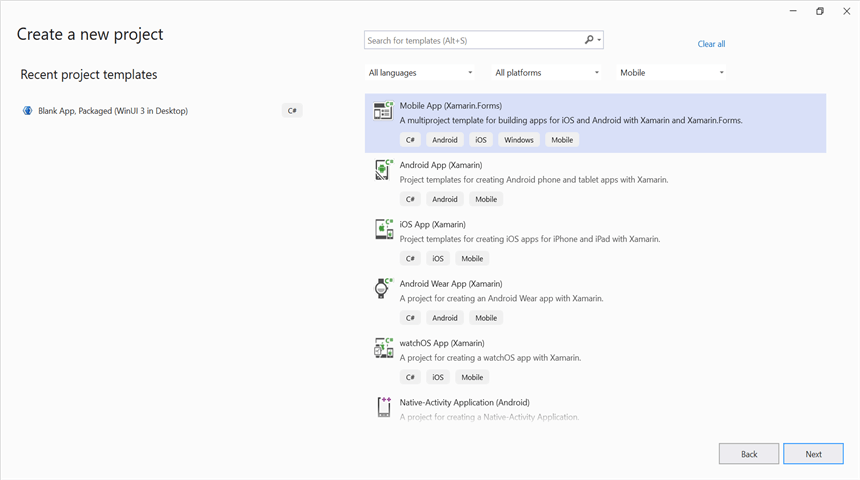
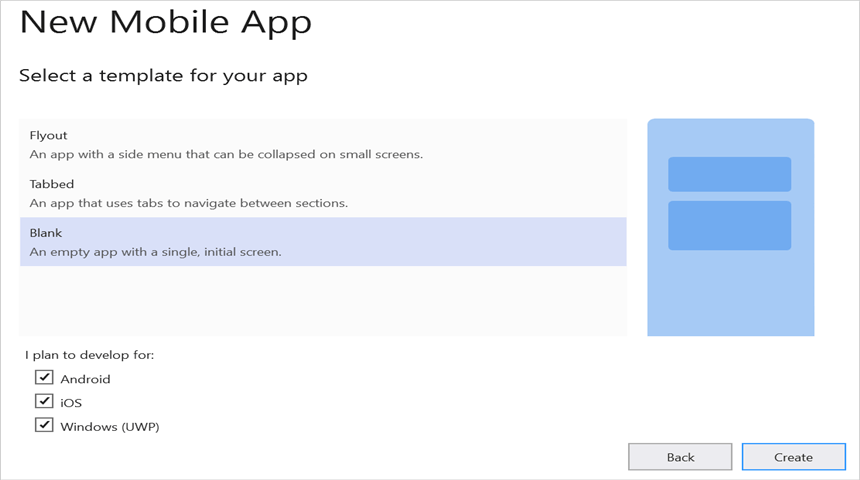
Step 2: Select a project template and the required platforms to deploy the application. In this application, the .NET Standard code-sharing strategy is selected so that the portable assemblies can be shared across multiple platforms. For more details about code sharing, refer here.
If .NET Standard is not available in the code-sharing strategy, the Portable Class Library (PCL) can be selected.
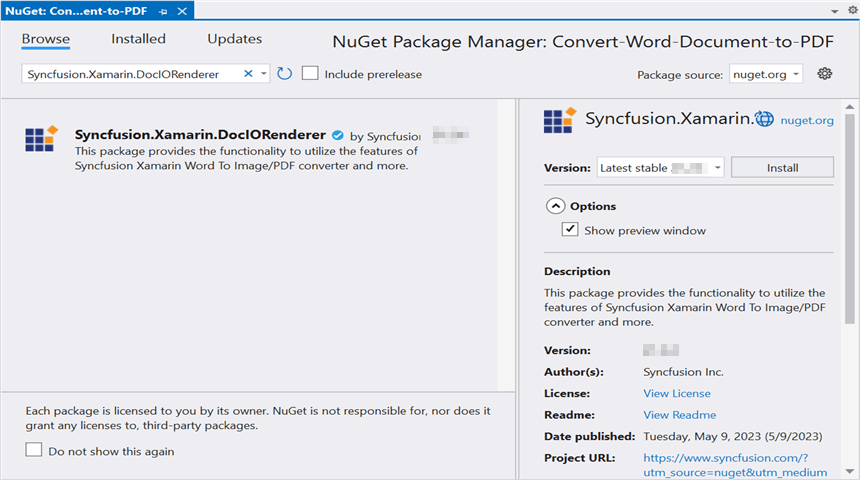
Step 3: Install the Syncfusion.Xamarin.DocIORenderer NuGet package as a reference to the .NET Standard project in your application from NuGet.org.
Starting with v16.2.0.x, if you reference Syncfusion® assemblies from trial setup or from the NuGet feed, you also have to add “Syncfusion.Licensing” assembly reference and include a license key in your projects. Please refer to this link to know about registering Syncfusion® license key in your application to use our components.
Step 4: Add a new Forms XAML page in the portable project. If no XAML page is defined in the App class, follow these steps; otherwise, proceed to the next step.
- To add a new XAML page, right-click the project and select Add > New Item, then add a Forms XAML Page from the list. Name it MainXamlPage.
-
In the
Appclass of the portable project (App.cs), replace the existing constructor of theAppclass with the code snippet given below, which invokes the MainXamlPage.
public App()
{
    // The root page of your application
    MainPage = new MainXamlPage();
}
Step 5: In the MainXamlPage.xaml add new button as shown below.
<ContentPage xmlns="http://xamarin.com/schemas/2014/forms"
             xmlns:x="http://schemas.microsoft.com/winfx/2009/xaml"
             x:Class="Convert_Word_Document_to_PDF.MainXamlPage">

    <StackLayout VerticalOptions="Center">
       <Button Text="Convert WordtoPDF" Clicked="OnButtonClicked" HorizontalOptions="Center"/>
    </StackLayout>
</ContentPage>
Step 6: Include the following namespaces in the MainXamlPage.xaml.cs file.
using System.IO;
using System.Reflection;
using Syncfusion.DocIO;
using Syncfusion.DocIO.DLS;
using Syncfusion.DocIORenderer;
using Syncfusion.Pdf;
Step 7: Include the below code snippet in the click event of the button in MainXamlPage.xaml.cs, to convert Word document to PDF and save it in a stream.
//Loading an existing Word document
Assembly assembly = typeof(MainXamlPage).GetTypeInfo().Assembly;
using (WordDocument document = new WordDocument(assembly.GetManifestResourceStream("Convert-Word-Document-to-PDF.Template.Input.docx"), FormatType.Docx))
{
    //Instantiation of DocIORenderer for Word to PDF conversion
    using (DocIORenderer render = new DocIORenderer())
    {
        //Converts Word document into PDF document
        using (PdfDocument pdfDocument = render.ConvertToPDF(document))
        {
            //Saves the PDF document to MemoryStream.
            MemoryStream stream = new MemoryStream();
            pdfDocument.Save(stream);

            //Save the stream as a file in the device and invoke it for viewing.
            Xamarin.Forms.DependencyService.Get<ISave>().SaveAndView("Sample.pdf", "application/pdf", stream);
        }
    }
}
Embedded resource: The input
Template.docxmust be added to the .NET Standard project and its Build Action set to EmbeddedResource in the Properties window. The file path used inGetManifestResourceStream(for example,Convert-Word-Document-to-PDF.Template.Input.docx) must match the project’s default namespace followed by the folder and file name.
Helper files for Xamarin
Refer the below helper files and add them into the mentioned project. These helper files allow you to save the stream as a physical file and open the file for viewing.
| Project | File Name | Summary |
| Represents the base interface for the save operation | ||
| Save implementation for iOS device | ||
| Helper class for viewing the PDF document on an iOS device | ||
| Save implementation for Android device | ||
| Save implementation for UWP device (deprecated; UWP is no longer actively supported by Microsoft) |
Registering the platform implementation: Each
Save*class must be registered withDependencyServiceby adding an assembly attribute in the corresponding platform project, for example:[assembly: Dependency(typeof(SaveIOS))]inAssemblyInfo.csof the iOS project, and the equivalent for Android and UWP.
Step 8: Build and run the application.
- In Visual Studio, select the target platform (iOS, Android, or UWP) and the target device/emulator.
- Press F5 (or click Run ▶ Start Debugging) to build, deploy, and launch the app on the selected device.
- Tap the Convert Word to PDF button. The app converts the embedded Word document to PDF and opens the output on the device.
If you encounter a
MissingManifestResourceException, verify that the input.docxis added as an EmbeddedResource and that the manifest path used inGetManifestResourceStreamexactly matches the project’s default namespace + folder + file name.
Compile and execute the application. This application converts a Word document to PDF.
You can download a complete working sample from GitHub.
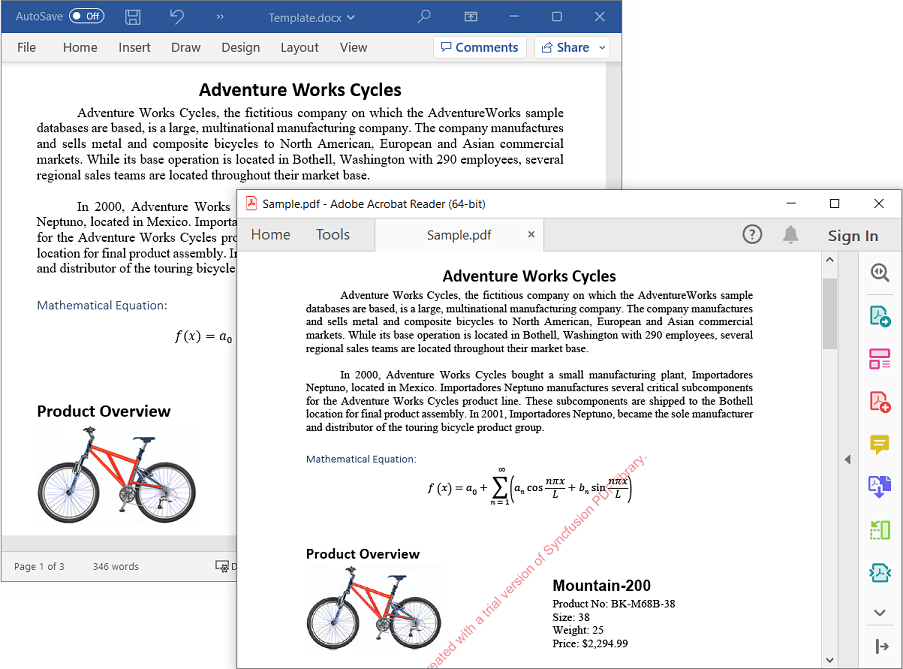
By executing the program, you will get the PDF document as follows.
Looking for the full .NET Word Library overview, features, pricing, and documentation? Visit the .NET Word Library page.
For an online demo of converting a Word document to PDF, refer to the Word-to-PDF online sample.