Convert Word to PDF in ASP.NET Core Web API
13 Aug 20267 minutes to read
Syncfusion® DocIO is a .NET Core Word library used to create, read, edit, and convert Word documents programmatically without Microsoft Word or interop dependencies. Using this library, you can convert a Word document to PDF in ASP.NET Core Web API.
Prerequisites
- Visual Studio 2022 with the ASP.NET and web development workload installed.
- .NET SDK 8.0 or later (the steps below target .NET 6/7/8; for older versions, the project layout will differ slightly —
Startup.csinstead of top-level statements inProgram.cs). -
A development certificate for HTTPS. If you have not run the app before, run the following command once and trust the certificate when prompted:
dotnet dev-certs https --trust
Steps to convert a Word document to PDF in ASP.NET Core Web API programmatically
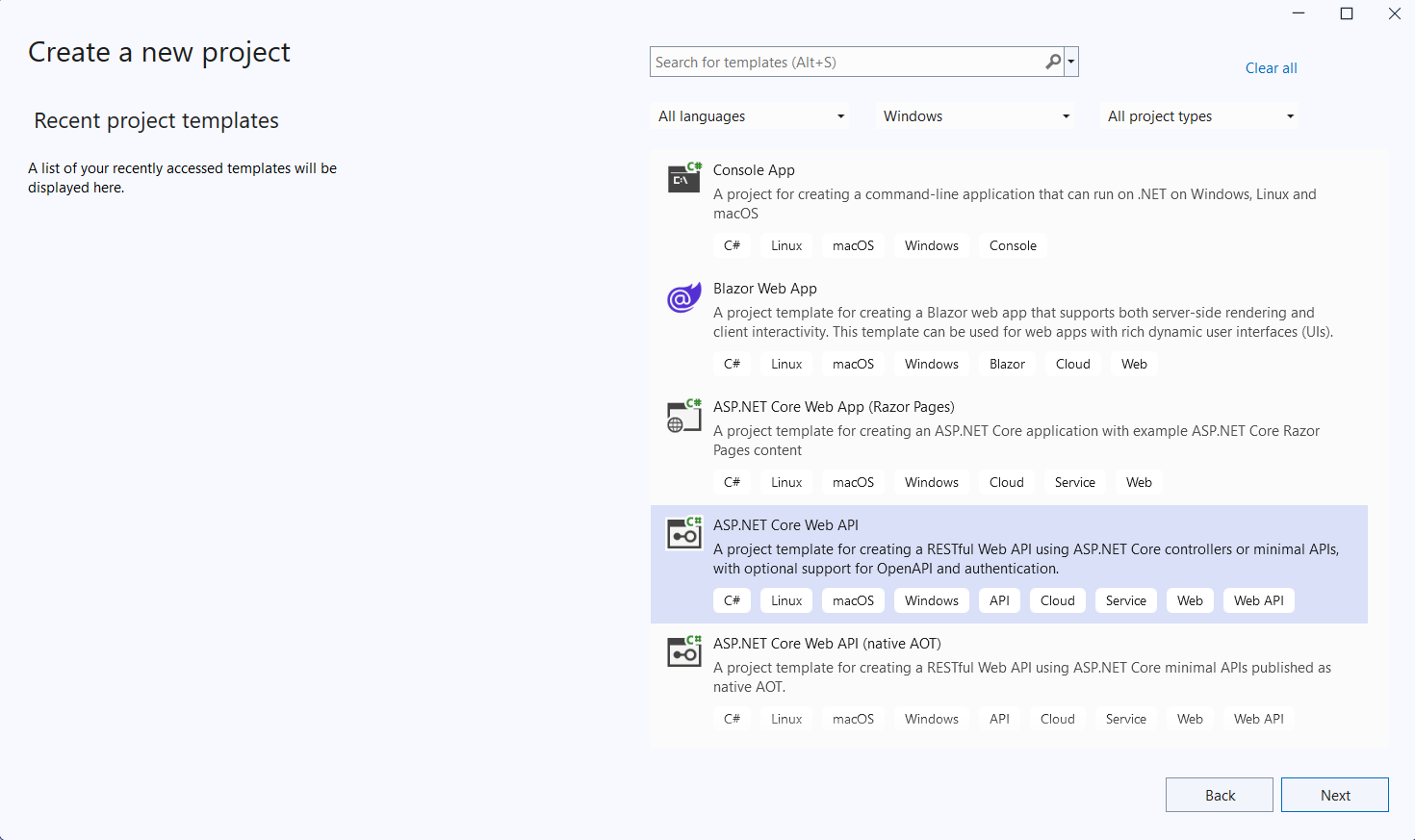
Step 1: Create a new C# ASP.NET Core Web API project.
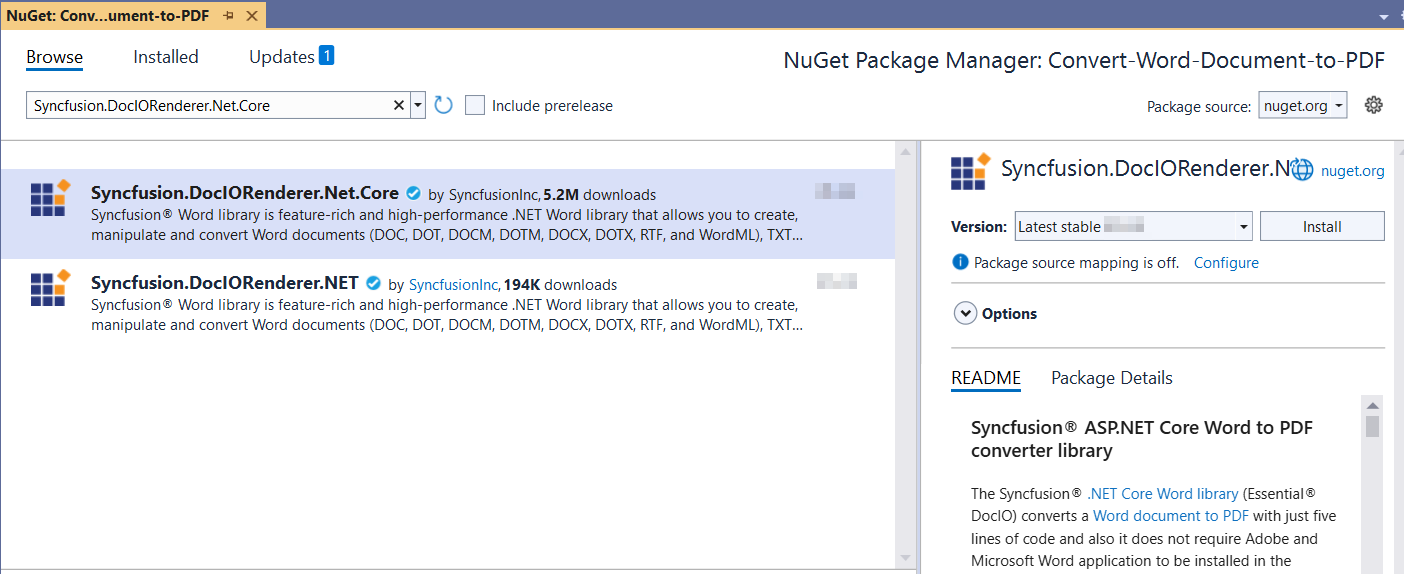
Step 2: Install the Syncfusion.DocIORenderer.Net.Core NuGet package as a reference to your project from NuGet.org.
Starting with v16.2.0.x, if you reference Syncfusion® assemblies from trial setup or from the NuGet feed, you also have to add “Syncfusion.Licensing” assembly reference and include a license key in your projects. Please refer to this link to know about registering Syncfusion® license key in your application to use our components.
Step 3: Add a new API controller empty file in the project.
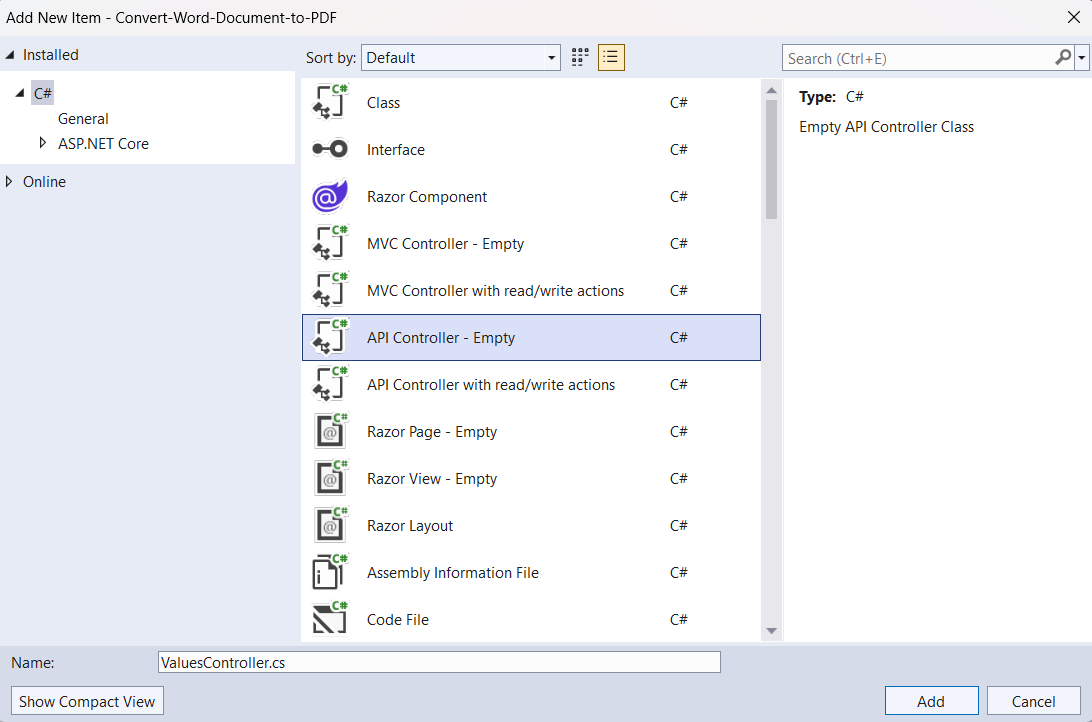
Step 4: Include the following namespaces in the ValuesController.cs file.
using System;
using System.IO;
using Microsoft.AspNetCore.Mvc;
using Syncfusion.DocIO;
using Syncfusion.DocIO.DLS;
using Syncfusion.DocIORenderer;
using Syncfusion.Pdf;
Step 5: Add a new action method ConvertWordToPdf in ValuesController.cs and include the below code snippet to convert a Word document to PDF and download it.
[HttpGet]
[Route("api/ConvertWordToPdf")]
public IActionResult ConvertWordToPdf()
{
    try
    {
        var fileDownloadName = "Output.pdf";
        const string contentType = "application/pdf";
        var stream = ConvertWordDocumentToPdf();
        stream.Position = 0;
        return File(stream, contentType, fileDownloadName);
    }
    catch (Exception ex)
    {
        return BadRequest("Error occurred while converting Word to PDF: " + ex.Message);
    }
}
Step 6: Implement the ConvertWordDocumentToPdf method in ValuesController.cs.
public static MemoryStream ConvertWordDocumentToPdf()
{
    //Loads the existing Word document.
    using (WordDocument wordDocument = new WordDocument(Path.GetFullPath("Data/Template.docx")))
    {
        using (DocIORenderer render = new DocIORenderer())
        {
            PdfDocument pdfDocument = render.ConvertToPDF(wordDocument);
            //Create the MemoryStream to save the converted PDF.
            MemoryStream pdfStream = new MemoryStream();
            //Save the converted PDF document to MemoryStream.
            pdfDocument.Save(pdfStream);
            pdfStream.Position = 0;
            //Download PDF document in the browser.
            return pdfStream;
        }
    }
}
Step 7: Build the project.
Click on Build → Build Solution or press Ctrl+Shift+B to build the project.
Step 8: Run the project.
Click the Start button (green arrow) or press F5 to run the app.
A complete working sample is available on GitHub.
(Optional) Accessing the Web API from a Console client
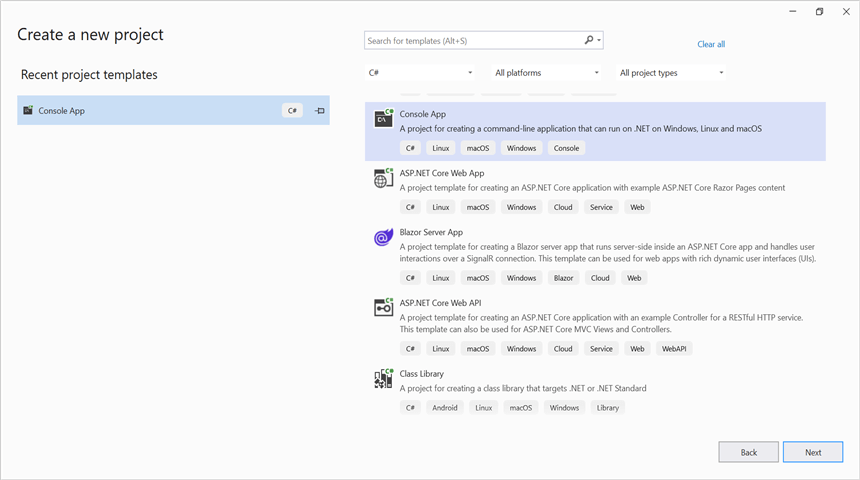
Step 1: Create a new C# console application project in Visual Studio targeting the same .NET version as the Web API.
Ensure your ASP.NET Core Web API is running on the specified port before running this client. Adjust the port number to match the one shown in the Web API’s
launchSettings.json(the file is located under Properties in the Web API project).
Step 2: Replace the contents of Program.cs with the following code. This sends a GET request to the Web API endpoint, then saves the returned PDF to disk.
Make sure the following using directives are present at the top of Program.cs:
using System;
using System.IO;
using System.Net.Http;
using System.Threading.Tasks;
Then add the following code to the Program.cs file:
// Create an HttpClient instance.
using (HttpClient client = new HttpClient())
{
    try
    {
        // Send a GET request to a URL
        HttpResponseMessage response = await client.GetAsync("https://localhost:7240/api/Values/api/ConvertWordToPdf");

        // Check if the response is successful
        if (response.IsSuccessStatusCode)
        {
            // Read the content as a string
            Stream responseBody = await response.Content.ReadAsStreamAsync();
            FileStream fileStream = File.Create("../../../Output/Output.pdf");
            responseBody.CopyTo(fileStream);
            fileStream.Close();
        }
        else
        {
            Console.WriteLine("HTTP error status code: " + response.StatusCode);
        }
    }
    catch (HttpRequestException e)
    {
        Console.WriteLine("Request exception: " + e.Message);
    }
}
Step 3: Build the project.
Click on Build → Build Solution or press Ctrl+Shift+B to build the project.
Step 4: Run the project.
Click the Start button (green arrow) or press F5 to run the app.
A complete working sample is available on GitHub.
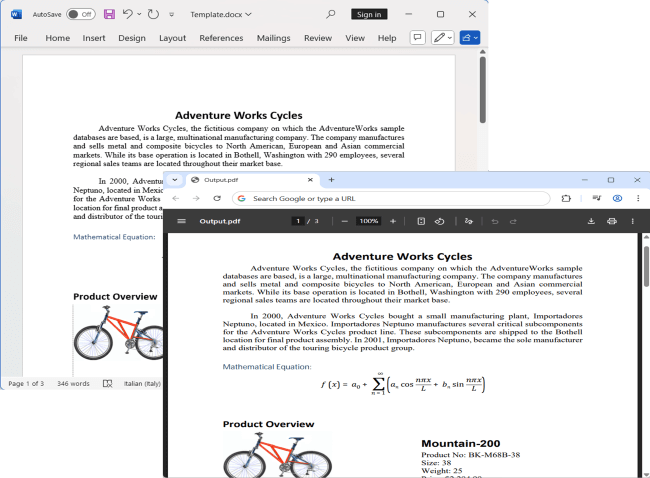
Upon executing the program, the PDF will be generated as follows.
Looking for the full .NET Word Library overview, features, pricing, and documentation? Visit the .NET Word Library page.
An online sample link to convert Word document to PDF in ASP.NET Core.