Convert Word to Image in Azure Functions
19 Aug 202612 minutes to read
Syncfusion® DocIO is a .NET Word library used to create, read, edit, and convert Word documents programmatically without Microsoft Word or interop dependencies. Using this library, you can convert a Word document to an image in Azure Functions deployed on the Flex Consumption plan.
Steps to convert a Word document to Image in Azure Functions (Flex Consumption)
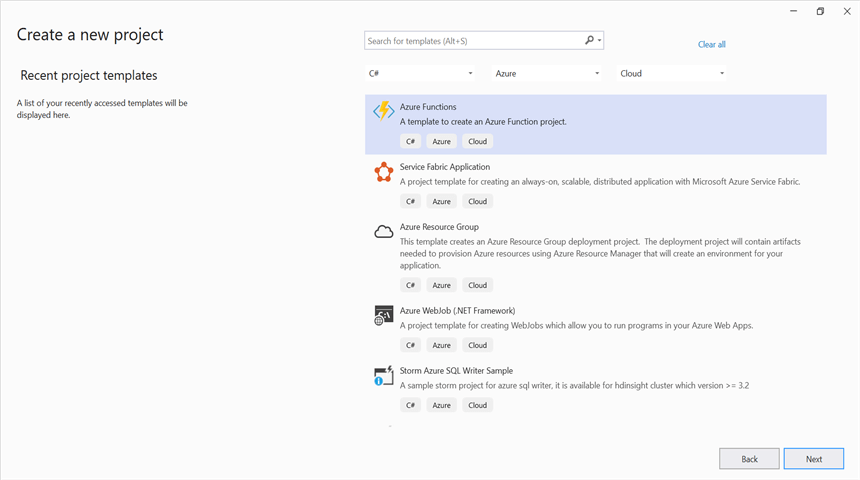
Step 1: Create a new Azure Functions project.
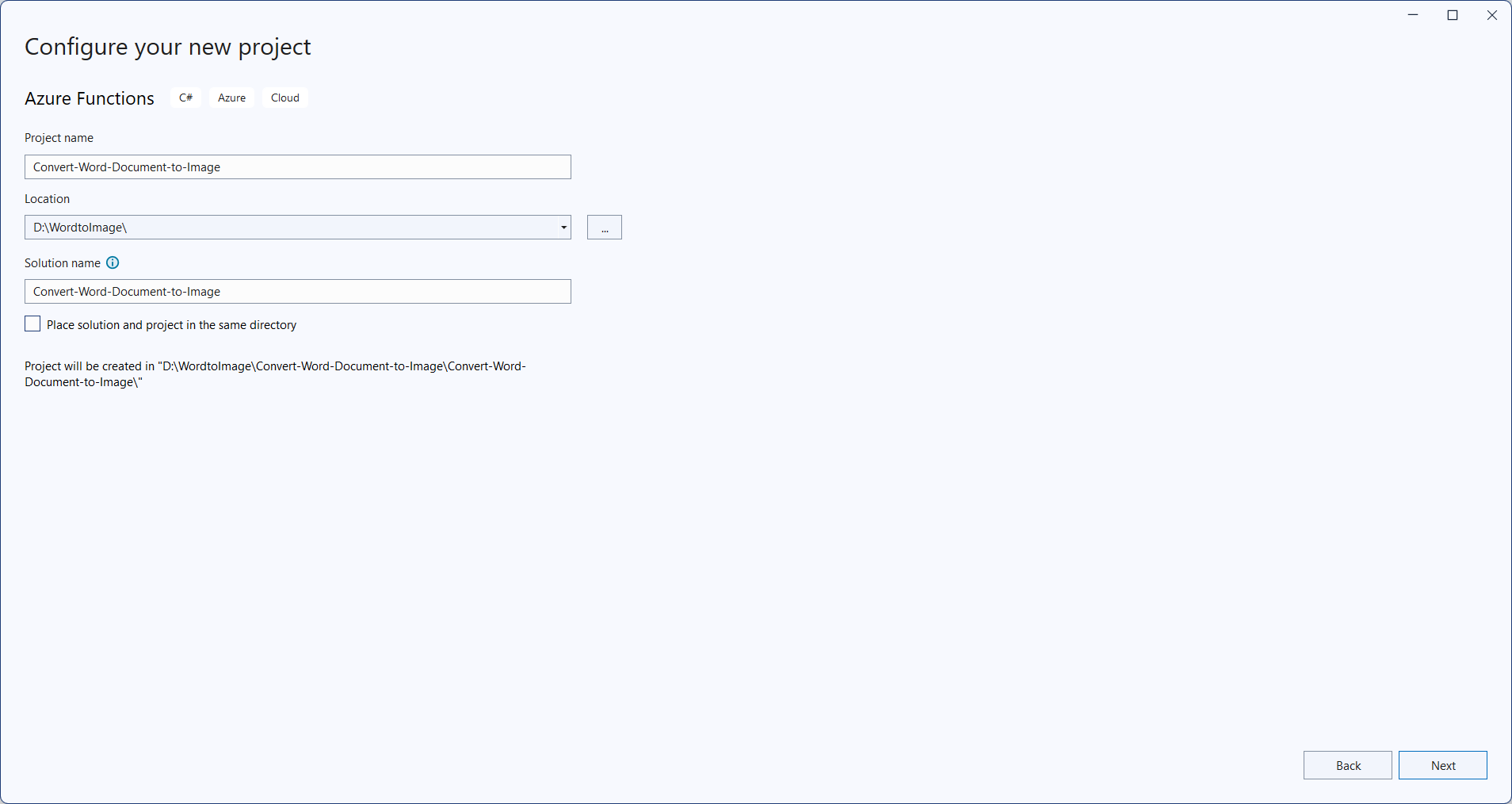
Step 2: Create a project name and select the location.
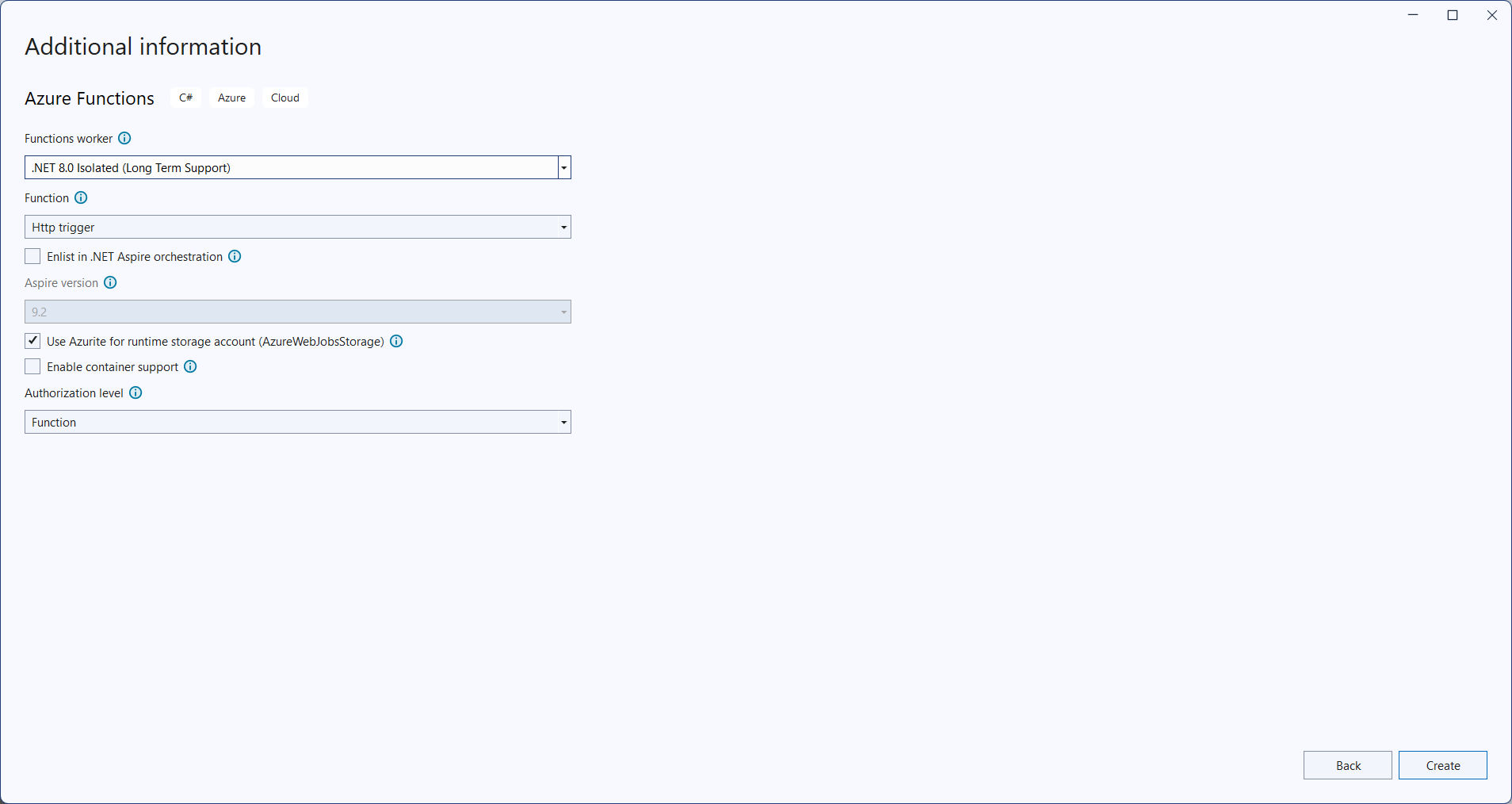
Step 3: Select function worker as .NET 8.0 (Long Term Support) (isolated worker) and target Flex/Consumption hosting suitable for isolated worker.
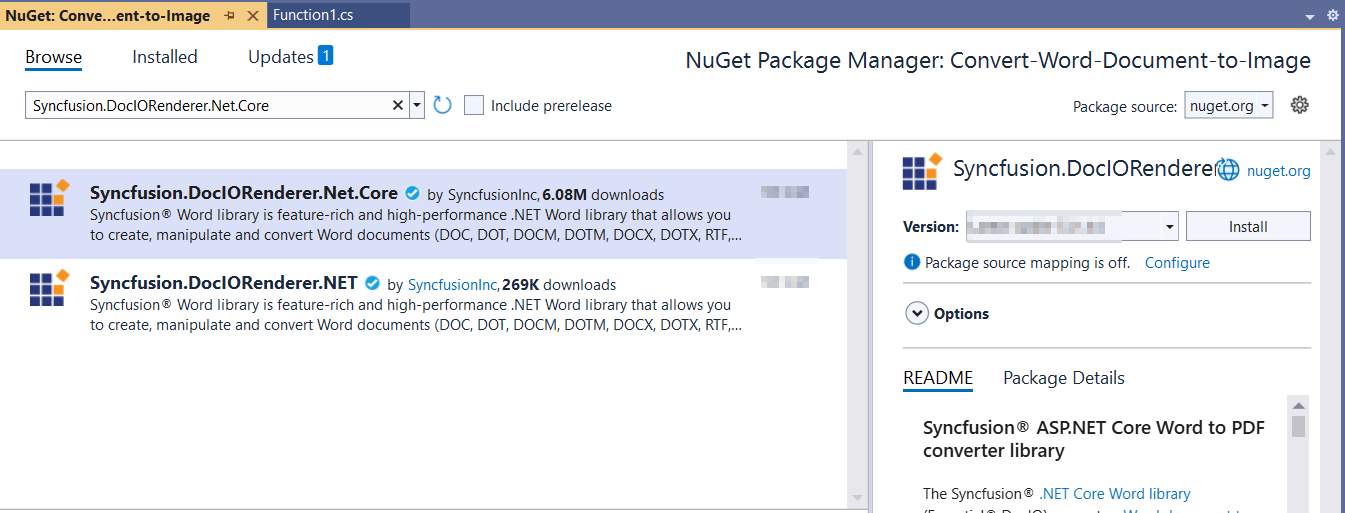
Step 4: Install the Syncfusion.DocIORenderer.Net.Core and SkiaSharp.NativeAssets.Linux.NoDependencies v4.150.1 NuGet packages as references to your project from NuGet.org.
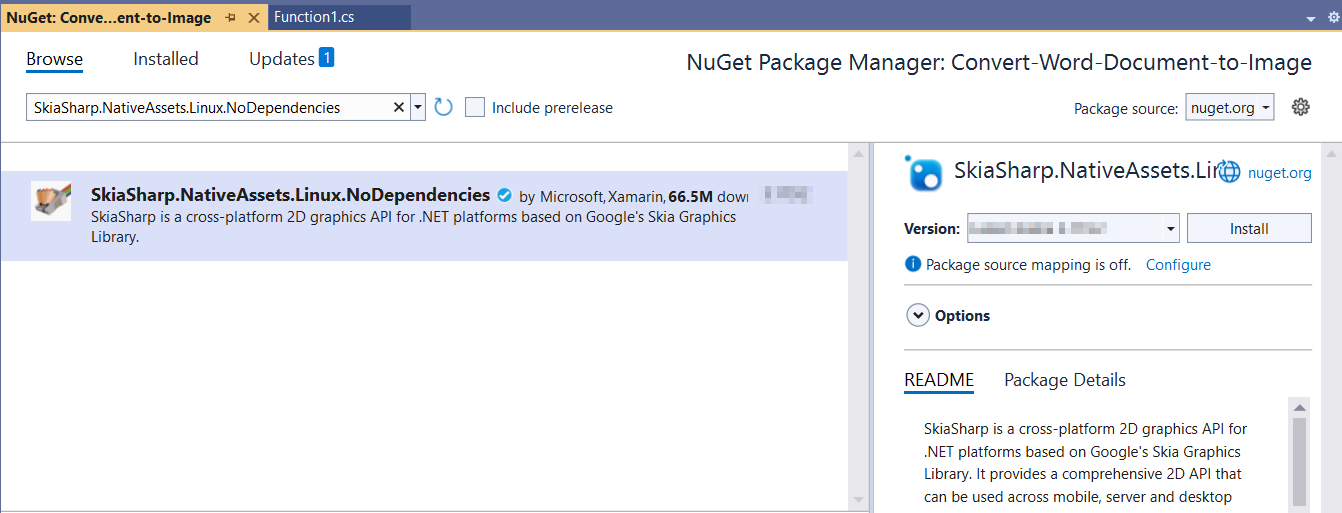
Starting with v16.2.0.x, if you reference Syncfusion® assemblies from trial setup or from the NuGet feed, you also have to add “Syncfusion.Licensing” assembly reference and include a license key in your projects. Please refer to this link to know about registering Syncfusion® license key in your application to use our components.
Step 5: Include the following namespaces in the Function1.cs file.
using Microsoft.AspNetCore.Http;
using Microsoft.AspNetCore.Mvc;
using Microsoft.Azure.Functions.Worker;
using Microsoft.Extensions.Logging;
using Syncfusion.DocIO;
using Syncfusion.DocIO.DLS;
using Syncfusion.DocIORenderer;
Step 6: Add the following code snippet in Run method of Function1 class to perform Word document to image conversion in Azure Functions and return the resultant image to client end.
public async Task<IActionResult> Run([HttpTrigger(AuthorizationLevel.Function, "post")] HttpRequest req)
    {
        try
        {
            // Create a memory stream to hold the incoming request body (Word document bytes)
            await using MemoryStream inputStream = new MemoryStream();
            // Copy the request body into the memory stream
            await req.Body.CopyToAsync(inputStream);
            // Check if the stream is empty (no file content received)
            if (inputStream.Length == 0)
                return new BadRequestObjectResult("No file content received in request body.");
            // Reset stream position to the beginning for reading
            inputStream.Position = 0;
            // Load the Word document from the stream (auto-detects format type)
            using WordDocument document = new WordDocument(inputStream, Syncfusion.DocIO.FormatType.Automatic);
            // Attach font substitution handler to manage missing fonts
            document.FontSettings.SubstituteFont += FontSettings_SubstituteFont;
            // Initialize the DocIORenderer to perform image conversion.
            DocIORenderer render = new DocIORenderer();
            // Convert Word document to image as stream.
            Stream imageStream = document.RenderAsImages(0, ExportImageFormat.Png);
            // Reset the stream position.
            imageStream.Position = 0;
            // Create a memory stream to hold the Image output
            await using MemoryStream outputStream = new MemoryStream();
            // Copy the contents of the image stream to the memory stream.
            await imageStream.CopyToAsync(outputStream);
            // Convert the Image stream to a byte array
            var imageBytes = outputStream.ToArray();
            //Reset the stream position.
            imageStream.Position = 0;
            // Reset stream position to the beginning for reading
            outputStream.Position = 0;
            // Create a file result to return the PNG as a downloadable file
            return new FileContentResult(imageBytes, "image/png")
            {
                FileDownloadName = "document-1.png"
            };
        }
        catch (Exception ex)
        {
            // Log the error with details for troubleshooting
            _logger.LogError(ex, "Error converting Word document to Image.");
            // Prepare error message including exception details
            var msg = $"Exception: {ex.Message}\n\n{ex}";
            // Return a 500 Internal Server Error response with the message
            return new ContentResult { StatusCode = 500, Content = msg, ContentType = "text/plain; charset=utf-8" };
        }
    }
    /// <summary>
    /// Event handler for font substitution during Image conversion
    /// </summary>
    /// <param name="sender"></param>
    /// <param name="args"></param>
    private void FontSettings_SubstituteFont(object sender, SubstituteFontEventArgs args)
    {
        // Define the path to the Fonts folder in the application base directory
        string fontsFolder = Path.Combine(AppContext.BaseDirectory, "Fonts");
        // If the original font is Calibri, substitute with calibri-regular.ttf
        if (args.OriginalFontName == "Calibri")
        {
            args.AlternateFontStream = File.OpenRead(Path.Combine(fontsFolder, "calibri-regular.ttf"));
        }
        // Otherwise, substitute with Times New Roman
        else
        {
            args.AlternateFontStream = File.OpenRead(Path.Combine(fontsFolder, "Times New Roman.ttf"));
        }
    }
Step 7: Right click the project and select Publish. Then, create a new profile in the Publish Window.
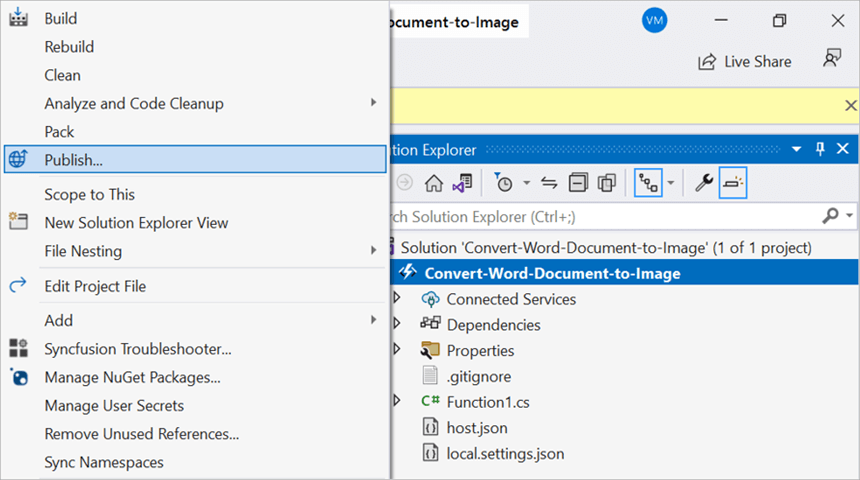
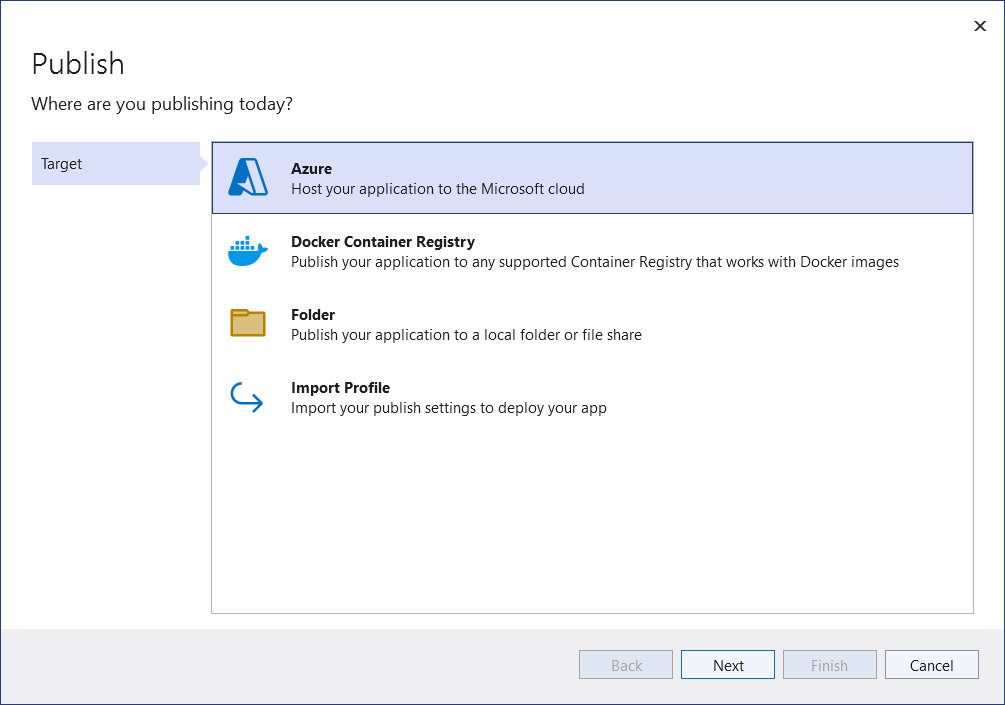
Step 8: Select the target as Azure and click Next button.
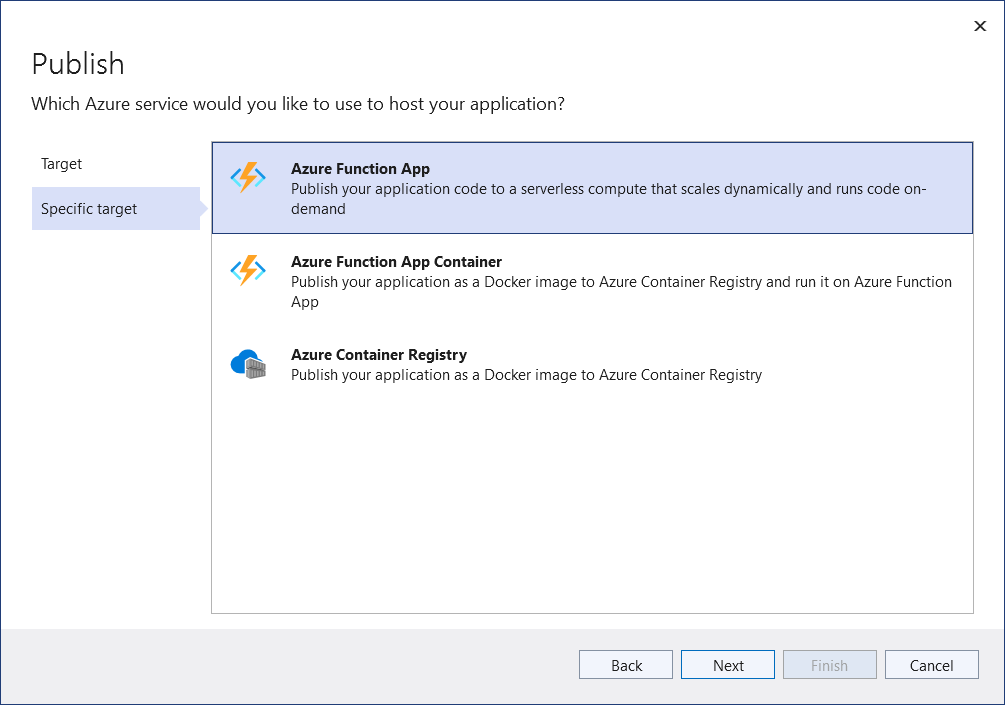
Step 9: Select the specific target as Azure Function App and click Next button.
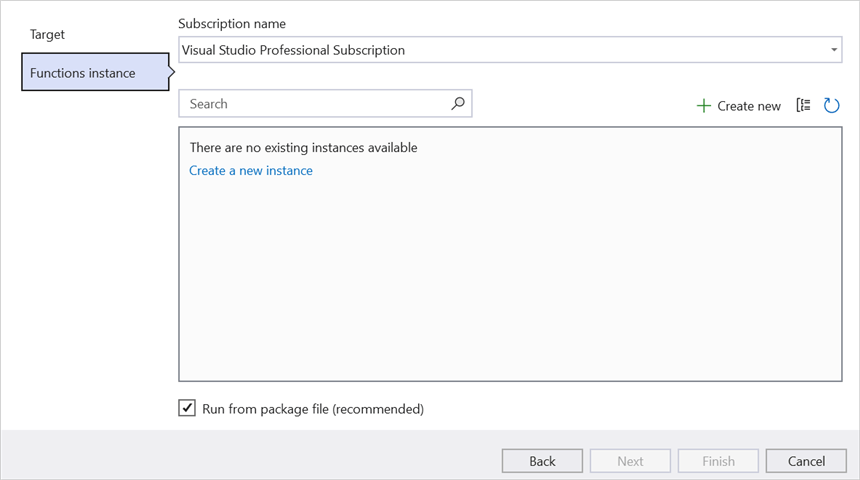
Step 10: Select the Create new button.
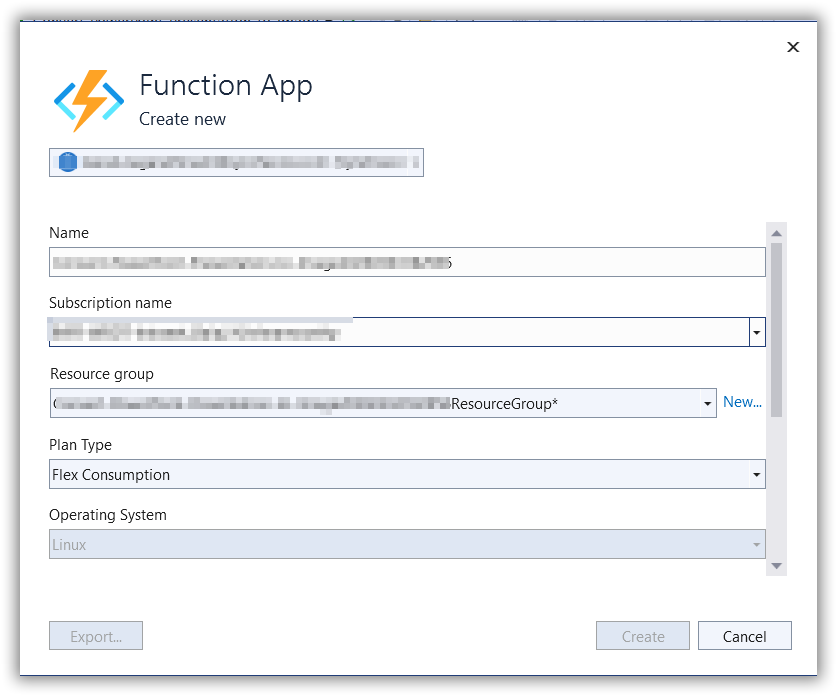
Step 11: Click Create button.
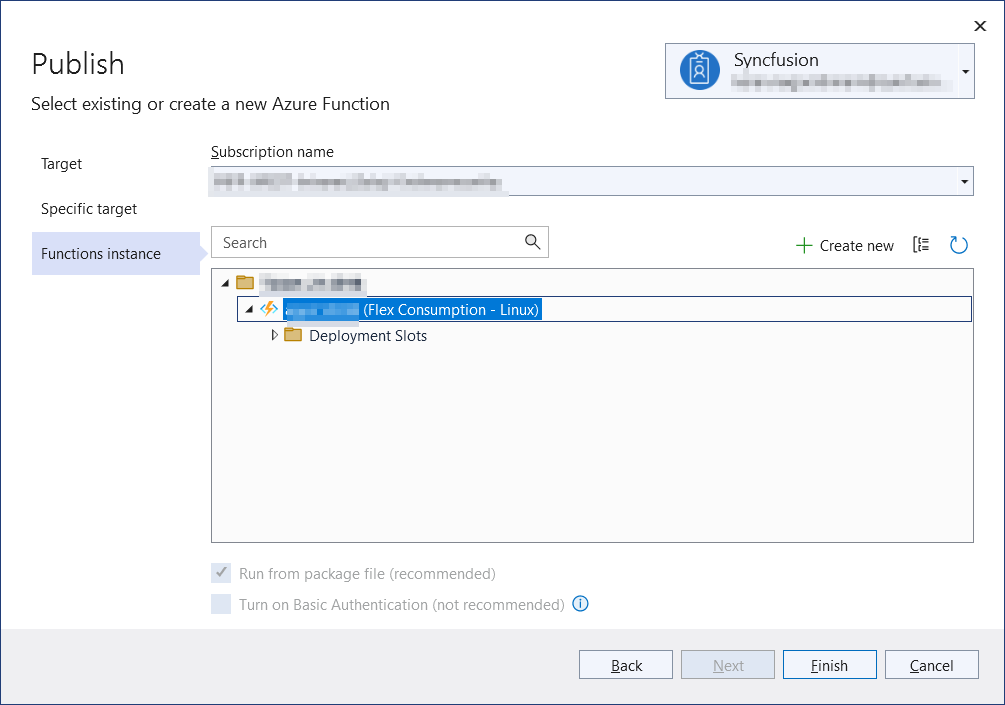
Step 12: After creating app service then click Finish button.
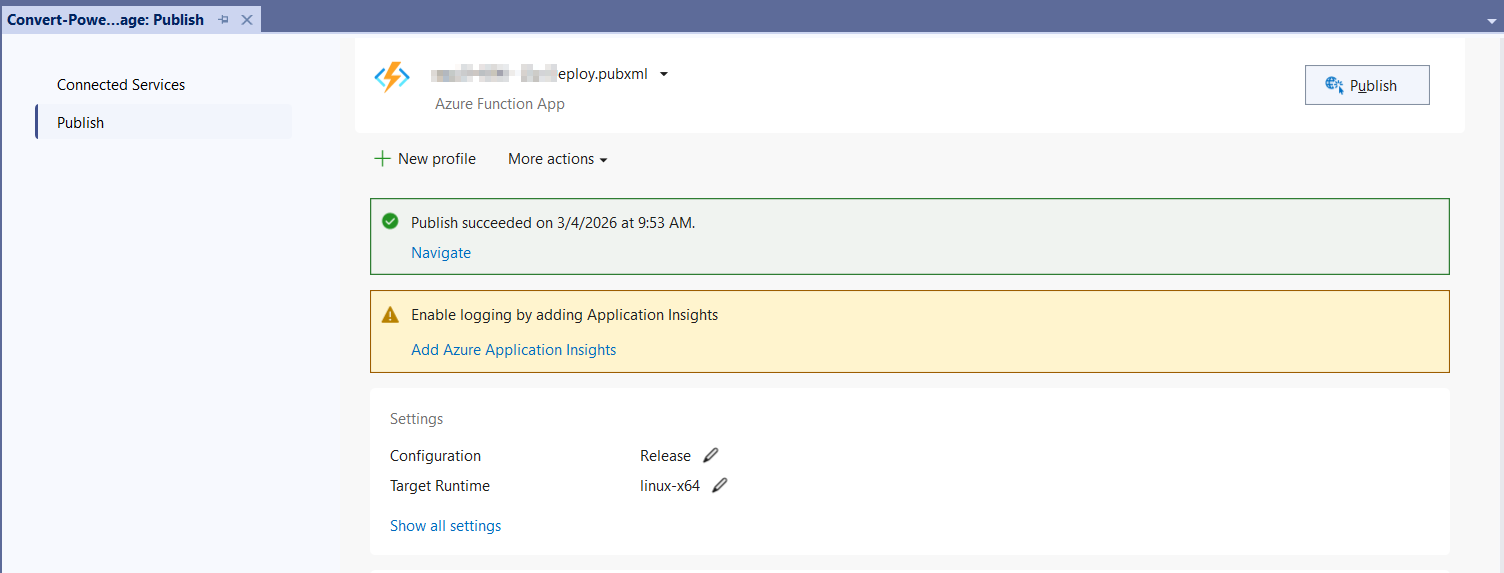
Step 13: Click the Publish button.
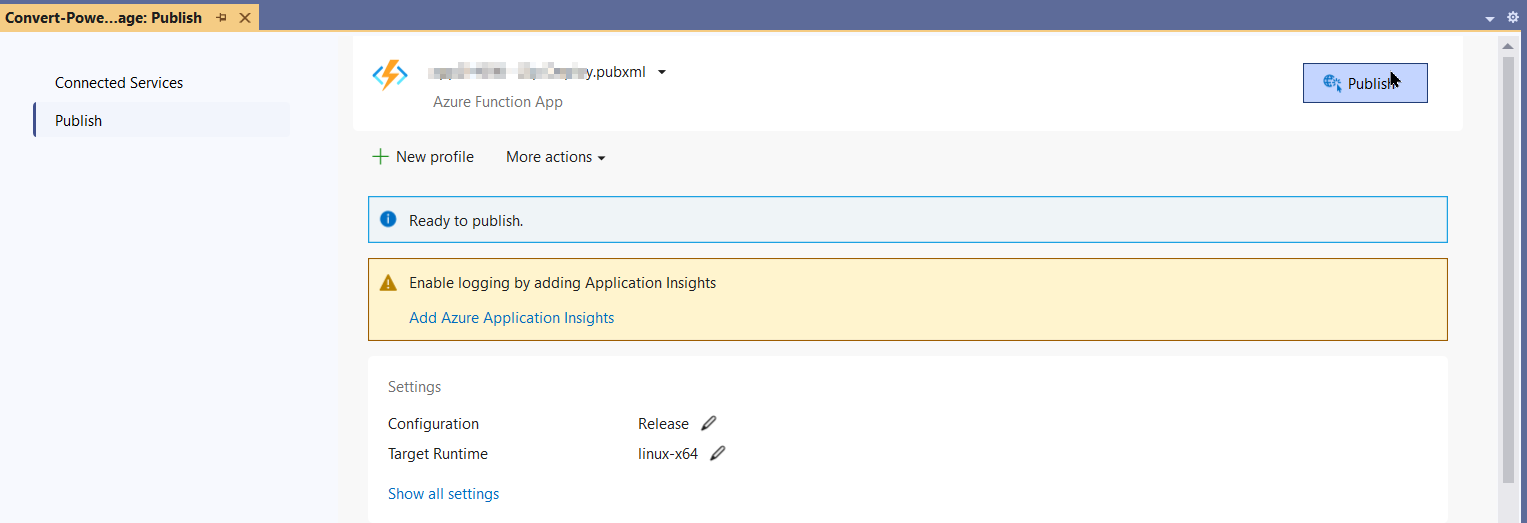
Step 14: Publish has been succeed.
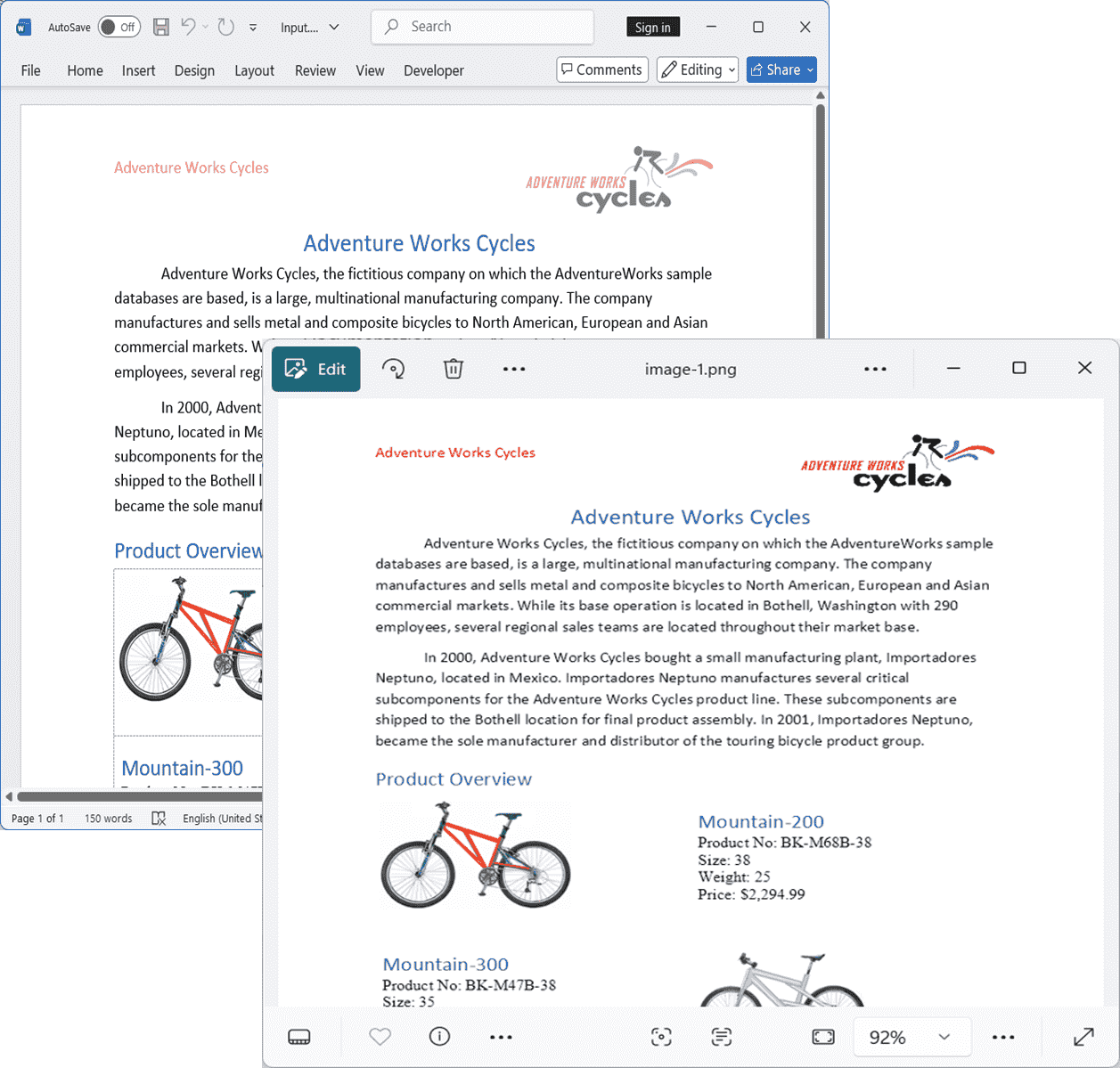
Step 15: Now, go to Azure portal and select the App Services. After running the service, click Get function URL by copying it. Then, paste it in the below client sample (which will request the Azure Functions, to perform Word document to image conversion using the template Word document). You will get the output image as follows.
Steps to post the request to Azure Functions
Step 1: Create a console application to request the Azure Functions API.
Step 2: Add the following code snippet into Main method to post the request to Azure Functions with template Word document and get the resultant image.
static async Task Main()
    {
        try
        {
            Console.Write("Please enter your Azure Functions URL : ");
            string url = Console.ReadLine();
            if (string.IsNullOrEmpty(url)) return;
            // Create a new HttpClient instance for sending HTTP requests
            using var http = new HttpClient();
            // Read all bytes from the input Word document
            byte[] bytes = await File.ReadAllBytesAsync(@"Data/Input.docx");
            // Wrap the file bytes into a ByteArrayContent object for HTTP transmission
            using var content = new ByteArrayContent(bytes);
            // Set the content type header to indicate binary data
            content.Headers.ContentType = new System.Net.Http.Headers.MediaTypeHeaderValue("application/octet-stream");
            // Send a POST request to the provided Azure Functions URL with the file content
            using var res = await http.PostAsync(url, content);
            // Read the response body as a byte array
            var resBytes = await res.Content.ReadAsByteArrayAsync();
            // Extract the media type from the response headers (e.g., "image/png")
            string mediaType = res.Content.Headers.ContentType?.MediaType ?? string.Empty;
            // Decide the output file path the response is an image or txt
            string outputPath = mediaType.Contains("image", StringComparison.OrdinalIgnoreCase)
                ? Path.GetFullPath(@"../../../Output/image-1.png")
                : Path.GetFullPath(@"../../../function-error.txt");
            // Write the response bytes to the output file
            await File.WriteAllBytesAsync(outputPath, resBytes);
            Console.WriteLine($"Saved: {outputPath}");
        }
        catch (Exception ex)
        {
            throw;
        }
    }
From GitHub, you can download the console application and Azure Functions Flex Consumption.
Looking for the full .NET Word Library overview, features, pricing, and documentation? Visit the .NET Word Library page.
An online sample link to convert Word document to image in ASP.NET Core.