Open and save Presentation in Xamarin
3 Aug 20265 minutes to read
Syncfusion® PowerPoint is a Xamarin PowerPoint library used to create, read, edit and convert PowerPoint documents programmatically without Microsoft PowerPoint or interop dependencies. Using this library, you can open and save a Presentation in Xamarin.
Steps to open and save a PowerPoint presentation programmatically
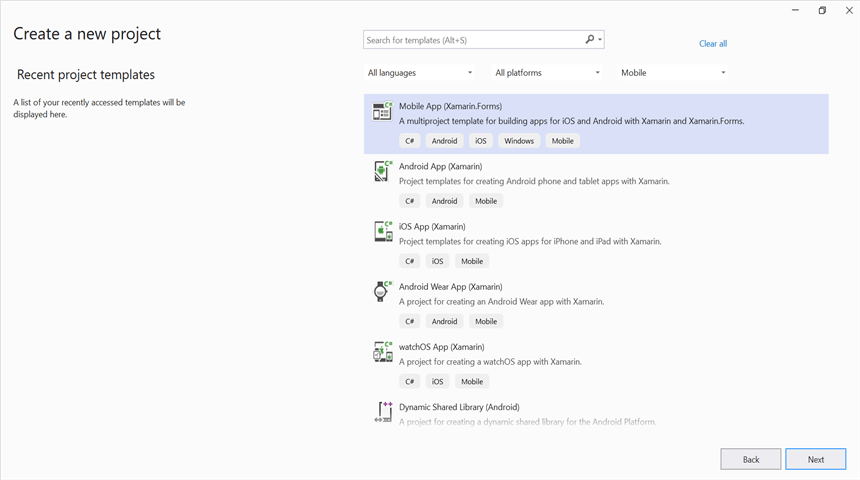
Step 1: Create a new C# Xamarin.Forms application project.
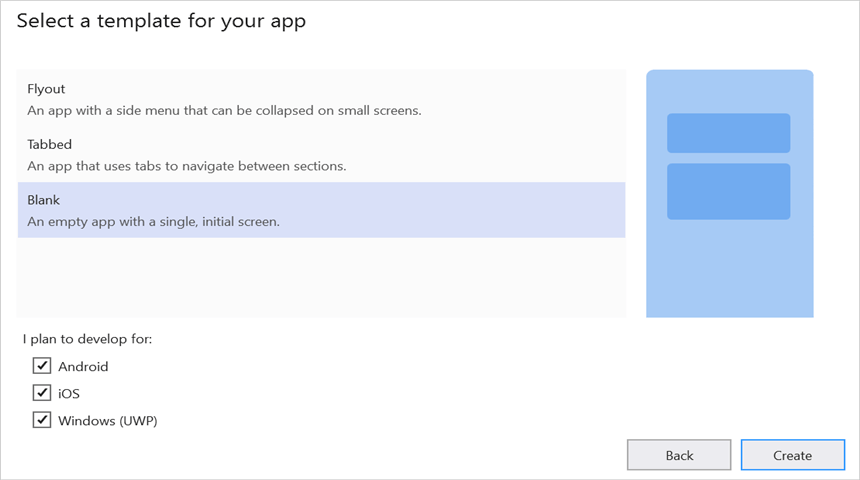
Step 2: Select a project template and the required platforms to deploy the application. In this application, the .NET Standard code-sharing strategy is selected so that portable assemblies are shared across multiple platforms. For more details about code sharing, refer here.
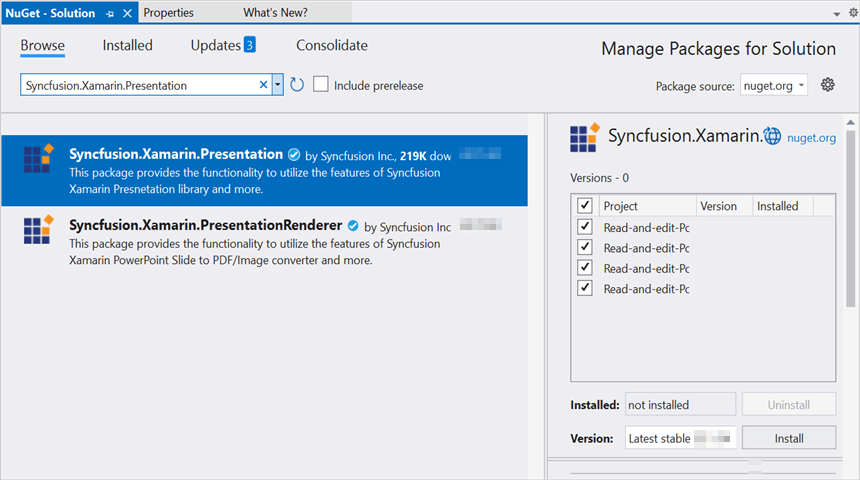
Step 3: Install Syncfusion.Xamarin.Presentation NuGet package as a reference to the .NET Standard project in your Xamarin applications from NuGet.org.
Starting with v16.2.0.x, if you reference Syncfusion® assemblies from trial setup or from the NuGet feed, you also have to add “Syncfusion.Licensing” assembly reference and include a license key in your projects. Please refer to this link to know about registering Syncfusion® license key in your application to use our components.
Step 4: Add a new Forms XAML page to the portable project if no XAML page is defined in the App class. Otherwise, proceed to the next step.
- To add the new XAML page, right-click the project and select Add > New Item, then add a Forms XAML Page from the list. Name it MainXamlPage.
- In the App class of the portable project (App.cs), replace the existing constructor of the App class with the code snippet given below, which invokes the MainXamlPage.
public App()
{
  // The root page of your application
  MainPage = new MainXamlPage();
}
Step 5: In the MainXamlPage.xaml add new button as shown below.
<?xml version="1.0" encoding="utf-8" ?>
<ContentPage xmlns="http://xamarin.com/schemas/2014/forms"
             xmlns:x="http://schemas.microsoft.com/winfx/2009/xaml"
             x:Class="Read_and_edit_PowerPoint_presentation.MainXamlPage">
    <StackLayout VerticalOptions="Center">
        <Button Text="Open and Save Presentation" Clicked="OpenAndSavePresentation" HorizontalOptions="Center"/>
    </StackLayout>
</ContentPage>
Step 6: Include the following namespaces in the MainXamlPage.xaml.cs file.
using System.IO;
using System.Reflection;
using Syncfusion.Presentation;
using Xamarin.Forms;
Step 7: Include the below code snippet in the click event of the button in MainXamlPage.xaml.cs, to open an existing PowerPoint presentation in Xamarin.
//"App" is the class of Portable project.
Assembly assembly = typeof(App).GetTypeInfo().Assembly;
//Open an existing PowerPoint presentation
IPresentation pptxDoc = Presentation.Open(assembly.GetManifestResourceStream("Read-and-edit-PowerPoint-presentation.Assets.Template.pptx"));
Step 8: Add the code snippet below, which demonstrates accessing a shape from a slide and changing the text within it.
//Gets the first slide from the PowerPoint presentation
ISlide slide = pptxDoc.Slides[0];
//Gets the first shape of the slide
IShape shape = slide.Shapes[0] as IShape;
//Change the text of the shape
if (shape.TextBody.Text == "Company History")
    shape.TextBody.Text = "Company Profile";
Step 9: Add the code example below to save the PowerPoint presentation in Xamarin.
//Create new memory stream to save Presentation.
MemoryStream stream = new MemoryStream();
//Save Presentation in stream format.
pptxDoc.Save(stream);
//Close the presentation
pptxDoc.Close();
stream.Position = 0;
//Save the stream as a file in the device and invoke it for viewing
Xamarin.Forms.DependencyService.Get<ISave>().SaveAndView("Output.pptx", "application/vnd.openxmlformats-officedocument.presentationml.presentation", stream);
Helper files for Xamarin
Refer the below helper files and add them into the mentioned project. These helper files allow you to save the stream as a physical file and open the file for viewing.
| Project | File Name | Summary |
| Represent the base interface for save operation | ||
| Save implementation for iOS device | ||
| Helper class for viewing the PowerPoint Presentation in iOS device | ||
| Save implementation for Android device | ||
| Save implementation for UWP device. |
You can download a complete working sample from GitHub.
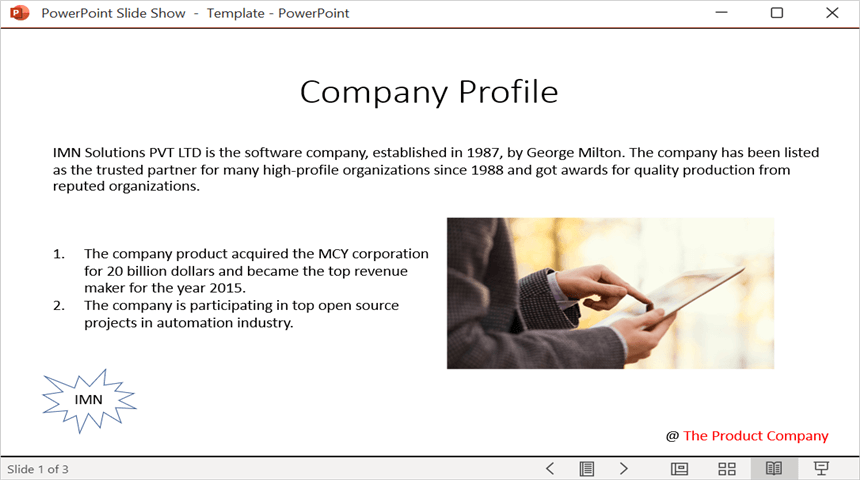
By executing the program, you will get the PowerPoint document as follows.