Open and save Presentation in WinUI
3 Aug 20269 minutes to read
Syncfusion® PowerPoint is a WinUI PowerPoint library used to create, read, edit and convert PowerPoint documents programmatically without Microsoft PowerPoint or interop dependencies. Using this library, you can open and save a Presentation in WinUI.
Prerequisites
To use the WinUI 3 project templates, install the Windows App SDK extension for Visual Studio. For more details, refer here.
WinUI Desktop app
Steps to open and save PowerPoint Presentation programmatically
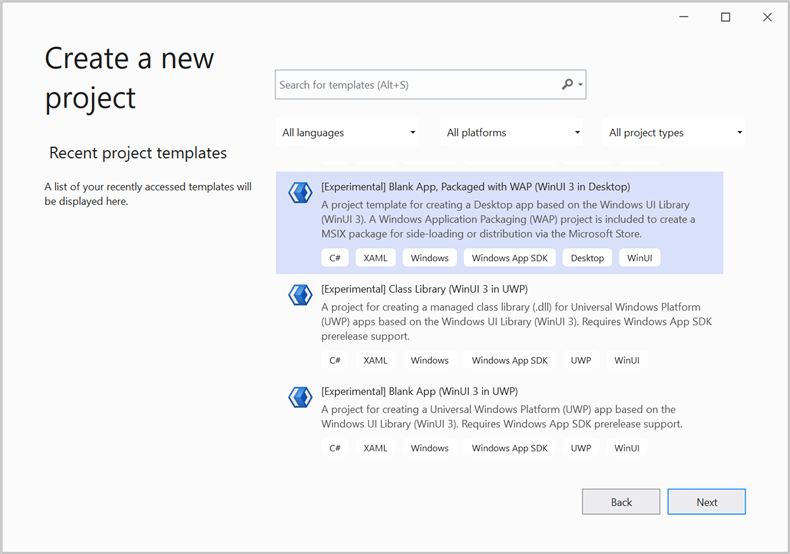
Step 1: Create a new C# WinUI Desktop app. Select Blank App, Packaged with WAP (WinUI 3 in Desktop) from the template and click the Next button.
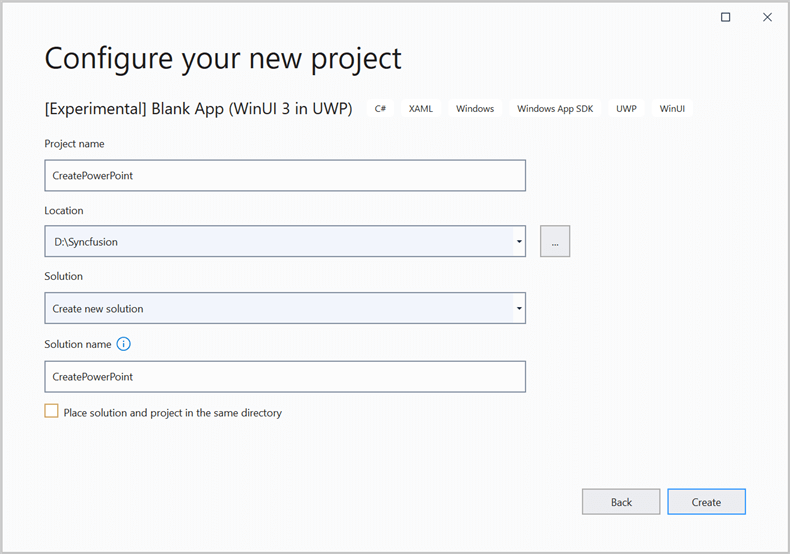
Step 2: Enter the project name and click Create.
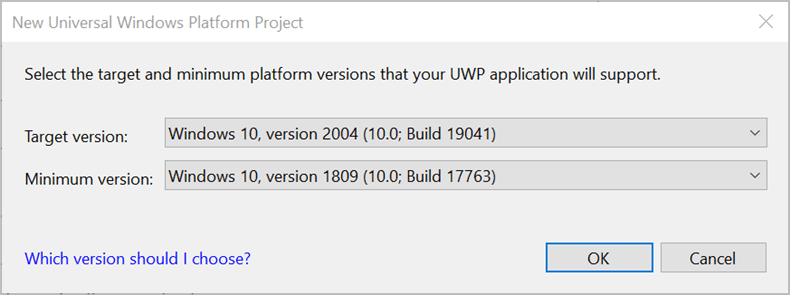
Step 3: Set the Target version to Windows 10, version 22H2 (build 19045) and the Minimum version to Windows 10, version 1809 (build 17763), then click OK.
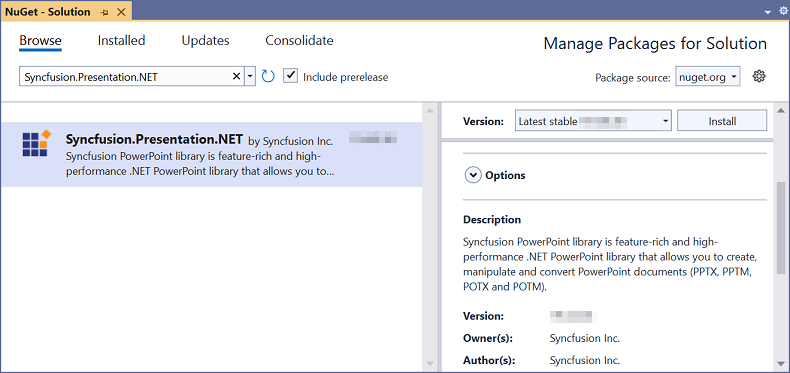
Step 4: Install the Syncfusion.Presentation.NET NuGet package as a reference to your application from the NuGet.org.
Starting with v16.2.0.x, if you reference Syncfusion® assemblies from trial setup or from the NuGet feed, you also have to add “Syncfusion.Licensing” assembly reference and include a license key in your projects. Please refer to this link to know about registering Syncfusion® license key in your application to use our components.
Step 5: Add a new button to the MainWindow.xaml as shown below.
<Window
    x:Class="Read_and_edit_PowerPoint_presentation.MainWindow"
    xmlns="http://schemas.microsoft.com/winfx/2006/xaml/presentation"
    xmlns:x="http://schemas.microsoft.com/winfx/2006/xaml"
    xmlns:local="using:Read_and_edit_PowerPoint_presentation"
    xmlns:d="http://schemas.microsoft.com/expression/blend/2008"
    xmlns:mc="http://schemas.openxmlformats.org/markup-compatibility/2006"
    mc:Ignorable="d">
    <StackPanel Orientation="Horizontal" HorizontalAlignment="Center" VerticalAlignment="Center">
        <Button x:Name="button" Click="OpenAndSavePresentation">Open and Save Presentation</Button>
    </StackPanel>
</Window>
Step 6: Include the following namespaces in the MainWindow.xaml.cs file.
using System.IO;
using System.Reflection;
using Syncfusion.Presentation;
Step 7: Add a new action method OpenAndSavePresentation in MainWindow.xaml.cs and include the below code snippet to open an existing PowerPoint Presentation in WinUI Desktop app.
//Get a picture as stream.
Assembly assembly = typeof(App).GetTypeInfo().Assembly;
Stream stream = assembly.GetManifestResourceStream("Read_and_edit_PowerPoint_presentation.Assets.Template.pptx");
Step 8: Add below code snippet demonstrates accessing a shape from a slide and changing the text within it.
//Load the PowerPoint file from the application's installation folder.
using IPresentation pptxDoc = Presentation.Open("Assets/Template.pptx");
//Get the first slide from the PowerPoint presentation.
ISlide slide = pptxDoc.Slides[0];
//Get the first shape of the slide.
IShape shape = slide.Shapes[0] as IShape;
//Modify the text of the shape.
if (shape != null && shape.TextBody.Text == "Company History")
    shape.TextBody.Text = "Company Profile";
Step 10: Add the following code example to save the PowerPoint presentation in a WinUI Desktop app. The SaveHelper class (from the GitHub sample) uses a FileSavePicker and WindowsRT.Interop to write the file to disk.
//Save the PowerPoint Presentation document to stream.
using MemoryStream pptx = new();
pptxDoc.Save(pptx);
//Saves and launch the file.
SaveHelper.SaveAndLaunch("Sample.pptx", pptx);
You can download a complete working sample from GitHub.
By executing the program, you will get the PowerPoint document as follows.
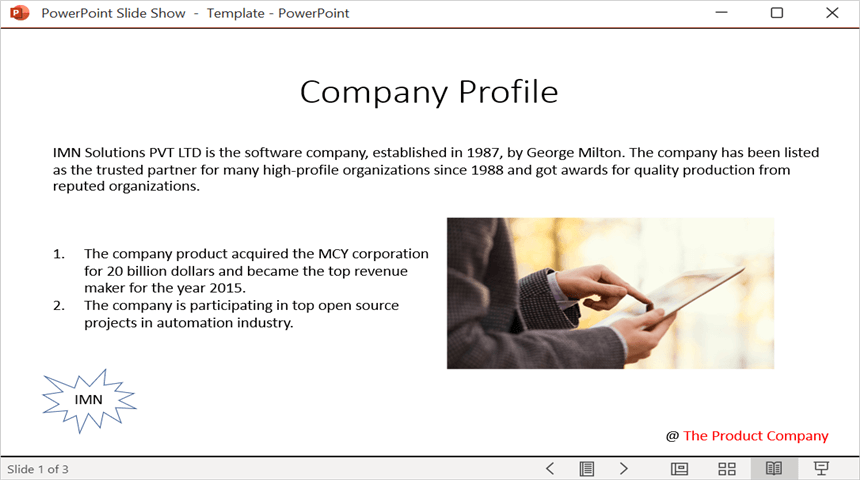
Looking for the full .NET PowerPoint Library component overview, features, pricing, and documentation? Visit the .NET PowerPoint Library page.
WinUI UWP app
Steps to open and save PowerPoint Presentation programmatically
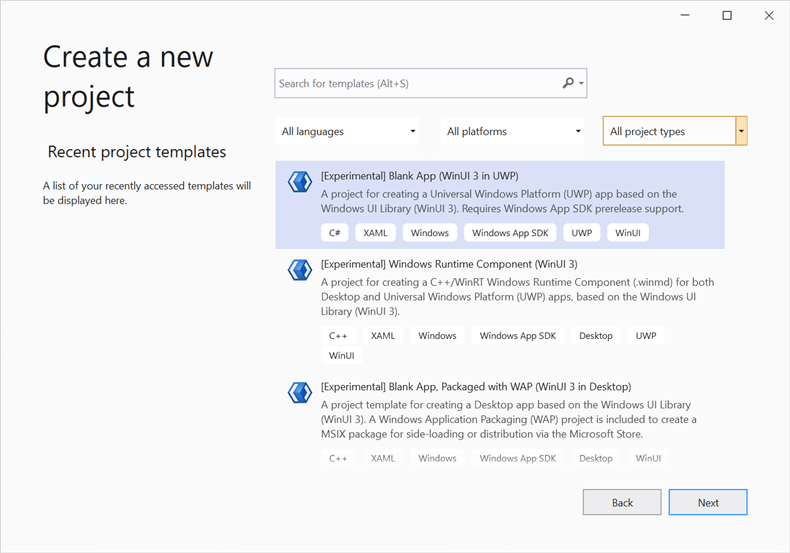
Step 1: Create a new C# WinUI UWP app. Select Blank App (WinUI 3 in UWP)from the template and click the Next button.
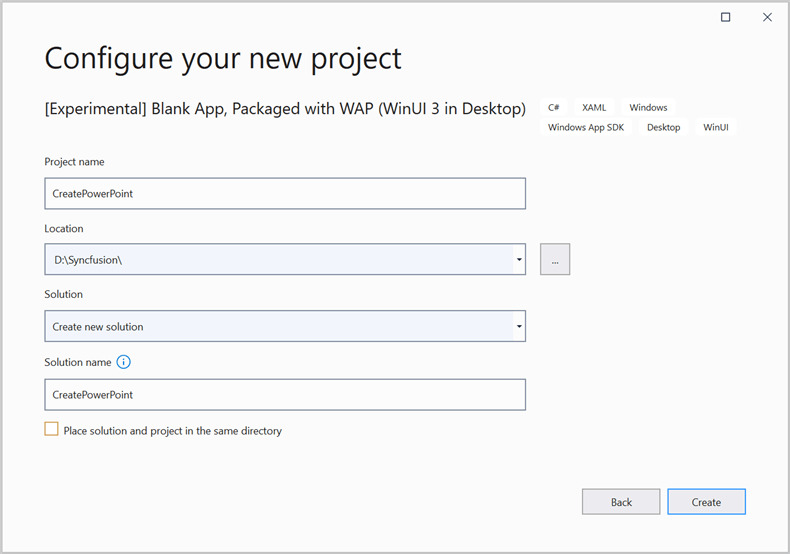
Step 2: Enter the project name and click Create.
Step 3: Set the Target version to Windows 10, version 2004 (build 19041) and the Minimum version to Windows 10, version 1809 (build 17763) and then click OK.
Step 4: Install the Syncfusion.Presentation.NET NuGet package as a reference to your .NET Standard applications from the NuGet.org.
Starting with v16.2.0.x, if you reference Syncfusion® assemblies from trial setup or from the NuGet feed, you also have to add “Syncfusion.Licensing” assembly reference and include a license key in your projects. Please refer to this link to know about registering Syncfusion® license key in your application to use our components.
Step 5: Add a new button to the MainPage.xaml as shown below.
<Page
    x:Class="Read_and_edit_PowerPoint_presentation.MainPage"
    xmlns="http://schemas.microsoft.com/winfx/2006/xaml/presentation"
    xmlns:x="http://schemas.microsoft.com/winfx/2006/xaml"
    xmlns:local="using:Read_and_edit_PowerPoint_presentation"
    xmlns:d="http://schemas.microsoft.com/expression/blend/2008"
    xmlns:mc="http://schemas.openxmlformats.org/markup-compatibility/2006"
    mc:Ignorable="d"
    Background="{ThemeResource ApplicationPageBackgroundThemeBrush}">
    <StackPanel Orientation="Horizontal" HorizontalAlignment="Center" VerticalAlignment="Center">
        <Button x:Name="button" Click="OpenAndSavePresentation">Open and Save Presentation</Button>
    </StackPanel>
</Page>
Step 6: Include the following namespaces in the MainPage.xaml.cs file.
using Syncfusion.Presentation;Step 7: Add a new action method OpenAndSavePresentation in MainPage.xaml.cs and include the below code snippet to open an existing PowerPoint Presentation in WinUI UWP app.
//"App" is the class of Portable project.
Assembly assembly = typeof(App).GetTypeInfo().Assembly;
//Open an existing PowerPoint presentation.
IPresentation pptxDoc = Presentation.Open(assembly.GetManifestResourceStream("Read_and_edit_PowerPoint_presentation.Assets.Template.pptx"));
Step 8: Add below code snippet demonstrates accessing a shape from a slide and changing the text within it.
//Get the first slide from the PowerPoint presentation.
ISlide slide = pptxDoc.Slides[0];
//Gets the first shape of the slide.
IShape shape = slide.Shapes[0] as IShape;
//Modify the text of the shape.
if (shape.TextBody.Text == "Company History")
    shape.TextBody.Text = "Company Profile";
Step 9: Add below code example to save the PowerPoint Presentation in WinUI UWP app.
//Save the Presentation files to MemoryStream.
MemoryStream stream = new MemoryStream();
pptxDoc.Save(stream);
//Save the stream as a Presentation file in the local machine.
Save(stream);
Step 10: Add below code example to save the PowerPoint document as a physical file and open the file for viewing.
async void Save(MemoryStream stream)
{
    StorageFile stFile;
    if (!(Windows.Foundation.Metadata.ApiInformation.IsTypePresent("Windows.Phone.UI.Input.HardwareButtons")))
    {
        FileSavePicker savePicker = new FileSavePicker();
        savePicker.DefaultFileExtension = ".pptx";
        savePicker.SuggestedFileName = "Sample";
        savePicker.FileTypeChoices.Add("PowerPoint Files", new List<string>() { ".pptx" });
        stFile = await savePicker.PickSaveFileAsync();
    }
    else
    {
        StorageFolder local = Windows.Storage.ApplicationData.Current.LocalFolder;
        stFile = await local.CreateFileAsync("Sample", CreationCollisionOption.ReplaceExisting);
    }
    if (stFile != null)
    {
        using (IRandomAccessStream zipStream = await stFile.OpenAsync(FileAccessMode.ReadWrite))
        {
            //Write compressed data from memory to file.
            using (Stream outstream = zipStream.AsStreamForWrite())
            {
                byte[] buffer = stream.ToArray();
                outstream.Write(buffer, 0, buffer.Length);
                outstream.Flush();
            }
        }
    }
    //Launch the saved PowerPoint file.
    await Windows.System.Launcher.LaunchFileAsync(stFile);
}
You can download a complete working sample from GitHub.
By executing the program, you will get the PowerPoint document as follows.
Looking for the full .NET PowerPoint Library component overview, features, pricing, and documentation? Visit the .NET PowerPoint Library page.