Open and save Presentation in UWP
3 Aug 20264 minutes to read
Syncfusion® PowerPoint is a UWP PowerPoint library used to create, read, edit and convert PowerPoint documents programmatically without Microsoft PowerPoint or interop dependencies. Using this library, you can open and save a PowerPoint presentation in UWP.
Prerequisites
- Visual Studio 2022 or later with the .NET desktop development and Universal Windows Platform development workloads installed.
- Windows 10 SDK (minimum build 17763 or later) to develop UWP applications.
Steps to open and save PowerPoint presentation programmatically
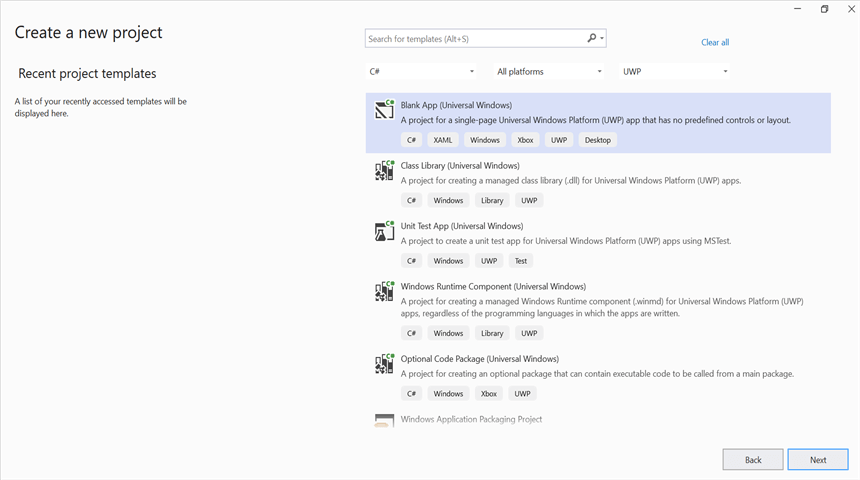
Step 1: In Visual Studio, create a new C# Blank App (Universal Windows) project.
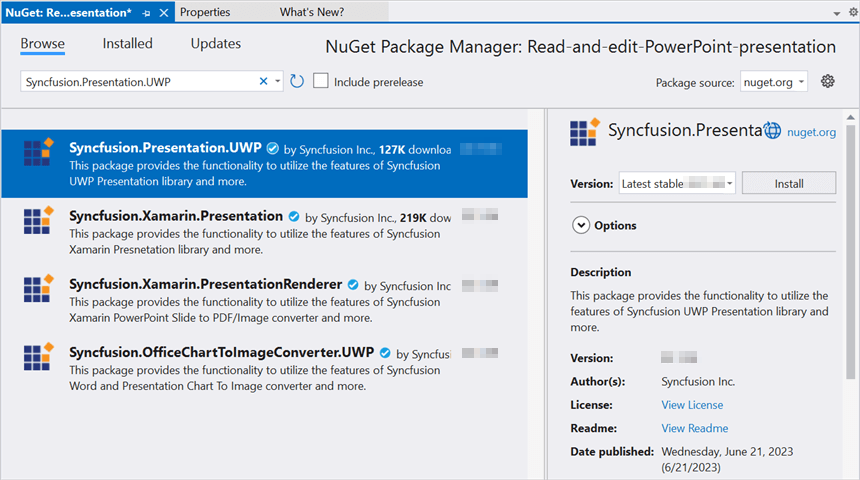
Step 2: Install the Syncfusion.Presentation.UWP NuGet package as a reference to your UWP application from NuGet.org.
Starting with v16.2.0.x, if you reference Syncfusion® assemblies from trial setup or from the NuGet feed, you also have to add “Syncfusion.Licensing” assembly reference and include a license key in your projects. Please refer to this link to know about registering Syncfusion® license key in your application to use our components.
Step 3: Add a new button in the MainPage.xaml as shown below.
<Page
    x:Class="Read_and_edit_PowerPoint_presentation.MainPage"
    xmlns="http://schemas.microsoft.com/winfx/2006/xaml/presentation"
    xmlns:x="http://schemas.microsoft.com/winfx/2006/xaml"
    xmlns:local="using:Read_and_edit_PowerPoint_presentation"
    xmlns:d="http://schemas.microsoft.com/expression/blend/2008"
    xmlns:mc="http://schemas.openxmlformats.org/markup-compatibility/2006"
    mc:Ignorable="d"
    Background="{ThemeResource ApplicationPageBackgroundThemeBrush}">
    <Grid>
        <Button x:Name="button" Content="Open and Save Presentation" Click="OnButtonClicked" HorizontalAlignment="Center" VerticalAlignment="Center"/>
    </Grid>
</Page>
Step 4: Include the following namespaces in the MainPage.xaml.cs file.
using System.Collections.Generic;
using System.Reflection;
using Syncfusion.Presentation;
using Windows.Storage;
using Windows.Storage.Pickers;
Step 5: Add an existing Template.pptx file to the project’s Assets folder. In Solution Explorer, right-click the Assets folder, select Add → Existing Item, choose Template.pptx, and set its Build Action to Embedded Resource in the Properties window. Then add the following code snippet in the click event of the button in MainPage.xaml.cs to open an existing PowerPoint presentation in UWP.
//"App" is the class of the UWP project.
Assembly assembly = typeof(App).GetTypeInfo().Assembly;
//Open an existing PowerPoint presentation
IPresentation pptxDoc = Presentation.Open(assembly.GetManifestResourceStream("Read_and_edit_PowerPoint_presentation.Assets.Template.pptx"));
Step 6: Add the following code snippet, which demonstrates accessing a shape from a slide and changing the text within it.
//Gets the first slide from the PowerPoint presentation
ISlide slide = pptxDoc.Slides[0];
//Gets the first shape of the slide
IShape shape = slide.Shapes[0] as IShape;
//Change the text of the shape
if (shape.TextBody.Text == "Company History")
    shape.TextBody.Text = "Company Profile";
Step 7: Add the following code snippet to save and close the presentation. The IPresentation.SaveAsync method saves the file in .pptx format by default; the same approach supports saving as other PowerPoint formats such as .pptm and .ppsx by selecting the appropriate file type in the picker.
//Initializes FileSavePicker
FileSavePicker savePicker = new FileSavePicker();
savePicker.SuggestedStartLocation = PickerLocationId.Desktop;
savePicker.SuggestedFileName = "Result";
savePicker.FileTypeChoices.Add("PowerPoint Files", new List<string>() { ".pptx" });
//Creates a storage file from FileSavePicker
StorageFile storageFile = await savePicker.PickSaveFileAsync();
//Saves changes to the specified storage file (skip if the user cancels the picker)
if (storageFile != null)
    await pptxDoc.SaveAsync(storageFile);
//Close the PowerPoint presentation
pptxDoc.Close();
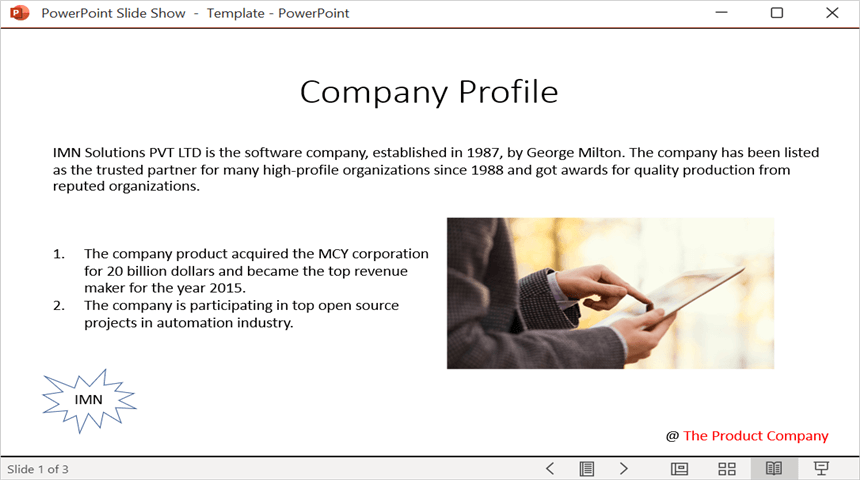
By executing the program, you will get the PowerPoint presentation as follows.
You can download a complete working sample from GitHub.
Looking for the full .NET PowerPoint Library component overview, features, pricing, and documentation? Visit the .NET PowerPoint Library page.