Open and Save a Presentation in Google Cloud Storage
3 Aug 202618 minutes to read
Prerequisites
-
Google Cloud Storage is required.
-
A service account and its service account key are required.
-
The Google Cloud Storage API must be enabled in the Google Cloud Console. For steps, see Enable Google Cloud services.
-
The service account must be granted the Storage Object Viewer role (to download) and Storage Object Creator role (to upload) on the target bucket. For steps, see Manage access to buckets.
-
.NET 8.0 or later.
-
Place the downloaded service account key file (
credentials.json) in the project root and set Copy to Output Directory to Copy if newer so the relative path resolves at runtime.
Open a Presentation from Google Cloud Storage
Steps to open a Presentation from Google Cloud Storage.
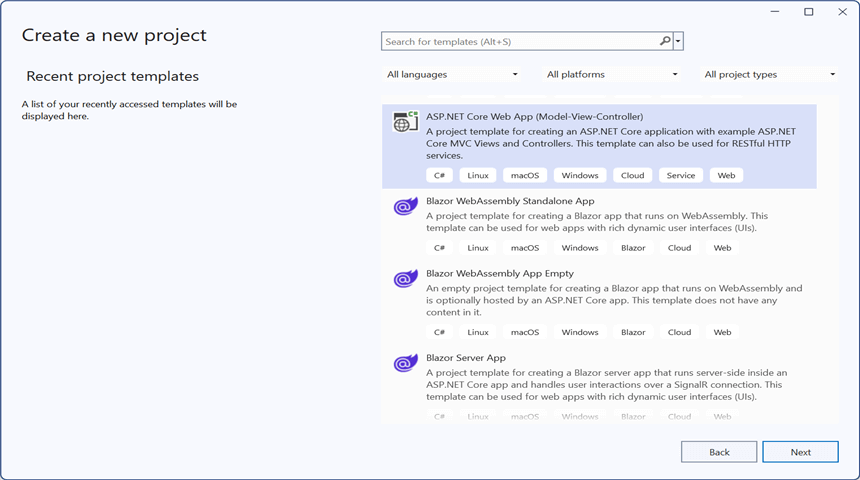
Step 1: Create an ASP.NET Core Web Application (Model-View-Controller).
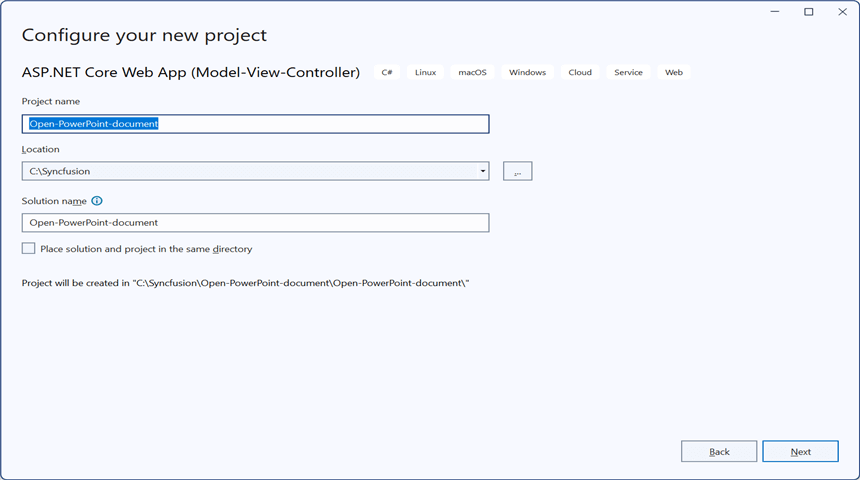
Step 2: Name the project.
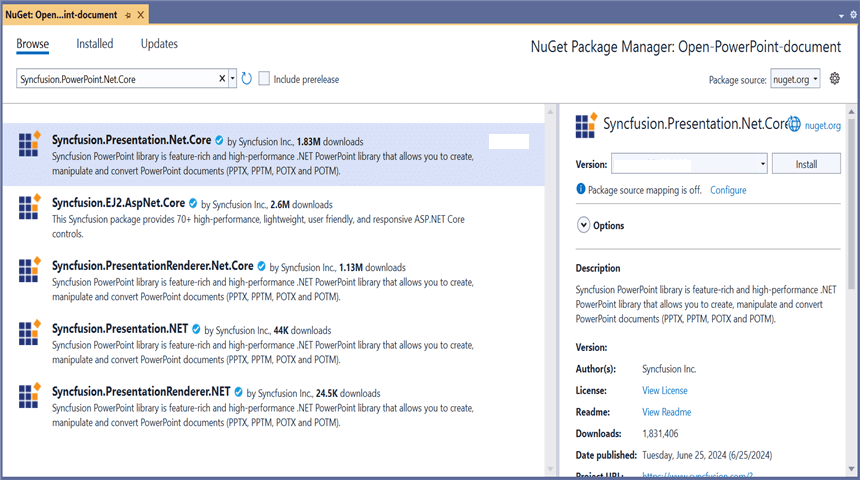
Step 3: Install the following NuGet packages in your application from NuGet.org.
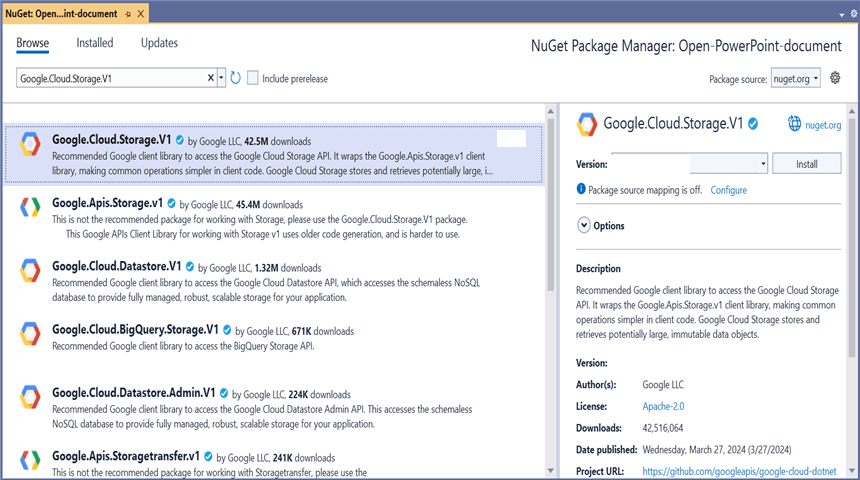
Step 4: Add a new button to Index.cshtml as shown below.
@{Html.BeginForm("EditDocument", "Home", FormMethod.Get);
    {
        <div>
            <input type="submit" value="Edit Document" style="width:150px;height:27px" />
        </div>
    }
    Html.EndForm();
}
Step 5: Include the following namespaces in HomeController.cs.
using System.IO;
using System.Threading.Tasks;
using Google.Apis.Auth.OAuth2;
using Google.Cloud.Storage.V1;
using Microsoft.AspNetCore.Mvc;
using Syncfusion.Presentation;
Step 6: Add the following code snippet to HomeController.cs to open a Presentation from Google Cloud Storage.
public async Task<IActionResult> EditDocument()
{
    try
    {
        //Download the file from Google Cloud Storage
        MemoryStream memoryStream = await GetDocumentFromGoogle();

        //Save the downloaded file to a temp path so the path-based overload can be used
        string tempFilePath = Path.Combine(Path.GetTempPath(), "PowerPointTemplate.pptx");
        using (FileStream fileStream = new FileStream(tempFilePath, FileMode.Create, FileAccess.Write))
        {
            memoryStream.CopyTo(fileStream);
        }

        //Create an instance of the PowerPoint Presentation file using a file path
        using (IPresentation pptxDocument = Presentation.Open(tempFilePath))
        {
            //Get the first slide from the PowerPoint presentation
            ISlide slide = pptxDocument.Slides[0];

            //Get the first shape of the slide
            IShape shape = slide.Shapes[0] as IShape;

            //Change the text of the shape
            if (shape.TextBody.Text == "Company History")
                shape.TextBody.Text = "Company Profile";

            //Save the PowerPoint file to a path
            string outputPath = Path.Combine(Path.GetTempPath(), "EditPowerPoint.pptx");
            pptxDocument.Save(outputPath);

            //Read the saved file into a MemoryStream to return as a download
            MemoryStream outputStream = new MemoryStream();
            using (FileStream fileStream = new FileStream(outputPath, FileMode.Open, FileAccess.Read))
            {
                fileStream.CopyTo(outputStream);
            }
            outputStream.Position = 0;

            //Download the PowerPoint file in the browser
            FileStreamResult fileStreamResult = new FileStreamResult(outputStream, "application/powerpoint");
            fileStreamResult.FileDownloadName = "EditPowerPoint.pptx";
            return fileStreamResult;
        }
    }
    catch (FileNotFoundException ex)
    {
        return NotFound($"The specified Presentation was not found in the bucket: {ex.Message}");
    }
    catch (Google.GoogleApiException ex) when (ex.HttpStatusCode == System.Net.HttpStatusCode.Forbidden)
    {
        return StatusCode(403, "Access to the Google Cloud Storage bucket was denied. Verify the service account has the Storage Object Viewer role.");
    }
    catch (Exception ex)
    {
        return StatusCode(500, $"An error occurred while opening the Presentation: {ex.Message}");
    }
}
Download a file from Google Cloud Storage
This is the helper method to download a Presentation from Google Cloud Storage.
/// <summary>
/// Download a file from Google Cloud Storage.
/// </summary>
/// <returns>A MemoryStream containing the file contents. The caller is responsible for disposing the returned stream.</returns>
public async Task<MemoryStream> GetDocumentFromGoogle()
{
    //Your bucket name
    string bucketName = "Your_bucket_name";

    //Your service account key file path (relative to the project output directory)
    string keyPath = "credentials.json";

    //Name of the file to download from the Google Cloud Storage bucket
    string fileName = "PowerPointTemplate.pptx";

    //Create Google Credential from the service account key file with the required scopes
    GoogleCredential credential = GoogleCredential.FromFile(keyPath)
        .CreateScoped(StorageClient.DefaultScopes);

    //Instantiate a storage client to interact with Google Cloud Storage
    StorageClient storageClient = await StorageClient.CreateAsync(credential);

    //Download a file from Google Cloud Storage
    MemoryStream memoryStream = new MemoryStream();
    await storageClient.DownloadObjectAsync(bucketName, fileName, memoryStream);
    memoryStream.Position = 0;

    return memoryStream;
}
You can download a complete working sample from GitHub.
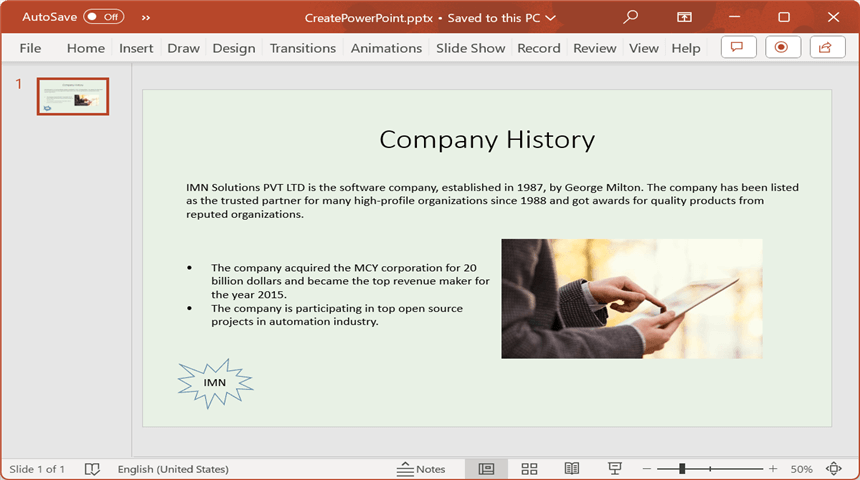
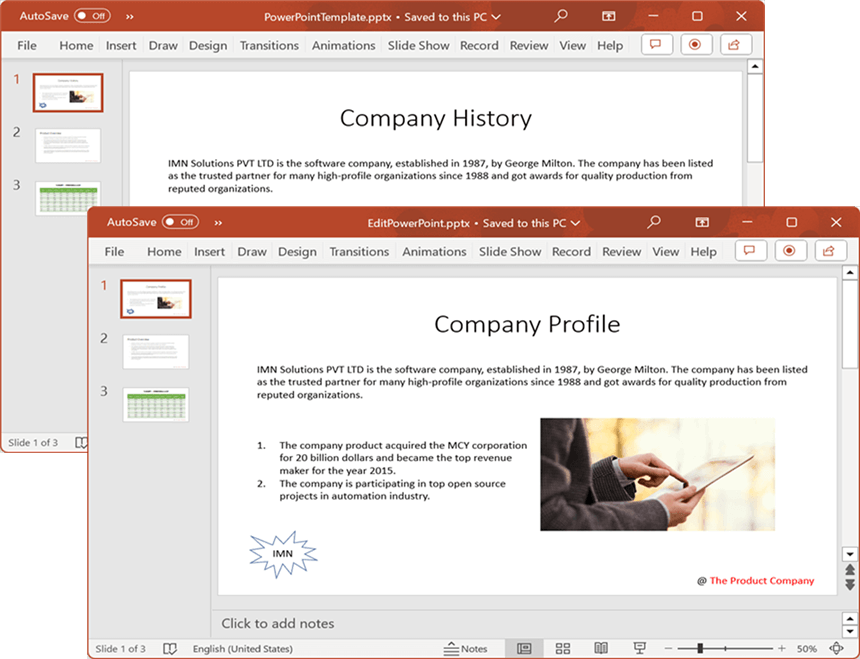
By executing the program, you will get the PowerPoint presentation as follows.
Save a Presentation to Google Cloud Storage
Steps to save a Presentation to Google Cloud Storage.
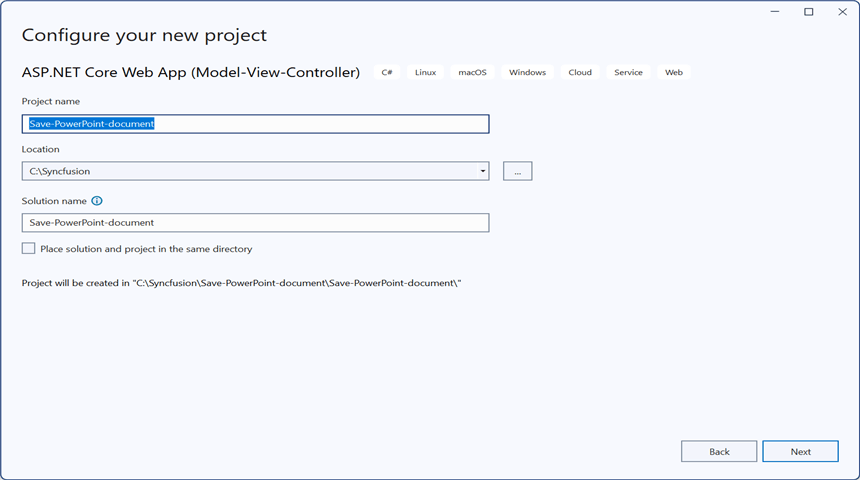
Step 1: Create an ASP.NET Core Web Application (Model-View-Controller).
Step 2: Name the project.
Step 3: Install the following NuGet packages in your application from NuGet.org.
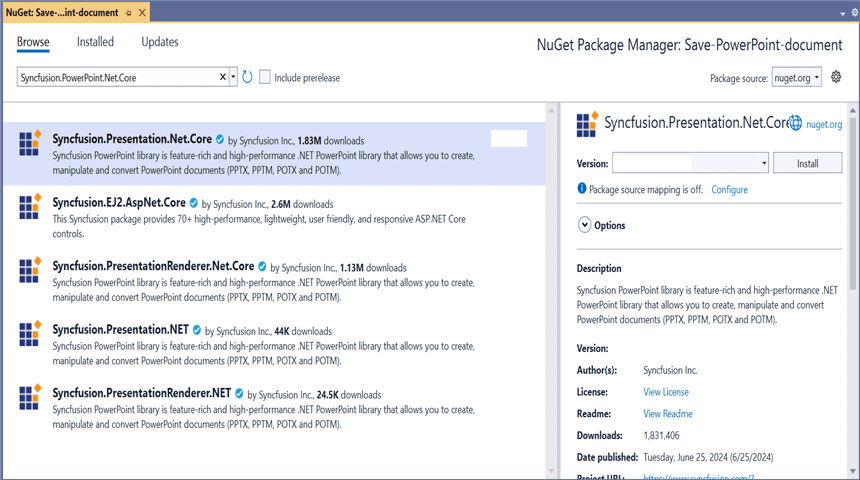
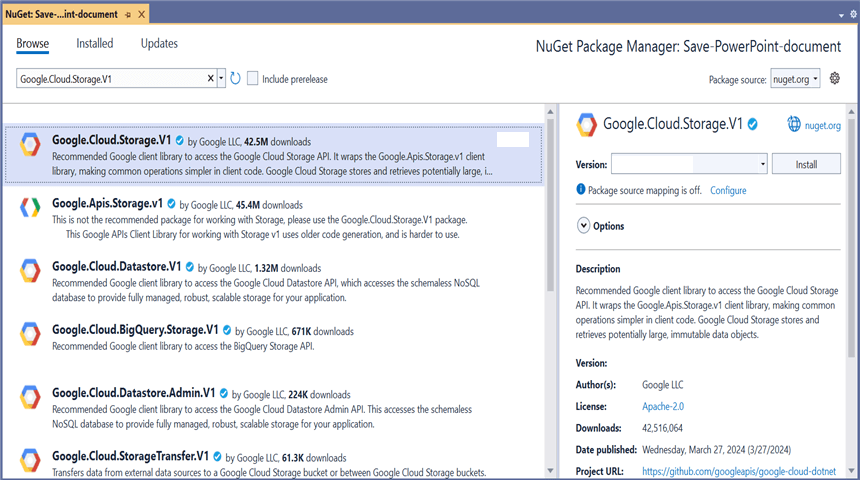
Step 4: Add a new button to Index.cshtml as shown below.
@{Html.BeginForm("UploadDocument", "Home", FormMethod.Get);
    {
        <div>
            <input type="submit" value="Upload Document" style="width:150px;height:27px" />
        </div>
    }
    Html.EndForm();
}
Step 5: Include the following namespaces in HomeController.cs.
using System.IO;
using System.Threading.Tasks;
using Google.Apis.Auth.OAuth2;
using Google.Cloud.Storage.V1;
using Microsoft.AspNetCore.Mvc;
using Syncfusion.Drawing;
using Syncfusion.Presentation;
Step 6: Add the following code snippet to HomeController.cs to save a Presentation to Google Cloud Storage.
public async Task<IActionResult> UploadDocument()
{
    try
    {
        //Create a new instance of a PowerPoint Presentation file
        using (IPresentation pptxDocument = Presentation.Create())
        {
            //Add a new slide to the file and apply a background color
            ISlide slide = pptxDocument.Slides.Add(SlideLayoutType.TitleOnly);

            //Specify the fill type and fill color for the slide background
            slide.Background.Fill.FillType = FillType.Solid;
            slide.Background.Fill.SolidFill.Color = ColorObject.FromArgb(232, 241, 229);

            //Add title content to the slide by accessing the title placeholder of the TitleOnly layout slide
            IShape titleShape = slide.Shapes[0] as IShape;
            titleShape.TextBody.AddParagraph("Company History").HorizontalAlignment = HorizontalAlignmentType.Center;

            //Add description content to the slide by adding a new TextBox
            IShape descriptionShape = slide.AddTextBox(53.22, 141.73, 874.19, 77.70);
            descriptionShape.TextBody.Text = "IMN Solutions PVT LTD is the software company, established in 1987, by George Milton. The company has been listed as the trusted partner for many high-profile organizations since 1988 and got awards for quality products from reputed organizations.";

            //Add bullet points to the slide
            IShape bulletPointsShape = slide.AddTextBox(53.22, 270, 437.90, 116.32);

            //Add a paragraph for a bullet point
            IParagraph firstPara = bulletPointsShape.TextBody.AddParagraph("The company acquired the MCY corporation for 20 billion dollars and became the top revenue maker for the year 2015.");

            //Format how the bullets should be displayed
            firstPara.ListFormat.Type = ListType.Bulleted;
            firstPara.LeftIndent = 35;
            firstPara.FirstLineIndent = -35;

            //Add another paragraph for the next bullet point
            IParagraph secondPara = bulletPointsShape.TextBody.AddParagraph("The company is participating in top open source projects in automation industry.");

            //Format how the bullets should be displayed
            secondPara.ListFormat.Type = ListType.Bulleted;
            secondPara.LeftIndent = 35;
            secondPara.FirstLineIndent = -35;

            //Get a picture as a stream
            using (FileStream pictureStream = new FileStream("Image.jpg", FileMode.Open, FileAccess.Read))
            {
                //Add the picture to a slide by specifying its size and position
                slide.Shapes.AddPicture(pictureStream, 499.79, 238.59, 364.54, 192.16);
            }

            //Add an auto-shape to the slide
            IShape stampShape = slide.Shapes.AddShape(AutoShapeType.Explosion1, 48.93, 430.71, 104.13, 80.54);

            //Format the auto-shape color by setting the fill type and text
            stampShape.Fill.FillType = FillType.None;
            stampShape.TextBody.AddParagraph("IMN").HorizontalAlignment = HorizontalAlignmentType.Center;

            //Save the PowerPoint to a MemoryStream
            using (MemoryStream stream = new MemoryStream())
            {
                pptxDocument.Save(stream);
                stream.Position = 0;

                //Upload the file to Google Cloud Storage
                await UploadDocumentToGoogle(stream);
            }
        }

        return Ok("PowerPoint uploaded to Google Cloud Storage.");
    }
    catch (FileNotFoundException ex)
    {
        return NotFound($"The image file was not found: {ex.Message}");
    }
    catch (Google.GoogleApiException ex) when (ex.HttpStatusCode == System.Net.HttpStatusCode.Forbidden)
    {
        return StatusCode(403, "Access to the Google Cloud Storage bucket was denied. Verify the service account has the Storage Object Creator role.");
    }
    catch (Exception ex)
    {
        return StatusCode(500, $"An error occurred while uploading the Presentation: {ex.Message}");
    }
}
Upload a file to Google Cloud Storage
This is the helper method to upload a Presentation to Google Cloud Storage.
/// <summary>
/// Upload a file to Google Cloud Storage.
/// </summary>
/// <param name="stream">The MemoryStream that contains the file to upload. The stream is left at position 0 and is not disposed by this method.</param>
/// <returns>A task that represents the asynchronous upload operation.</returns>
public async Task UploadDocumentToGoogle(MemoryStream stream)
{
    //Your bucket name
    string bucketName = "Your_bucket_name";

    //Your service account key file path (relative to the project output directory)
    string keyPath = "credentials.json";

    //Name of the file to save in Google Cloud Storage
    string fileName = "CreatePowerPoint.pptx";

    //Content type for a .pptx file
    string contentType = "application/vnd.openxmlformats-officedocument.presentationml.presentation";

    //Create Google Credential from the service account key file with the required scopes
    GoogleCredential credential = GoogleCredential.FromFile(keyPath)
        .CreateScoped(StorageClient.DefaultScopes);

    //Instantiate a storage client to interact with Google Cloud Storage
    StorageClient storageClient = await StorageClient.CreateAsync(credential);

    //Ensure the stream is at the beginning before uploading
    stream.Position = 0;

    //Upload the file to Google Cloud Storage
    await storageClient.UploadObjectAsync(bucketName, fileName, contentType, stream);
}
You can download a complete working sample from GitHub.
By executing the program, the Presentation is saved to the configured Google Cloud Storage bucket and the API returns the message “PowerPoint uploaded to Google Cloud Storage.”