Open and Save a Presentation in AWS S3 Cloud Storage
3 Aug 202617 minutes to read
Prerequisites
- AWS S3 Cloud Storage is required.
- An active AWS account with permission to read from and write to an S3 bucket. If you do not have one, see Create an AWS account.
- An IAM user with
AmazonS3FullAccess(or equivalent scoped) permissions and the access key ID and secret access key. For setup steps, see Create an IAM user and Manage access keys for an IAM user. - .NET 8.0 or later.
- A target S3 bucket to read from or write to. See Create your first S3 bucket.
Open a Presentation from AWS S3
Steps to open a Presentation from AWS S3 Cloud Storage.
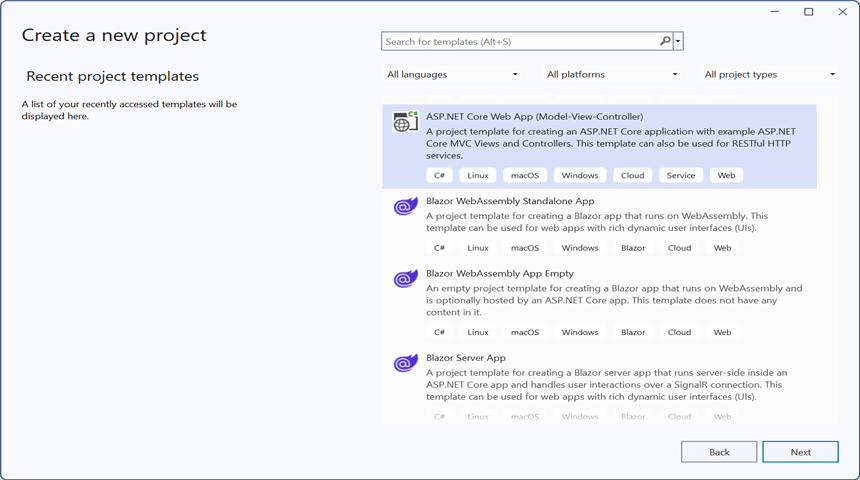
Step 1: Create an ASP.NET Core Web Application (Model-View-Controller).
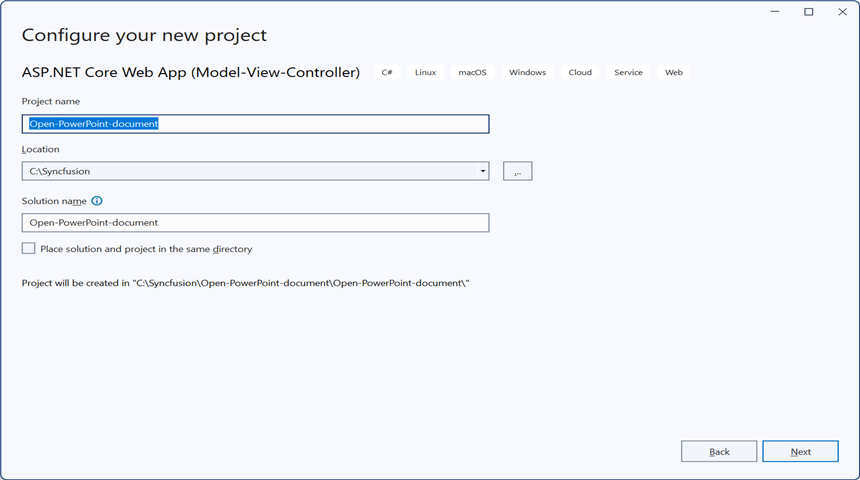
Step 2: Name the project.
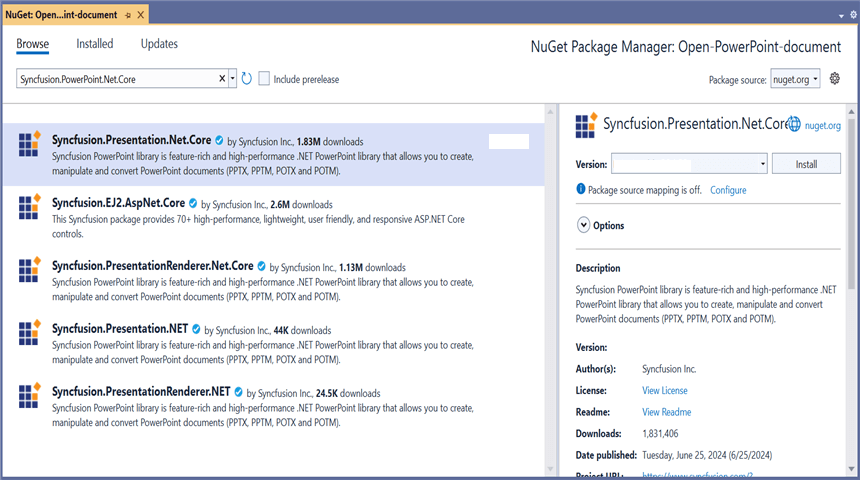
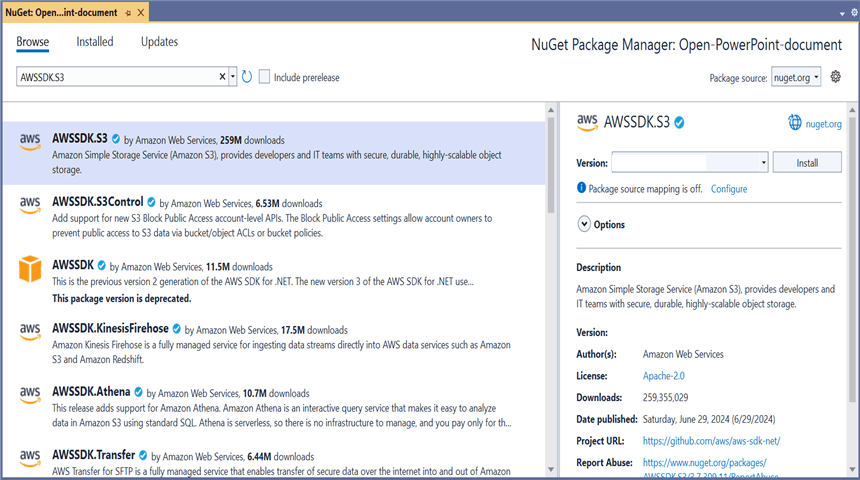
Step 3: Install the following NuGet packages in your application from NuGet.org.
Step 4: Add a new button to Index.cshtml as shown below.
@{Html.BeginForm("EditDocument", "Home", FormMethod.Get);
    {
        <div>
            <input type="submit" value="Edit Document" style="width:150px;height:27px" />
        </div>
    }
    Html.EndForm();
}
Step 5: Include the following namespaces in HomeController.cs.
using Amazon;
using Amazon.S3;
using Amazon.S3.Model;
using Syncfusion.Presentation;
Step 6: Add the following code snippet in HomeController.cs to open a Presentation from AWS S3 Cloud Storage.
public async Task<IActionResult> EditDocument()
{
    try
    {
        //Retrieve the document from AWS S3
        MemoryStream stream = await GetDocumentFromS3();

        //Set the position to the beginning of the MemoryStream
        stream.Position = 0;

        //Create an instance of PowerPoint Presentation file
        using (IPresentation pptxDocument = Presentation.Open(stream))
        {
            //Get the first slide from the PowerPoint presentation
            ISlide slide = pptxDocument.Slides[0];

            //Get the first shape of the slide
            IShape shape = slide.Shapes[0] as IShape;

            //Change the text of the shape
            if (shape.TextBody.Text == "Company History")
                shape.TextBody.Text = "Company Profile";

            //Saving the PowerPoint file to a MemoryStream
            MemoryStream outputStream = new MemoryStream();
            pptxDocument.Save(outputStream);

            //Download the PowerPoint file in the browser
            FileStreamResult fileStreamResult = new FileStreamResult(outputStream, "application/powerpoint");
            fileStreamResult.FileDownloadName = "EditPowerPoint.pptx";
            return fileStreamResult;
        }
    }
    catch (AmazonS3Exception ex)
    {
        //Amazon S3-specific error (e.g., AccessDenied, NoSuchKey)
        Console.WriteLine($"S3 error: {ex.ErrorCode} - {ex.Message}");
        return Content("Error occurred while retrieving the file from S3.");
    }
    catch (Exception ex)
    {
        Console.WriteLine($"Error: {ex.Message}");
        return Content("Error occurred while processing the file.");
    }
}
Download a File from AWS S3 Cloud Storage
The following helper method downloads a Presentation from AWS S3 Cloud Storage and returns it as a MemoryStream positioned at the beginning.
/// <summary>
/// Downloads the PowerPoint file from the configured AWS S3 bucket.
/// </summary>
/// <returns>A <see cref="MemoryStream"/> containing the PowerPoint file, positioned at the beginning.</returns>
public async Task<MemoryStream> GetDocumentFromS3()
{
    //Your AWS Storage Account bucket name
    string bucketName = "your-bucket-name";

    //Name of the PowerPoint file you want to load from AWS S3
    string key = "PowerPointTemplate.pptx";

    //Configure AWS credentials and region
    var region = Amazon.RegionEndpoint.USEast1;
    var credentials = new Amazon.Runtime.BasicAWSCredentials("your-access-key", "your-secret-key");
    var config = new AmazonS3Config
    {
        RegionEndpoint = region
    };

    try
    {
        using (var client = new AmazonS3Client(credentials, config))
        {
            //Create a MemoryStream to copy the file content
            MemoryStream stream = new MemoryStream();

            //Download the file from S3 into the MemoryStream
            var response = await client.GetObjectAsync(new GetObjectRequest
            {
                BucketName = bucketName,
                Key = key
            });

            //Copy the response stream to the MemoryStream
            await response.ResponseStream.CopyToAsync(stream);

            //Reset the position so the caller can read the stream from the beginning
            stream.Position = 0;

            return stream;
        }
    }
    catch (Exception ex)
    {
        Console.WriteLine($"Error retrieving document from S3: {ex.Message}");
        throw;
    }
}
You can download a complete working sample from GitHub.
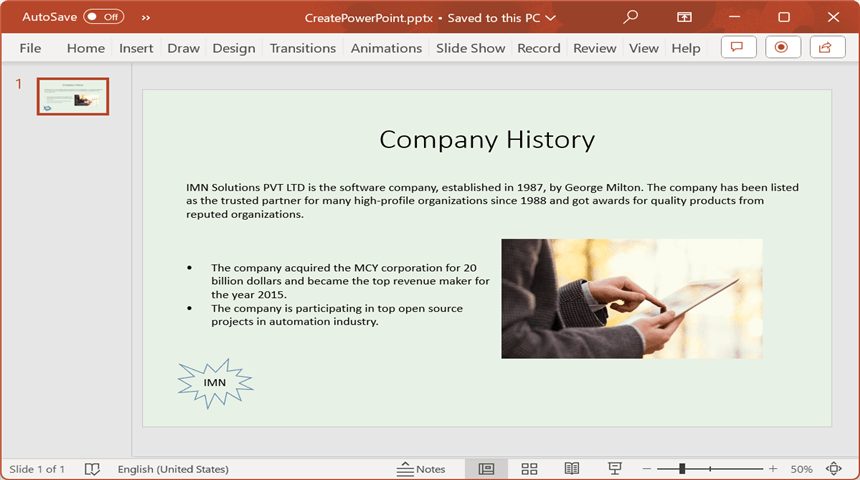
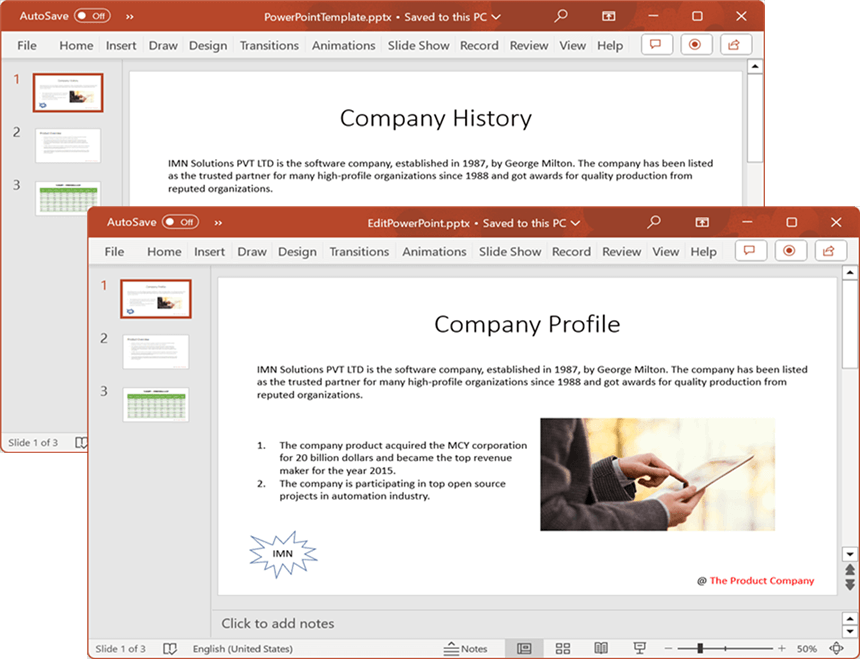
By executing the program, you will get the Presentation as follows.
Save a Presentation to AWS S3
Steps to save a Presentation to AWS S3 Cloud Storage.
Step 1: Create an ASP.NET Core Web Application (Model-View-Controller).
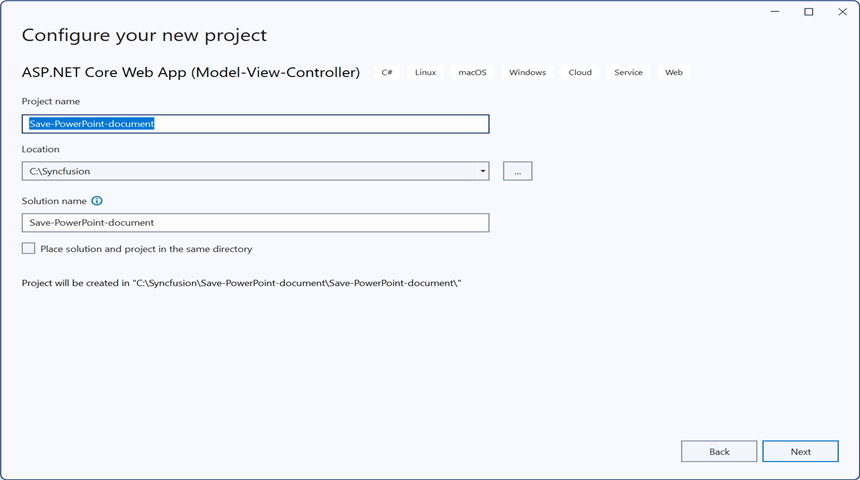
Step 2: Name the project.
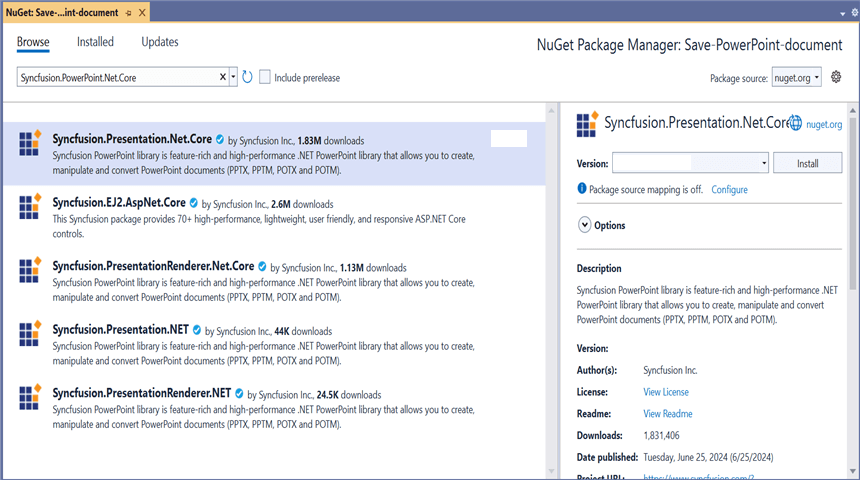
Step 3: Install the following NuGet packages in your application from NuGet.org.
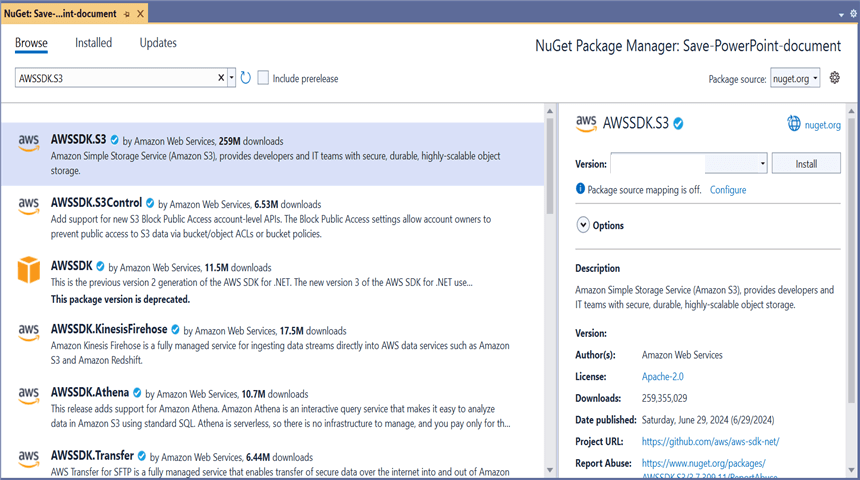
Step 4: Add a new button to Index.cshtml as shown below.
@{Html.BeginForm("UploadDocument", "Home", FormMethod.Get);
    {
        <div>
            <input type="submit" value="Upload Document" style="width:150px;height:27px" />
        </div>
    }
    Html.EndForm();
}
Step 5: Include the following namespaces in HomeController.cs.
using Amazon;
using Amazon.S3;
using Amazon.S3.Transfer;
using Syncfusion.Drawing;
using Syncfusion.Presentation;
Step 6: Add the following code snippet in HomeController.cs to save a Presentation to AWS S3 Cloud Storage.
public async Task<IActionResult> UploadDocument()
{
    //Create a new instance of PowerPoint Presentation file
    using (IPresentation pptxDocument = Presentation.Create())
    {
        //Add a new slide to the file and apply a background color
        ISlide slide = pptxDocument.Slides.Add(SlideLayoutType.TitleOnly);

        //Specify the fill type and fill color for the slide background
        slide.Background.Fill.FillType = FillType.Solid;
        slide.Background.Fill.SolidFill.Color = ColorObject.FromArgb(232, 241, 229);

        //Add title content to the slide by accessing the title placeholder of the TitleOnly layout slide
        IShape titleShape = slide.Shapes[0] as IShape;
        titleShape.TextBody.AddParagraph("Company History").HorizontalAlignment = HorizontalAlignmentType.Center;

        //Add description content to the slide by adding a new text box
        IShape descriptionShape = slide.AddTextBox(53.22, 141.73, 874.19, 77.70);
        descriptionShape.TextBody.Text = "IMN Solutions PVT LTD is the software company, established in 1987, by George Milton. The company has been listed as the trusted partner for many high-profile organizations since 1988 and got awards for quality products from reputed organizations.";

        //Add bullet points to the slide
        IShape bulletPointsShape = slide.AddTextBox(53.22, 270, 437.90, 116.32);

        //Add a paragraph for a bullet point
        IParagraph firstPara = bulletPointsShape.TextBody.AddParagraph("The company acquired the MCY corporation for 20 billion dollars and became the top revenue maker for the year 2015.");

        //Format how the bullets should be displayed
        firstPara.ListFormat.Type = ListType.Bulleted;
        firstPara.LeftIndent = 35;
        firstPara.FirstLineIndent = -35;

        //Add another paragraph for the next bullet point
        IParagraph secondPara = bulletPointsShape.TextBody.AddParagraph("The company is participating in top open source projects in automation industry.");

        //Format how the bullets should be displayed
        secondPara.ListFormat.Type = ListType.Bulleted;
        secondPara.LeftIndent = 35;
        secondPara.FirstLineIndent = -35;

        //Get a picture as a stream
        using (FileStream pictureStream = new FileStream("Image.jpg", FileMode.Open))
        {
            //Add the picture to the slide by specifying its size and position
            slide.Shapes.AddPicture(pictureStream, 499.79, 238.59, 364.54, 192.16);
        }

        //Add an auto-shape to the slide
        IShape stampShape = slide.Shapes.AddShape(AutoShapeType.Explosion1, 48.93, 430.71, 104.13, 80.54);

        //Format the auto-shape by setting the fill type and text
        stampShape.Fill.FillType = FillType.None;
        stampShape.TextBody.AddParagraph("IMN").HorizontalAlignment = HorizontalAlignmentType.Center;

        //Save the PowerPoint to a MemoryStream
        using (MemoryStream stream = new MemoryStream())
        {
            pptxDocument.Save(stream);
            //Reset the position so the upload reads from the beginning
            stream.Position = 0;

            //Upload the document to AWS S3
            await UploadDocumentToS3(stream);
        }
    }

    return Ok("PowerPoint uploaded to AWS S3 Storage.");
}
Upload a File to AWS S3 Cloud Storage
The following helper method uploads a Presentation stream to AWS S3 Cloud Storage.
/// <summary>
/// Uploads the PowerPoint stream to the configured AWS S3 bucket.
/// </summary>
/// <param name="stream">The PowerPoint file content to upload. The stream is read from its current position.</param>
/// <returns>A task that represents the asynchronous upload operation.</returns>
public async Task UploadDocumentToS3(MemoryStream stream)
{
    //Your AWS Storage Account bucket name
    string bucketName = "your-bucket-name";

    //Name of the PowerPoint file you want to upload
    string key = "CreatePowerPoint.pptx";

    //Configure AWS credentials and region
    var region = Amazon.RegionEndpoint.USEast1;
    var credentials = new Amazon.Runtime.BasicAWSCredentials("your-access-key", "your-secret-key");
    var config = new AmazonS3Config
    {
        RegionEndpoint = region
    };

    using (var client = new AmazonS3Client(credentials, config))
    {
        var fileTransferUtility = new TransferUtility(client);

        try
        {
            //Upload the stream to AWS S3
            await fileTransferUtility.UploadAsync(stream, bucketName, key);
            Console.WriteLine("Upload completed successfully");
        }
        catch (AmazonS3Exception e)
        {
            Console.WriteLine("Error encountered on server. Message:'{0}' when writing an object", e.Message);
        }
        catch (Exception e)
        {
            Console.WriteLine("Unknown encountered on server. Message:'{0}' when writing an object", e.Message);
        }
    }
}
You can download a complete working sample from GitHub.
By executing the program, you will get the Presentation as follows.