Create a PowerPoint Presentation in ASP.NET Core Web API
21 Jul 20269 minutes to read
Syncfusion® PowerPoint is a .NET PowerPoint library used to create, read, and edit PowerPoint presentations programmatically without Microsoft PowerPoint or interop dependencies. Using this library, you can create a PowerPoint presentation in an ASP.NET Core Web API.
Steps to create a PowerPoint programmatically
The below steps illustrate creating a simple PowerPoint presentation in an ASP.NET Core Web API.
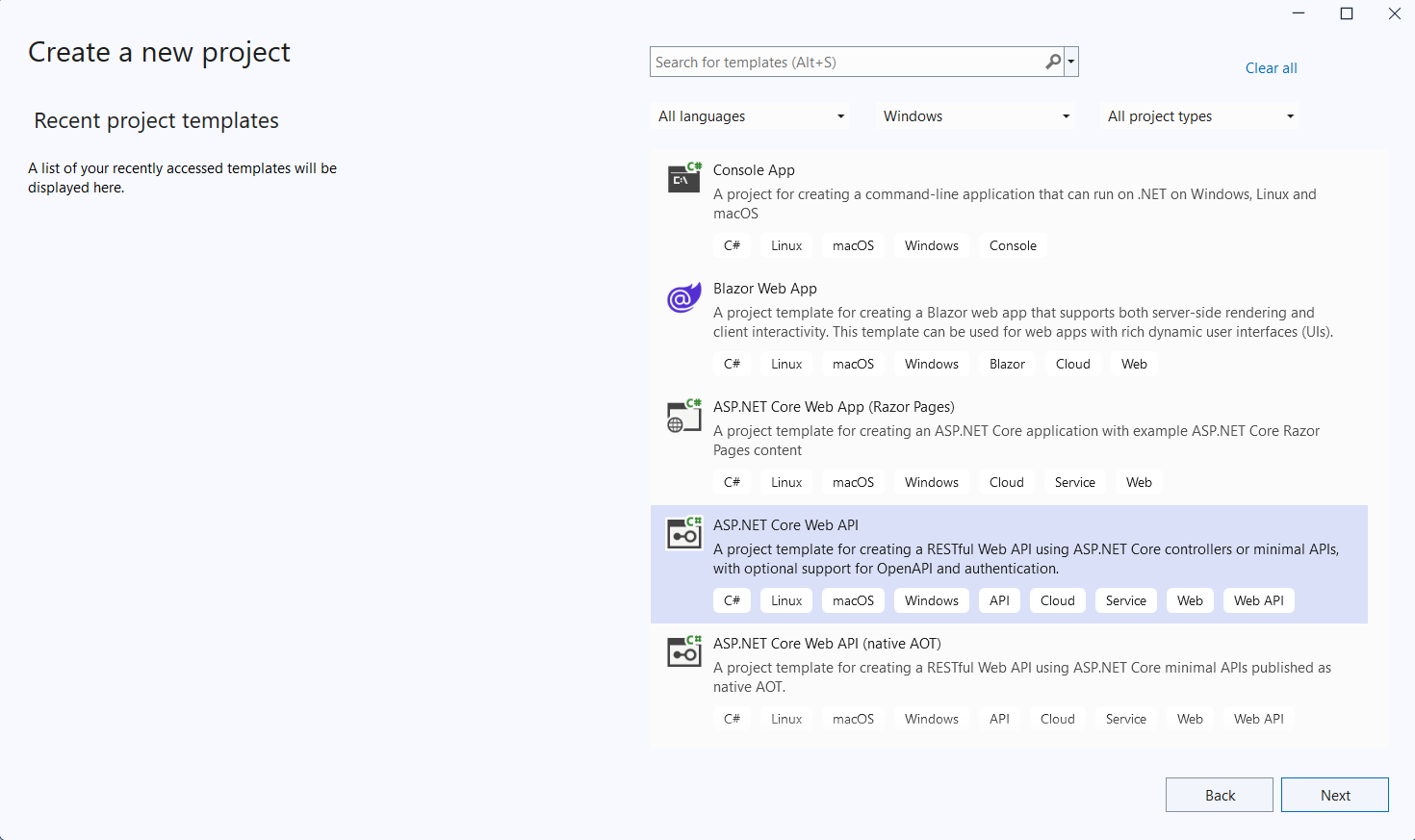
Step 1: Create a new C# ASP.NET Core Web API project.
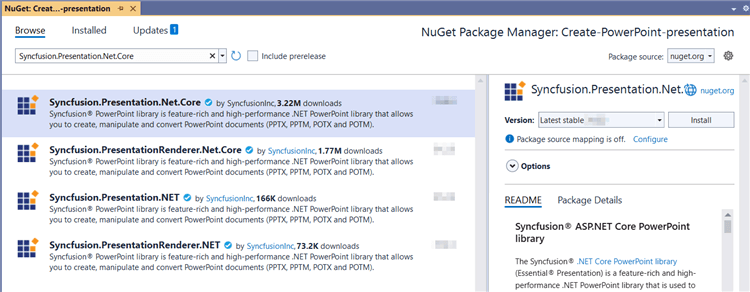
Step 2: Install the Syncfusion.Presentation.Net.Core NuGet package as a reference to your project from NuGet.org.
Starting with v16.2.0.x, if you reference Syncfusion® assemblies from the trial setup or from the NuGet feed, you also have to install the
Syncfusion.Licensing.Net.CoreNuGet package and include a license key in your project. Refer to the licensing overview to register a Syncfusion® license key in your application.
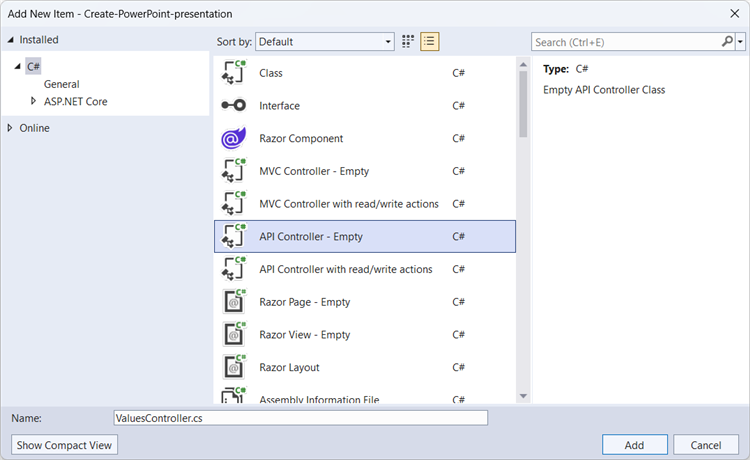
Step 3: Add a new API controller empty file to the project and name it ValuesController.cs (the controller-level route prefix api/Values used later in the client request URL is derived from this name).
Step 4: Include the following namespaces in the ValuesController.cs file.
using Microsoft.AspNetCore.Mvc;
using Syncfusion.Presentation;
using System;
using System.IO;
Step 5: Add a new action method CreatePresentation in ValuesController.cs and include the below code snippet to create a PowerPoint presentation and download it.
[Route("api/Values")]
[ApiController]
public class ValuesController : ControllerBase
{
    [HttpGet]
    [Route("api/PowerPoint")]
    public IActionResult CreatePresentation()
    {
        try
        {
            var fileDownloadName = "Output.pptx";
            const string contentType = "application/vnd.openxmlformats-officedocument.presentationml.presentation";
            var stream = GeneratePresentation();
            stream.Position = 0;
            return File(stream, contentType, fileDownloadName);
        }
        catch (Exception ex)
        {
            return BadRequest("Error occurred while creating PowerPoint file: " + ex.Message);
        }
    }
}
Step 6: Implement the GeneratePresentation method inside the ValuesController.cs.
public static MemoryStream GeneratePresentation()
 {
    // Create a new instance of PowerPoint Presentation file
    IPresentation pptxDoc = Presentation.Create();
    // Add a new slide to file and apply background color
    ISlide slide = pptxDoc.Slides.Add(SlideLayoutType.TitleOnly);
    // Specify the fill type and fill color for the slide background
    slide.Background.Fill.FillType = FillType.Solid;
    slide.Background.Fill.SolidFill.Color = ColorObject.FromArgb(232, 241, 229);
    // Add title content to the slide by accessing the title placeholder of the TitleOnly layout slide
    IShape titleShape = slide.Shapes[0] as IShape;
    titleShape.TextBody.AddParagraph("Company History").HorizontalAlignment = HorizontalAlignmentType.Center;
    // Add description content to the slide by adding a new TextBox shape
    IShape descriptionShape = slide.AddTextBox(53.22, 141.73, 874.19, 77.70);
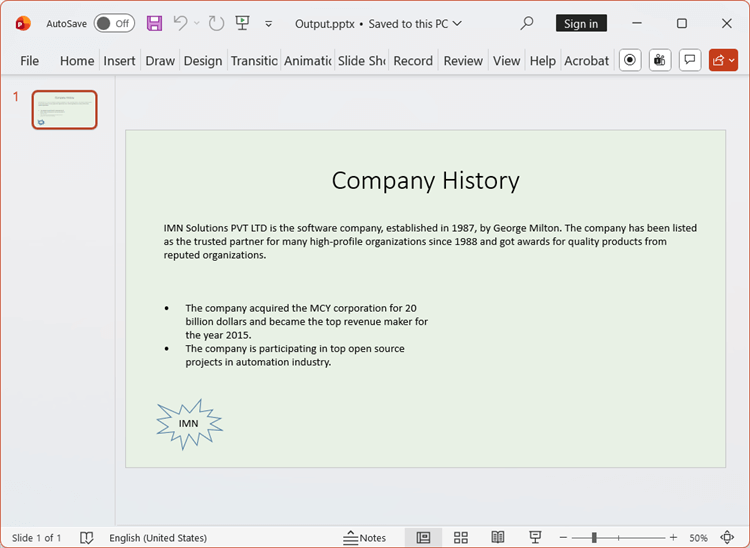
    descriptionShape.TextBody.Text = "IMN Solutions PVT LTD is the software company, established in 1987, by George Milton. The company has been listed as the trusted partner for many high-profile organizations since 1988 and got awards for quality products from reputed organizations.";
    // Add bullet points to the slide
    IShape bulletPointsShape = slide.AddTextBox(53.22, 270, 437.90, 116.32);
    // Add a paragraph for a bullet point
    IParagraph firstPara = bulletPointsShape.TextBody.AddParagraph("The company acquired the MCY corporation for 20 billion dollars and became the top revenue maker for the year 2015.");
    // Format how the bullets should be displayed
    firstPara.ListFormat.Type = ListType.Bulleted;
    firstPara.LeftIndent = 35;
    firstPara.FirstLineIndent = -35;
    // Add another paragraph for the next bullet point
    IParagraph secondPara = bulletPointsShape.TextBody.AddParagraph("The company is participating in top open source projects in automation industry.");
    // Format how the bullets should be displayed
    secondPara.ListFormat.Type = ListType.Bulleted;
    secondPara.LeftIndent = 35;
    secondPara.FirstLineIndent = -35;
    // Add an auto-shape to the slide
    IShape stampShape = slide.Shapes.AddShape(AutoShapeType.Explosion1, 48.93, 430.71, 104.13, 80.54);
    // Format the auto-shape color by setting the fill type and text
    stampShape.Fill.FillType = FillType.None;
    stampShape.TextBody.AddParagraph("IMN").HorizontalAlignment = HorizontalAlignmentType.Center;
    // Save the PowerPoint Presentation as stream
    MemoryStream stream = new MemoryStream();
    pptxDoc.Save(stream);
    pptxDoc.Close();
    stream.Position = 0;
    return stream;
}
Step 7: Build the project.
Click on Build → Build Solution or press Ctrl+Shift+B to build the project.
Step 8: Run the project.
Click the Start button (green arrow) or press F5 to run the app.
A complete working sample is available on GitHub.
Steps for accessing the Web API using HTTP requests
Step 1: Create a console application.
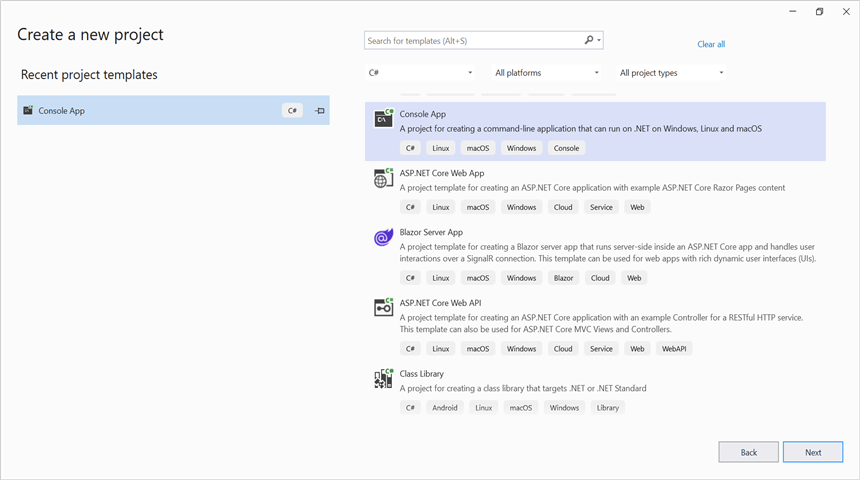
Ensure your ASP.NET Core Web API is running on the specified port before running this client. Adjust the port number if your Web API runs on a different port (check the ASP.NET Core app’s launch settings).
Step 2: Add the below code snippet in the Program.cs file for accessing the Web API using HTTP requests.
This method sends a GET request to the Web API endpoint to retrieve and save the generated PowerPoint presentation. Replace the port 7073 with the actual HTTPS port configured for your Web API in Properties/launchSettings.json (applicationUrl).
// Create an HttpClient instance
using (HttpClient client = new HttpClient())
{
    try
    {
        // Send a GET request to a URL
        HttpResponseMessage response = await client.GetAsync("https://localhost:7073/api/Values/api/PowerPoint");
        // Check if the response is successful
        if (response.IsSuccessStatusCode)
        {
            // Read the content as a string
            Stream responseBody = await response.Content.ReadAsStreamAsync();
            FileStream fileStream = File.Create("../../../Output/Output.pptx");
            responseBody.CopyTo(fileStream);
            fileStream.Close();
        }
        else
        {
            Console.WriteLine("HTTP error status code: " + response.StatusCode);
        }
    }
    catch (HttpRequestException e)
    {
        Console.WriteLine("Request exception: " + e.Message);
    }
}
Step 3: Build the project.
Click on Build → Build Solution or press Ctrl+Shift+B to build the project.
Step 4: Run the project.
Click the Start button (green arrow) or press F5 to run the app.
A complete working sample is available on GitHub.
Upon executing the program, the PowerPoint presentation will be generated as follows.
Looking for the full .NET PowerPoint Library component overview, features, pricing, and documentation? Visit the .NET PowerPoint Library page.
An online sample link to create a PowerPoint Presentation in ASP.NET Core.