Docker Image Hosting Guide for Blazor Web App PDF Viewer
14 Aug 20263 minutes to read
This article helps reduce deployment time and simplify publishing by using Docker images with a Blazor Smart PDF Viewer Web App. The Syncfusion Document Processing API is available as a ready-to-use Docker image for document processing scenarios and ensures a seamless experience for Docker users. The following sections describe how to build the Blazor Smart PDF Viewer Web App into a Docker image and host it locally for validation.
Deployment requirement
Hardware requirement
The following hardware requirements are necessary to run the document processing API:
- Windows
- CPU: 2-core
- Memory: 8 GB RAM
- Disk space: 8 GB or more
Software requirements
The following software requirements are necessary to run the document processing API:
- Container runtime: Rancher Desktop (with the container runtime)
- Web browser: Microsoft Edge, Mozilla Firefox, or Google Chrome
Steps to configure and run Docker container
-
Step 1: Install the Rancher Desktop application from the official release page: Rancher Desktop.
-
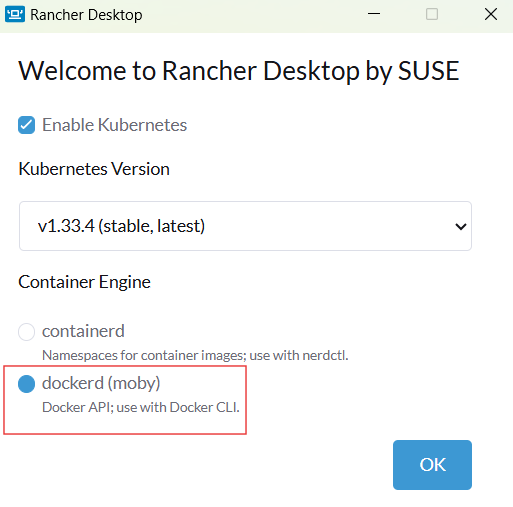
Step 2: Open the Rancher Desktop application and select the container runtime.
-
Step 3: Create a Smart PDF Viewer web app sample by following the Getting Started documentation.
-
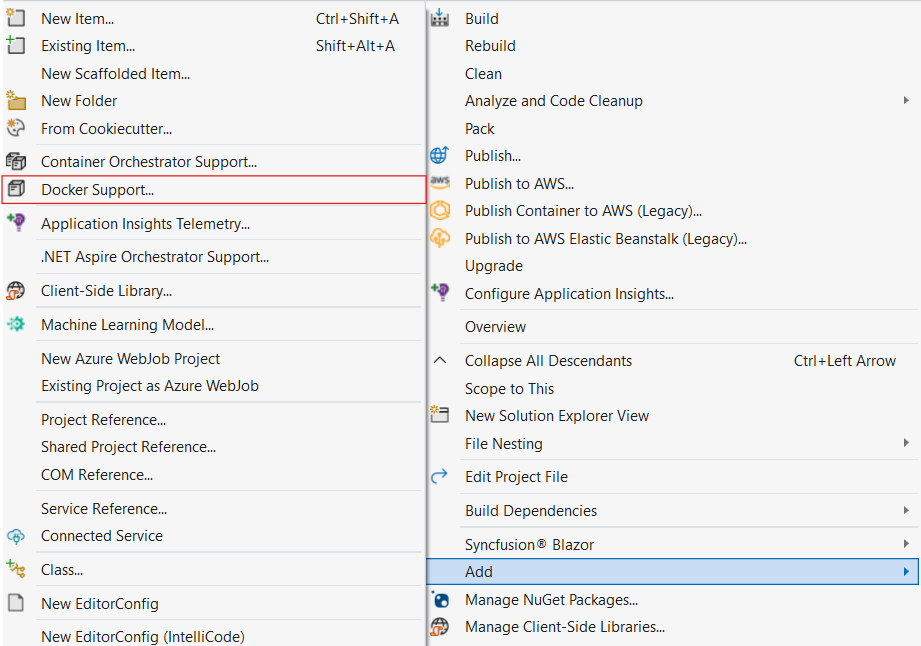
Step 4: In Visual Studio, right-click the Smart PDF Viewer web app project and select Add > Docker Support to add Docker support targeting Linux.
-
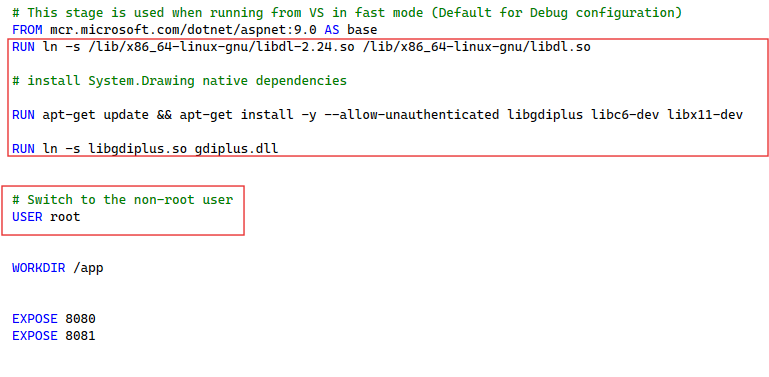
Step 5: Once the Dockerfile is added, open the Dockerfile and add the following lines.
FROM mcr.microsoft.com/dotnet/aspnet:9.0 AS base
RUN ln -s /lib/x86_64-linux-gnu/libdl-2.24.so /lib/x86_64-linux-gnu/libdl.so

RUN apt-get update && apt-get install -y --allow-unauthenticated libgdiplus libc6-dev libx11-dev

RUN ln -s libgdiplus.so gdiplus.dll

USER root

WORKDIR /app

EXPOSE 8080
EXPOSE 8081
....
Port
8080is used for HTTP traffic and8081is used by the Blazor Server SignalR endpoint. TheEXPOSEdirective only documents the ports that the container listens on; the actual host-to-container port mapping is defined when running the container (see Step 8).
-
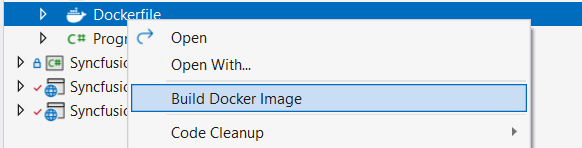
Step 6: Build the image from the Dockerfile.
-
Step 7: Open the command prompt or PowerShell and enter the following command to list the published Docker images. Note the IMAGE ID of the Blazor Smart PDF Viewer image for use in the next step.
docker image ls-
Step 8: To run the published image locally, use the following command in the format
docker run -d -p {Host Port}:{Container Port} {Image ID}. Replace{Host Port}with a free port on your machine,{Container Port}with8080(or8081for the SignalR endpoint), and{Image ID}with the ID noted in Step 7.
docker run -d -p 6001:8080 4eead1aaf7a5-
Step 9: Verify that the Blazor Smart PDF Viewer web app loads successfully by navigating to the hosted link
http://localhost:6001/.