Getting Started with Vue PDF Viewer in Quasar Framework
25 Aug 20264 minutes to read
This section explains step-by-step instructions for integrating the Syncfusion® Vue PDF Viewer component into a Quasar Framework project using the Composition API.
Quasar is a Vue.js-based open-source framework that enables developers to create high-performance, responsive applications across web, mobile, and desktop platforms. The Vue PDF Viewer integrates seamlessly with Quasar’s architecture, providing a complete PDF viewing and annotation solution.
Prerequisites
Before you begin, ensure the following are in place:
- System requirements for Vue UI components
- Node.js v14.15.0 or later
Set up the Quasar project
To create a new Quasar project, use the following command:
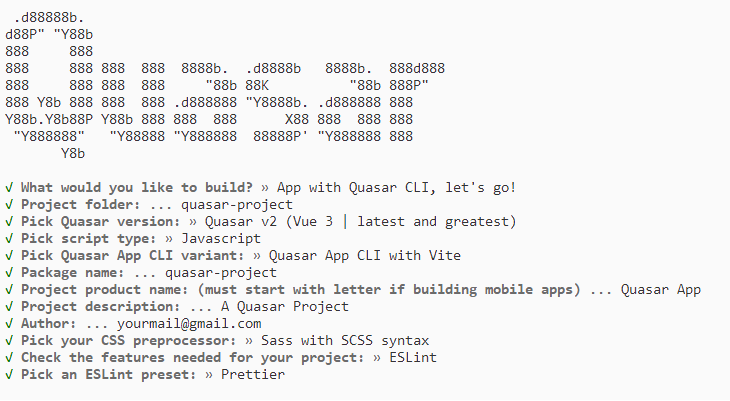
npm init quasarWhen prompted for configuration options, select Vue 3 with the Composition API to align with the examples in this guide. Follow the setup wizard:
When prompted to install dependencies, type y and press Enter to proceed with the npm install:

Navigate to your project directory:
cd quasar-projectYour Quasar project is now ready. Proceed to add the Vue PDF Viewer component.
Add the Syncfusion® Vue packages
Syncfusion® packages are available on npmjs.com. Install the @syncfusion/ej2-vue-pdfviewer package to add the Vue PDF Viewer component:
npm install @syncfusion/ej2-vue-pdfviewer --saveImport the required CSS styles
Themes for PDF Viewer can be applied using CSS or SASS files from the npm theme packages, CDN, CRG, or Theme Studio. For more information, see the themes documentation.
This guide uses the Tailwind 3 theme as an example, sourced from the theme package. In this package, each component includes an index.css file that automatically loads all the required dependency styles. To install the Tailwind 3 theme package, use the following command:
npm install @syncfusion/ej2-tailwind3-themeImport the PDF Viewer theme styles into the <style> section of the src/App.vue file:
<style>
  @import '../node_modules/@syncfusion/ej2-tailwind3-theme/styles/pdfviewer/index.css';
</style>
The
index.cssfile automatically includes all required dependent component styles for the PDF Viewer. You do not need to import individual dependency styles such as Base, Buttons, Dropdowns, Inputs, Navigations, Popups, SplitButtons, and Lists separately.
Refer to the Themes topic to learn more about built-in themes and different ways to refer to themes in a Vue project.
Add the Syncfusion® Vue component
Add the PDF Viewer component to your Quasar application. The component is added to the root src/App.vue file, which is the default entry point for a Quasar project.
Import and register the PDF Viewer
Import the PDF Viewer component and its required modules in the <script setup> section of src/App.vue, declare the serviceUrl and documentPath properties, and provide the required modules:
import { provide } from 'vue';
import { PdfViewerComponent as EjsPdfviewer, Toolbar, Magnification, Navigation, LinkAnnotation, BookmarkView,
         ThumbnailView, Print, TextSelection, TextSearch, Annotation, FormDesigner, FormFields } from '@syncfusion/ej2-vue-pdfviewer';

const serviceUrl = 'https://document.syncfusion.com/web-services/pdf-viewer/api/pdfviewer';
const documentPath = 'https://cdn.syncfusion.com/content/pdf/pdf-succinctly.pdf';
const pdfViewer = null;

provide('PdfViewer', [ Toolbar, Magnification, Navigation, LinkAnnotation, BookmarkView, ThumbnailView,
                       Print, TextSelection, TextSearch, Annotation, FormDesigner, FormFields]);
serviceUrl – The back-end web service endpoint that processes PDF rendering, search, and annotation requests. The Syncfusion-hosted URL shown above is provided for evaluation only; for production, replace it with your deployed web service.
documentPath – The URL or file path of the PDF document to display. You can provide a remote URL, a Base64 string, or a local file path.
Initialize the PDF Viewer
Define the PDF Viewer component in the <template> section of src/App.vue:
<template>
  <ejs-pdfviewer id="pdfViewer" :serviceUrl="serviceUrl" :documentPath="documentPath">
  </ejs-pdfviewer>
</template>
Run the application
Start the Quasar dev server with the following command:
npm run devThe application will run at the Quasar dev server URL, which by default is http://localhost:9000. The terminal output will look similar to the following:
App URL............. http://localhost:9000/
Dev mode............ spa
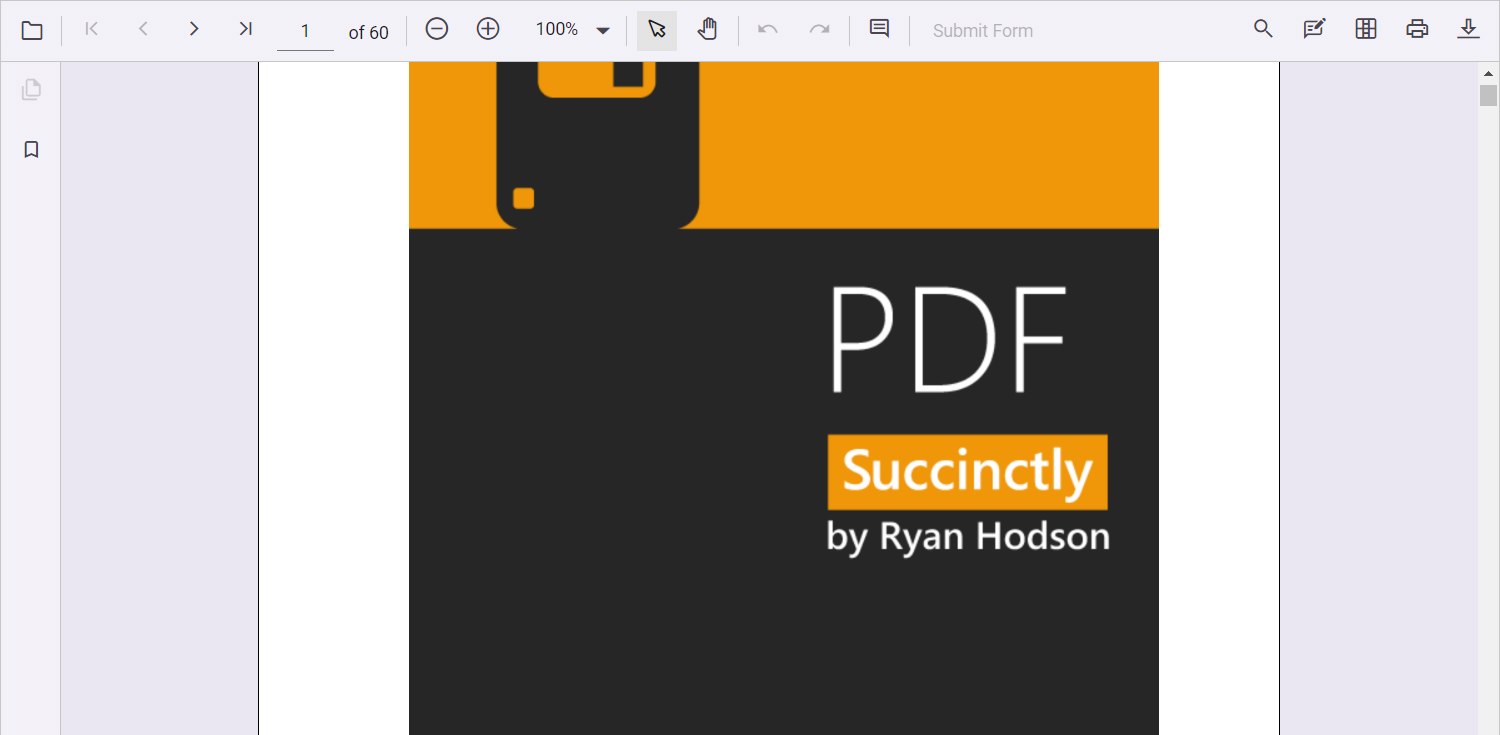
Open the printed URL in a browser to view the PDF Viewer with the sample document and the complete toolbar interface, allowing users to interact with features like zoom, search, annotations, and navigation.