From Azure Active Directory in Vue PDF Viewer
17 Aug 202613 minutes to read
Overview
This article explains how to load and save PDF files from Azure Active Directory (AAD) into the Vue PDF Viewer using a secure server-side component. It covers application registration, storage configuration, server and client setup, common pitfalls, and recommended security practices.
Step 1: Register an application in Azure Active Directory (AAD)
-
Go to the Azure Portal
- Navigate to the Azure Portal (https://portal.azure.com).
-
Register the application
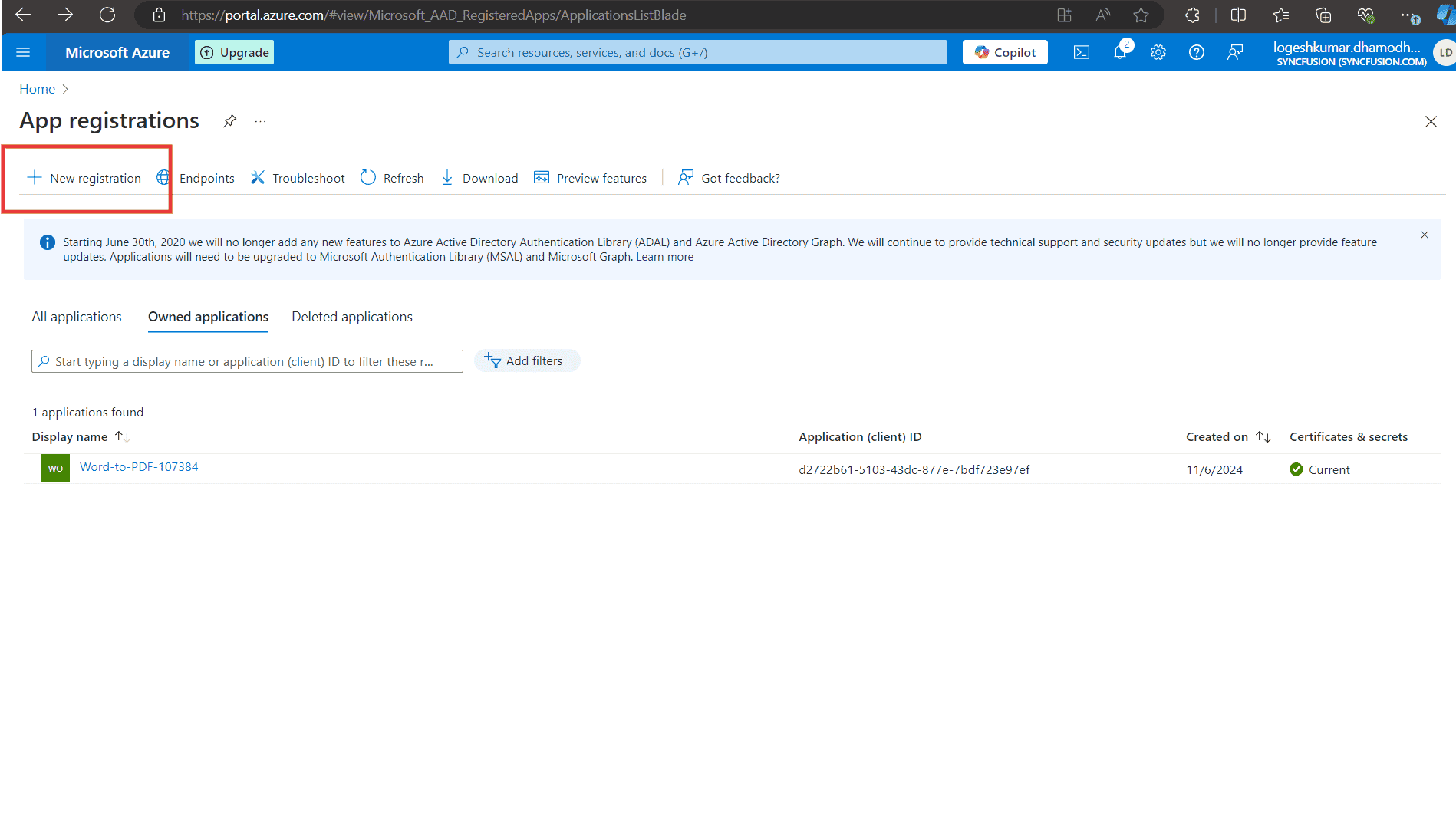
- In Azure Active Directory, open App registrations and create a New registration.
- Note the Application (client) ID and Directory (tenant) ID for the server-side configuration.
-
Create a client secret (if not using Managed Identity)
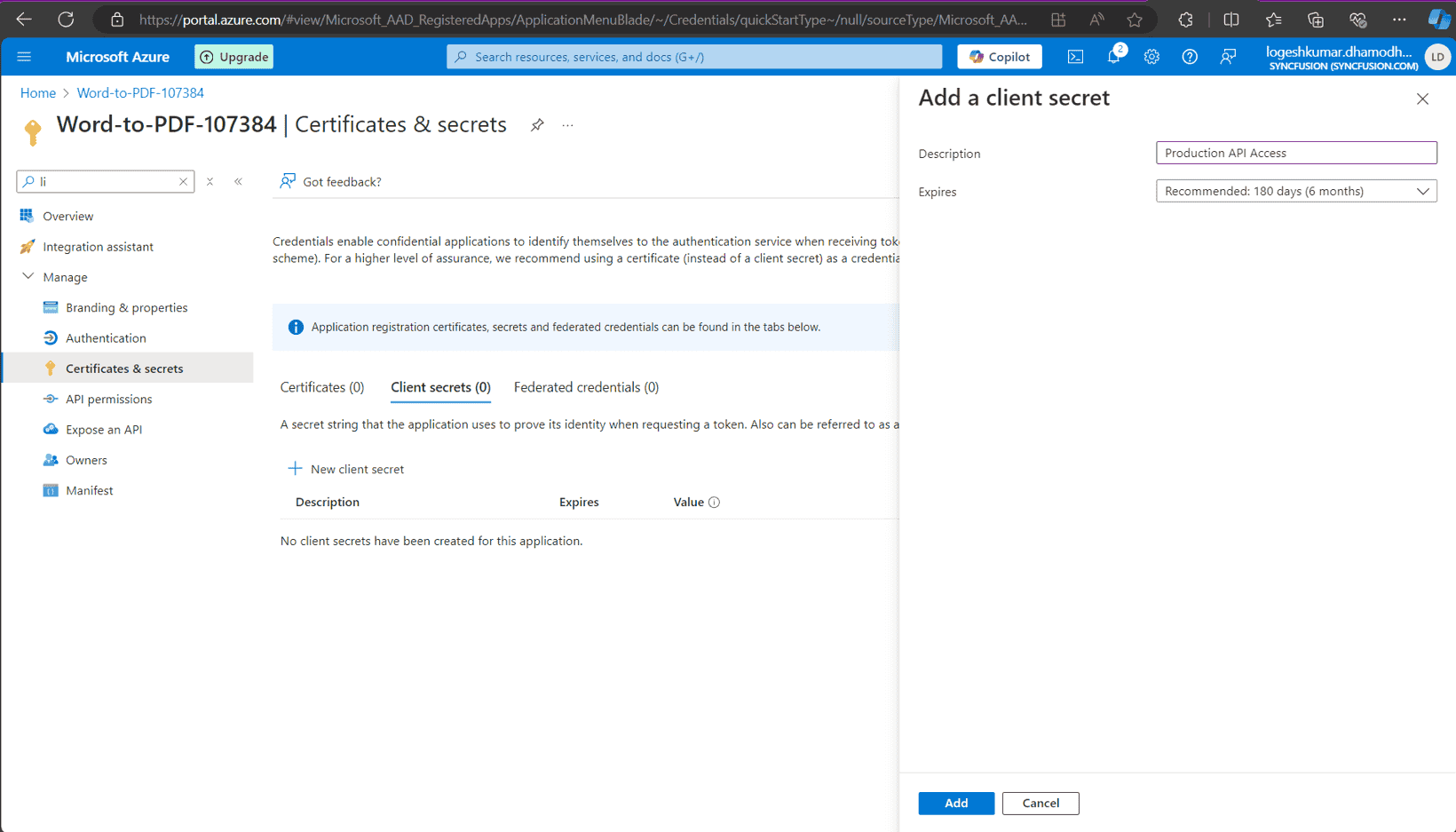
- In the registered application, open Certificates & secrets and create a New client secret.
- Copy and store the client secret securely; it will be hidden after creation.
Step 2: Create the Azure Storage account
-
Create a Storage Account
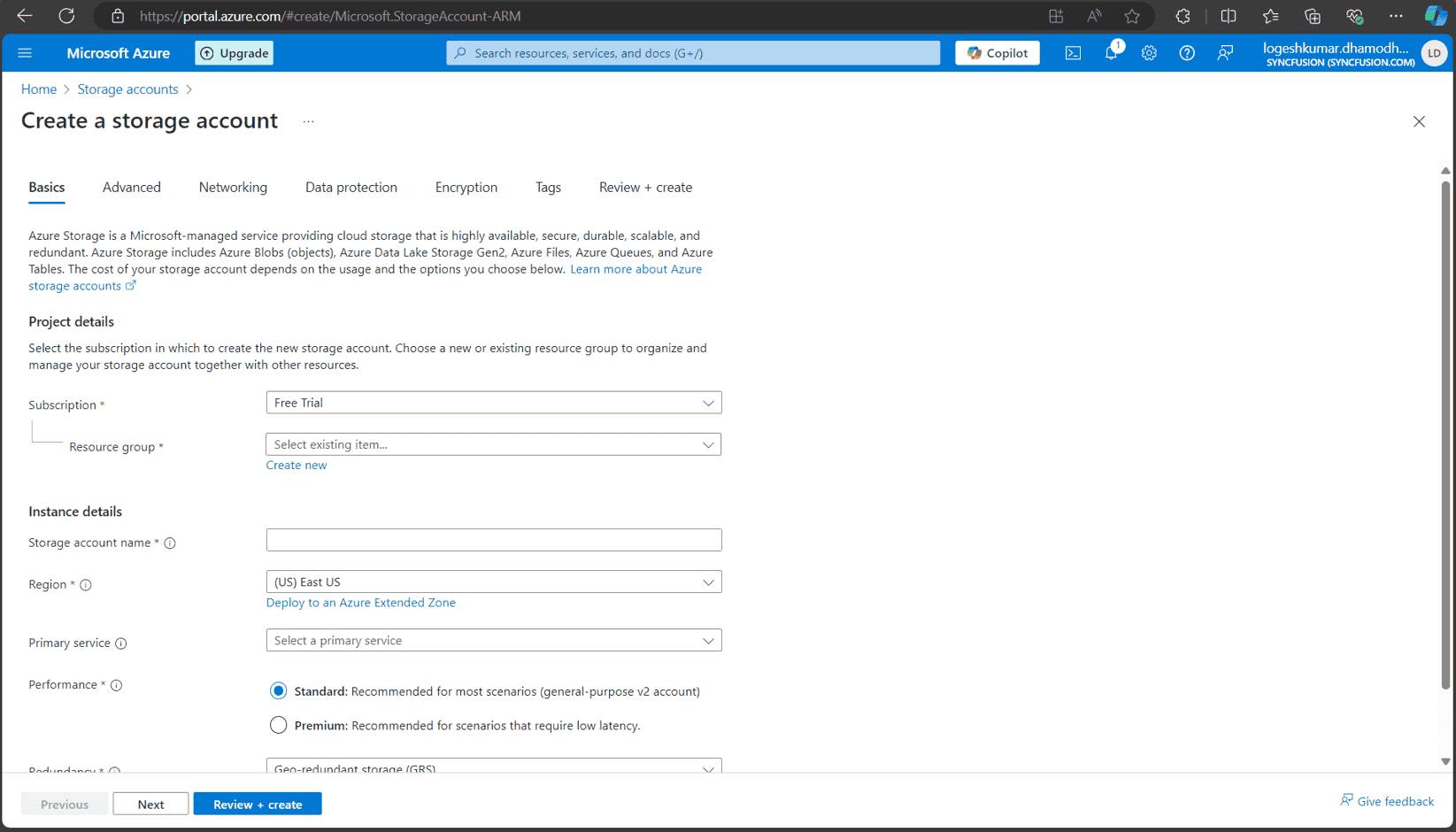
- In the Azure portal, create a Storage account and configure name, region, and redundancy options.
Step 3: Assign a role to the application
-
Assign the Storage Blob Data Contributor role
- In the Storage account, open Access control (IAM) → Add role assignment.
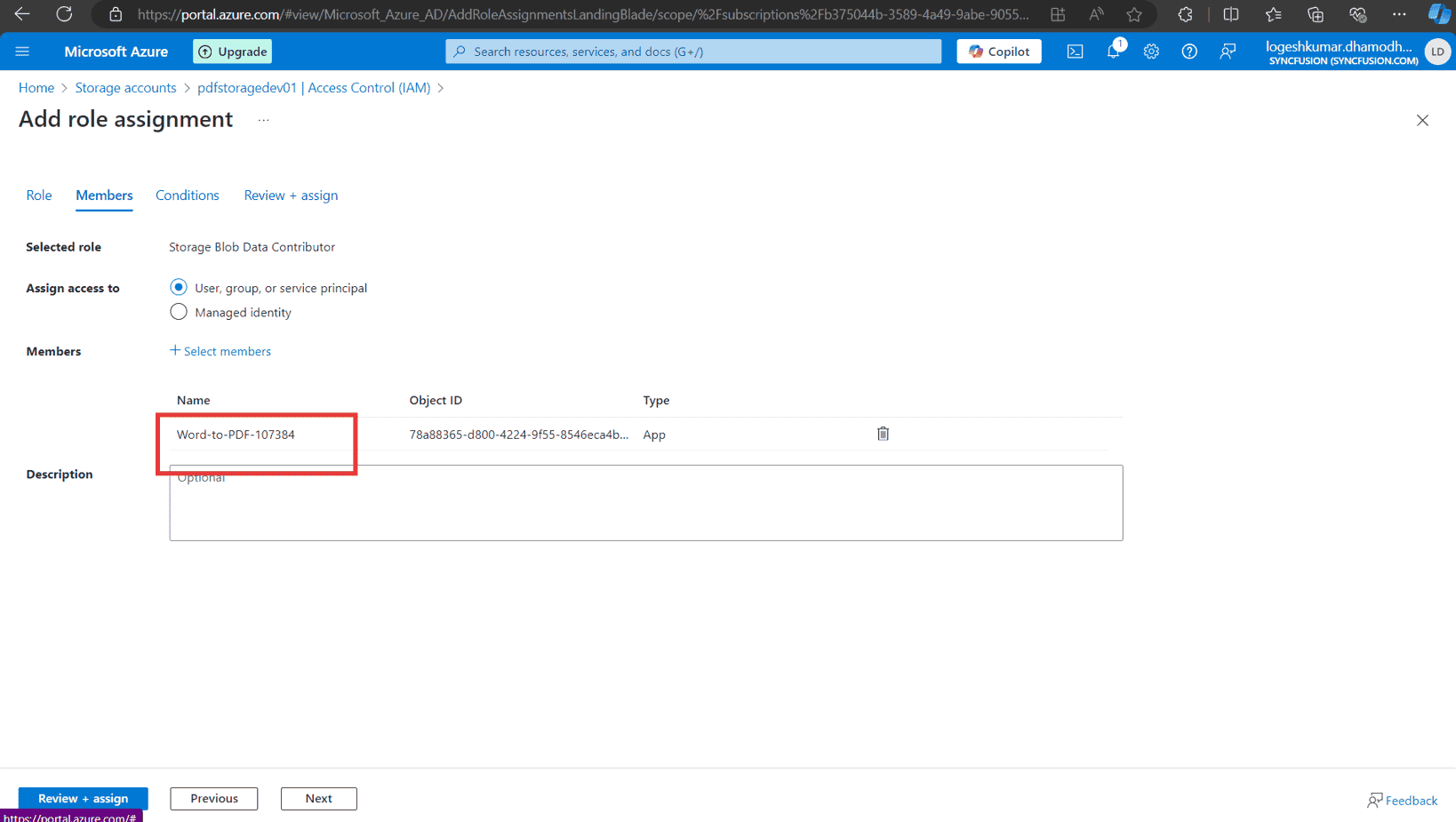
- Select Storage Blob Data Contributor, choose User, group, or service principal, and add the registered application as a member.
- Click on Select members and search for the registered application by name or client ID.
- Select the application and click Select.
- Click Review + assign to finalize the role assignment.
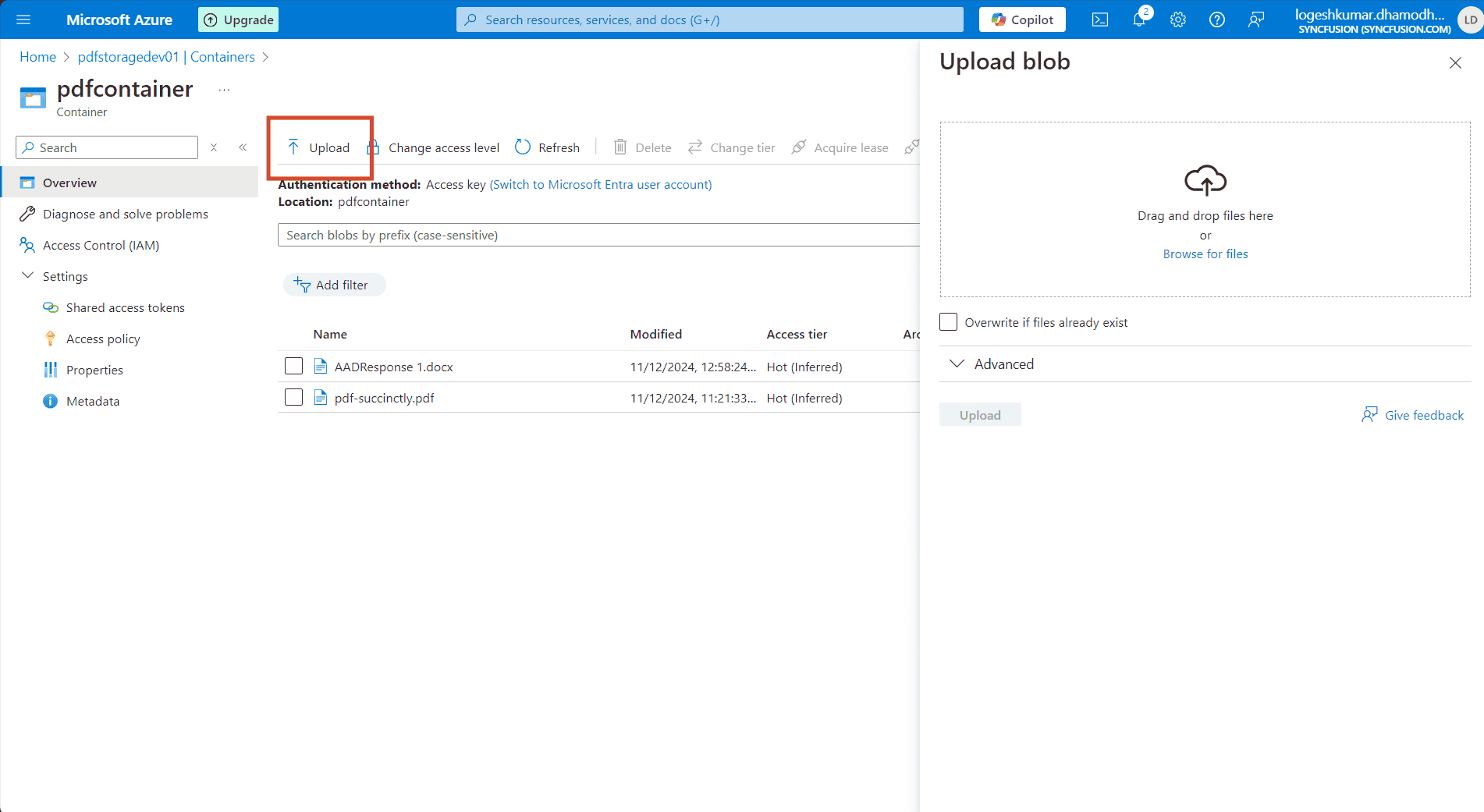
Step 4: Upload the PDF to Azure Storage
-
Upload the PDF file to a container
- In the Storage account, open Containers, create or select a container, and upload the PDF document intended for viewing.
-
Upload the PDF file:
- Create a new container, and upload the PDF document you want to access in the PDF Viewer.
Step 5: Server-side configuration
-
Configure server-side code:
- Open the server-side application (for example, ASP.NET Core) and configure the following details in the
PdfViewerControllerfile:-
tenantId(Azure AD tenant ID), -
clientId(registered application client ID), -
clientSecret(registered application client secret), -
blobServiceEndpoint(storage account blob service URL), -
containerName(container name in Azure Blob Storage).
-
- Open the server-side application (for example, ASP.NET Core) and configure the following details in the
-
Run the web service:
- After saving the configuration values, run the web service so that the Vue application can reach it.
Step 6: Client-side configuration
-
Run the Vue sample:
- Start the Vue sample that includes the PDF Viewer component.
-
Load a PDF from AAD:
- When the user selects Load From AAD, the Vue client sends an HTTP request to the server-side API to fetch the PDF from Azure Blob Storage.
- The server retrieves the PDF from Azure, converts it to a Base64 string, and returns it to the client.
-
Display the PDF in the viewer:
- After the Base64 string is received, the PDF Viewer loads the document by calling
viewer.load().
- After the Base64 string is received, the PDF Viewer loads the document by calling
Step 7: Save the PDF to Azure
-
Save PDF to AAD:
- When the user selects Save To AAD, the application uploads any PDF changes back to Azure Blob Storage.
- The server converts the updated PDF into a byte array and writes it to the specified Azure Blob container.
Server-side code
string tenantId = "Provide the tenant id here";
string clientId = "Provide the clientid here";
string clientSecret = "Provide the client secret here";
string blobServiceEndpoint = "https://your-storage-account.blob.core.windows.net";
string containerName = "Provide the container name here";


[HttpPost("LoadFromAAD")]
[Route("[controller]/LoadFromAAD")]
public async Task<IActionResult> LoadFromAAD(string fileName)
{
    var clientSecretCredential = new ClientSecretCredential(tenantId, clientId, clientSecret);
    var blobServiceClient = new BlobServiceClient(new Uri(blobServiceEndpoint), clientSecretCredential);
    var containerClient = blobServiceClient.GetBlobContainerClient(containerName);
    var blobClient = containerClient.GetBlobClient(fileName);

    // Download the PDF file to a local stream
    using MemoryStream pdfStream = new MemoryStream();
    await blobClient.DownloadToAsync(pdfStream);
    var base64 = Convert.ToBase64String(pdfStream.ToArray());
    return Content("data:application/pdf;base64," + base64);
}

[AcceptVerbs("SaveToAAD")]
[HttpPost("SaveToAAD")]
[Route("[controller]/SaveToAAD")]
public async Task<IActionResult> SaveToAAD([FromBody] Dictionary<string, string> jsonObject)
{
    PdfRenderer pdfviewer = new PdfRenderer(_cache);
    var fileName = jsonObject.ContainsKey("documentId") ? jsonObject["documentId"] : "Test.pdf";
    string documentBase = pdfviewer.GetDocumentAsBase64(jsonObject);
    string convertedBase = documentBase.Substring(documentBase.LastIndexOf(',') + 1);
    // Decode the Base64 string to a byte array
    byte[] byteArray = Convert.FromBase64String(convertedBase);
    // Create a MemoryStream from the byte array
    MemoryStream stream = new MemoryStream(byteArray);
    // Create a new BlobServiceClient using the DefaultAzureCredential
    var clientSecretCredential = new ClientSecretCredential(tenantId, clientId, clientSecret);
    var blobServiceClient = new BlobServiceClient(new Uri(blobServiceEndpoint), clientSecretCredential);
    // Get a reference to the container
    var containerClient = blobServiceClient.GetBlobContainerClient(containerName);
    // Get a reference to the blob
    var blobClient = containerClient.GetBlobClient(fileName);
    //FileStream uploadFileStream = new FileStream();
    await blobClient.UploadAsync(stream, true);
    stream.Close();
    return Content(string.Empty);
}
Client-side code
<template>
  <div id="app">
    <!-- PDF Viewer Component -->
    <ejs-pdfviewer
      id="pdfViewer"
      ref="pdfviewer"
      :documentPath="documentPath"
      :serviceUrl="serviceUrl"
      :toolbar-settings="toolbarSettings"
      @toolbar-click="toolbarClick">
    </ejs-pdfviewer>
  </div>
</template>

<script>
import { PdfViewerComponent, Toolbar, Magnification, Navigation,
         LinkAnnotation, BookmarkView, Annotation, ThumbnailView,
         Print, TextSelection, TextSearch, FormFields, FormDesigner,
         PageOrganizer } from '@syncfusion/ej2-vue-pdfviewer';

export default {
  name: 'App',
  components: {
    "ejs-pdfviewer": PdfViewerComponent
  },
  data () {
    // Toolbar items configuration
    const toolItem1 = {
      text: 'Load From AAD',
      id: 'LoadFromAAD',
      tooltipText: 'Custom toolbar item',
      align: 'left'
    };
    const toolItem2 = {
      id: 'SaveToAAD',
      text: 'Save To AAD',
      tooltipText: 'Custom toolbar item',
      align: 'left'
    };

    return {
      // Path to the document
      documentPath: "",  // Set this to an initial document URL or keep it empty
      // URL for the service (used by the Syncfusion PDF Viewer)
      serviceUrl: "https://localhost:44308/pdfviewer",
      // Toolbar settings
      toolbarSettings: {
        toolbarItems: [
          toolItem1, toolItem2,
          'OpenOption', 'PageNavigationTool', 'MagnificationTool',
          'PanTool', 'SelectionTool', 'SearchOption', 'PrintOption',
          'DownloadOption', 'UndoRedoTool', 'AnnotationEditTool',
          'FormDesignerEditTool', 'CommentTool', 'SubmitForm'
        ]
      }
    };
  },

  provide: {
    PdfViewer: [Toolbar, Magnification, Navigation, LinkAnnotation, BookmarkView, ThumbnailView,
                Print, TextSelection, TextSearch, Annotation, FormDesigner, FormFields, PageOrganizer]
  },

  methods: {
    // Handle toolbar button clicks
    toolbarClick(args) {
      const viewer = this.$refs.pdfviewer.ej2Instances;  // Reference to the PdfViewer instance

      if (args.item) {
        if (args.item.id === 'LoadFromAAD') {
          // Handle 'Load From AAD' logic
          this.loadFromAAD(viewer);
        } else if (args.item.id === 'SaveToAAD') {
          // Handle 'Save To AAD' logic
          this.saveToAAD(viewer);
        }
      }
    },

    // Load PDF from AAD (simulated logic)
    loadFromAAD(viewer) {
      console.log('Loading PDF from AAD...');
      const xhr = new XMLHttpRequest();
      //modify the url based on the file name
      xhr.open('POST', `https://localhost:44308/pdfviewer/LoadFromAAD?fileName=pdf-succinctly.pdf`, true);
      xhr.onreadystatechange = () => {
        if (xhr.readyState === 4 && xhr.status === 200) {
          const data = xhr.responseText;
          console.log('Loaded PDF:', data);
          viewer.load(data);  // Load the document into the PDF Viewer
        } else if (xhr.readyState === 4) {
          console.error('Error loading PDF from AAD');
        }
      };
      xhr.send();
    },

    // Save PDF to AAD (simulated logic)
    saveToAAD(viewer) {
      console.log('Saving PDF to AAD...');
      viewer.serverActionSettings.download = "SaveToAAD"; // Custom download action
      viewer.download();  // Trigger the download action for saving
    }
  }
};
</script>