Print Modes in React PDF Viewer
14 Aug 20263 minutes to read
This guide shows how to set the PDF Viewer printMode so PDFs print from the current window or from a new window/tab.
Prerequisites
- A React app with the PDF Viewer and
Printmodule injected.
Steps to set print mode
Step 1: The printMode property accepts the following values:
-
Default— print from the same browser window. This is the default value whenprintModeis not set. -
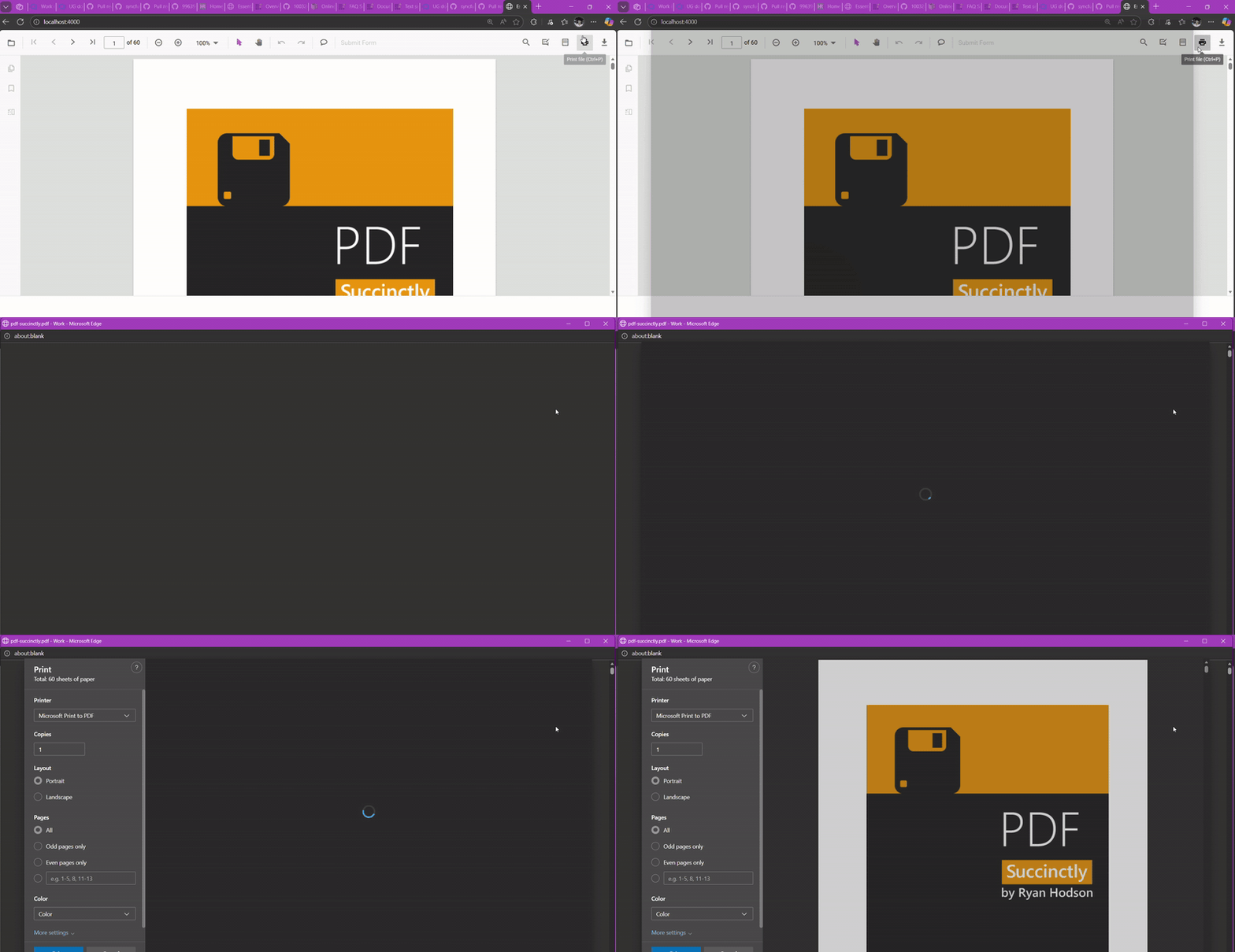
NewWindow— print from a new window or tab (may be blocked by pop-up blockers).
Step 2: Set printMode during viewer initialization (recommended):
import {
    PdfViewerComponent, Toolbar, Magnification, Navigation, Annotation, FormDesigner, FormFields,
    PageOrganizer, TextSelection, TextSearch, Print, Inject
} from '@syncfusion/ej2-react-pdfviewer';

export default function App() {
    return (
        <div style={{ height: '100vh' }}>
            <PdfViewerComponent
                id="PdfViewer"
                documentPath="https://cdn.syncfusion.com/content/pdf/pdf-succinctly.pdf"
                resourceUrl="https://cdn.syncfusion.com/ej2/32.2.3/dist/ej2-pdfviewer-lib"
                printMode="NewWindow"
                style={{ height: '100%' }}
            >
                <Inject
                    services={[
                        TextSelection, TextSearch, Print, Navigation, Toolbar, Magnification,
                        Annotation, FormDesigner, FormFields, PageOrganizer
                    ]}
                />
            </PdfViewerComponent>
        </div>
    );
}
Step 3: Print mode can also be changed at runtime after the viewer is created:
// switch to NewWindow at runtime
pdfviewer.printMode = 'NewWindow';
Quick reference
-
Default: Print from the same window (default). -
NewWindow: Print from a new window or tab.
Browser pop-up blockers must allow new windows or tabs when using
pdfviewer.printMode = 'NewWindow'.
View live examples and samples on GitHub