Mobile Toolbar in React PDF Viewer
14 Aug 20269 minutes to read
The mobile PDF Viewer provides features for viewing, searching, annotating, and managing PDF documents on mobile devices. It includes Essential® tools such as search, download, bookmarking, annotation, and page organization. The desktop toolbar can be enabled in mobile mode to expose additional actions when required.
Mobile Mode Toolbar Configuration
In mobile mode, the toolbar is optimized for ease of use on small screens, presenting users with the most common actions for interacting with a PDF document. Below are the key features available in mobile mode:
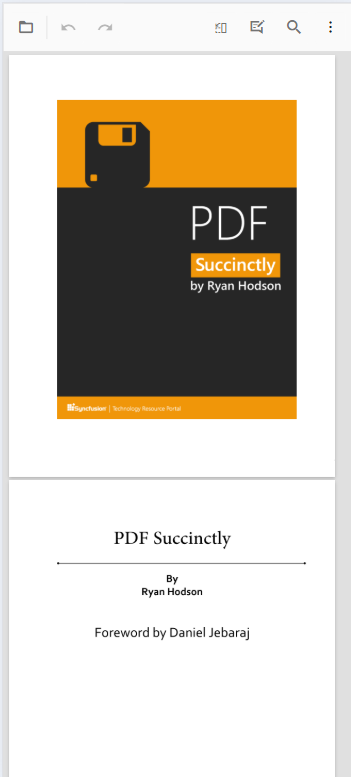
Main toolbar options
- OpenOption: Tap to load a PDF document.
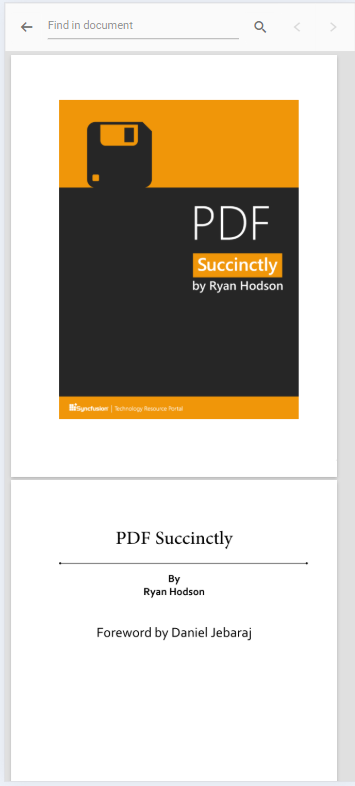
- SearchOption: Open the search bar to find text within the document.
- UndoRedoTool: Undo or redo annotation changes.
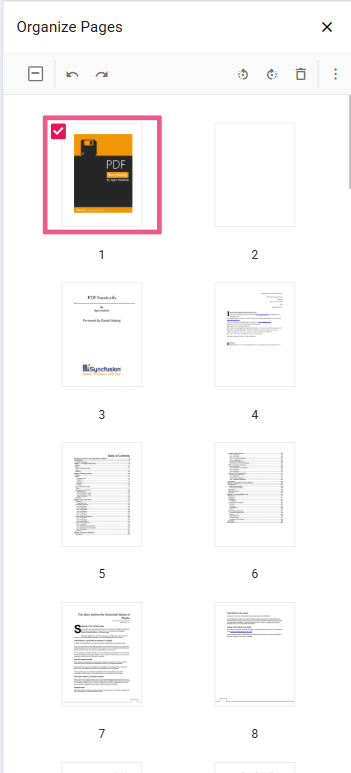
- OrganizePagesTool: Enable page organization features to modify document pages.
- AnnotationEditTool: Enable annotation editing to add or modify annotations.
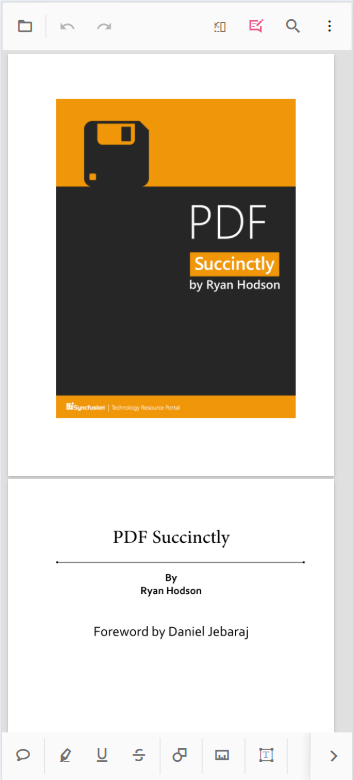
In mobile mode, the annotation toolbar is displayed at the bottom of the viewer.
More Options Menu:
When you open the “more options” menu, you will see additional actions such as:
- DownloadOption: Tap to download the currently opened PDF document.
- BookmarkOption: Allows you to view bookmarks within the document.

Enabling desktop mode in mobile
Enable desktop mode on mobile devices by setting the enableDesktopMode API to true. This displays the desktop toolbar layout on mobile, exposing additional toolbar actions typically available on desktop platforms.
Steps to Enable Desktop Mode:
Step 1: Set enableDesktopMode to true in the API configuration.
Step 2: This will replace the mobile toolbar with the desktop toolbar layout, allowing access to more actions and controls.
import * as ReactDOM from 'react-dom';
import * as React from 'react';
import { PdfViewerComponent, Toolbar, Magnification, Navigation, LinkAnnotation,
         BookmarkView, ThumbnailView, Print, TextSelection, TextSearch, Annotation,
         FormFields, FormDesigner, PageOrganizer, Inject } from '@syncfusion/ej2-react-pdfviewer';
let pdfviewer;

function App() {
  return (<div>
    <div className='control-section'>
      <PdfViewerComponent ref={(scope) => { pdfviewer = scope; }}
        id="container"
        documentPath="https://cdn.syncfusion.com/content/pdf/pdf-succinctly.pdf"
        resourceUrl="https://cdn.syncfusion.com/ej2/31.2.2/dist/ej2-pdfviewer-lib"
        enableDesktopMode={true}
        style={{ 'height': '640px' }}>

              <Inject services={[ Toolbar, Annotation, Magnification, Navigation, LinkAnnotation, BookmarkView, ThumbnailView,
                                  Print, TextSelection, TextSearch, FormFields, FormDesigner, PageOrganizer]} />
      </PdfViewerComponent>
    </div>
  </div>);
}
const root = ReactDOM.createRoot(document.getElementById('sample'));
root.render(<App />);
import * as ReactDOM from 'react-dom';
import * as React from 'react';
import { PdfViewerComponent, Toolbar, Magnification, Navigation, LinkAnnotation,
BookmarkView, ThumbnailView, Print, TextSelection, TextSearch, Annotation,
FormFields, FormDesigner, PageOrganizer, Inject } from '@syncfusion/ej2-react-pdfviewer';
let pdfviewer;
function App() {
return (<div>
<div className='control-section'>
<PdfViewerComponent ref={(scope) => { pdfviewer = scope; }}
id="container"
documentPath="https://cdn.syncfusion.com/content/pdf/pdf-succinctly.pdf"
serviceUrl="https://document.syncfusion.com/web-services/pdf-viewer/api/pdfviewer"
enableDesktopMode={true}
style={{ 'height': '640px' }}>
<Inject services={[ Toolbar, Annotation, Magnification, Navigation, LinkAnnotation, BookmarkView, ThumbnailView,
Print, TextSelection, TextSearch, FormFields, FormDesigner, PageOrganizer]} />
</PdfViewerComponent>
</div>
</div>);
}
const root = ReactDOM.createRoot(document.getElementById('sample'));
root.render(<App />);Enable scrolling in desktop mode with touch gestures
To ensure smooth scrolling on mobile devices when using desktop mode, disable text selection gestures by setting enableTextSelection to false. This gives touch gestures priority for scrolling instead of text selection.
import * as ReactDOM from 'react-dom';
import * as React from 'react';
import { PdfViewerComponent, Toolbar, Magnification, Navigation, LinkAnnotation,
         BookmarkView, ThumbnailView, Print, TextSelection, TextSearch, Annotation,
         FormFields, FormDesigner, PageOrganizer, Inject } from '@syncfusion/ej2-react-pdfviewer';
let pdfviewer;

function App() {
  return (<div>
    <div className='control-section'>
      <PdfViewerComponent ref={(scope) => { pdfviewer = scope; }}
        id="container"
        documentPath="https://cdn.syncfusion.com/content/pdf/pdf-succinctly.pdf"
        resourceUrl="https://cdn.syncfusion.com/ej2/31.2.2/dist/ej2-pdfviewer-lib"
        enableDesktopMode={true}
        enableTextSelection={false}
        style={{ 'height': '640px' }}>

              <Inject services={[ Toolbar, Annotation, Magnification, Navigation, LinkAnnotation, BookmarkView, ThumbnailView,
                                  Print, TextSelection, TextSearch, FormFields, FormDesigner, PageOrganizer]} />
      </PdfViewerComponent>
    </div>
  </div>);
}
const root = ReactDOM.createRoot(document.getElementById('sample'));
root.render(<App />);
import * as ReactDOM from 'react-dom';
import * as React from 'react';
import { PdfViewerComponent, Toolbar, Magnification, Navigation, LinkAnnotation,
BookmarkView, ThumbnailView, Print, TextSelection, TextSearch, Annotation,
FormFields, FormDesigner, PageOrganizer, Inject } from '@syncfusion/ej2-react-pdfviewer';
let pdfviewer;
function App() {
return (<div>
<div className='control-section'>
<PdfViewerComponent ref={(scope) => { pdfviewer = scope; }}
id="container"
documentPath="https://cdn.syncfusion.com/content/pdf/pdf-succinctly.pdf"
serviceUrl="https://document.syncfusion.com/web-services/pdf-viewer/api/pdfviewer"
enableDesktopMode={true}
enableTextSelection={false}
style={{ 'height': '640px' }}>
<Inject services={[ Toolbar, Annotation, Magnification, Navigation, LinkAnnotation, BookmarkView, ThumbnailView,
Print, TextSelection, TextSearch, FormFields, FormDesigner, PageOrganizer]} />
</PdfViewerComponent>
</div>
</div>);
}
const root = ReactDOM.createRoot(document.getElementById('sample'));
root.render(<App />);Print option on mobile
The Print option is not available in mobile mode by default. To use print functionality on mobile devices, enable the desktop toolbar by setting enableDesktopMode to true.
Once desktop mode is enabled, the Print option appears in the toolbar and can be used to print the document from the mobile device.
Print is not available in mobile mode unless desktop mode is enabled.