Zoom in React PDF Viewer
14 Aug 202624 minutes to read
This how-to guide demonstrates how to work with zoom functionality in the React PDF Viewer component. Learn how to enable magnification, control zoom programmatically, set default zoom levels, and respond to zoom changes.
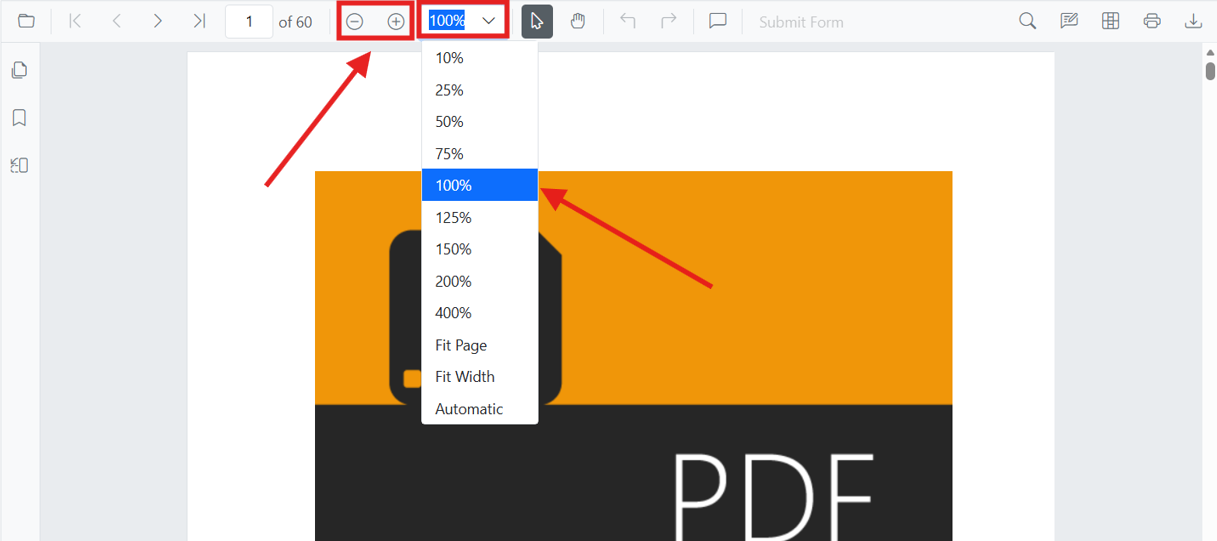
Enable zooming
To enable zoom functionality in the PDF Viewer, set the enableMagnification property to true and inject the Magnification service.
import * as ReactDOM from 'react-dom';
import * as React from 'react';
import './index.css';
import { PdfViewerComponent, Toolbar, Magnification, Navigation, LinkAnnotation, BookmarkView,
         ThumbnailView, Print, TextSelection, TextSearch, Inject } from '@syncfusion/ej2-react-pdfviewer';

function App() {
  return (<div>
    <div className='control-section'>
      {/* Render the PDF Viewer with magnification enabled */}
        <PdfViewerComponent
          id="container"
          documentPath="https://cdn.syncfusion.com/content/pdf/pdf-succinctly.pdf"
          resourceUrl="https://cdn.syncfusion.com/ej2/31.2.2/dist/ej2-pdfviewer-lib"
          enableMagnification={true}
          style={{ 'height': '640px' }}>

              <Inject services={[ Toolbar, Magnification, Navigation, LinkAnnotation, BookmarkView,
                                  ThumbnailView, Print, TextSelection, TextSearch]} />
        </PdfViewerComponent>
    </div>
  </div>);
}
const root = ReactDOM.createRoot(document.getElementById('sample'));
root.render(<App />);
import * as ReactDOM from 'react-dom';
import * as React from 'react';
import './index.css';
import { PdfViewerComponent, Toolbar, Magnification, Navigation, LinkAnnotation, BookmarkView,
ThumbnailView, Print, TextSelection, TextSearch, Inject } from '@syncfusion/ej2-react-pdfviewer';
function App() {
return (<div>
<div className='control-section'>
{/* Render the PDF Viewer with magnification enabled */}
<PdfViewerComponent
id="container"
documentPath="https://cdn.syncfusion.com/content/pdf/pdf-succinctly.pdf"
enableMagnification={true}
serviceUrl="https://document.syncfusion.com/web-services/pdf-viewer/api/pdfviewer"
style={{ 'height': '640px' }}>
<Inject services={[ Toolbar, Magnification, Navigation, LinkAnnotation, BookmarkView,
ThumbnailView, Print, TextSelection, TextSearch]} />
</PdfViewerComponent>
</div>
</div>);
}
const root = ReactDOM.createRoot(document.getElementById('sample'));
root.render(<App />);Zoom in and out using toolbar and programmatically
The zoom controls are automatically available in the toolbar when magnification is enabled. Users can click the Zoom In and Zoom Out buttons to adjust the zoom level.
To zoom in or out programmatically, use the zoomIn() and zoomOut() methods on the magnification instance.
import * as ReactDOM from 'react-dom';
import * as React from 'react';
import './index.css';
import { PdfViewerComponent, Toolbar, Magnification, Navigation, LinkAnnotation, BookmarkView,
         ThumbnailView, Print, TextSelection, TextSearch, Inject } from '@syncfusion/ej2-react-pdfviewer';

function App() {
  const pdfViewerRef = React.useRef(null);

  const handleZoomIn = () => {
    pdfViewerRef.current.magnification.zoomIn();
  };

  const handleZoomOut = () => {
    pdfViewerRef.current.magnification.zoomOut();
  };

  return (<div>
    <div className='button-container' style={{ marginBottom: '10px' }}>
      <button onClick={handleZoomIn}>Zoom In</button>
      <button onClick={handleZoomOut}>Zoom Out</button>
    </div>
    <div className='control-section'>
      <PdfViewerComponent
        ref={pdfViewerRef}
        id="container"
        documentPath="https://cdn.syncfusion.com/content/pdf/pdf-succinctly.pdf"
        resourceUrl="https://cdn.syncfusion.com/ej2/31.2.2/dist/ej2-pdfviewer-lib"
        enableMagnification={true}
        style={{ 'height': '640px' }}>

            <Inject services={[ Toolbar, Magnification, Navigation, LinkAnnotation, BookmarkView,
                                ThumbnailView, Print, TextSelection, TextSearch]} />
      </PdfViewerComponent>
    </div>
  </div>);
}
const root = ReactDOM.createRoot(document.getElementById('sample'));
root.render(<App />);
import * as ReactDOM from 'react-dom';
import * as React from 'react';
import './index.css';
import { PdfViewerComponent, Toolbar, Magnification, Navigation, LinkAnnotation, BookmarkView,
ThumbnailView, Print, TextSelection, TextSearch, Inject } from '@syncfusion/ej2-react-pdfviewer';
function App() {
const pdfViewerRef = React.useRef(null);
const handleZoomIn = () => {
pdfViewerRef.current.magnification.zoomIn();
};
const handleZoomOut = () => {
pdfViewerRef.current.magnification.zoomOut();
};
return (<div>
<div className='button-container' style={{ marginBottom: '10px' }}>
<button onClick={handleZoomIn}>Zoom In</button>
<button onClick={handleZoomOut}>Zoom Out</button>
</div>
<div className='control-section'>
<PdfViewerComponent
ref={pdfViewerRef}
id="container"
documentPath="https://cdn.syncfusion.com/content/pdf/pdf-succinctly.pdf"
enableMagnification={true}
serviceUrl="https://document.syncfusion.com/web-services/pdf-viewer/api/pdfviewer"
style={{ 'height': '640px' }}>
<Inject services={[ Toolbar, Magnification, Navigation, LinkAnnotation, BookmarkView,
ThumbnailView, Print, TextSelection, TextSearch]} />
</PdfViewerComponent>
</div>
</div>);
}
const root = ReactDOM.createRoot(document.getElementById('sample'));
root.render(<App />);Set a specific zoom value
Use the zoomTo() method on the magnification instance to set the PDF to a specific zoom level. You can specify the zoom level as a percentage value.
import * as ReactDOM from 'react-dom';
import * as React from 'react';
import './index.css';
import { PdfViewerComponent, Toolbar, Magnification, Navigation, LinkAnnotation, BookmarkView,
         ThumbnailView, Print, TextSelection, TextSearch, Inject } from '@syncfusion/ej2-react-pdfviewer';

function App() {
  const pdfViewerRef = React.useRef(null);

  const handleZoom150 = () => {
    pdfViewerRef.current.magnification.zoomTo(150);
  };

  const handleZoom200 = () => {
    pdfViewerRef.current.magnification.zoomTo(200);
  };

  const handleZoom75 = () => {
    pdfViewerRef.current.magnification.zoomTo(75);
  };

  return (<div>
    <div className='button-container' style={{ marginBottom: '10px' }}>
      <button onClick={handleZoom75}>75%</button>
      <button onClick={handleZoom150}>150%</button>
      <button onClick={handleZoom200}>200%</button>
    </div>
    <div className='control-section'>
      <PdfViewerComponent
        ref={pdfViewerRef}
        id="container"
        documentPath="https://cdn.syncfusion.com/content/pdf/pdf-succinctly.pdf"
        resourceUrl="https://cdn.syncfusion.com/ej2/31.2.2/dist/ej2-pdfviewer-lib"
        enableMagnification={true}
        style={{ 'height': '640px' }}>

            <Inject services={[ Toolbar, Magnification, Navigation, LinkAnnotation, BookmarkView,
                                ThumbnailView, Print, TextSelection, TextSearch]} />
      </PdfViewerComponent>
    </div>
  </div>);
}
const root = ReactDOM.createRoot(document.getElementById('sample'));
root.render(<App />);
import * as ReactDOM from 'react-dom';
import * as React from 'react';
import './index.css';
import { PdfViewerComponent, Toolbar, Magnification, Navigation, LinkAnnotation, BookmarkView,
ThumbnailView, Print, TextSelection, TextSearch, Inject } from '@syncfusion/ej2-react-pdfviewer';
function App() {
const pdfViewerRef = React.useRef(null);
const handleZoom150 = () => {
pdfViewerRef.current.magnification.zoomTo(150);
};
const handleZoom200 = () => {
pdfViewerRef.current.magnification.zoomTo(200);
};
const handleZoom75 = () => {
pdfViewerRef.current.magnification.zoomTo(75);
};
return (<div>
<div className='button-container' style={{ marginBottom: '10px' }}>
<button onClick={handleZoom75}>75%</button>
<button onClick={handleZoom150}>150%</button>
<button onClick={handleZoom200}>200%</button>
</div>
<div className='control-section'>
<PdfViewerComponent
ref={pdfViewerRef}
id="container"
documentPath="https://cdn.syncfusion.com/content/pdf/pdf-succinctly.pdf"
enableMagnification={true}
serviceUrl="https://document.syncfusion.com/web-services/pdf-viewer/api/pdfviewer"
style={{ 'height': '640px' }}>
<Inject services={[ Toolbar, Magnification, Navigation, LinkAnnotation, BookmarkView,
ThumbnailView, Print, TextSelection, TextSearch]} />
</PdfViewerComponent>
</div>
</div>);
}
const root = ReactDOM.createRoot(document.getElementById('sample'));
root.render(<App />);Initialize the viewer with a default zoom (on load)
Set an initial zoom level when the document is first loaded by using the document-loaded event. Call zoomTo() in the documentLoad event handler.
import * as ReactDOM from 'react-dom';
import * as React from 'react';
import './index.css';
import { PdfViewerComponent, Toolbar, Magnification, Navigation, LinkAnnotation, BookmarkView,
         ThumbnailView, Print, TextSelection, TextSearch, Inject } from '@syncfusion/ej2-react-pdfviewer';

function App() {
  const pdfViewerRef = React.useRef(null);

  const onDocumentLoaded = () => {
    // Set default zoom to 150% when document is loaded
    pdfViewerRef.current.magnification.zoomTo(150);
  };

  return (<div>
    <div className='control-section'>
      <PdfViewerComponent
        ref={pdfViewerRef}
        id="container"
        documentPath="https://cdn.syncfusion.com/content/pdf/pdf-succinctly.pdf"
        resourceUrl="https://cdn.syncfusion.com/ej2/31.2.2/dist/ej2-pdfviewer-lib"
        enableMagnification={true}
        documentLoad={onDocumentLoaded}
        style={{ 'height': '640px' }}>

            <Inject services={[ Toolbar, Magnification, Navigation, LinkAnnotation, BookmarkView,
                                ThumbnailView, Print, TextSelection, TextSearch]} />
      </PdfViewerComponent>
    </div>
  </div>);
}
const root = ReactDOM.createRoot(document.getElementById('sample'));
root.render(<App />);
import * as ReactDOM from 'react-dom';
import * as React from 'react';
import './index.css';
import { PdfViewerComponent, Toolbar, Magnification, Navigation, LinkAnnotation, BookmarkView,
ThumbnailView, Print, TextSelection, TextSearch, Inject } from '@syncfusion/ej2-react-pdfviewer';
function App() {
const pdfViewerRef = React.useRef(null);
const onDocumentLoaded = () => {
// Set default zoom to 150% when document is loaded
pdfViewerRef.current.magnification.zoomTo(150);
};
return (<div>
<div className='control-section'>
<PdfViewerComponent
ref={pdfViewerRef}
id="container"
documentPath="https://cdn.syncfusion.com/content/pdf/pdf-succinctly.pdf"
enableMagnification={true}
serviceUrl="https://document.syncfusion.com/web-services/pdf-viewer/api/pdfviewer"
documentLoad={onDocumentLoaded}
style={{ 'height': '640px' }}>
<Inject services={[ Toolbar, Magnification, Navigation, LinkAnnotation, BookmarkView,
ThumbnailView, Print, TextSelection, TextSearch]} />
</PdfViewerComponent>
</div>
</div>);
}
const root = ReactDOM.createRoot(document.getElementById('sample'));
root.render(<App />);Disable user zoom while allowing programmatic zoom
To restrict users from zooming via the UI while still allowing your application to control zoom programmatically, use toolbarSettings with custom toolbar items that exclude zoom controls. Combine this with custom application buttons to provide controlled zoom access.
import * as ReactDOM from 'react-dom';
import * as React from 'react';
import './index.css';
import {
  PdfViewerComponent,
  Toolbar,
  Magnification,
  Navigation,
  LinkAnnotation,
  BookmarkView,
  ThumbnailView,
  Print,
  TextSelection,
  TextSearch,
  Inject,
} from '@syncfusion/ej2-react-pdfviewer';

function App() {
  const pdfViewerRef = React.useRef(null);

  const handleZoom150 = () => {
    pdfViewerRef.current.magnification.zoomTo(150);
  };

  const handleZoom200 = () => {
    pdfViewerRef.current.magnification.zoomTo(200);
  };

  return (
    <div>
      {/* Custom Application Toolbar */}
      <div
        style={{
          marginBottom: '10px',
          padding: '10px',
          backgroundColor: '#f0f0f0',
        }}
      >
        <button onClick={handleZoom150}>Zoom 150%</button>
        <button onClick={handleZoom200}>Zoom 200%</button>
        <p style={{ fontSize: '12px', color: '#666' }}>
          Zoom level is controlled by the application.
        </p>
      </div>

      {/* PDF Viewer */}
      <PdfViewerComponent
        ref={pdfViewerRef}
        id="container"
        documentPath="https://cdn.syncfusion.com/content/pdf/pdf-succinctly.pdf"
        resourceUrl="https://cdn.syncfusion.com/ej2/31.2.2/dist/ej2-pdfviewer-lib"
        enableMagnification={true}
        toolbarSettings={{
          toolbarItems: [
            'OpenOption',
            'PageNavigationTool',
            'AnnotationEditTool',
            'FormDesignerEditTool',
            'PrintOption',
          ],
        }}
        style={{ height: '640px' }}
      >
        <Inject
          services={[
            Toolbar,
            Magnification,
            Navigation,
            LinkAnnotation,
            BookmarkView,
            ThumbnailView,
            Print,
            TextSelection,
            TextSearch,
          ]}
        />
      </PdfViewerComponent>
    </div>
  );
}

const root = ReactDOM.createRoot(document.getElementById('sample'));
root.render(<App />);
import * as ReactDOM from 'react-dom';
import * as React from 'react';
import './index.css';
import {
PdfViewerComponent,
Toolbar,
Magnification,
Navigation,
LinkAnnotation,
BookmarkView,
ThumbnailView,
Print,
TextSelection,
TextSearch,
Inject,
} from '@syncfusion/ej2-react-pdfviewer';
function App() {
const pdfViewerRef = React.useRef(null);
const handleZoom150 = () => {
pdfViewerRef.current.magnification.zoomTo(150);
};
const handleZoom200 = () => {
pdfViewerRef.current.magnification.zoomTo(200);
};
return (
<div>
{/* Custom Application Toolbar */}
<div
style={{
marginBottom: '10px',
padding: '10px',
backgroundColor: '#f0f0f0',
}}
>
<button onClick={handleZoom150}>Zoom 150%</button>
<button onClick={handleZoom200}>Zoom 200%</button>
<p style={{ fontSize: '12px', color: '#666' }}>
Zoom level is controlled by the application.
</p>
</div>
{/* PDF Viewer */}
<PdfViewerComponent
ref={pdfViewerRef}
id="container"
documentPath="https://cdn.syncfusion.com/content/pdf/pdf-succinctly.pdf"
enableMagnification={true}
serviceUrl="https://document.syncfusion.com/web-services/pdf-viewer/api/pdfviewer"
toolbarSettings={{
toolbarItems: [
'OpenOption',
'PageNavigationTool',
'AnnotationEditTool',
'FormDesignerEditTool',
'PrintOption',
],
}}
style={{ height: '640px' }}
>
<Inject
services={[
Toolbar,
Magnification,
Navigation,
LinkAnnotation,
BookmarkView,
ThumbnailView,
Print,
TextSelection,
TextSearch,
]}
/>
</PdfViewerComponent>
</div>
);
}
const root = ReactDOM.createRoot(document.getElementById('sample'));
root.render(<App />);Handle zoom changes
Listen for zoom change events on the magnification instance and update custom UI elements (such as a zoom indicator or zoom dropdown) accordingly. Use the zoomChange event to respond to zoom level changes.
import * as ReactDOM from 'react-dom';
import * as React from 'react';
import './index.css';
import { PdfViewerComponent, Toolbar, Magnification, Navigation, LinkAnnotation, BookmarkView,
         ThumbnailView, Print, TextSelection, TextSearch, Inject } from '@syncfusion/ej2-react-pdfviewer';

function App() {
  const pdfViewerRef = React.useRef(null);
  const [zoomLevel, setZoomLevel] = React.useState(100);

  const onZoomChange = (args) => {
    // Update custom UI with new zoom level from magnification event
    setZoomLevel(Math.round(args.zoomValue));
  };

  return (<div>
    <div className='zoom-indicator' style={{ marginBottom: '10px' }}>
      Current Zoom: {zoomLevel}%
    </div>
    <div className='control-section'>
      <PdfViewerComponent
        ref={pdfViewerRef}
        id="container"
        documentPath="https://cdn.syncfusion.com/content/pdf/pdf-succinctly.pdf"
        resourceUrl="https://cdn.syncfusion.com/ej2/31.2.2/dist/ej2-pdfviewer-lib"
        enableMagnification={true}
        zoomChange={onZoomChange}
        style={{ 'height': '640px' }}>

            <Inject services={[ Toolbar, Magnification, Navigation, LinkAnnotation, BookmarkView,
                                ThumbnailView, Print, TextSelection, TextSearch]} />
      </PdfViewerComponent>
    </div>
  </div>);
}
const root = ReactDOM.createRoot(document.getElementById('sample'));
root.render(<App />);
import * as ReactDOM from 'react-dom';
import * as React from 'react';
import './index.css';
import { PdfViewerComponent, Toolbar, Magnification, Navigation, LinkAnnotation, BookmarkView,
ThumbnailView, Print, TextSelection, TextSearch, Inject } from '@syncfusion/ej2-react-pdfviewer';
function App() {
const pdfViewerRef = React.useRef(null);
const [zoomLevel, setZoomLevel] = React.useState(100);
const onZoomChange = (args) => {
// Update custom UI with new zoom level from magnification event
setZoomLevel(Math.round(args.zoomValue));
};
return (<div>
<div className='zoom-indicator' style={{ marginBottom: '10px' }}>
Current Zoom: {zoomLevel}%
</div>
<div className='control-section'>
<PdfViewerComponent
ref={pdfViewerRef}
id="container"
documentPath="https://cdn.syncfusion.com/content/pdf/pdf-succinctly.pdf"
enableMagnification={true}
serviceUrl="https://document.syncfusion.com/web-services/pdf-viewer/api/pdfviewer"
zoomChange={onZoomChange}
style={{ 'height': '640px' }}>
<Inject services={[ Toolbar, Magnification, Navigation, LinkAnnotation, BookmarkView,
ThumbnailView, Print, TextSelection, TextSearch]} />
</PdfViewerComponent>
</div>
</div>);
}
const root = ReactDOM.createRoot(document.getElementById('sample'));
root.render(<App />);Zoom range and limits
The PDF Viewer supports zoom values from 10% to 400% by default. You can override these limits using the minZoom and maxZoom properties on the PdfViewerComponent.
-
minZoom (number): Specifies the minimum acceptable zoom level for the control. Default:
10. -
maxZoom (number): Specifies the maximum allowable zoom level for the control. Default:
400.
Below are full example snippets that show how to set custom minZoom and maxZoom values (Standalone and Server-Backed):
import * as ReactDOM from 'react-dom';
import * as React from 'react';
import './index.css';
import { PdfViewerComponent, Toolbar, Magnification, Navigation, LinkAnnotation, BookmarkView,
         ThumbnailView, Print, TextSelection, TextSearch, Inject } from '@syncfusion/ej2-react-pdfviewer';

function App() {
  return (
    <div>
      <div className='control-section'>
        <PdfViewerComponent
          id="container"
          documentPath="https://cdn.syncfusion.com/content/pdf/pdf-succinctly.pdf"
          resourceUrl="https://cdn.syncfusion.com/ej2/31.2.2/dist/ej2-pdfviewer-lib"
          enableMagnification={true}
          minZoom={50}
          maxZoom={300}
          style={{ height: '640px' }}>

            <Inject services={[ Toolbar, Magnification, Navigation, LinkAnnotation, BookmarkView,
                                ThumbnailView, Print, TextSelection, TextSearch]} />
        </PdfViewerComponent>
      </div>
    </div>
  );
}
const root = ReactDOM.createRoot(document.getElementById('sample'));
root.render(<App />);
import * as ReactDOM from 'react-dom';
import * as React from 'react';
import './index.css';
import { PdfViewerComponent, Toolbar, Magnification, Navigation, LinkAnnotation, BookmarkView,
ThumbnailView, Print, TextSelection, TextSearch, Inject } from '@syncfusion/ej2-react-pdfviewer';
function App() {
return (
<div>
<div className='control-section'>
<PdfViewerComponent
id="container"
documentPath="https://cdn.syncfusion.com/content/pdf/pdf-succinctly.pdf"
enableMagnification={true}
serviceUrl="https://document.syncfusion.com/web-services/pdf-viewer/api/pdfviewer"
minZoom={50}
maxZoom={300}
style={{ height: '640px' }}>
<Inject services={[ Toolbar, Magnification, Navigation, LinkAnnotation, BookmarkView,
ThumbnailView, Print, TextSelection, TextSearch]} />
</PdfViewerComponent>
</div>
</div>
);
}
const root = ReactDOM.createRoot(document.getElementById('sample'));
root.render(<App />);The zoomTo() method will clamp values outside the configured minZoom/maxZoom range to the nearest valid limit.
Zoom values are clamped between the configured
minZoomandmaxZoom. Attempting to zoom beyond these limits will set the zoom to the nearest boundary value.