Sticky notes annotation in React PDF Viewer
25 Feb 202619 minutes to read
The PDF Viewer provides options to add, edit, and delete sticky note annotations.
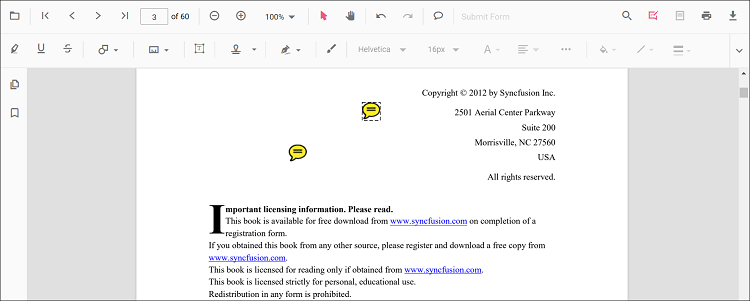
Add a sticky note annotation
Annotation comments are added using the comment panel.
- Right-click a sticky note annotation and choose Comment from the context menu.
- Use the comment panel to add comments, reply, and change status.
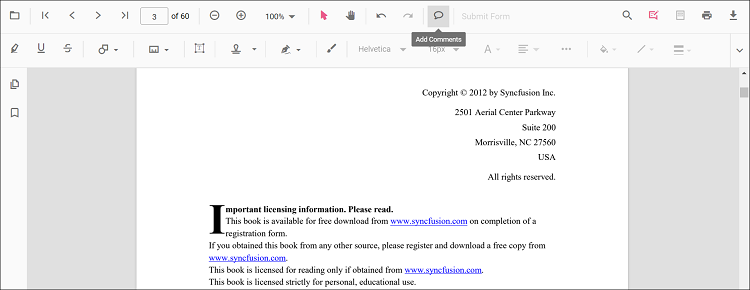

Add a sticky note annotation to the PDF document programmatically
Use the addAnnotation() method to add a sticky note annotation programmatically.
The following example demonstrates using addAnnotation() to create a sticky note annotation.
import * as ReactDOM from 'react-dom';
import * as React from 'react';
import './index.css';
import { PdfViewerComponent, Toolbar, Magnification, Navigation, LinkAnnotation, BookmarkView, ThumbnailView,
         Print, TextSelection, TextSearch, Annotation, FormFields, FormDesigner, PageOrganizer, Inject } from '@syncfusion/ej2-react-pdfviewer';
let pdfviewer;

function App() {

  function addAnnotation() {
    var viewer = document.getElementById('container').ej2_instances[0];
    viewer.annotation.addAnnotation("StickyNotes", {
      offset: { x: 100, y: 200 },
      pageNumber: 1,
      isLock: false
    });
  }
  return (<div>
    <button onClick={addAnnotation}>Add Annotation programatically</button>
    <div className='control-section'>
      <PdfViewerComponent
        ref={(scope) => { pdfviewer = scope; }}
        id="container"
        documentPath="https://cdn.syncfusion.com/content/pdf/pdf-succinctly.pdf"
        resourceUrl="https://cdn.syncfusion.com/ej2/31.2.2/dist/ej2-pdfviewer-lib"
        style={{ 'height': '640px' }}>

              <Inject services={[ Toolbar, Annotation, Magnification, Navigation, LinkAnnotation, BookmarkView, ThumbnailView,
                                  Print, TextSelection, TextSearch, FormFields, FormDesigner, PageOrganizer]} />
      </PdfViewerComponent>
    </div>
  </div>);
}
const root = ReactDOM.createRoot(document.getElementById('sample'));
root.render(<App />);
import * as ReactDOM from 'react-dom';
import * as React from 'react';
import './index.css';
import { PdfViewerComponent, Toolbar, Magnification, Navigation, LinkAnnotation, BookmarkView, ThumbnailView,
Print, TextSelection, TextSearch, Annotation, FormFields, FormDesigner, PageOrganizer, Inject } from '@syncfusion/ej2-react-pdfviewer';
let pdfviewer;
function App() {
function addAnnotation() {
var viewer = document.getElementById('container').ej2_instances[0];
viewer.annotation.addAnnotation("StickyNotes", {
offset: { x: 100, y: 200 },
pageNumber: 1,
isLock: false
});
}
return (<div>
<button onClick={addAnnotation}>Add Annotation programatically</button>
<div className='control-section'>
<PdfViewerComponent
ref={(scope) => { pdfviewer = scope; }}
id="container"
documentPath="https://cdn.syncfusion.com/content/pdf/pdf-succinctly.pdf"
serviceUrl="https://document.syncfusion.com/web-services/pdf-viewer/api/pdfviewer"
style={{ 'height': '640px' }}>
<Inject services={[ Toolbar, Annotation, Magnification, Navigation, LinkAnnotation, BookmarkView, ThumbnailView,
Print, TextSelection, TextSearch, FormFields, FormDesigner, PageOrganizer]} />
</PdfViewerComponent>
</div>
</div>);
}
const root = ReactDOM.createRoot(document.getElementById('sample'));
root.render(<App />);Edit an existing sticky note annotation programmatically
Use the editAnnotation() method to modify existing sticky note annotations programmatically.
The following example demonstrates editAnnotation().
import * as ReactDOM from 'react-dom';
import * as React from 'react';
import './index.css';
import { PdfViewerComponent, Toolbar, Magnification, Navigation, LinkAnnotation, BookmarkView, ThumbnailView,
         Print, TextSelection, TextSearch, Annotation, FormFields, FormDesigner, PageOrganizer, Inject } from '@syncfusion/ej2-react-pdfviewer';
let pdfviewer;

function App() {

  function editAnnotation() {
    var viewer = document.getElementById('container').ej2_instances[0];
    for (let i = 0; i < viewer.annotationCollection.length; i++)
    {
      if (viewer.annotationCollection[i].shapeAnnotationType === "sticky") {
        var width = viewer.annotationCollection[i].bounds.width;
        var height = viewer.annotationCollection[i].bounds.height;
        viewer.annotationCollection[i].bounds = {x : 100, y: 100, width: width, height: height };
        viewer.annotation.editAnnotation(viewer.annotationCollection[i]);
      }
    }
  }
  return (<div>
    <button onClick={editAnnotation}>Edit Annotation programatically</button>
    <div className='control-section'>
      <PdfViewerComponent
        ref={(scope) => { pdfviewer = scope; }}
        id="container"
        documentPath="https://cdn.syncfusion.com/content/pdf/pdf-succinctly.pdf"
        resourceUrl="https://cdn.syncfusion.com/ej2/31.2.2/dist/ej2-pdfviewer-lib"
        style={{ 'height': '640px' }}>

              <Inject services={[ Toolbar, Annotation, Magnification, Navigation, LinkAnnotation, BookmarkView, ThumbnailView,
                                  Print, TextSelection, TextSearch, FormFields, FormDesigner, PageOrganizer]} />
      </PdfViewerComponent>
    </div>
  </div>);
}
const root = ReactDOM.createRoot(document.getElementById('sample'));
root.render(<App />);
import * as ReactDOM from 'react-dom';
import * as React from 'react';
import './index.css';
import { PdfViewerComponent, Toolbar, Magnification, Navigation, LinkAnnotation, BookmarkView, ThumbnailView,
Print, TextSelection, TextSearch, Annotation, FormFields, FormDesigner, PageOrganizer, Inject } from '@syncfusion/ej2-react-pdfviewer';
let pdfviewer;
function App() {
function editAnnotation() {
var viewer = document.getElementById('container').ej2_instances[0];
for (let i = 0; i < viewer.annotationCollection.length; i++)
{
if (viewer.annotationCollection[i].shapeAnnotationType === "sticky") {
var width = viewer.annotationCollection[i].bounds.width;
var height = viewer.annotationCollection[i].bounds.height;
viewer.annotationCollection[i].bounds = {x : 100, y: 100, width: width, height: height };
viewer.annotation.editAnnotation(viewer.annotationCollection[i]);
}
}
}
return (<div>
<button onClick={editAnnotation}>Edit Annotation programatically</button>
<div className='control-section'>
<PdfViewerComponent
ref={(scope) => { pdfviewer = scope; }}
id="container"
documentPath="https://cdn.syncfusion.com/content/pdf/pdf-succinctly.pdf"
serviceUrl="https://document.syncfusion.com/web-services/pdf-viewer/api/pdfviewer"
style={{ 'height': '640px' }}>
<Inject services={[ Toolbar, Annotation, Magnification, Navigation, LinkAnnotation, BookmarkView, ThumbnailView,
Print, TextSelection, TextSearch, FormFields, FormDesigner, PageOrganizer]} />
</PdfViewerComponent>
</div>
</div>);
}
const root = ReactDOM.createRoot(document.getElementById('sample'));
root.render(<App />);Edit the properties of sticky note annotations
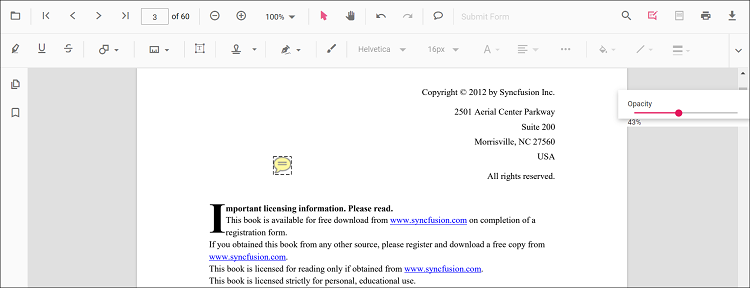
Editing opacity
Edit opacity using the range slider in the Edit Opacity tool.
Editing comments
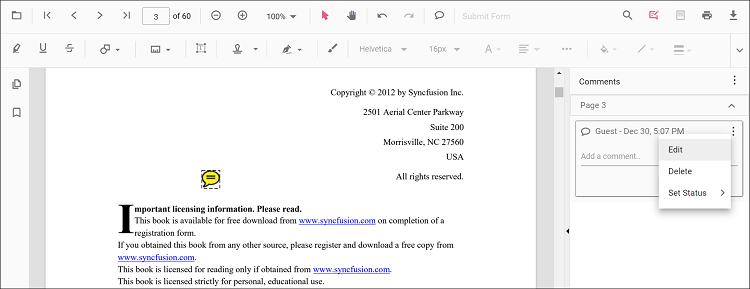
Comment text, replies, and status can be edited using the comment panel.
-
Open the comment panel using the Comment Panel button in the annotation toolbar.
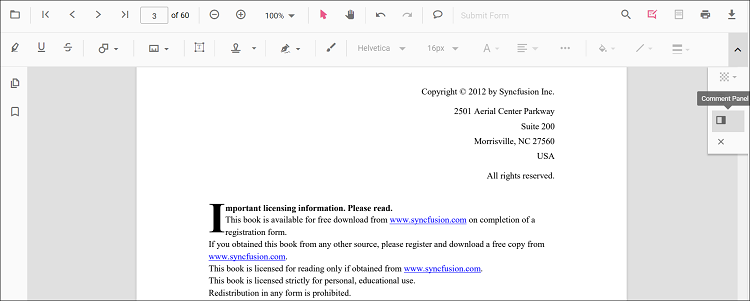
Modify or delete comments or replies, and change status using the menu options in the comment panel.
Set default properties during control initialization
Set default properties for sticky note annotations before creating the control by specifying stickyNotesSettings.
After changing the default opacity using the Edit Opacity tool, the selected value is applied. The example below shows how to set default sticky note annotation settings.
import * as ReactDOM from 'react-dom';
import * as React from 'react';
import { PdfViewerComponent, Toolbar, Magnification, Navigation, LinkAnnotation,
         BookmarkView, ThumbnailView, Print, TextSelection, TextSearch, Annotation,
         FormFields, FormDesigner, PageOrganizer, Inject } from '@syncfusion/ej2-react-pdfviewer';
let pdfviewer;

function App() {
  return (<div>
    <div className='control-section'>
      <PdfViewerComponent ref={(scope) => { pdfviewer = scope; }}
        id="container"
        documentPath="https://cdn.syncfusion.com/content/pdf/pdf-succinctly.pdf"
        resourceUrl="https://cdn.syncfusion.com/ej2/31.2.2/dist/ej2-pdfviewer-lib"
        stickyNotesSettings={{author: 'Syncfusion'}}
        style={{ 'height': '640px' }}>

              <Inject services={[ Toolbar, Annotation, Magnification, Navigation, LinkAnnotation, BookmarkView, ThumbnailView,
                                  Print, TextSelection, TextSearch, FormFields, FormDesigner, PageOrganizer]} />
      </PdfViewerComponent>
    </div>
  </div>);
}
const root = ReactDOM.createRoot(document.getElementById('sample'));
root.render(<App />);
import * as ReactDOM from 'react-dom';
import * as React from 'react';
import { PdfViewerComponent, Toolbar, Magnification, Navigation, LinkAnnotation,
BookmarkView, ThumbnailView, Print, TextSelection, TextSearch, Annotation,
FormFields, FormDesigner, PageOrganizer, Inject } from '@syncfusion/ej2-react-pdfviewer';
let pdfviewer;
function App() {
return (<div>
<div className='control-section'>
<PdfViewerComponent ref={(scope) => { pdfviewer = scope; }}
id="container"
documentPath="https://cdn.syncfusion.com/content/pdf/pdf-succinctly.pdf"
serviceUrl="https://document.syncfusion.com/web-services/pdf-viewer/api/pdfviewer"
stickyNotesSettings={{author: 'Syncfusion'}}
style={{ 'height': '640px' }}>
<Inject services={[ Toolbar, Annotation, Magnification, Navigation, LinkAnnotation, BookmarkView, ThumbnailView,
Print, TextSelection, TextSearch, FormFields, FormDesigner, PageOrganizer]} />
</PdfViewerComponent>
</div>
</div>);
}
const root = ReactDOM.createRoot(document.getElementById('sample'));
root.render(<App />);Disable sticky note annotations
The PDF Viewer control provides an option to disable sticky note annotations. The following example disables the feature.
import * as ReactDOM from 'react-dom';
import * as React from 'react';
import { PdfViewerComponent, Toolbar, Magnification, Navigation, LinkAnnotation,
         BookmarkView, ThumbnailView, Print, TextSelection, TextSearch, Annotation,
         FormFields, FormDesigner, PageOrganizer, Inject } from '@syncfusion/ej2-react-pdfviewer';
let pdfviewer;

function App() {
  return (<div>
    <div className='control-section'>
      <PdfViewerComponent ref={(scope) => { pdfviewer = scope; }}
        id="container"
        documentPath="https://cdn.syncfusion.com/content/pdf/pdf-succinctly.pdf"
        resourceUrl="https://cdn.syncfusion.com/ej2/31.2.2/dist/ej2-pdfviewer-lib"
        enableStickyNotesAnnotation={false}
        style={{ 'height': '640px' }}>

              <Inject services={[ Toolbar, Annotation, Magnification, Navigation, LinkAnnotation, BookmarkView, ThumbnailView,
                                  Print, TextSelection, TextSearch, FormFields, FormDesigner, PageOrganizer]} />
      </PdfViewerComponent>
    </div>
  </div>);
}
const root = ReactDOM.createRoot(document.getElementById('sample'));
root.render(<App />);
import * as ReactDOM from 'react-dom';
import * as React from 'react';
import { PdfViewerComponent, Toolbar, Magnification, Navigation, LinkAnnotation,
BookmarkView, ThumbnailView, Print, TextSelection, TextSearch, Annotation,
FormFields, FormDesigner, PageOrganizer, Inject } from '@syncfusion/ej2-react-pdfviewer';
let pdfviewer;
function App() {
return (<div>
<div className='control-section'>
<PdfViewerComponent ref={(scope) => { pdfviewer = scope; }}
id="container"
documentPath="https://cdn.syncfusion.com/content/pdf/pdf-succinctly.pdf"
serviceUrl="https://document.syncfusion.com/web-services/pdf-viewer/api/pdfviewer"
enableStickyNotesAnnotation={false}
style={{ 'height': '640px' }}>
<Inject services={[ Toolbar, Annotation, Magnification, Navigation, LinkAnnotation, BookmarkView, ThumbnailView,
Print, TextSelection, TextSearch, FormFields, FormDesigner, PageOrganizer]} />
</PdfViewerComponent>
</div>
</div>);
}
const root = ReactDOM.createRoot(document.getElementById('sample'));
root.render(<App />);