Ink Annotation in React PDF Viewer
17 Sep 20265 minutes to read
Ink annotations allow users to draw freehand strokes using mouse, pen, or touch input to mark content naturally.
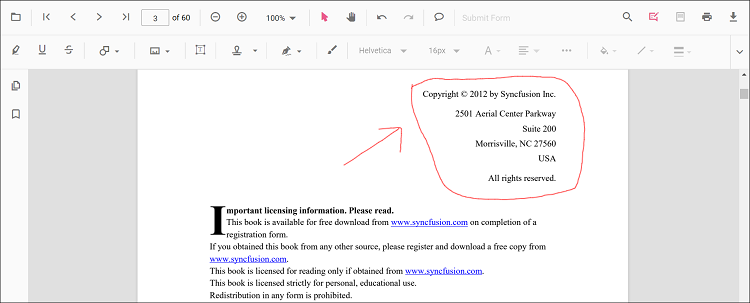
Enable Freehand Drawing (Ink)
To enable ink annotations, inject the following modules into the React PDF Viewer:
import * as React from 'react';
import * as ReactDOM from 'react-dom/client';
import { PdfViewerComponent, Inject, Toolbar, Annotation } from '@syncfusion/ej2-react-pdfviewer';

function App() {
  return (
    <PdfViewerComponent
      id="container"
      documentPath="https://cdn.syncfusion.com/content/pdf/pdf-succinctly.pdf"
      resourceUrl="https://cdn.syncfusion.com/ej2/31.2.2/dist/ej2-pdfviewer-lib"
      style={{ height: '650px' }}
    >
      <Inject services={[Toolbar, Annotation]} />
    </PdfViewerComponent>
  );
}

ReactDOM.createRoot(document.getElementById('sample')).render(<App />);
Add Ink annotation
Draw Freehand Using the Toolbar
- Open the Annotation Toolbar.
- Click Draw Ink.
- Draw freehand on the page.
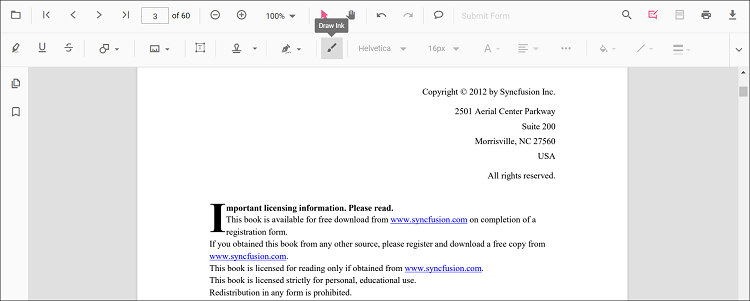
Enable Ink Mode
Switch the viewer into an ink annotation mode programmatically.
function enableInkMode() {
  const viewer = document.getElementById('container').ej2_instances[0];
  viewer.annotation.setAnnotationMode('Ink');
}
Exit Ink Mode
function exitInkMode() {
  const viewer = document.getElementById('container').ej2_instances[0];
  viewer.annotation.setAnnotationMode('None');
}
Add Ink Programmatically
Use the addAnnotation API to create an ink stroke by providing a path (an array of move/line commands), bounds, and target page.
function addInkProgrammatically() {
  const viewer = document.getElementById('container').ej2_instances[0];
  viewer.annotation.addAnnotation('Ink', {
    offset: { x: 150, y: 100 },
    pageNumber: 1,
    width: 200,
    height: 60,
    path: '[{"command":"M","x":244.83,"y":982.00},{"command":"L","x":250.83,"y":953.33}]'
  });
}
Customize Ink Appearance
You can customize stroke color, thickness, and opacity using the inkAnnotationSettings property.
<PdfViewerComponent
  id="container"
  documentPath="https://cdn.syncfusion.com/content/pdf/pdf-succinctly.pdf"
  resourceUrl="https://cdn.syncfusion.com/ej2/31.2.2/dist/ej2-pdfviewer-lib"
  inkAnnotationSettings={{ author: 'Guest', strokeColor: '#0066ff', thickness: 3, opacity: 0.85 }}
  style={{ height: '650px' }}
>
  <Inject services={[Toolbar, Annotation]} />
</PdfViewerComponent>
Erase, Modify, or Delete Ink Strokes
- Move: Drag the annotation.
- Resize: Use selector handles.
- Change appearance: Use Edit Stroke Color, Thickness, and Opacity tools.
- Delete: Via toolbar or context menu.
- Customize context menu: See Customize Context Menu.
Edit ink annotation in UI
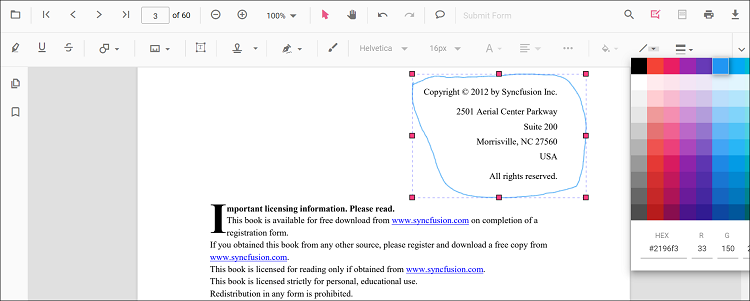
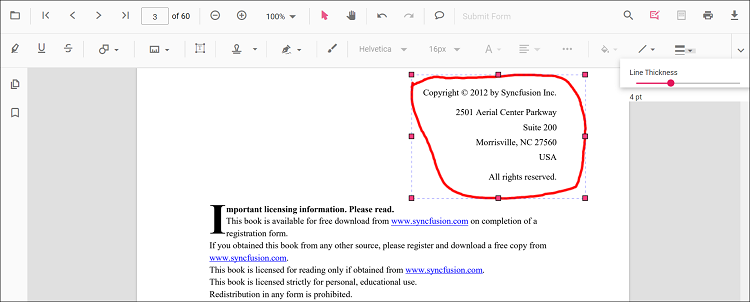
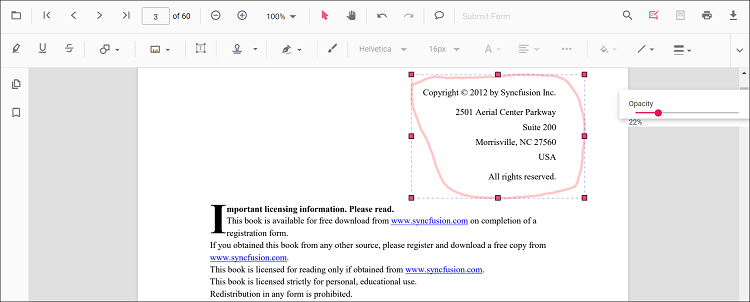
Stroke color, thickness, and opacity can be edited using the Edit Stroke Color, Edit Thickness, and Edit Opacity tools in the annotation toolbar.
- Edit the stroke color using the color palette in the Edit Stroke Color tool.
- Edit thickness using the range slider in the Edit Thickness tool.
- Edit opacity using the range slider in the Edit Opacity tool.
Edit Ink Programmatically
Modify an existing ink programmatically using editAnnotation().
function editInkProgrammatically() {
  const viewer = document.getElementById('container').ej2_instances[0];
  for (const ann of viewer.annotationCollection) {
    if (ann.shapeAnnotationType === 'Ink') {
      const { width, height } = ann.bounds;
      ann.bounds = { x: 120, y: 120, width, height };
      ann.strokeColor = '#ff0000';
      ann.thickness = 4;
      viewer.annotation.editAnnotation(ann);
      break;
    }
  }
}
Delete Ink
Delete Ink via UI (toolbar/context menu) or programmatically. For supported workflows and APIs, see Delete Annotation.
Ink Annotation Events
The PDF viewer provides annotation life‑cycle events that notify when Ink annotations are added, modified, selected, or removed.
For the full list of available events and their descriptions, see Annotation Events.
Export and Import
Ink annotations can be exported or imported along with other annotations.
See Export and Import annotations.