Free Text Annotation in React PDF Viewer
21 Oct 202610 minutes to read
Free Text annotations let users place editable text boxes on a PDF page to add comments, labels, or notes without changing the original document content.
Enable Free Text in the Viewer
To enable Free Text annotations, inject the following modules into the React PDF Viewer:
import * as React from 'react';
import * as ReactDOM from 'react-dom/client';
import { PdfViewerComponent, Inject, Toolbar, Annotation } from '@syncfusion/ej2-react-pdfviewer';

function App() {
  return (
    <PdfViewerComponent
      id="container"
      documentPath="https://cdn.syncfusion.com/content/pdf/pdf-succinctly.pdf"
      resourceUrl="https://cdn.syncfusion.com/ej2/31.2.2/dist/ej2-pdfviewer-lib"
      style={{ height: '650px' }}
    >
      <Inject services={[Toolbar, Annotation]} />
    </PdfViewerComponent>
  );
}

ReactDOM.createRoot(document.getElementById('sample')).render(<App />);
Add Free Text
Add Free Text Using the Toolbar
- Open the Annotation Toolbar.
- Click Free Text to enable Free Text mode.
- Click on the page to place the text box and start typing.
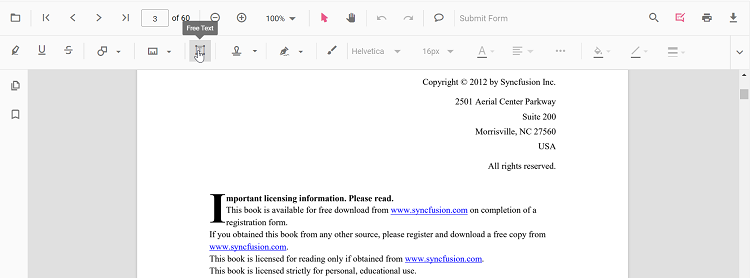
- When Pan mode is active, choosing Free Text switches the viewer into the appropriate selection/edit workflow for a smoother experience.
Enable Free Text Mode
Programmatically switch to Free Text mode.
function enableFreeTextMode() {
  const viewer = document.getElementById('container').ej2_instances[0];
  viewer.annotation.setAnnotationMode('FreeText');
}
Exit Free Text Mode
function exitFreeTextMode() {
  const viewer = document.getElementById('container').ej2_instances[0];
  viewer.annotation.setAnnotationMode('None');
}
Add Free Text Programmatically
Use the addAnnotation API to create a text box at a given location with desired styles.
function addFreeTextProgrammatically() {
  const viewer = document.getElementById('container').ej2_instances[0];
  viewer.annotation.addAnnotation('FreeText', {
    offset: { x: 100, y: 150 },
    pageNumber: 1,
    width: 220,
    height: 48,
    defaultText: 'Syncfusion',
    fontFamily: 'Helvetica',
    fontSize: 16,
    fontColor: '#ffffff',
    textAlignment: 'Center',
    borderStyle: 'solid',
    borderWidth: 2,
    borderColor: '#ff0000',
    fillColor: '#0000ff',
    isLock: false
  });
}
Customize Free Text Appearance
Configure default properties using the freeTextSettings property (for example, default fill color, border color, font color, opacity, and auto‑fit).
<PdfViewerComponent
  id="container"
  documentPath="https://cdn.syncfusion.com/content/pdf/pdf-succinctly.pdf"
  resourceUrl="https://cdn.syncfusion.com/ej2/31.2.2/dist/ej2-pdfviewer-lib"
  freeTextSettings={{
    fillColor: 'green',
    borderColor: 'blue',
    fontColor: 'yellow',
    opacity: 0.3,
    enableAutoFit: true
  }}
  style={{ height: '650px' }}
>
  <Inject services={[Toolbar, Annotation]} />
</PdfViewerComponent>
Supported Border Styles
In addition to the default Solid border, Free Text annotations support the following additional border styles:
- Cloud — scalloped cloud border.
- Dashed — dashed line border.
Use BorderStyle values such as BorderStyle.Cloud and BorderStyle.Dashed together with the optional borderDashArray and cloudIntensity settings in the freeTextSettings property.
| Property | Type | Description |
|---|---|---|
borderStyle |
BorderStyle |
Specifies the border style. Supported values: BorderStyle.Solid, BorderStyle.Cloud, and BorderStyle.Dashed. |
borderDashArray |
number[] |
Specifies the dash pattern when borderStyle is BorderStyle.Dashed. |
cloudIntensity |
number |
Specifies the cloud border intensity. Supported range: 1 to 2; default value: 1. |
borderStyle,borderDashArray, andcloudIntensityare preserved during save, reload, import, and export.
Apply a Cloud Border
export enum BorderStyle {
    Solid = 'Solid',
    Dashed = 'Dashed',
    Cloud = 'Cloud'
}<PdfViewerComponent
id="container"
documentPath="https://cdn.syncfusion.com/content/pdf/pdf-succinctly.pdf"
resourceUrl="https://cdn.syncfusion.com/ej2/31.2.2/dist/ej2-pdfviewer-lib"
freeTextSettings={{
fillColor: 'green',
borderColor: 'blue',
fontColor: 'yellow',
opacity: 0.3,
enableAutoFit: true,
borderStyle: BorderStyle.Cloud,
cloudIntensity: 2
}}
style={{ height: '650px' }}
>
<Inject services={[Toolbar, Annotation]} />
</PdfViewerComponent>Apply a Dashed Border
<PdfViewerComponent
  id="container"
  documentPath="https://cdn.syncfusion.com/content/pdf/pdf-succinctly.pdf"
  resourceUrl="https://cdn.syncfusion.com/ej2/31.2.2/dist/ej2-pdfviewer-lib"
  freeTextSettings={{
    fillColor: 'green',
    borderColor: 'blue',
    fontColor: 'yellow',
    opacity: 0.3,
    enableAutoFit: true,
    borderStyle: BorderStyle.Dashed,
    borderDashArray: [5, 5]
  }}
  style={{ height: '650px' }}
>
  <Inject services={[Toolbar, Annotation]} />
</PdfViewerComponent>
To tailor right‑click options, see Customize Context Menu.
Modify, Edit, Delete Free Text
- Move/Resize: Drag the box or use the resize handles.
- Edit Text: Click inside the box and type.
- Delete: Use the toolbar or context menu options. For deletion workflows and API details, see Delete Annotation.
Edit Free Text
Edit Free Text (UI)
Use the annotation toolbar to configure font family, size, color, alignment, styles, fill color, stroke color, border thickness, and opacity.
-
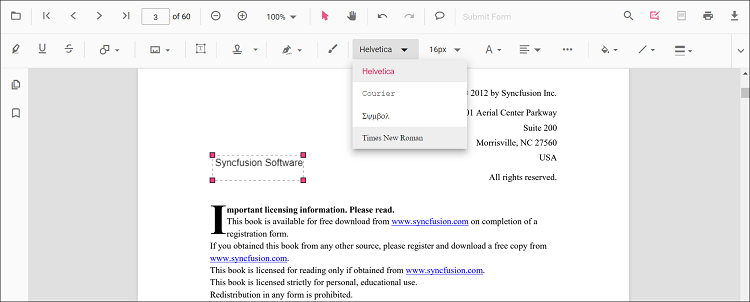
Edit the font family using the Font Family tool.
-
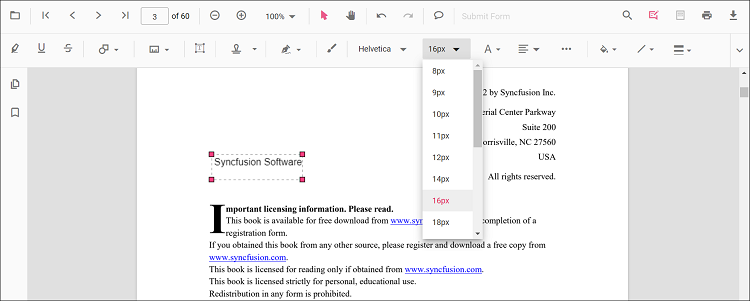
Edit the font size using the Font Size tool.
-
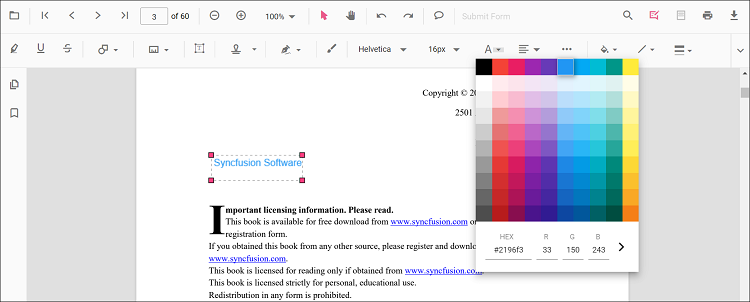
Edit the font color using the Font Color tool.
-
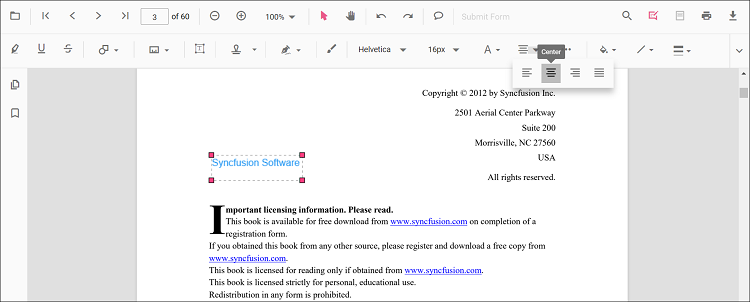
Edit the text alignment using the Text Alignment tool.
-
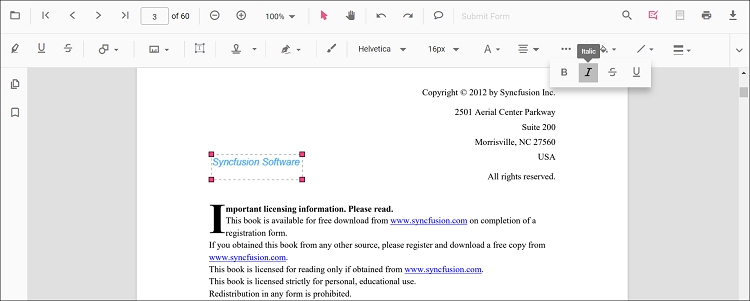
Edit the font styles (bold, italic, underline) using the Font Style tool.
-
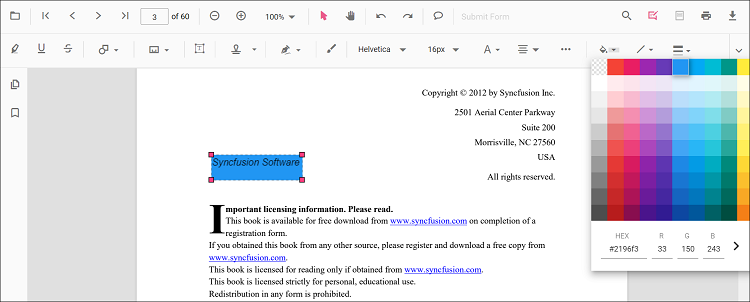
Edit the fill color using the Edit Color tool.
-
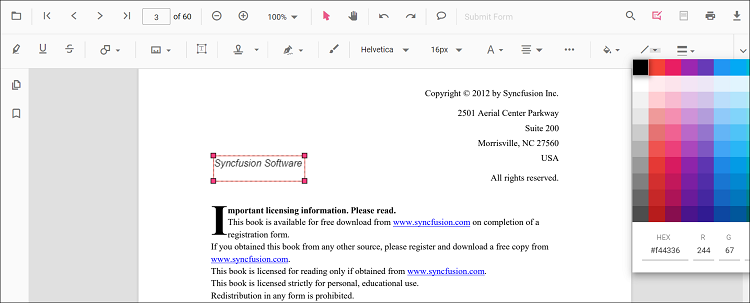
Edit the stroke color using the color palette in the Edit Stroke Color tool.
-
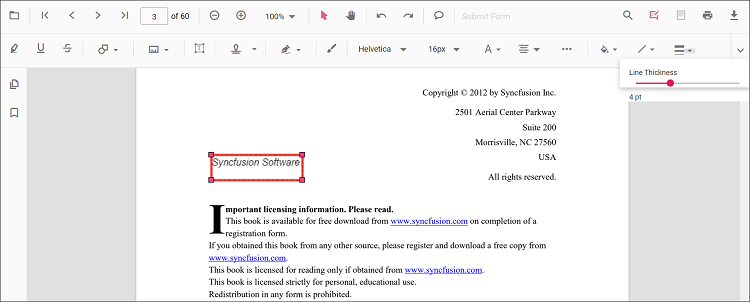
Edit the border thickness using the Edit Thickness tool.
-
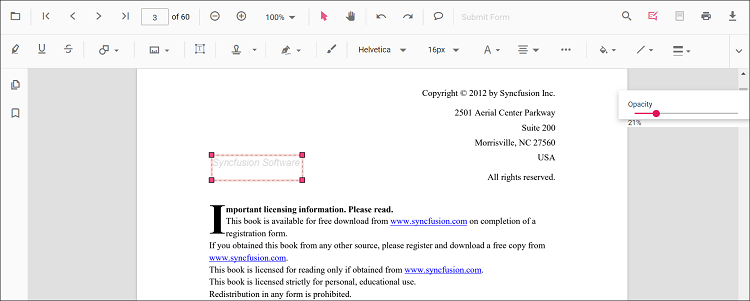
Edit the opacity using the Edit Opacity tool.
Edit Free Text Programmatically
Update bounds or text and call editAnnotation().
function editFreeTextProgrammatically() {
  const viewer = document.getElementById('container').ej2_instances[0];
  for (const ann of viewer.annotationCollection) {
    if (ann.subject === 'Text Box') {
      const { width, height } = ann.bounds;
      ann.bounds = { x: 120, y: 120, width, height };
      ann.dynamicText = 'Syncfusion (updated)';
      viewer.annotation.editAnnotation(ann);
      break;
    }
  }
}
Free Text annotations do not modify the original PDF text; they overlay editable text boxes on top of the page content.
Delete Free Text
Delete Free Text via UI (toolbar/context menu) or programmatically. For supported workflows and APIs, see Delete Annotation.
Set Default Properties During Initialization
Apply defaults for new text boxes using the freeTextSettings property. You can also enable Auto‑fit so the box expands with content.
<PdfViewerComponent
  id="container"
  documentPath="https://cdn.syncfusion.com/content/pdf/pdf-succinctly.pdf"
  resourceUrl="https://cdn.syncfusion.com/ej2/31.2.2/dist/ej2-pdfviewer-lib"
  freeTextSettings={{
    fillColor: 'green',
    borderColor: 'blue',
    fontColor: 'yellow',
    enableAutoFit: true
  }}
  style={{ height: '650px' }}
>
  <Inject services={[Toolbar, Annotation]} />
</PdfViewerComponent>
Free Text Annotation Events
Listen to add/modify/select/remove events for Free Text and handle them as needed. For the full list and parameters, see Annotation Events.
Export and Import
Free Text annotations can be exported or imported just like other annotations. For supported formats and steps, see Export and Import annotations.