Cloud Annotation in React PDF Viewer
20 Oct 20267 minutes to read
Cloud annotations render a cloud-shaped border around a marked region, drawing clear visual emphasis on content that matters during a review. They are commonly used in document review and markup scenarios to highlight text, figures, or areas of a contract that require approval, clarification, or follow-up.
Unlike the other shape annotations, which use straight, circular, or polygonal outlines, a Cloud annotation is drawn with a scalloped cloud border. It is available in the Shape Annotation dropdown of the annotation toolbar, so it can be created the same way as Rectangle, Circle, or Polygon annotations, and it can be moved, resized, restyled, deleted, commented on, saved, and exported like any other annotation.
Cloud annotations are exposed as a separate annotation type in the UI and API, but they are maintained internally as Polygon annotations with a cloud border style.
Enable Cloud Annotation in the Viewer
To enable Cloud annotations, inject the following modules into the React PDF Viewer:
import * as React from 'react';
import * as ReactDOM from 'react-dom/client';
import { PdfViewerComponent, Inject, Toolbar, Annotation } from '@syncfusion/ej2-react-pdfviewer';

function App() {
  return (
    <PdfViewerComponent
      id="container"
      documentPath="https://cdn.syncfusion.com/content/pdf/pdf-succinctly.pdf"
      resourceUrl="https://cdn.syncfusion.com/ej2/31.2.2/dist/ej2-pdfviewer-lib"
      style={{ height: '650px' }}
    >
      <Inject services={[Toolbar, Annotation]} />
    </PdfViewerComponent>
  );
}

ReactDOM.createRoot(document.getElementById('sample')).render(<App />);
Add Cloud Annotation
Add Cloud Annotation Using the Toolbar
- Open the Annotation Toolbar.
- Expand the Shape Annotation dropdown.
- Select Cloud Annotation.
- Draw the cloud annotation on the PDF page.
- Release the mouse or pointer to complete the annotation.
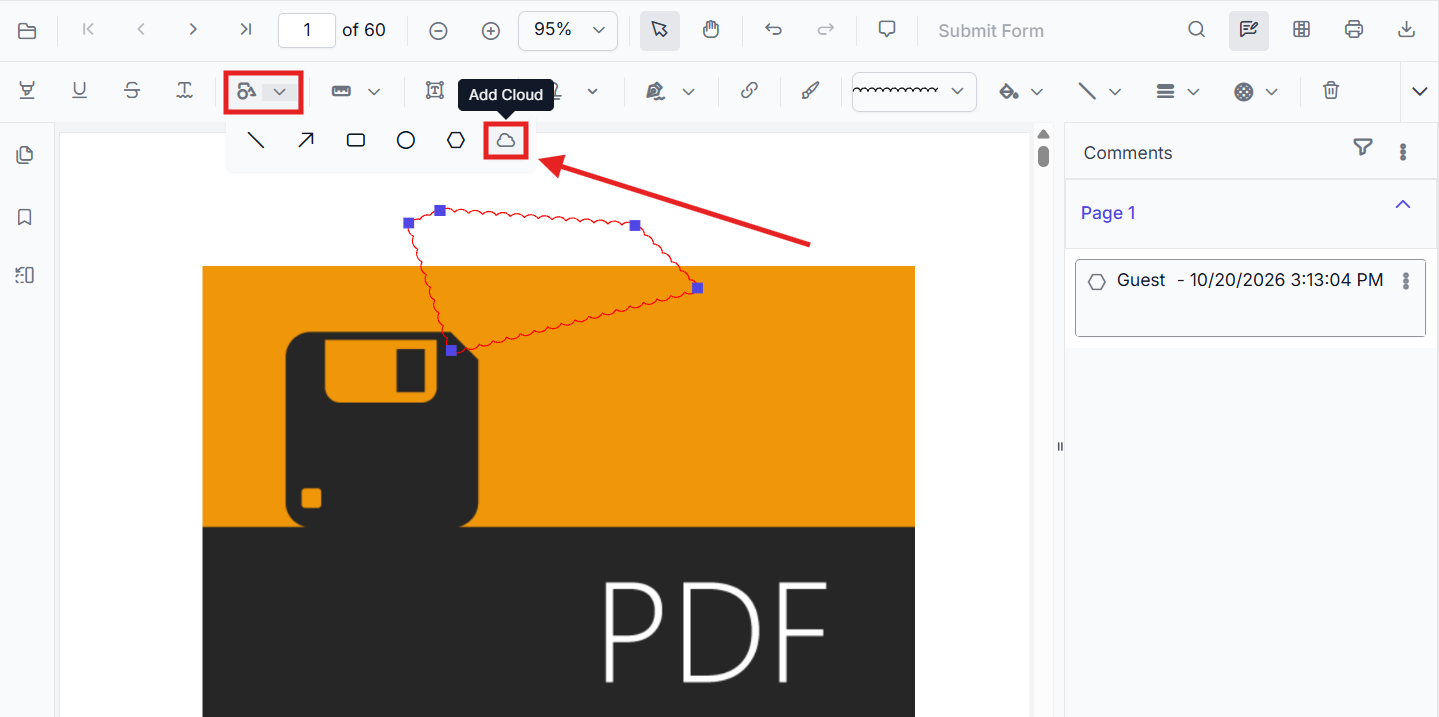
When in Pan mode, selecting a shape tool automatically switches the viewer to selection mode for smooth interaction.
Add Cloud Annotation Programmatically
Use the addAnnotation API to draw a cloud annotation at a specific location by specifying the vertexPoints of the cloud shape.
function addCloudAnnotation() {
  const viewer = document.getElementById('container').ej2_instances[0];
  viewer.annotation.addAnnotation('Cloud', {
    offset: { x: 200, y: 800 },
    pageNumber: 2,
    vertexPoints: [
      { x: 200, y: 800 },
      { x: 242, y: 771 },
      { x: 289, y: 799 },
      { x: 278, y: 842 },
      { x: 211, y: 842 },
      { x: 200, y: 800 }
    ]
  });
}
The following properties are used in the above example:
| Property | Description |
|---|---|
offset |
Specifies the top-left position of the annotation on the PDF page. |
pageNumber |
Specifies the page on which the annotation is added. |
vertexPoints |
Specifies the points that define the cloud shape. The first and last points must be the same to close the shape. |
Modify Cloud Annotation
Select and Edit a Cloud Annotation
- Select an existing Cloud annotation on the PDF page.
- Drag the annotation to move it to a different position on the page.
- Drag the selection handles to resize the annotation.
- Use the annotation properties toolbar to edit the cloud shape appearance.
Customize Cloud Annotation Appearance
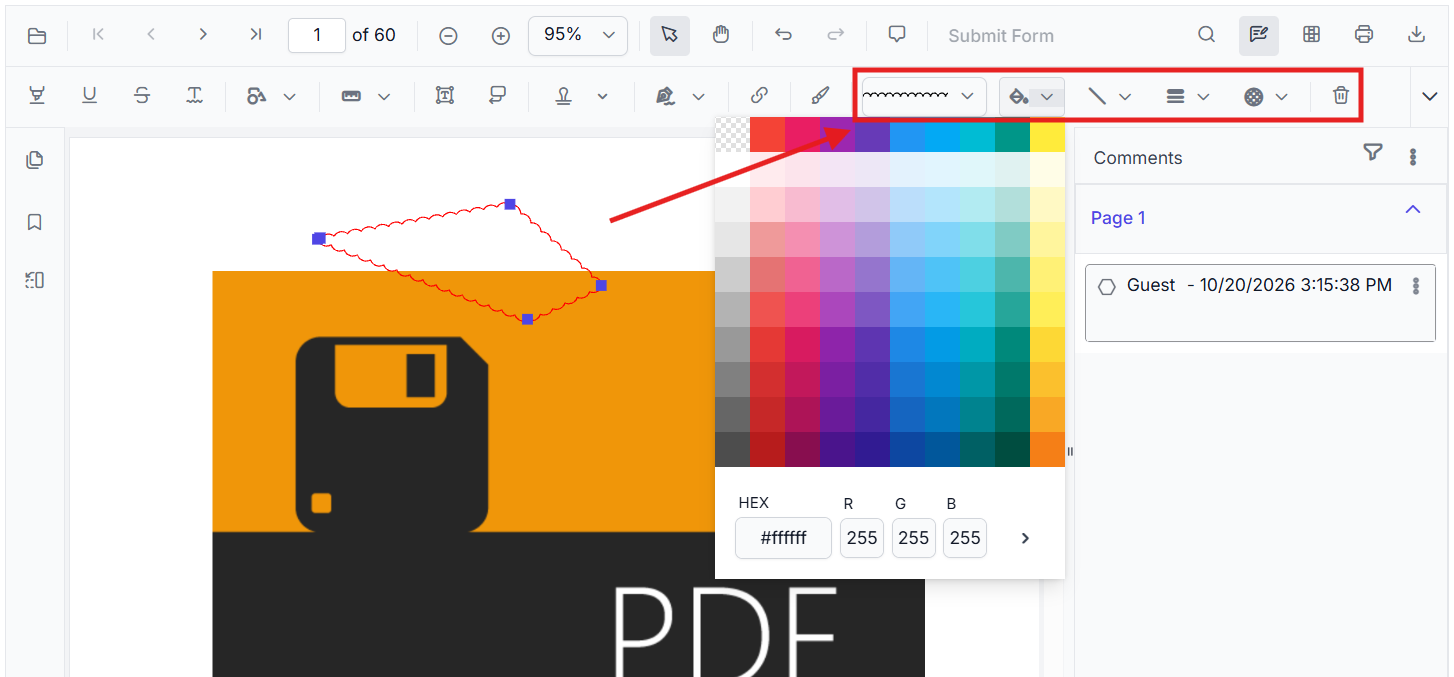
Select a Cloud annotation and use the annotation properties toolbar to customize its appearance. The following appearance settings are supported:
- Border color – changes the cloud border color.
- Fill color – changes the color inside the cloud shape.
- Opacity – adjusts the transparency of the annotation.
- Thickness – adjusts the cloud border thickness.
- Border Style – changes the annotation border style.
- Cloud Intensity – controls the appearance of the cloud border.
Use the color picker in the annotation toolbar to change the cloud annotation’s border or fill color.
Use the border-style dropdown to choose the cloud annotation’s outline style.
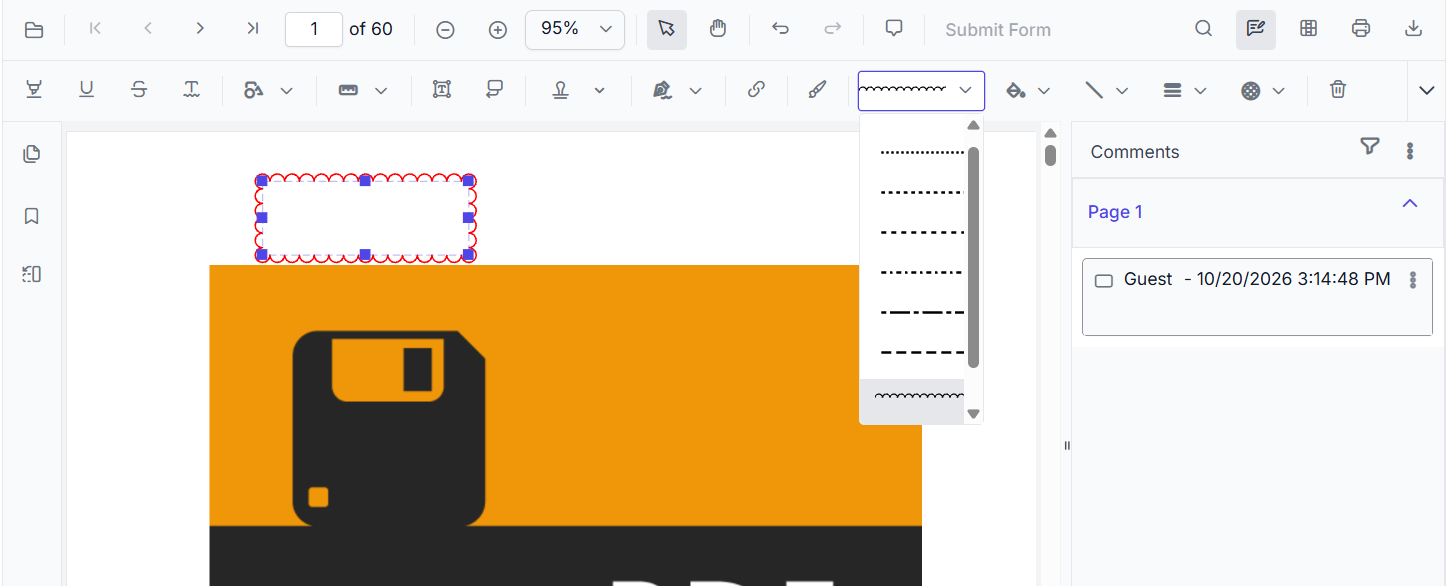
The cloud intensity value determines how prominently the cloud border is rendered around the shape.
Configure Default Cloud Annotation Settings
Configure the default cloud appearance (fill color, stroke color, opacity, border style, and cloud intensity) using the cloudSettings property.
<PdfViewerComponent
    id="container"
    documentPath="https://cdn.syncfusion.com/content/pdf/pdf-succinctly.pdf"
    cloudSettings={{
        opacity: 1,
        strokeColor: '#ff0000',
        fillColor: '#9c2592',
        author: 'Cloud',
        borderStyle: BorderStyle.Cloud,
        cloudIntensity: 2
    }}>
    <Inject services={[Toolbar, Annotation]} />
</PdfViewerComponent>
The following properties are supported in cloudSettings:
| Property | Description |
|---|---|
opacity |
Specifies the opacity applied to the cloud annotation. |
strokeColor |
Specifies the border color of the cloud annotation. |
fillColor |
Specifies the fill color inside the cloud shape. |
author |
Specifies the author of the cloud annotation. |
borderStyle |
Specifies the border style of the cloud annotation. |
cloudIntensity |
Specifies the appearance of the cloud border. |
Delete Cloud Annotation
The PDF Viewer supports deleting existing annotations through the UI and API.
See Delete Annotation for full behavior and workflows.
Comments
Use the Comments panel to add, view, and reply to threaded discussions linked to cloud annotations. It provides a dedicated interface for collaboration and review within the PDF Viewer.
Handle Cloud Annotation Events
The PDF viewer provides annotation life-cycle events that notify when Cloud annotations are added, modified, selected, or removed.
For the full list of available events and their descriptions, see Annotation Events.
Export and Import
The PDF Viewer supports exporting and importing annotations. For details on supported formats and workflows, see Export and Import annotations.
Cloud annotation appearance settings persist when the PDF is saved, when annotations are exported and imported, and when the document is reloaded.
Key Notes
- Cloud annotations are available through the Shape Annotation toolbar dropdown.
- Cloud annotations are drawn with a cloud-style border rendering.
- Cloud annotations can be created through both UI interaction and API methods.
- Cloud annotation appearance settings persist during save, import, export, and reload operations.