Print a Document in .NET MAUI PDF Viewer
14 Aug 20263 minutes to read
Print PDFs directly from your app using the viewer’s built-in print integration. This page shows how to trigger printing, provide optional print settings, and handle platform print dialogs so your users see familiar system UI.
Note: On some platforms the system print dialog controls options such as paper size and print quality — collect any user-specific print options in your UI and pass them to the print API where supported.
To print a PDF programmatically, use the PrintDocument method. For example, call it from a toolbar or a Print button’s click handler.
// Call from a Print button's Clicked handler.
private void PrintButton_Clicked(object sender, EventArgs e)
{
    PdfViewer.PrintDocument();
}
Also, SfPdfViewer provides another way to print through command binding using the PrintDocumentCommand. This makes printing easier, especially when used with buttons.
<!-- Prints the PDF document. -->
<Button Text="Print" Command="{Binding Source={x:Reference PdfViewer},Path=PrintDocumentCommand}"/>
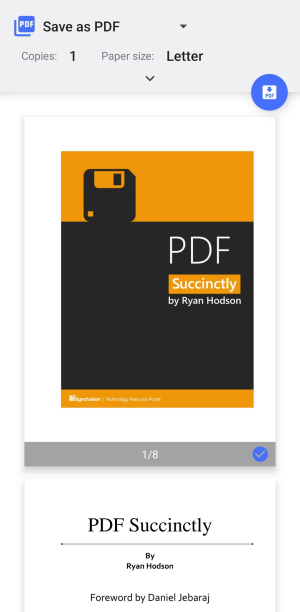
Below is an example of the print preview dialog on the Android platform. The appearance of this dialog may differ across other platforms.
How to adjust the print quality on the Windows platform?
SfPdfViewer allows users to adjust the printing quality on the Windows platform using the PrintSettings.PrintQuality API. The PrintQuality enumeration supports the below quality levels:
- Low - Optimizes print speed and uses minimal memory during printing.
- Default - Suitable for standard text and basic graphics, while maintaining the quality of previous versions. This is the default value.
- Medium - Balances clarity and performance during printing.
- High - Ensures sharper lines and crisp small annotations in the output.
- Ultra - Optimizes the detail on large-format print documents like CAD drawings and architectural plans.
// Sets high print quality
PdfViewer.PrintSettings.PrintQuality = PrintQuality.High;
The PrintQuality API is only applicable to the Windows platform and does not affect printing on Android, iOS, or macOS.
Detecting Print Completion with PrintDocumentCompleted
The PrintDocumentCompleted event occurs after a print operation has finished. The event provides a Status property that indicates whether the document was successfully submitted to the printer (PrintStatus.Success) or if the operation was cancelled by the user (PrintStatus.Cancelled). You can use this event to track print outcomes and manage the process accordingly.
The following example explains how to wire and handle the event.
void WirePrintDocumentCompletedEvent()
{
    // Wire the PrintDocumentCompleted event of SfPdfViewer.
    pdfViewer.PrintDocumentCompleted += OnPrintDocumentCompleted;
}

private void OnPrintDocumentCompleted(object? sender, PrintDocumentCompletedEventArgs e)
{
    if (e.Status == PrintStatus.Success)
    {
        Debug.WriteLine("Document printed successfully.");
    }
    else if (e.Status == PrintStatus.Cancelled)
    {
        Debug.WriteLine("Print operation was cancelled.");
    }
}
Limitations
Currently, when printing a document that contains sticky note annotations, the sticky note icon always appears as the default comment icon appearance in the printed document.