Magnification in .NET MAUI PDF Viewer
14 Aug 20266 minutes to read
Give users precise control over how PDF content is displayed — from pinch-to-zoom on touch screens to setting an exact zoom percentage in code. You can also lock the view to predefined zoom modes like Fit to Page or Fit to Width to optimize readability for different document types.
Adjusting the zoom factor
You can control the zoom level using the ZoomFactor property. Refer to the following code example.
<syncfusion:SfPdfViewer x:Name="PdfViewer" DocumentSource="{Binding PdfDocumentStream}" ZoomFactor ="3" />PdfViewer.ZoomFactor = 3;You can also retrieve the current zoom level using the same property.
double currentZoom = PdfViewer.ZoomFactor;Setting minimum and maximum zoom limits
By default, the zoom range varies by platform:
- Mobile (Android/iOS): 1.0 to 4.0
- Desktop (Windows/macOS): 0.25 to 4.0
To restrict zoom levels, use the MinZoomFactor and MaxZoomFactor properties.
The following code example explains restricting the zoom factor between 0.5 and 2.
<syncfusion:SfPdfViewer x:Name="PdfViewer" DocumentSource="{Binding PdfDocumentStream}" MinZoomFactor = “0.5” MaxZoomFactor ="2" />PdfViewer.MinZoomFactor = 0.5;
PdfViewer.MaxZoomFactor = 2;If the ZoomFactor is set outside the defined MinZoomFactor and MaxZoomFactor range, it will be ignored.
You can download a sample project demonstrating magnification features here.
Zoom Modes
The PDF Viewer supports the following zoom modes via the ZoomMode property:
- Default – Restores the viewer to the last user-set zoom level. This is the initial mode when a document is loaded.
- Fit to Page – Displays the entire page within the viewport.
- Fit to Width – Expands the page to fill the width of the viewer.
The default value is ZoomMode.Default.
Zoom mode via the built-in toolbar
Desktop Toolbar
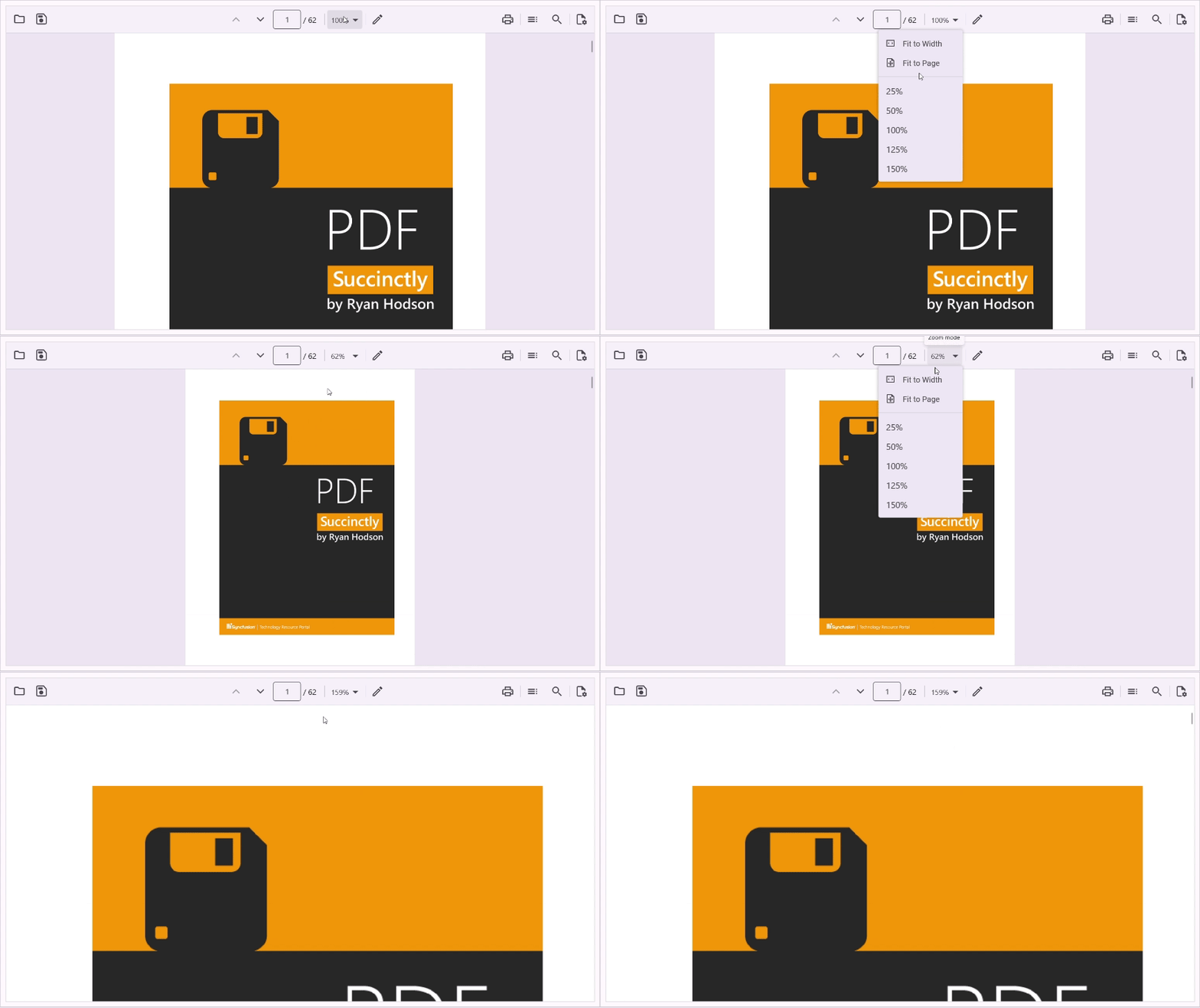
The built-in toolbar includes a magnification dropdown showing the current zoom percentage. Users can select predefined zoom levels or choose Fit to Page / Fit to Width.
Mobile Toolbar
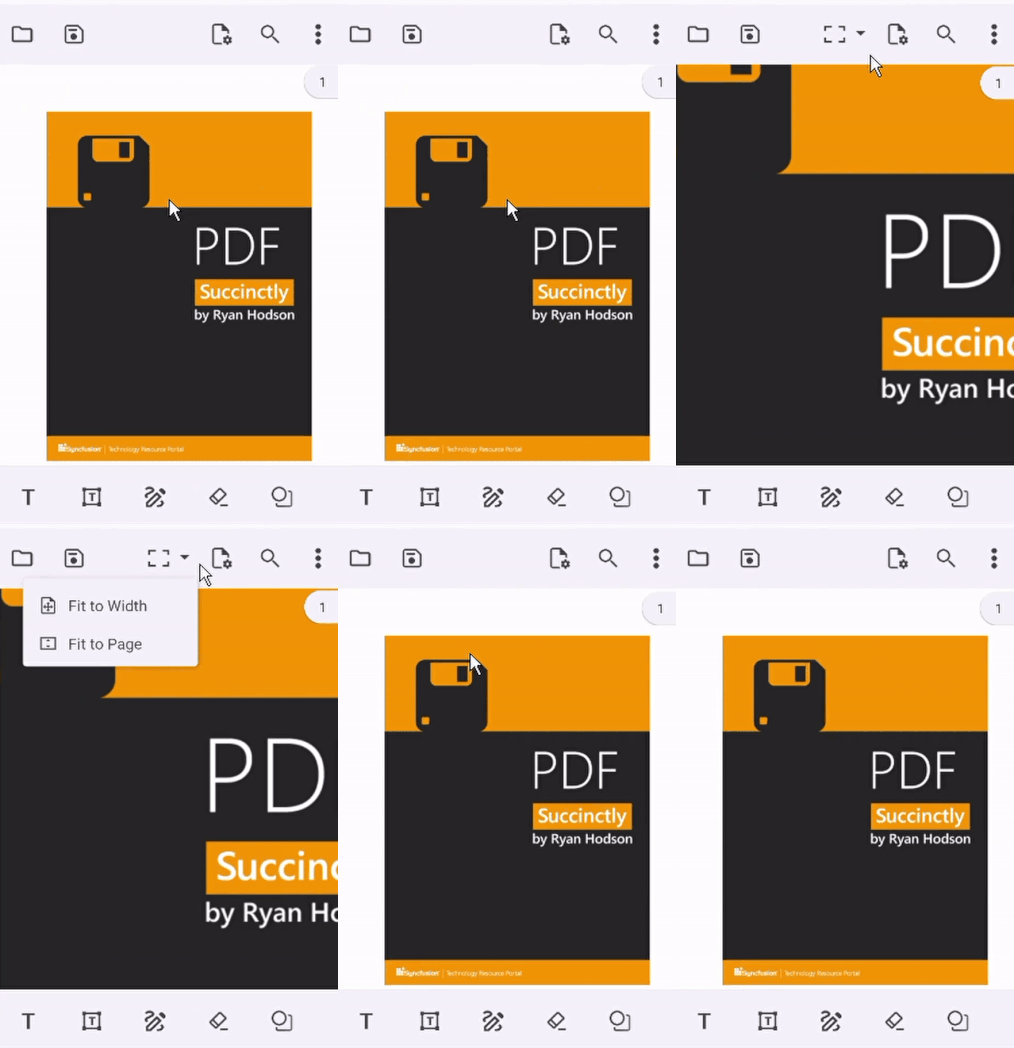
On mobile, the magnification tool appears only after the zoom factor changes. Users can then select Fit to Page or Fit to Width. Once selected, the icon disappears until the zoom factor changes again.
Programmatically setting zoom mode
Fit to Page
You can change the SfPdfViewer.ZoomMode using the ZoomMode.FitToPage enumeration. It magnifies the PDF document so that the entire PDF page is visible in the viewport.
Refer to the following code example:
<Syncfusion:PdfViewer x:Name="pdfViewer" ZoomMode="FitToPage"/>// To apply fit-to-page zoom mode.
pdfViewer.ZoomMode = ZoomMode.FitToPage;Fit to Width
You can change the SfPdfViewer.ZoomMode using the ZoomMode.FitToWidth enumeration. It magnifies the PDF document so that the widest page of the PDF document fits the width of the viewport.
Refer to the following code example:
<Syncfusion:PdfViewer x:Name="pdfViewer" ZoomMode="FitToWidth"/>// To apply fit-to-width zoom mode.
pdfViewer.ZoomMode = ZoomMode.FitToWidth;When the
ZoomFactoris manually changed, theZoomModeresets toDefault. You can reapply the desired zoom mode afterward.
Maintain zoom level in single-page view mode
In single-page view mode, the zoom level resets to default each time you navigate to a new page. To maintain a consistent zoom factor throughout the document, enable the PersistZoomOnPageChange property. This applies whether navigation is triggered by the built-in toolbar controls or programmatic APIs.
The default value of PersistZoomOnPageChange is False.
Enable PersistZoomOnPageChange
You can enable persistent zoom by setting the PersistZoomOnPageChange property to True. When enabled, the viewer preserves the numeric ZoomFactor when switching pages in SinglePage layout and applies that same zoom to the destination page. Refer to the following code example:
<syncfusion:SfPdfViewer x:Name="PdfViewer"
                        PageLayoutMode="SinglePage"
                        PersistZoomOnPageChange="True" />
// Enable persistence and set an initial zoom
PdfViewer.PageLayoutMode = PageLayoutMode.SinglePage;
PdfViewer.PersistZoomOnPageChange = true;Disable PersistZoomOnPageChange
Set PersistZoomOnPageChange to False to keep the viewer’s default behavior. When disabled, navigating to a different page resets the viewer to the default zoom level unless you explicitly set a zoom after navigation. Refer to the following example:
<syncfusion:SfPdfViewer x:Name="PdfViewer"
                        PageLayoutMode="SinglePage"
                        PersistZoomOnPageChange="False" />
// Disable persistence
PdfViewer.PersistZoomOnPageChange = false;Enable or disable double-tap zoom
The PDF Viewer allows users to zoom in and out of the document using a double-tap gesture. This behavior can be controlled programmatically using the AllowDoubleTapZoom property.
By default, double-tap zoom is enabled, allowing users to quickly zoom into a specific area of the document. You can disable this feature to prevent accidental zooming or to provide a controlled zooming experience.
<syncfusion:SfPdfViewer
    x:Name="PdfViewer"
    AllowDoubleTapZoom="False" />
// Disable double tap zoom
pdfViewer.AllowDoubleTapZoom = false;