Page Navigation in JavaScript (ES6) PDF Viewer
14 Aug 20267 minutes to read
The JavaScript PDF Viewer supports internal and external navigation.
Toolbar page navigation options
The default PDF Viewer toolbar provides the following navigation options:
- [Go to page] (https://ej2.syncfusion.com/documentation/api/pdfviewer/navigation/#gotopage) — Navigate to a specific page.
- [Show next page] (https://ej2.syncfusion.com/documentation/api/pdfviewer/navigation/#gotonextpage) — Navigate to the next page.
- [Show previous page] (https://ej2.syncfusion.com/documentation/api/pdfviewer/navigation/#gotopreviouspage) — Navigate to the previous page.
- [Show first page] (https://ej2.syncfusion.com/documentation/api/pdfviewer/navigation/#gotofirstpage) — Navigate to the first page.
- [Show last page] (https://ej2.syncfusion.com/documentation/api/pdfviewer/navigation/#gotolastpage) — Navigate to the last page.
<!DOCTYPE html>
<html lang="en">

<head>
    <title>Essential JS 2</title>
    <meta charset="utf-8" />
    <meta name="viewport" content="width=device-width, initial-scale=1.0, user-scalable=no" />
    <meta name="description" content="Essential JS 2" />
    <meta name="author" content="Syncfusion" />
    <link rel="shortcut icon" href="resources/favicon.ico" />
    <link href="https://maxcdn.bootstrapcdn.com/bootstrap/3.3.7/css/bootstrap.min.css" rel="stylesheet" />

    <!--style reference from app-->
    <link href="/styles/styles.css" rel="stylesheet" />

    <!--system js reference and configuration-->
    <script src="node_modules/systemjs/dist/system.src.js" type="text/javascript"></script>
    <script src="system.config.js" type="text/javascript"></script>
</head>

<body>
    <!--Element which will render as PdfViewer -->
    <div id="PdfViewer"></div>
</body>

</html>
Use the following code snippet to enable or disable page navigation.
import { PdfViewer, Toolbar, Magnification, Navigation, LinkAnnotation,ThumbnailView,BookmarkView, TextSelection} from '@syncfusion/ej2-pdfviewer';

PdfViewer.Inject(Toolbar,Magnification,Navigation, LinkAnnotation,ThumbnailView,BookmarkView, TextSelection);

let pdfviewer: PdfViewer = new PdfViewer({enableNavigation: true, documentPath:'https://cdn.syncfusion.com/content/pdf/pdf-succinctly.pdf'});
pdfviewer.appendTo('#PdfViewer');
import { PdfViewer, Toolbar, Magnification, Navigation, LinkAnnotation,ThumbnailView,BookmarkView, TextSelection} from '@syncfusion/ej2-pdfviewer';
PdfViewer.Inject(Toolbar,Magnification,Navigation, LinkAnnotation,ThumbnailView,BookmarkView, TextSelection);
let pdfviewer: PdfViewer = new PdfViewer({enableNavigation: true, documentPath:'https://cdn.syncfusion.com/content/pdf/pdf-succinctly.pdf'});
pdfviewer.serviceUrl = 'https://document.syncfusion.com/web-services/pdf-viewer/api/pdfviewer/';
pdfviewer.appendTo('#PdfViewer');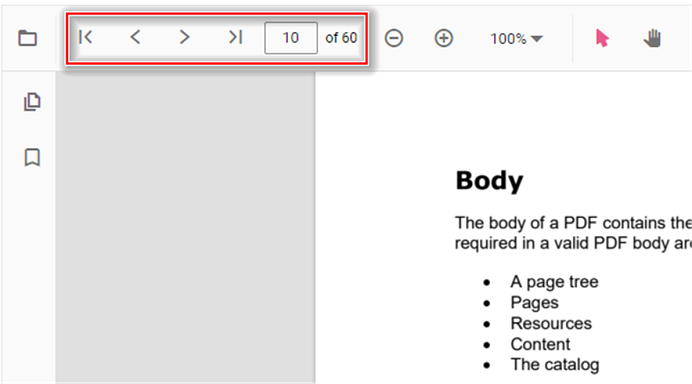
Also, you can programmatically perform page navigation options as follows.
<!DOCTYPE html>
<html lang="en">

<head>
    <title>Essential JS 2</title>
    <meta charset="utf-8" />
    <meta name="viewport" content="width=device-width, initial-scale=1.0, user-scalable=no" />
    <meta name="description" content="Essential JS 2" />
    <meta name="author" content="Syncfusion" />
    <link rel="shortcut icon" href="resources/favicon.ico" />
    <link href="https://maxcdn.bootstrapcdn.com/bootstrap/3.3.7/css/bootstrap.min.css" rel="stylesheet" />

    <!--style reference from app-->
    <link href="/styles/styles.css" rel="stylesheet" />

    <!--system js reference and configuration-->
    <script src="node_modules/systemjs/dist/system.src.js" type="text/javascript"></script>
    <script src="system.config.js" type="text/javascript"></script>
</head>

<body>
    <!--Element which will render as PdfViewer -->
    <button id="goToFirstPage">Go To First Page</button>
    <button id="goToLastPage">Go To Last Page</button>
    <button id="goToNextPage">Go To Next Page</button>
    <button id="goToPage">Go To Page</button>
    <button id="goToPreviousPage">Go To Previous Page</button>
    <div id="PdfViewer"></div>
</body>

</html>import {PdfViewer, Toolbar, Magnification, Navigation, LinkAnnotation, BookmarkView, ThumbnailView, Print, TextSelection, TextSearch, Annotation, FormFields } from '@syncfusion/ej2-pdfviewer';
PdfViewer.Inject(Toolbar,Magnification,Navigation, LinkAnnotation,ThumbnailView,BookmarkView, TextSelection, TextSearch, Annotation, FormFields );
let viewer: PdfViewer = new PdfViewer();
viewer.appendTo('#PdfViewer');
viewer.load('https://cdn.syncfusion.com/content/pdf/pdf-succinctly.pdf', null);
// Go To First Page
document.getElementById('goToFirstPage').addEventListener('click', () => {
viewer.navigation.goToFirstPage();
});
// Go To Last Page
document.getElementById('goToLastPage').addEventListener('click', () => {
viewer.navigation.goToLastPage();
});
// Go To Next Page
document.getElementById('goToNextPage').addEventListener('click', () => {
viewer.navigation.goToNextPage();
});
// Go To Page
document.getElementById('goToPage').addEventListener('click', () => {
viewer.navigation.goToPage(4);
});
// Go To Previous Page
document.getElementById('goToPreviousPage').addEventListener('click', () => {
viewer.navigation.goToPreviousPage();
});import {PdfViewer, Toolbar, Magnification, Navigation, LinkAnnotation, BookmarkView, ThumbnailView, Print, TextSelection, TextSearch, Annotation, FormFields } from '@syncfusion/ej2-pdfviewer';
PdfViewer.Inject(Toolbar,Magnification,Navigation, LinkAnnotation,ThumbnailView,BookmarkView, TextSelection, TextSearch, Annotation, FormFields );
let viewer: PdfViewer = new PdfViewer();
viewer.serviceUrl =
'https://document.syncfusion.com/web-services/pdf-viewer/api/pdfviewer/';
viewer.appendTo('#PdfViewer');
viewer.load('https://cdn.syncfusion.com/content/pdf/pdf-succinctly.pdf', null);
// Go To First Page
document.getElementById('goToFirstPage').addEventListener('click', () => {
viewer.navigation.goToFirstPage();
});
// Go To Last Page
document.getElementById('goToLastPage').addEventListener('click', () => {
viewer.navigation.goToLastPage();
});
// Go To Next Page
document.getElementById('goToNextPage').addEventListener('click', () => {
viewer.navigation.goToNextPage();
});
// Go To Page
document.getElementById('goToPage').addEventListener('click', () => {
viewer.navigation.goToPage(4);
});
// Go To Previous Page
document.getElementById('goToPreviousPage').addEventListener('click', () => {
viewer.navigation.goToPreviousPage();
});Find a sample here to perform the page navigation options programmatically.