Getting Started with Server-Backed TS PDF Viewer
25 Aug 20266 minutes to read
Create and run the TypeScript PDF Viewer in server-backed mode. In this mode, PDF rendering and processing are performed on a server-side web service, while the TypeScript application acts as the client.
Starting with the 2026 Vol 2 main release (July 6, 2026), no new features will be added to the Server PDF Viewer, as almost all of the PDF Viewer functionalities are now available in the Standalone PDF Viewer. If you are currently using the server-backed PDF Viewer, please refer to the migration documentation to transition to the Standalone PDF Viewer.
Prerequisites
To get started, ensure the following software is installed on your machine:
Create a TypeScript application
Create a simple TypeScript application using the Essential® JS 2 quickstart seed repository.
This application is integrated with the
webpack.config.jsconfiguration and uses the latest version of the webpack-cli. For more information about webpack and its features, refer to the webpack documentation.
Step 1: Open the command prompt from the required directory and clone the quickstart project from GitHub.
git clone https://github.com/SyncfusionExamples/ej2-quickstart-webpack ej2-quickstartStep 2: Navigate to the ej2-quickstart folder.
cd ej2-quickstartStep 3: By default, the ej2-quickstart repository is preconfigured with the @syncfusion/ej2 package in ~/package.json. This package installs all Syncfusion Essential JS 2 components, including the PDF Viewer and other EJ2 controls.
To install only the PDF Viewer component, replace the dependencies with @syncfusion/ej2-pdfviewer in package.json:
"@syncfusion/ej2-pdfviewer": "*"Step 4: Install the dependent npm packages.
npm installImport the required CSS styles
Themes for PDF Viewer can be applied using CSS or SASS files from the npm theme packages, CDN, CRG, or Theme Studio. For more information, see the themes documentation.
This guide uses the Tailwind 3 theme as an example, sourced from the theme package. In this package, each component includes an index.css file that automatically loads all the required dependency styles. To install the Tailwind 3 theme package, use the following command:
npm install @syncfusion/ej2-tailwind3-themeAdd the required PDF Viewer theme style reference to src/styles/styles.css:
@import '../../node_modules/@syncfusion/ej2-tailwind3-theme/styles/pdfviewer/index.css';The
index.cssfile automatically includes all required dependent component styles for the PDF Viewer. You do not need to import individual dependency styles such as Base, Buttons, Dropdowns, Inputs, Navigations, Popups, SplitButtons, and Notifications separately.
Refer to the Themes topic to learn more about built-in themes and different ways to refer to themes in a TypeScript project.
Add the PDF Viewer component
To load and display a PDF in server-backed mode, configure the PDF Viewer with the serviceUrl property.
Update src/app.ts as shown below:
import { PdfViewer, Toolbar, Magnification,
         Navigation, Annotation, LinkAnnotation,
         ThumbnailView, BookmarkView, TextSelection,
         TextSearch, FormFields } from '@syncfusion/ej2-pdfviewer';

PdfViewer.Inject(Toolbar, Magnification, Navigation,
               Annotation, LinkAnnotation, ThumbnailView,
               BookmarkView, TextSelection, TextSearch,
               FormFields);

const pdfviewer: PdfViewer = new PdfViewer({
  // Specifies the URL of the server-side PDF Viewer web service
  serviceUrl: 'https://document.syncfusion.com/web-services/pdf-viewer/api/pdfviewer'
});

pdfviewer.appendTo('#PdfViewer');

// Load a PDF document through the server
pdfviewer.load('https://cdn.syncfusion.com/content/pdf/pdf-succinctly.pdf', '');
Add a container element in index.html:
<div id="PdfViewer" style="height: 640px"></div>Note: The Web API service URL shown above is provided for evaluation only. For production, host your own PDF Viewer web service.
Run the application
Run the following command to start the TypeScript application:
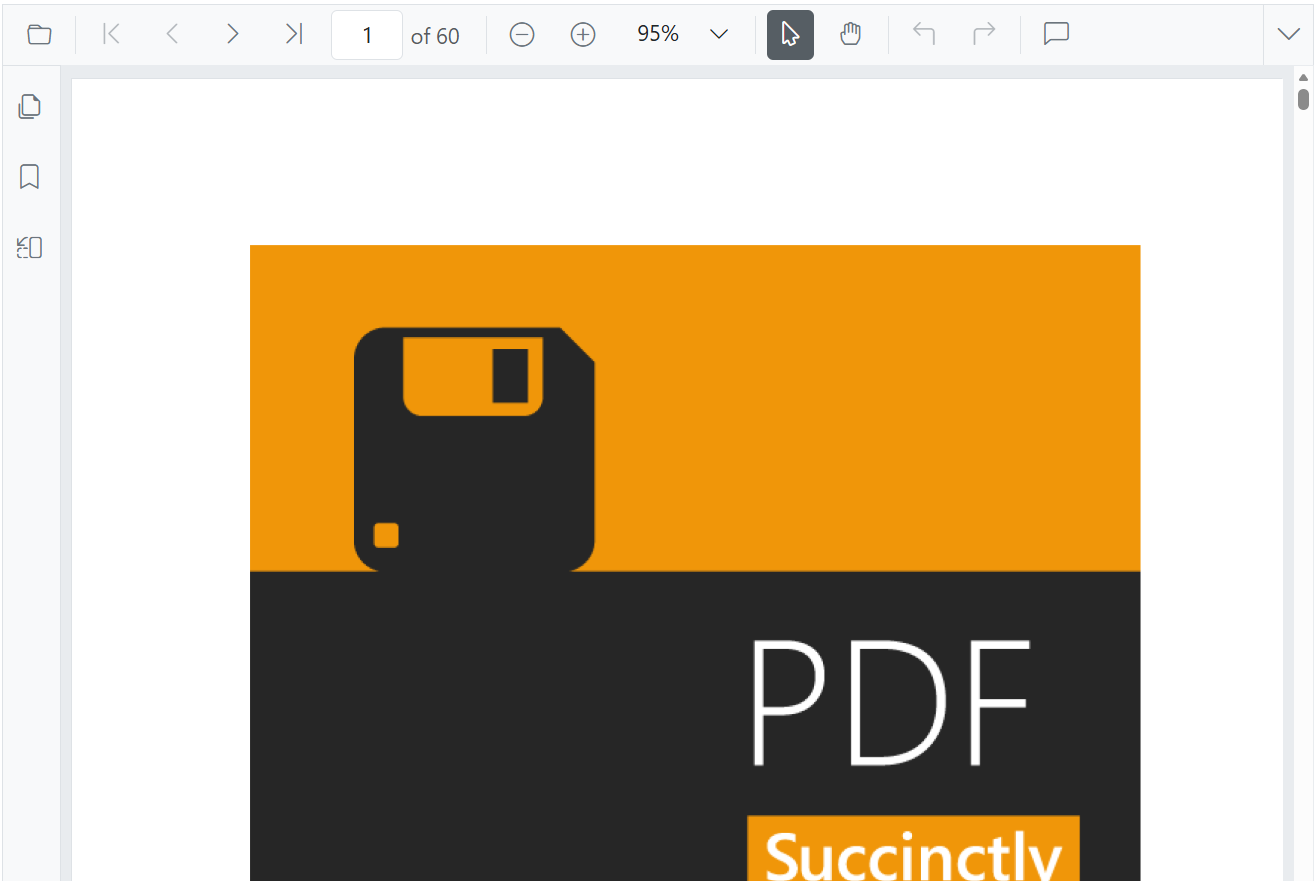
npm startThe application will connect to the configured PDF Viewer web service and render the document in the browser. The image below shows how the PDF Viewer is rendered in the browser:
Rendered PDF Viewer in the browser
Run the PDF Viewer web service
To host your own PDF Viewer web service:
- Download the web service sample from GitHub:
GitHub Web service sample - Navigate to the appropriate folder based on your .NET version:
- .NET 6.0 → PdfViewerWebService_6.0
- .NET 8.0 → PdfViewerWebService_8.0
- Restore all project dependencies using the following command:
dotnet restore- Run the Service Using the Following Code:
dotnet runThe service will run at:
https://localhost:7255/pdfviewer
Configure this URL in the serviceUrl property of the PDF Viewer.
Important: In server-backed mode, do not include
pdfium.jsorpdfium.wasm. All rendering is performed on the server.
For hosting the web service on Linux, include SkiaSharp.NativeAssets.Linux. For AWS environments, use the following packages:
| Amazon Web Services (AWS) | NuGet package name |
|---|---|
| AWS Lambda | SkiaSharp.NativeAssets.Linux |
| AWS Elastic Beanstalk | SkiaSharp.NativeAssets.Linux.NoDependencies v3.119.1 |
See also
Related resources for further exploration: