Ink Eraser in JavaScript (ES6) PDF Viewer
14 Aug 202610 minutes to read
Overview
The Ink Eraser feature allows users to selectively remove or correct parts of freehand ink annotations (strokes) drawn on a PDF document. Whether you’ve made a mistake while annotating, want to refine your drawing, or need to clean up messy marks, the Ink Eraser provides a precise way to remove unwanted strokes without deleting the entire annotation.
Imagine you’re reviewing a PDF document by hand-writing feedback. You accidentally draw a line across important text, or you want to refine a freehand arrow pointing to a specific area. Without an eraser, you’d have to delete the entire ink annotation and redraw it. The Ink Eraser lets you simply remove the unwanted parts while keeping your good work intact.
When to use the Ink Eraser
The Ink Eraser is most useful in these scenarios:
- Handwritten document reviews: Correct accidental marks or lines drawn across text
- Freehand annotations: Refine arrows, circles, or sketches without redrawing everything
- Precise feedback: Remove small portions of ink marks to highlight specific areas
- Sketch-based reviews: Clean up rough drawings or correct mistakes during brainstorming sessions
- Digital note-taking: Erase unwanted strokes when taking notes or annotating PDFs
- Collaborative editing: Clean up ink marks before sharing documents with others
Enable Ink Eraser
To enable the Ink Eraser feature, inject the following modules into the TypeScript PDF Viewer:
import { PdfViewer, Toolbar, Annotation } from '@syncfusion/ej2-pdfviewer';

PdfViewer.Inject(Toolbar, Annotation);

let viewer: PdfViewer = new PdfViewer({
    documentPath: 'https://cdn.syncfusion.com/content/pdf/pdf-succinctly.pdf',
    resourceUrl: 'https://cdn.syncfusion.com/ej2/31.2.2/dist/ej2-pdfviewer-lib',
    height: '650px'
});
viewer.appendTo('#PdfViewer');
UI-based erasing
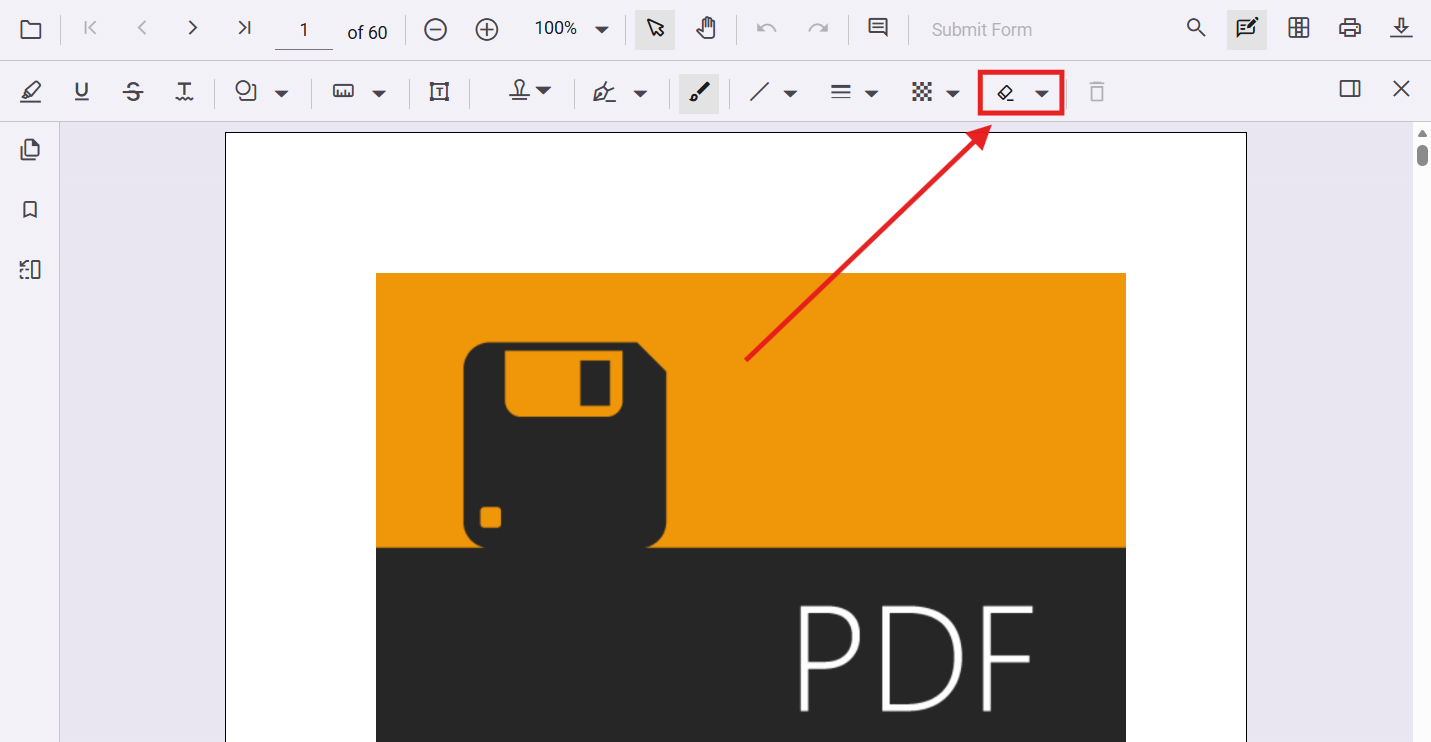
The Ink Eraser is accessible through the annotation toolbar in the PDF Viewer.
How to erase ink strokes using the toolbar
Follow these steps to erase unwanted ink strokes using the Ink Eraser tool:
- Locate the Ink Eraser tool in the annotation toolbar (displayed as a split button next to the ink drawing tool)
- Click the Ink Eraser icon to activate eraser mode
- The cursor changes to indicate the eraser is active
- Draw over the ink strokes you want to erase using your mouse, pen, or touch input
- The eraser automatically removes any ink it touches
- To exit eraser mode, click a different annotation tool or press Escape
Tip: The eraser only removes ink strokes; it does not affect other annotation types like highlights, text boxes, or shapes.
Adjusting eraser size
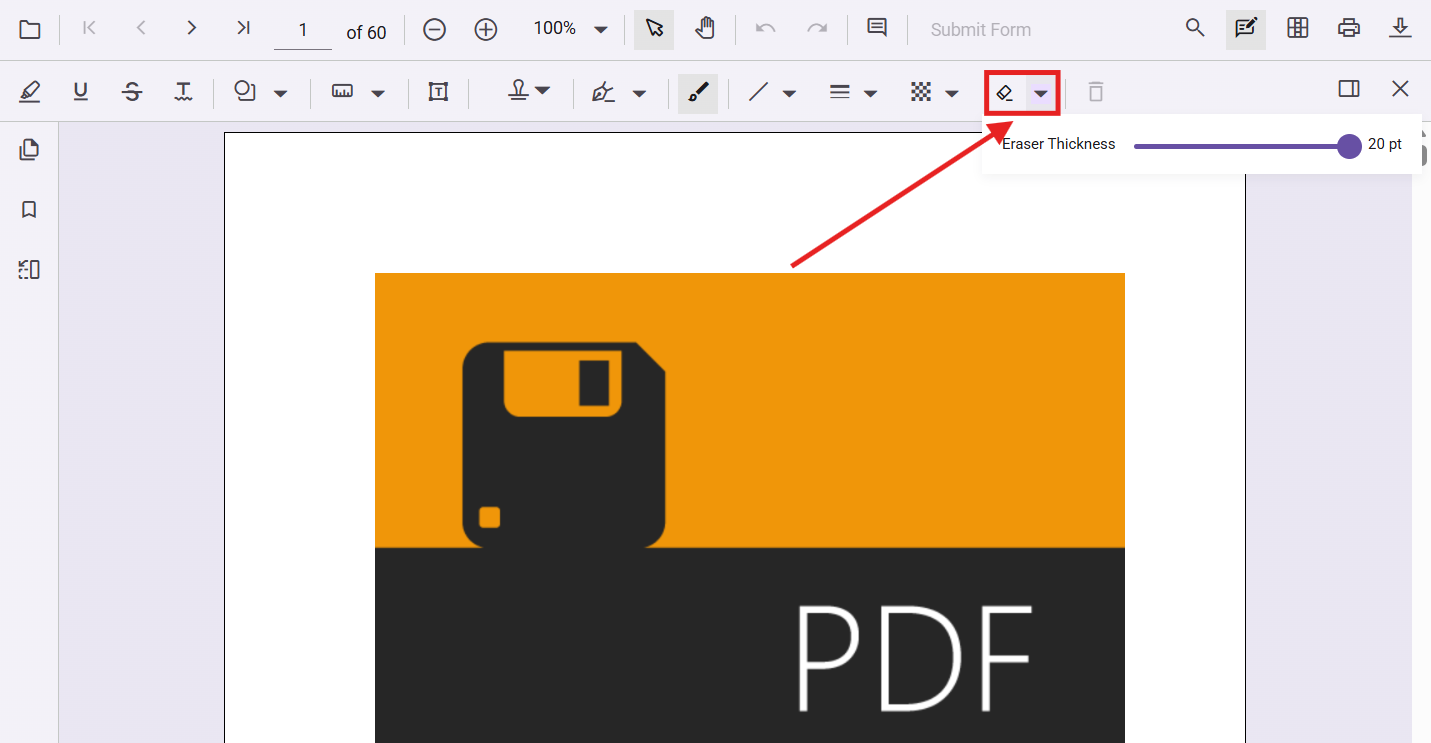
The Ink Eraser includes an adjustable size slider to control the eraser width. Follow these steps to change the eraser size:
- Click the dropdown arrow next to the Ink Eraser split button in the toolbar
- A size slider appears below the eraser icon
- Drag the slider to adjust the eraser size:
- Move left for a smaller, more precise eraser
- Move right for a larger eraser that removes more ink at once
- The eraser size updates in real-time as you adjust the slider
- Your new eraser size is remembered for subsequent use
Best practices for using the Ink Eraser
- Start with a smaller eraser size for precision work, then increase if needed
- Use single strokes when erasing to avoid accidentally removing too much ink
- Erase partially to refine shapes rather than erasing completely and redrawing
- Combine with zoom (Ctrl+scroll or pinch) for detailed erasing on small marks
- Use a stylus or pen if available for better eraser precision on touch devices
Programmatic control
You can programmatically enable or disable the Ink Eraser and control its size through code. This allows you to:
- Auto-enable the eraser for specific user roles
- Set preset eraser sizes based on document type
- Provide keyboard shortcuts or custom buttons for eraser control
- Integrate eraser control with your application workflow
Enable or disable Ink Eraser mode
Use the enableInkEraser property to control whether the Ink Eraser is active:
<button id="enableBtn">Enable Ink Eraser</button>
<button id="disableBtn">Disable Ink Eraser</button>
<div id="PdfViewer"></div>
import { PdfViewer, Toolbar, Annotation } from '@syncfusion/ej2-pdfviewer';
PdfViewer.Inject(Toolbar, Annotation);
let viewer: PdfViewer = new PdfViewer({
documentPath: 'https://cdn.syncfusion.com/content/pdf/pdf-succinctly.pdf',
resourceUrl: 'https://cdn.syncfusion.com/ej2/31.2.2/dist/ej2-pdfviewer-lib',
height: '650px'
});
viewer.appendTo('#PdfViewer');
// Enable Eraser
document.getElementById('enableBtn')?.addEventListener('click', () => {
viewer.enableInkEraser = true;
});
// Disable Eraser
document.getElementById('disableBtn')?.addEventListener('click', () => {
viewer.enableInkEraser = false;
});Set eraser size programmatically
Use the inkEraserSize property to control the width of the eraser:
<button id="smallBtn">Small Eraser</button>
<button id="mediumBtn">Medium Eraser</button>
<button id="largeBtn">Large Eraser</button>
<div id="PdfViewer"></div>
import { PdfViewer, Toolbar, Annotation } from '@syncfusion/ej2-pdfviewer';
PdfViewer.Inject(Toolbar, Annotation);
let viewer: PdfViewer = new PdfViewer({
documentPath: 'https://cdn.syncfusion.com/content/pdf/pdf-succinctly.pdf',
resourceUrl: 'https://cdn.syncfusion.com/ej2/31.2.2/dist/ej2-pdfviewer-lib',
height: '650px'
});
viewer.appendTo('#PdfViewer');
// Set Small Size (10px)
document.getElementById('smallBtn')?.addEventListener('click', () => {
viewer.inkEraserSize = 10;
});
// Set Medium Size (15px)
document.getElementById('mediumBtn')?.addEventListener('click', () => {
viewer.inkEraserSize = 15;
});
// Set Large Size (20px)
document.getElementById('largeBtn')?.addEventListener('click', () => {
viewer.inkEraserSize = 20;
});Practical example: Role-based eraser control
Here’s a real-world scenario where eraser accessibility is controlled based on user roles:
// Pseudo-code showing role-based eraser control
const userRole = getCurrentUserRole(); // Returns: 'editor', 'reviewer', 'viewer'

function applyRoleBasedEraserSettings(): void {
  if (userRole === 'editor') {
    // Editors get full eraser control with large size default
    viewer.enableInkEraser = true;
    viewer.inkEraserSize = 15;
  } else if (userRole === 'reviewer') {
    // Reviewers can use eraser for cleanup with medium size
    viewer.enableInkEraser = true;
    viewer.inkEraserSize = 10;
  } else if (userRole === 'viewer') {
    // Viewers cannot use eraser
    viewer.enableInkEraser = false;
  }
}
Combine with Ink drawing
You can programmatically switch between Ink drawing mode and Eraser mode for a seamless workflow:
<button id="drawModeBtn">Draw Ink</button>
<button id="eraseModeBtn">Erase Ink</button>
<div id="PdfViewer"></div>
import { PdfViewer, Toolbar, Annotation } from '@syncfusion/ej2-pdfviewer';
PdfViewer.Inject(Toolbar, Annotation);
let viewer: PdfViewer = new PdfViewer({
documentPath: 'https://cdn.syncfusion.com/content/pdf/pdf-succinctly.pdf',
resourceUrl: 'https://cdn.syncfusion.com/ej2/31.2.2/dist/ej2-pdfviewer-lib',
height: '650px'
});
viewer.appendTo('#PdfViewer');
let mode: string = 'draw';
// Switch to Drawing Mode
document.getElementById('drawModeBtn')?.addEventListener('click', () => {
viewer.enableInkEraser = false;
viewer.annotation.setAnnotationMode('Ink');
mode = 'draw';
const drawBtn = document.getElementById('drawModeBtn') as HTMLButtonElement;
const eraseBtn = document.getElementById('eraseModeBtn') as HTMLButtonElement;
if (drawBtn) drawBtn.style.backgroundColor = '#007bff';
if (eraseBtn) eraseBtn.style.backgroundColor = '#e9ecef';
});
// Switch to Eraser Mode
document.getElementById('eraseModeBtn')?.addEventListener('click', () => {
viewer.enableInkEraser = true;
mode = 'erase';
const drawBtn = document.getElementById('drawModeBtn') as HTMLButtonElement;
const eraseBtn = document.getElementById('eraseModeBtn') as HTMLButtonElement;
if (drawBtn) drawBtn.style.backgroundColor = '#e9ecef';
if (eraseBtn) eraseBtn.style.backgroundColor = '#dc3545';
});Behavior notes
Eraser mechanics
- Only removes ink: The eraser only affects freehand ink annotations. Other annotation types (highlights, text boxes, shapes) are not affected.
- Partial erasing: You can erase any portion of an ink stroke without affecting other strokes.
- Real-time erasing: Erased content is immediately removed as the eraser moves across the stroke.
- Undo/Redo support: Eraser actions can be undone and redone using the toolbar buttons or keyboard shortcuts (Ctrl+Z, Ctrl+Y).
- Size adjust-ability: The eraser size can be changed at any time without exiting eraser mode.
- Mouse and touch input: The eraser works with mouse, stylus, and touch input on supported devices.
Programmatic control behavior
-
enableInkEraser = true: Activates eraser mode; users can erase ink by drawing on the document -
enableInkEraser = false: Deactivates eraser mode; eraser is disabled even if the toolbar button exists -
inkEraserSizevalue: Defines the eraser brush width in pixels (typical range: 5-30px) - Size changes take effect immediately and persist until changed again
Best practices for Ink Eraser
- Provide clear mode indicators: Use button states or status messages to show whether users are in draw or erase mode
- Set appropriate default sizes: Choose a default eraser size based on typical document resolution and zoom levels
- Lock eraser for read-only documents: Disable eraser for documents with restricted editing permissions
- Combine with undo/redo: Always enable undo/redo functionality alongside eraser to minimize user frustration
- Test on different devices: Eraser behavior may vary between mouse, touch, and stylus inputs
- Use consistent keyboard shortcuts: If providing custom controls, use intuitive shortcuts (e.g., ‘E’ for eraser)
- Provide size presets: Offer quick-access buttons for common eraser sizes instead of forcing users to adjust sliders