Annotation Comment Filter in JavaScript (ES6) PDF Viewer
14 Aug 202611 minutes to read
Overview
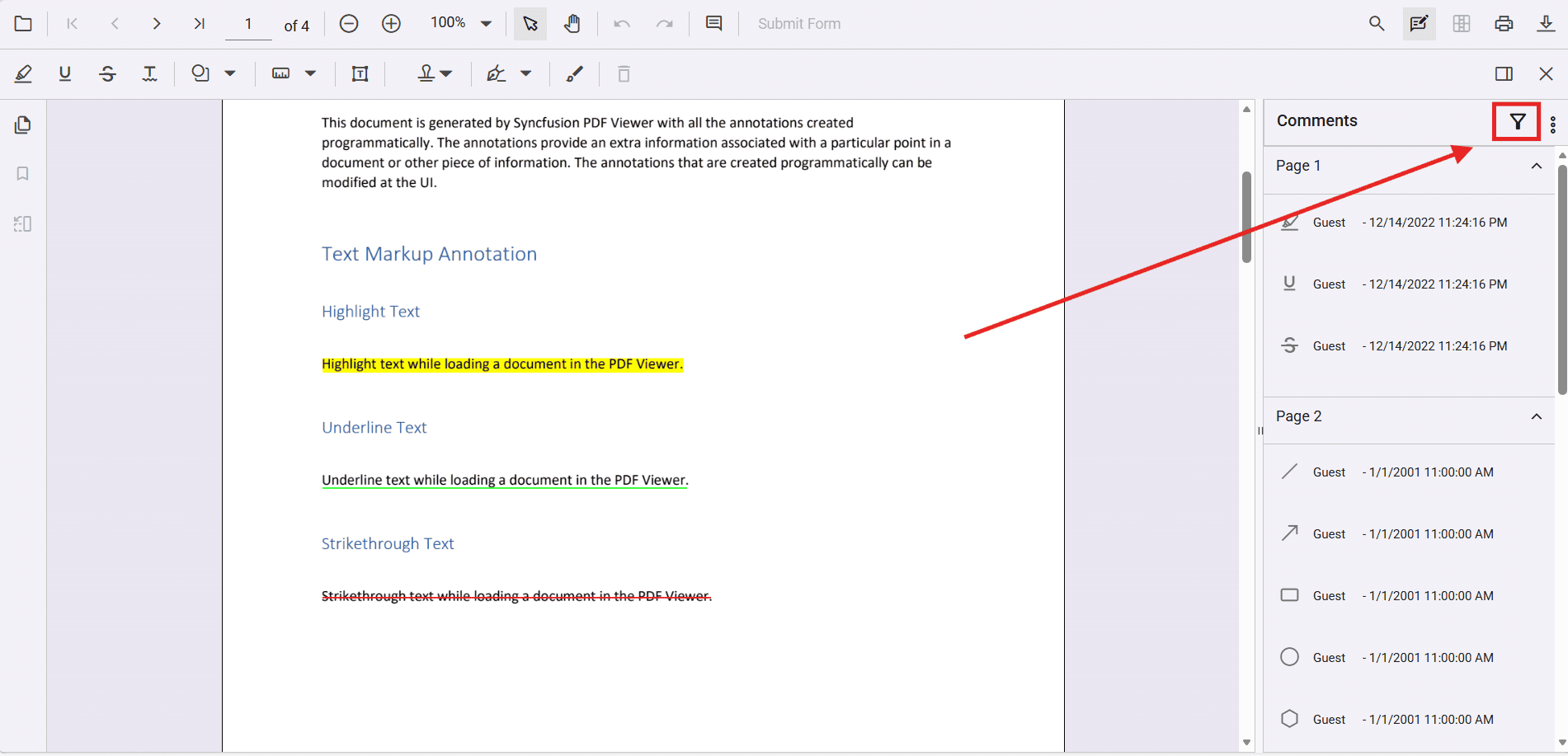
The comment filter feature in TypeScript PDF Viewer allows you to efficiently manage and view annotations by filtering comments and annotations based on various criteria. Access the filter options through the filter icon in the comments panel to display only the annotations that match your filter criteria.
Imagine reviewing a PDF document with feedback from 5 team members, resulting in 100+ annotations across different pages. Without filtering, finding all comments from your manager or locating all rejected items becomes a tedious task. The comment filter feature solves this by letting you instantly focus on the annotations that matter to you.
When to use comment filtering
Comment filtering is most useful in these scenarios:
- Team reviews: Filter annotations by author to see feedback from specific reviewers
- Status tracking: Filter by status (Accepted, Rejected, Canceled) to track document workflow progress
- Color-coded reviews: Filter by annotation color to organize feedback by priority or type
- Time-based review: Filter by modification date to see recent changes
- Document collaboration: Use “Filter document and comments panel” to synchronize your view with the document
- Focused comments panel: Use panel-only filtering to study all comments without hiding annotations in the document
UI-based filtering
The TypeScript PDF Viewer provides a comment filter dialog in the comments panel that allows you to filter annotations by the following criteria.
Filter options
- Author: Filter annotations by the author who created them. Use the “Include replies” checkbox to also include comments where the author has replied to other annotations.
- Annotation Type: Filter by specific annotation types such as Highlight, Underline, Strikethrough, Text Box, Sticky Notes, and more.
- Status: Filter annotations by their status (e.g., Accepted, Rejected, Canceled, Completed, None).
- Date: Filter annotations by their modification date.
- Color: Filter annotations by their color.
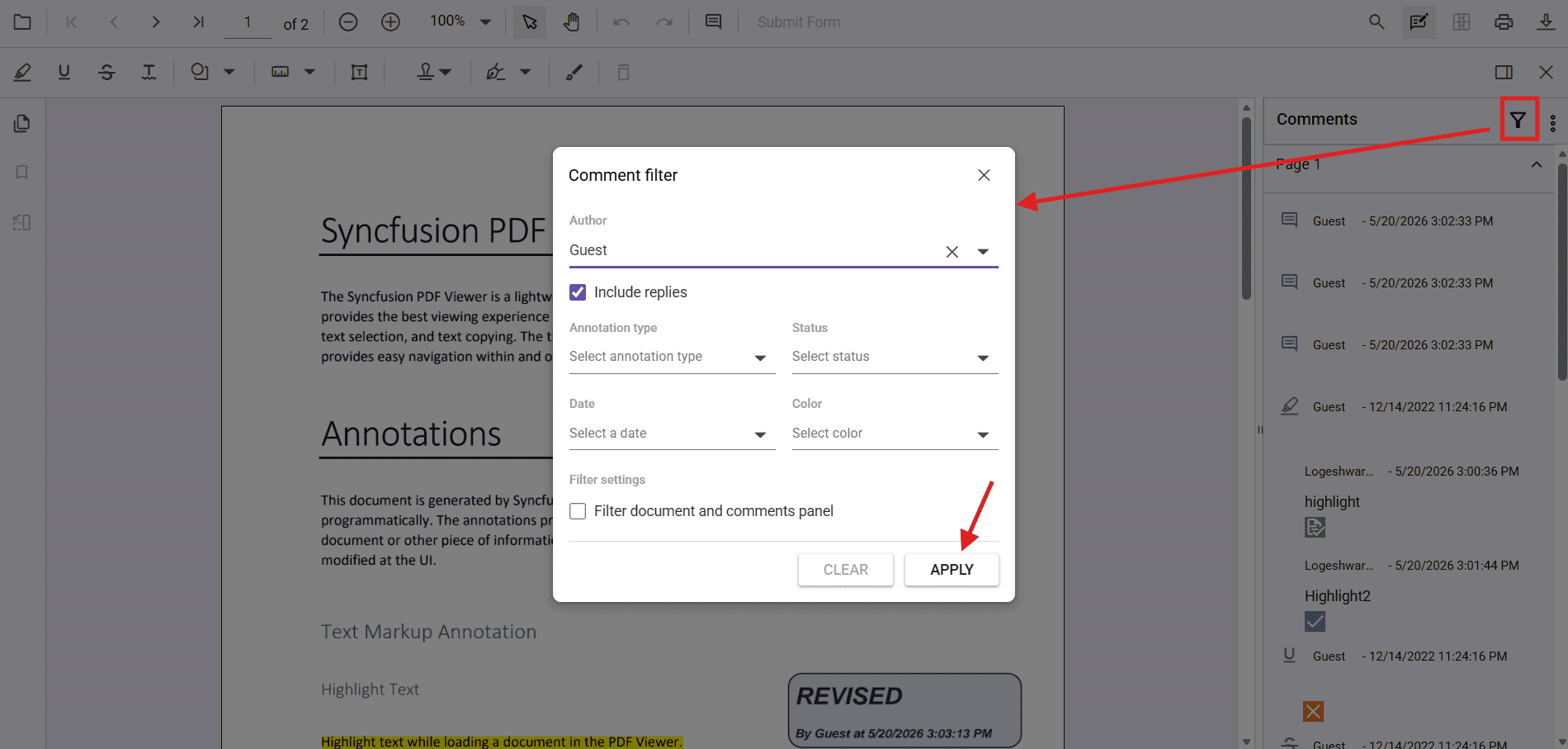
How to filter annotations by author
Follow these steps to filter and display only annotations created by a specific author:
- Open the PDF document in the TypeScript PDF Viewer
- Click the filter icon in the comments panel toolbar (top-right corner of the comments panel)
- Click the Author dropdown menu
- Select the author(s) you want to filter by from the list
- (Optional) Check the “Include replies” checkbox to also display replies from the selected author
- Click APPLY to activate the filter
- The comments panel now displays only annotations from the selected author(s)
Note: To reset the author filter, uncheck all selected authors or click CLEAR to remove all filters.
How to filter by annotation type and status
Follow these steps to filter annotations by their type and status:
- Click the filter icon in the comments panel toolbar
- In the Annotation Type dropdown, select the annotation types you want to view (e.g., Highlight, Underline)
- In the Status dropdown, select the status you want to filter by (e.g., Accepted, Rejected, Pending)
- Click APPLY to see only annotations matching your criteria
- Use the CLEAR button to reset all filters
How to filter by date and color
Follow these steps to filter annotations by when they were modified or by their color:
- Click the filter icon in the comments panel toolbar
- Click the Date dropdown and select the modification date range you’re interested in
- (Optional) Click the Color dropdown and select specific colors to display only annotations in those colors
- Click APPLY to activate the filters
- The panel now shows only annotations matching your date and color criteria
Using combined filters
You can apply multiple filter criteria simultaneously:
- Click the filter icon
- Set the Author to “John Smith”
- Set the Annotation Type to “Highlight”
- Set the Status to “Accepted”
- Click APPLY
- Result: Only highlights created by John Smith with “Accepted” status are displayed
Filter settings
- Include replies: When enabled, displays replies from the selected author along with their original annotations.
- Filter document and comments panel: When checked, the filter is applied to both the comments panel and the annotations visible in the document. When unchecked, the filter is applied only to the comments panel.
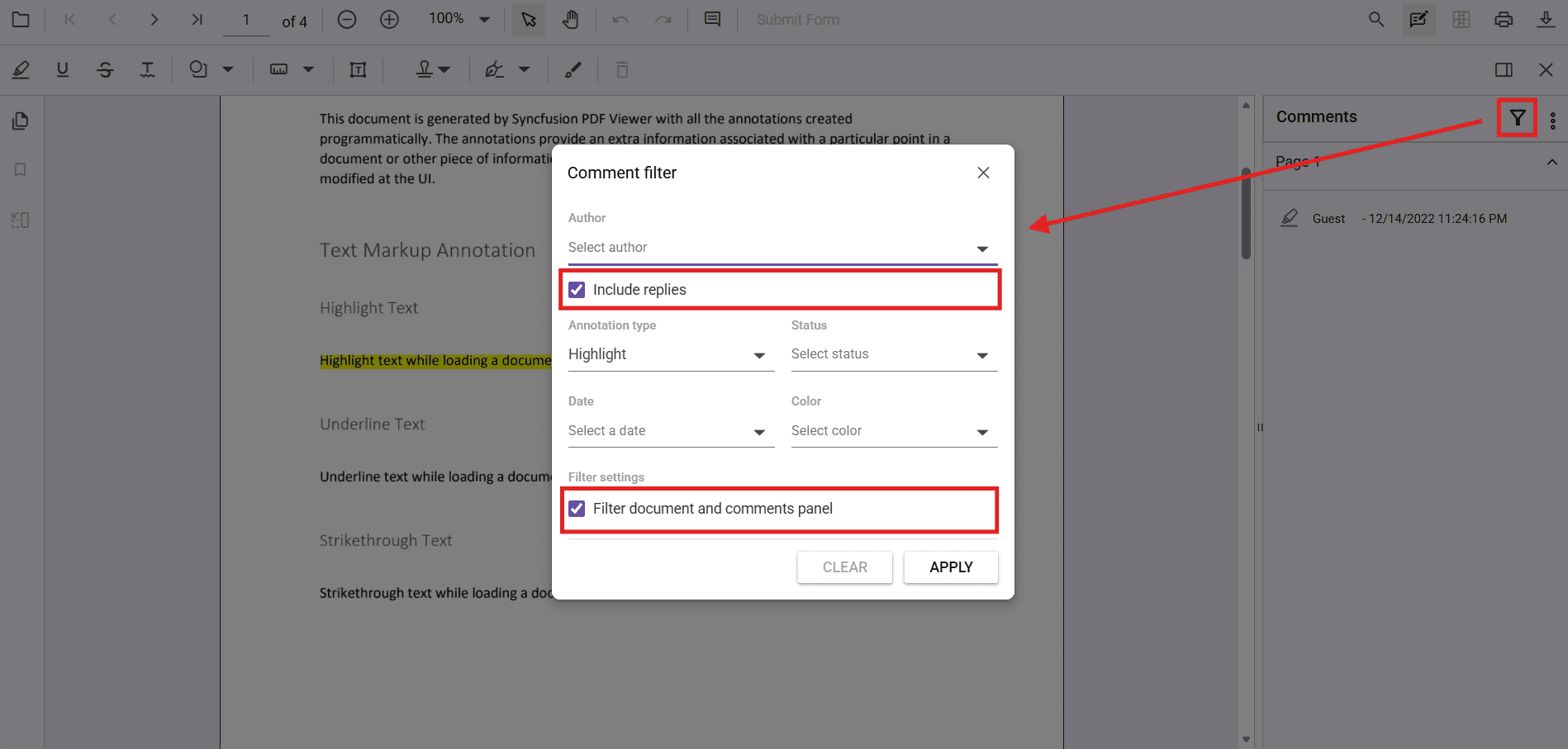
Understanding “Filter document and comments panel” option
This checkbox controls where the filter is applied:
When CHECKED (Filter both panel and document):
- Filtered annotations disappear from the document view
- Filtered comments disappear from the comments panel
- Use this when you want focused reviewing—see only the annotations you’re interested in both visually and in the list
When UNCHECKED (Filter comments panel only):
- Filtered annotations remain visible in the document
- Filtered comments are hidden from the comments panel
- Use this when you want to study comments in the side panel without losing visual context of all annotations in the document
Example scenario:
- Document has 50 annotations from 3 reviewers
- You filter by “Manager” author with the checkbox CHECKED → See only Manager’s annotations on the document
- You filter by “Manager” author with the checkbox UNCHECKED → See all 50 annotations in the document, but only Manager’s comments in the panel
Programmatic filtering
You can programmatically apply comment filters using the applyCommentFilter method on the annotation service. This allows you to set filter criteria dynamically and control filter behavior through code.
This approach is useful when you want to:
- Auto-apply filters based on user roles (e.g., show only “Manager” annotations for manager users)
- Implement custom filter logic in your application
- Provide keyboard shortcuts or buttons to apply saved filter presets
- Integrate filtering with your application’s workflow
Applying filters programmatically
Use the applyCommentFilter method to apply filters with specific criteria:
<button id="applyFilterBtn">Apply Filter</button>
<button id="clearFilterBtn">Clear Filter</button>
<div id="PdfViewer"></div>
import { PdfViewer, Toolbar, Annotation, TextSelection } from '@syncfusion/ej2-pdfviewer';
PdfViewer.Inject(Toolbar, Annotation, TextSelection);
let viewer: PdfViewer = new PdfViewer({
documentPath: 'https://cdn.syncfusion.com/content/pdf/programmatical-annotations.pdf',
resourceUrl: 'https://cdn.syncfusion.com/ej2/31.2.2/dist/ej2-pdfviewer-lib',
height: '650px'
});
viewer.appendTo('#PdfViewer');
// Apply Filter
document.getElementById('applyFilterBtn')?.addEventListener('click', () => {
viewer.annotation.applyCommentFilter({
type: ['Highlight', 'Underline'],
// color: ['#ffff00', '#00ffff'],
// status: 'Accepted',
// author: ['Guest', 'Admin'],
// modifiedDate: ['1/1/2024'],
// includereplies: true,
applyToDocument: true
});
});
// Clear Filter
document.getElementById('clearFilterBtn')?.addEventListener('click', () => {
viewer.annotation.applyCommentFilter(null);
});Filter configuration options
The following table describes the filter configuration options available in the applyCommentFilter method:
| Property | Type | Description |
|---|---|---|
type |
string[] |
Array of annotation types to filter. Example: ['Highlight', 'Underline', 'Strikethrough']
|
color |
string[] |
Array of hex color codes to filter annotations by color. Example: ['#ffff00', '#ff0000']
|
status |
string |
Filter annotations by status. Example: 'Accepted', 'Rejected', 'Cancelled', 'Completed', or 'None'
|
author |
string[] |
Array of author names to filter annotations. Example: ['Guest', 'Admin']
|
modifiedDate |
string[] |
Array of dates to filter annotations by modification date. Example: ['1/1/2024']
|
includereplies |
boolean |
When set to true, includes replies from the specified authors. Default is false
|
applyToDocument |
boolean |
When set to true, applies the filter to both the comments panel and annotations visible in the document. When false, filters only the comments panel. Default is false
|
Practical example: Role-based filtering
Here’s a real-world scenario where you filter annotations based on the current user’s role:
// Pseudo-code showing the concept
const userRole = getCurrentUserRole(); // Returns: 'manager', 'reviewer', 'viewer'

function applyRoleBasedFilter(): void {
  if (userRole === 'manager') {
    // Managers see only their own annotations and status-flagged items
    viewer.annotation.applyCommentFilter({
      author: ['John Smith'], // Current user
      status: 'Accepted',
      applyToDocument: true
    });
  } else if (userRole === 'reviewer') {
    // Reviewers see all review-type annotations
    viewer.annotation.applyCommentFilter({
      type: ['Highlight', 'Underline'],
      applyToDocument: false // See all in document, but filtered in panel
    });
  }
}
Filter with multiple criteria
You can combine multiple filter criteria to create more specific filters:
<button id="complexFilterBtn">Complex Filter</button>
<button id="clearFilterBtn">Clear Filter</button>
<div id="PdfViewer"></div>
import { PdfViewer, Toolbar, Annotation, TextSelection } from '@syncfusion/ej2-pdfviewer';
PdfViewer.Inject(Toolbar, Annotation, TextSelection);
let viewer: PdfViewer = new PdfViewer({
documentPath: 'https://cdn.syncfusion.com/content/pdf/programmatical-annotations.pdf',
resourceUrl: 'https://cdn.syncfusion.com/ej2/31.2.2/dist/ej2-pdfviewer-lib',
height: '650px'
});
viewer.appendTo('#PdfViewer');
// Apply Multi-Criteria Filter
document.getElementById('complexFilterBtn')?.addEventListener('click', () => {
// Filter for all Highlight and Underline annotations in red color created by Guest user
viewer.annotation.applyCommentFilter({
type: ['Highlight', 'Underline'],
color: ['#ff0000'],
author: ['Guest'],
includereplies: true,
applyToDocument: true
});
});
// Clear Filter
document.getElementById('clearFilterBtn')?.addEventListener('click', () => {
viewer.annotation.applyCommentFilter(null);
});Behavior notes and best practices
Filter mechanics
- Filter icon location: The filter icon is located in the comments panel toolbar at the top right.
- Apply to document: When the “Filter document and comments panel” option is checked, both the comments panel and the visible annotations in the document are filtered. Only annotations that match the filter criteria are displayed in the document.
- Comments only: When unchecked, filtering is applied only to the comments panel. All annotations remain visible in the document.
- Include replies: Enabling this option displays not only annotations by the specified author but also any replies they have made to other annotations.
-
Clear filter: Pass
nullto theapplyCommentFiltermethod to clear all applied filters and display all annotations and comments. - Filter combination: When multiple criteria are specified, annotations must match all criteria to be displayed (AND logic).
Best practices
- Use “Filter document and comments panel” when you want a distraction-free review experience focusing on specific annotations
- Use “Comments panel only” filtering when you need full visual context but want to organize the comments panel
- Combine multiple criteria to narrow down your search (e.g., Author + Status + Type)
- Include replies when collaborating with teams to see the full conversation thread
- Clear filters regularly after completing a review task to avoid forgetting filters are active
- Save filter presets in your application for commonly used filter combinations (author + status)