How to Deploy the PDF Viewer Server App to Azure App Service in
14 Aug 20261 minute to read
Prerequisites
- Visual Studio 2017 or 2019
- Azure subscription
- A PDF Viewer Web API application
- Build the project (Build > Build Solution) before publishing
Publish to Azure App Service
Step 1: In Solution Explorer, right-click the project and choose Publish (or use Build > Publish).
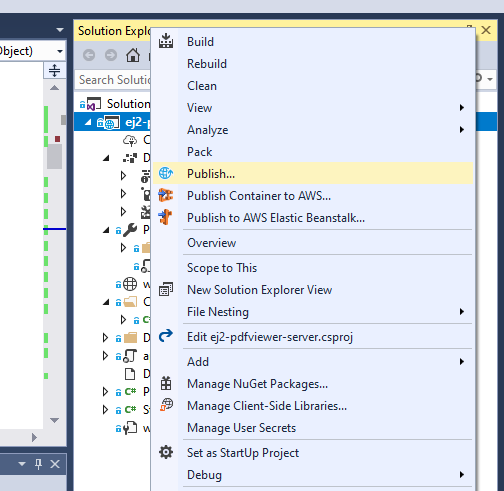
Step 2: If a profile exists, select Create new profile.
Step 3: In Pick a publish target, choose App Service.
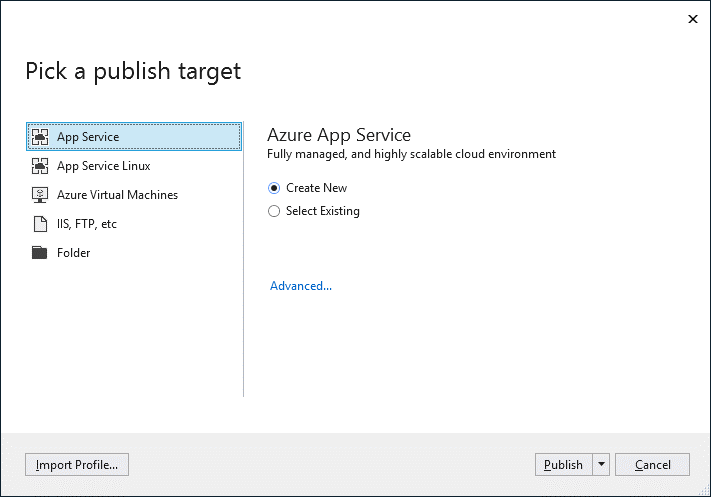
Step 4: Select Publish. In Create App Service, sign in if prompted and review the default settings.
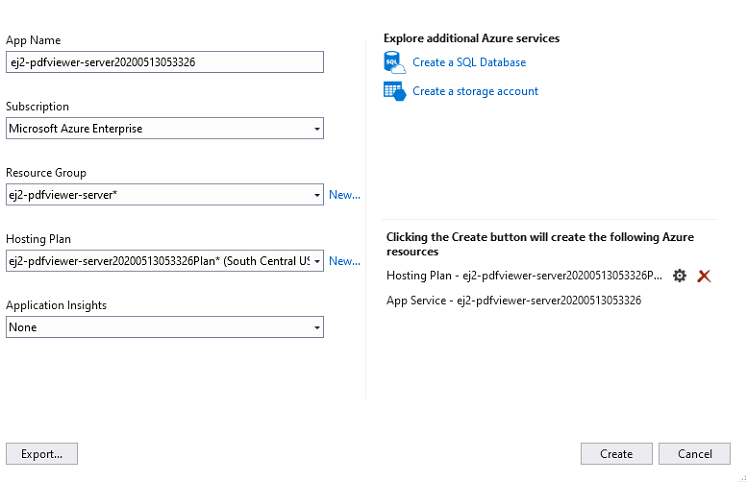
Step 5: Select Create. After deployment, the app is available at the Azure-provided default domain, for example, https://ej2-pdfviewer-server20200513053326.azurewebsites.net.
Step 6: Verify the API at the corresponding /api/pdfviewer path on the same domain. A default GET response indicates the server is running.
Use the service endpoint (for example, https://ej2-pdfviewer-server20200513053326.azurewebsites.net/api/pdfviewer) as the PDF Viewer client’s serviceUrl. Refer to the getting started guide
For Azure App Service deployment guidance, see: https://learn.microsoft.com/en-us/visualstudio/deployment/?view=visualstudio