Hyperlink Navigation in JavaScript (ES5) PDF Viewer
14 Aug 20267 minutes to read
The PDF Viewer supports hyperlink navigation for inline links and table-of-contents (TOC) entries that target destinations inside a document. These elements let users jump directly to relevant sections.
The table of contents pane and hyperlink interactions share the same navigation infrastructure. When enabled, the PDF Viewer surfaces TOC entries and clickable links defined in the PDF.
Required modules
Inject the following modules to enable navigation: Toolbar, Magnification, Navigation, LinkAnnotation, BookmarkView, TextSelection, ThumbnailView, and optionally Annotation.
Table of contents navigation
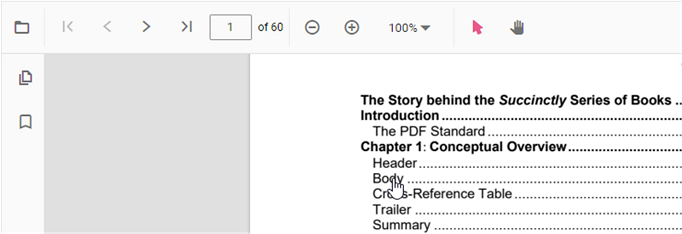
Use the table of contents to navigate to headings and sections defined in the PDF. When a document includes a bookmarks/outline structure, the viewer exposes those entries in the table of contents (bookmarks) pane. Selecting an entry navigates directly to the mapped destination. If the PDF does not include a table of contents, the pane remains empty.
Hyperlink navigation
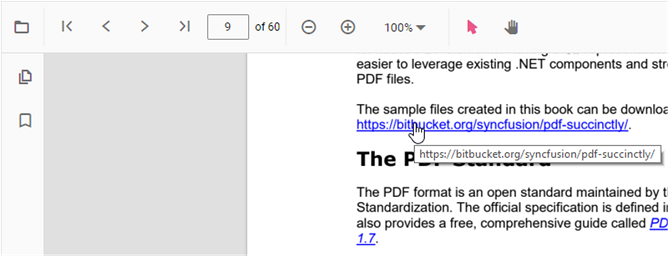
The PDF Viewer supports embedded links that point to external websites or to destinations inside the same document. This section explains how to enable or disable links, control how they open, and handle hyperlink-related events.
Enabling and Disabling Hyperlinks
By default, the PDF Viewer detects and enables hyperlinks present in a loaded document. Use the enableHyperlink property to control this behavior.
-
Property:
enableHyperlink -
Type:
boolean -
Default:
true
When enableHyperlink is set to false, all hyperlinks in the document become non-interactive. This means that users cannot click them, and no hyperlink-related events will be triggered.
The following example demonstrates how to disable hyperlink navigation:
ej.pdfviewer.PdfViewer.Inject(ej.pdfviewer.Toolbar, ej.pdfviewer.Magnification,
ej.pdfviewer.Navigation, ej.pdfviewer.Annotation, ej.pdfviewer.LinkAnnotation,
ej.pdfviewer.ThumbnailView, ej.pdfviewer.BookmarkView, ej.pdfviewer.TextSelection);

var pdfviewer = new ej.pdfviewer.PdfViewer({
  documentPath: 'https://cdn.syncfusion.com/content/pdf/pdf-succinctly.pdf',
  enableHyperlink: false // Disables all hyperlinks
});

pdfviewer.appendTo('#PdfViewer');ej.pdfviewer.PdfViewer.Inject(ej.pdfviewer.Toolbar, ej.pdfviewer.Magnification,
ej.pdfviewer.Navigation, ej.pdfviewer.Annotation, ej.pdfviewer.LinkAnnotation,
ej.pdfviewer.ThumbnailView, ej.pdfviewer.BookmarkView, ej.pdfviewer.TextSelection);
var pdfviewer = new ej.pdfviewer.PdfViewer({
documentPath: 'https://cdn.syncfusion.com/content/pdf/pdf-succinctly.pdf',
enableHyperlink: false // Disables all hyperlinks
});
pdfviewer.serviceUrl = 'https://document.syncfusion.com/web-services/pdf-viewer/api/pdfviewer/';
pdfviewer.appendTo('#PdfViewer');Disabling hyperlinks affects only the viewer’s behavior and does not modify the original PDF document.
Controlling Link Behavior
The hyperlinkOpenState property determines how external URLs open when a hyperlink is clicked.
-
Property:
hyperlinkOpenState -
Type:
'CurrentTab' | 'NewTab' -
Default:
'CurrentTab'
By default, links open in the same browser tab (CurrentTab). To open links in a new tab, set this property to 'NewTab'.
The following example configures hyperlinks to open in a new tab:
ej.pdfviewer.PdfViewer.Inject(ej.pdfviewer.Toolbar, ej.pdfviewer.Magnification,
ej.pdfviewer.Navigation, ej.pdfviewer.Annotation, ej.pdfviewer.LinkAnnotation,
ej.pdfviewer.ThumbnailView, ej.pdfviewer.BookmarkView, ej.pdfviewer.TextSelection);

var pdfviewer = new ej.pdfviewer.PdfViewer({
  documentPath: 'https://cdn.syncfusion.com/content/pdf/pdf-succinctly.pdf',
  hyperlinkOpenState: 'NewTab' // Opens links in a new browser tab
});
pdfviewer.resourceUrl='https://cdn.syncfusion.com/ej2/34.1.32/dist/ej2-pdfviewer-lib';
pdfviewer.appendTo('#PdfViewer');ej.pdfviewer.PdfViewer.Inject(ej.pdfviewer.Toolbar, ej.pdfviewer.Magnification,
ej.pdfviewer.Navigation, ej.pdfviewer.Annotation, ej.pdfviewer.LinkAnnotation,
ej.pdfviewer.ThumbnailView, ej.pdfviewer.BookmarkView, ej.pdfviewer.TextSelection);
var pdfviewer = new ej.pdfviewer.PdfViewer({
documentPath: 'https://cdn.syncfusion.com/content/pdf/pdf-succinctly.pdf',
hyperlinkOpenState: 'NewTab' // Opens links in a new browser tab
});
pdfviewer.serviceUrl = 'https://document.syncfusion.com/web-services/pdf-viewer/api/pdfviewer/';
pdfviewer.appendTo('#PdfViewer');Handling Hyperlink Events
The PDF Viewer exposes events that allow for monitoring and customizing hyperlink interactions.
hyperlinkClick
The hyperlinkClick event is triggered when a user clicks a hyperlink. Use this event to validate a URL or prevent default navigation.
Event arguments:
-
hyperlink: The URL of the clicked hyperlink. -
cancel: Boolean; set totrueto prevent the default navigation action.
hyperlinkMouseOver
The hyperlinkMouseOver event is triggered when the mouse pointer hovers over a hyperlink and can be used to display custom tooltips or other visual feedback.
Event arguments:
-
hyperlinkElement: The HTML anchor element (<a>) corresponding to the hyperlink.
The following example demonstrates how to use these events:
ej.pdfviewer.PdfViewer.Inject(ej.pdfviewer.Toolbar, ej.pdfviewer.Magnification,
ej.pdfviewer.Navigation, ej.pdfviewer.Annotation, ej.pdfviewer.LinkAnnotation,
ej.pdfviewer.ThumbnailView, ej.pdfviewer.BookmarkView, ej.pdfviewer.TextSelection);

var pdfviewer = new ej.pdfviewer.PdfViewer({
  documentPath: 'https://cdn.syncfusion.com/content/pdf/pdf-succinctly.pdf',
  // Event handler for hyperlink click
  hyperlinkClick: function (args) {
    // Log the URL of the clicked hyperlink
    console.log('Hyperlink Clicked:', args.hyperlink);

    // To prevent the default navigation behavior, set args.cancel to true
    // args.cancel = true;
  },

  // Event handler for mouse hover over a hyperlink
  hyperlinkMouseOver: function (args) {
    // Log the href of the hyperlink element when the mouse hovers over it
    if (args && args.hyperlinkElement && args.hyperlinkElement.href) {
      console.log('Mouse is over hyperlink:', args.hyperlinkElement.href);
    }
  }
});

// Append the PDF Viewer to the HTML element
pdfviewer.appendTo('#PdfViewer');ej.pdfviewer.PdfViewer.Inject(ej.pdfviewer.Toolbar, ej.pdfviewer.Magnification,
ej.pdfviewer.Navigation, ej.pdfviewer.Annotation, ej.pdfviewer.LinkAnnotation,
ej.pdfviewer.ThumbnailView, ej.pdfviewer.BookmarkView, ej.pdfviewer.TextSelection);
var pdfviewer = new ej.pdfviewer.PdfViewer({
documentPath: 'https://cdn.syncfusion.com/content/pdf/pdf-succinctly.pdf',
serviceUrl: 'https://document.syncfusion.com/web-services/pdf-viewer/api/pdfviewer/',
// Event handler for hyperlink click
hyperlinkClick: function (args) {
// Log the URL of the clicked hyperlink
console.log('Hyperlink Clicked:', args.hyperlink);
// To prevent the default navigation behavior, set args.cancel to true
// args.cancel = true;
},
// Event handler for mouse hover over a hyperlink
hyperlinkMouseOver: function (args) {
// Log the href of the hyperlink element when the mouse hovers over it
if (args && args.hyperlinkElement && args.hyperlinkElement.href) {
console.log('Mouse is over hyperlink:', args.hyperlinkElement.href);
}
}
});
// Append the PDF Viewer to the HTML element
pdfviewer.appendTo('#PdfViewer');