Getting Started with Server-Backed JS PDF Viewer
14 Aug 20266 minutes to read
This section explains how to create the PDF Viewer component and configure its features in JavaScript (global script) using CDN-hosted resources in server-backed mode.
Starting with the 2026 Vol 2 main release (July 6, 2026), no new features will be added to the Server PDF Viewer. This is because almost all PDF Viewer functionalities are now available in the Standalone PDF Viewer. If you are currently using the server-backed PDF Viewer, please refer to the migration documentation to transition to the Standalone PDF Viewer.
Ensure that the same version is used for all script and style references to avoid compatibility issues.
Create application folder
Create an app folder pdf-viewer-app for the Essential JS 2 JavaScript components.
Your application structure should look like this:
pdf-viewer-app/
├── index.html
├── index.js
Add Syncfusion® PDF Viewer resources
Create an HTML page (index.html) in pdf-viewer-app location and add the CDN link references inside the <head> section of your index.html file.
<link href="https://cdn.syncfusion.com/ej2/35.1.37/ej2-base/styles/material.css" rel="stylesheet">
<link href="https://cdn.syncfusion.com/ej2/35.1.37/ej2-buttons/styles/material.css" rel="stylesheet">
<link href="https://cdn.syncfusion.com/ej2/35.1.37/ej2-popups/styles/material.css" rel="stylesheet">
<link href="https://cdn.syncfusion.com/ej2/35.1.37/ej2-navigations/styles/material.css" rel="stylesheet">
<link href="https://cdn.syncfusion.com/ej2/35.1.37/ej2-dropdowns/styles/material.css" rel="stylesheet">
<link href="https://cdn.syncfusion.com/ej2/35.1.37/ej2-lists/styles/material.css" rel="stylesheet">
<link href="https://cdn.syncfusion.com/ej2/35.1.37/ej2-inputs/styles/material.css" rel="stylesheet">
<link href="https://cdn.syncfusion.com/ej2/35.1.37/ej2-splitbuttons/styles/material.css" rel="stylesheet">
<link href="https://cdn.syncfusion.com/ej2/35.1.37/ej2-notifications/styles/material.css" rel="stylesheet">
<link href="https://cdn.syncfusion.com/ej2/35.1.37/ej2-pdfviewer/styles/material.css" rel="stylesheet">
<!-- Essential JS 2 PDF Viewer's script -->
<script src="https://cdn.syncfusion.com/ej2/35.1.37/dist/ej2.min.js" type="text/javascript"></script>
Add the Syncfusion® PDF Viewer component
Add a container element for the PDF Viewer control in the index.html file and then initialize the control inside the <body> section of your index.html file.
<!-- Element which will render as PDF Viewer -->
<div id="PdfViewer" style="height:500px;width:100%;"></div>
Now, initialize the Syncfusion® PDF Viewer component in the index.js file:
// Initialize PDF Viewer component
var pdfviewer = new ej.pdfviewer.PdfViewer({
    documentPath: 'https://cdn.syncfusion.com/content/pdf/pdf-succinctly.pdf',
    // Demo service URL for evaluation only. For production, host your own web service.
    serviceUrl: 'https://document.syncfusion.com/web-services/pdf-viewer/api/pdfviewer'
});

// PDF Viewer control rendering starts
pdfviewer.appendTo('#PdfViewer');
The documentPath property sets the URL of the PDF file to load in the viewer and accepts HTTP/HTTPS URLs or relative paths. The serviceUrl property must point to a PDF Viewer web service that exposes the required APIs; the web service and the client page must be served from origins that satisfy CORS requirements, and the service must be reachable from the client.
To configure PDF Viewer with local resources for script and style references, and the documentPath property, refer to the instructions here.
For creating a new PDF Viewer serviceUrl, follow the steps provided in the link or to locally host an already available web service, follow these instructions.
Run the application
Run the following command to start the JavaScript application:
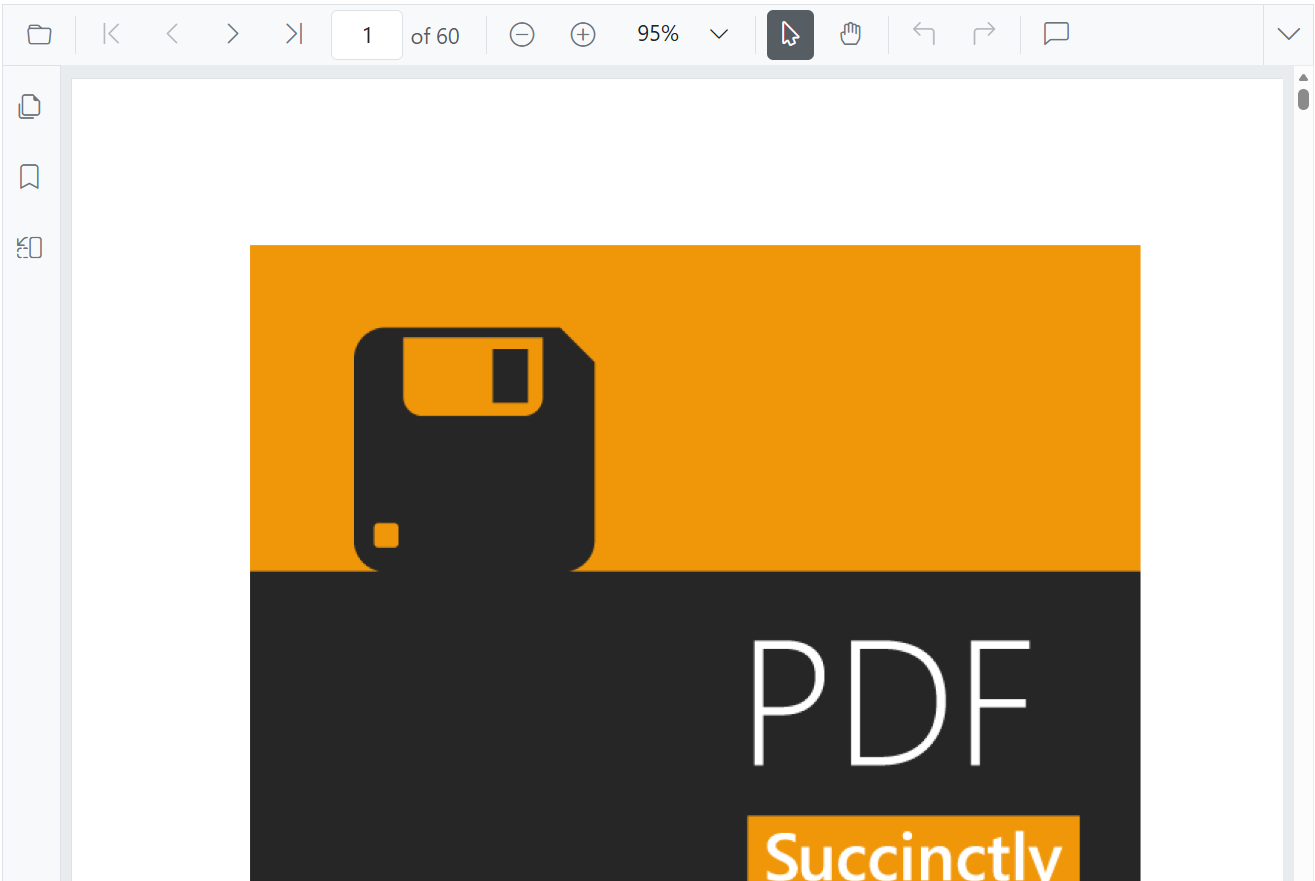
npx serve .After the application starts, open the localhost URL displayed in the terminal in your web browser. The PDF document will be rendered in the browser. The output will appear as follows:
Deployment notes
- The PDF Viewer supports dynamically changing the serviceURL. After changing
serviceUrlat runtime, callpdfViewer.dataBind()to apply the new value. This behavior applies to versions after 23.1.36.
document.getElementById('load').addEventListener('click', function () {
   pdfViewer.serviceUrl = "https://document.syncfusion.com/web-services/pdf-viewer/api/pdfviewer";
   pdfViewer.documentPath = "https://cdn.syncfusion.com/content/pdf/pdf-succinctly.pdf";
   pdfViewer.dataBind();
   pdfViewer.load(pdfViewer.documentPath, null);
});-
The demo Web API hosted at https://document.syncfusion.com/web-services/pdf-viewer/api/pdfviewer is provided for evaluation only. For production, host a web service with appropriate server configuration. See the GitHub Web Service example or the Docker image for reference. Standalone mode is recommended for client-side rendering.
-
The server-backed PDF Viewer does not require
pdfium.jsandpdfium.wasmfiles. Those files are used by the standalone viewer for client-side rendering; server-backed setups render PDFs on the server and therefore do not need to include them in deployment. -
For hosting the web service on the Linux platform, ensure to include the SkiaSharp.NativeAssets.Linux.
-
For AWS environments, utilize the following packages:
Amazon Web Services (AWS) NuGet package name AWS Lambda SkiaSharp.NativeAssets.Linux AWS Elastic Beanstalk SkiaSharp.NativeAssets.Linux.NoDependencies v3.119.1
Run a locally hosted PDF Viewer web service
- Download or clone the sample from the Web service sample in GitHub (for example,
git clone https://github.com/SyncfusionExamples/EJ2-PDFViewer-WebServices.git). - Navigate to the
ASP.NET Corefolder and open it in the command prompt. -
Navigate to the appropriate subfolder based on your .NET version:
- .NET 6.0 →
PdfViewerWebService_6.0 - .NET 8.0 →
PdfViewerWebService_8.0
- .NET 6.0 →
- Use the following command to restore the required packages.
dotnet restore- Use the following command to run the web service.
dotnet run- The PDF Viewer server instance runs at
https://localhost:7255. Navigate tohttps://localhost:7255/pdfviewer, which returns the default GET response method. Bind this link to theserviceUrlproperty of the PDF Viewer as shown below.
var pdfViewer = new ej.pdfviewer.PdfViewer({
      documentPath: "https://cdn.syncfusion.com/content/pdf/pdf-succinctly.pdf",
      serviceUrl: 'https://localhost:7255/pdfviewer'
   });