Getting Started with JavaScript (ES5) PDF Viewer
14 Aug 20266 minutes to read
This section explains how to create and run a JavaScript (ES5) PDF Viewer application using Syncfusion Essential JS 2 in standalone mode.
Create application folder
Create an app folder pdf-viewer-app for the Essential JS 2 JavaScript components.
Your application structure should look like this:
pdf-viewer-app/
├── index.html
├── index.js
Add Syncfusion® PDF Viewer resources
Add the required Syncfusion® PDF Viewer style and script references to the index.html file using one of the following methods:
To use local scripts and styles for the Syncfusion® PDF Viewer, follow these steps:
- Download the global scripts and styles from the Essential Studio JavaScript (Essential JS 2) build installed on your machine.
Syntax:
Script:
**(installed location)**/Syncfusion/Essential Studio/JavaScript - EJ2/{RELEASE_VERSION}/Web(Essential JS 2)/JavaScript/{PACKAGE_NAME}/dist/{PACKAGE_NAME}.min.jsStyles:
**(installed location)**/Syncfusion/Essential Studio/JavaScript - EJ2/{RELEASE_VERSION}/Web(Essential JS 2)/JavaScript/{PACKAGE_NAME}/styles/material.css
Example:
Script:
C:/Program Files (x86)/Syncfusion/Essential Studio/JavaScript - EJ2/19.3.53/Web(Essential JS 2)/JavaScript/ej2/dist/ej2.min.jsStyles:
C:/Program Files (x86)/Syncfusion/Essential Studio/JavaScript - EJ2/19.3.53/Web(Essential JS 2)/JavaScript/ej2-js-es5/styles/material.css
Alternatively, run the following command to clone the Essential JS 2 quickstart project from GitHub and install the required packages.
git clone https://github.com/syncfusion/ej2-quickstart.git quickstart
cd quickstart
npm install- Download the
pdfium.jsandpdfium.wasmfiles from the following links:
Syntax:
pdfium.js:https://cdn.syncfusion.com/ej2/{Version}/dist/ej2-pdfviewer-lib/pdfium.js
pdfium.wasm:https://cdn.syncfusion.com/ej2/{Version}/dist/ej2-pdfviewer-lib/pdfium.wasm
Example:
pdfium.js:https://cdn.syncfusion.com/ej2/35.1.37/dist/ej2-pdfviewer-lib/pdfium.js
pdfium.wasm:https://cdn.syncfusion.com/ej2/35.1.37/dist/ej2-pdfviewer-lib/pdfium.wasm
-
Create a folder named
pdf-viewer-app/resourcesand copy the EJ2 scripts and styles from the installed location into thepdf-viewer-app/resourcesdirectory. Copy theej2-pdfviewer-libfolder (containingpdfium.jsandpdfium.wasm) and the sample PDF document into thepdf-viewer-app/resourcesdirectory as well. -
Add the PDF Viewer and its dependent control style and script references inside the
<head>section of yourindex.htmlfile using local resources.
<!-- PDF Viewer dependency styles -->
<link href="resources/ej2-base/styles/material.css" rel="stylesheet" type="text/css" />
<link href="resources/ej2-buttons/styles/material.css" rel="stylesheet" type="text/css" />
<link href="resources/ej2-popups/styles/material.css" rel="stylesheet" type="text/css" />
<link href="resources/ej2-navigations/styles/material.css" rel="stylesheet" type="text/css" />
<link href="resources/ej2-dropdowns/styles/material.css" rel="stylesheet" type="text/css" />
<link href="resources/ej2-lists/styles/material.css" rel="stylesheet" type="text/css" />
<link href="resources/ej2-inputs/styles/material.css" rel="stylesheet" type="text/css" />
<link href="resources/ej2-splitbuttons/styles/material.css" rel="stylesheet" type="text/css" />
<link href="resources/ej2-notifications/styles/material.css" rel="stylesheet" type="text/css" />
<!-- PDF Viewer styles -->
<link href="resources/ej2-pdfviewer/styles/material.css" rel="stylesheet" type="text/css" />
<!-- PDF Viewer dependency scripts -->
<script src="resources/ej2-base/dist/global/ej2-base.min.js" type="text/javascript"></script>
<script src="resources/ej2-buttons/dist/global/ej2-buttons.min.js" type="text/javascript"></script>
<script src="resources/ej2-popups/dist/global/ej2-popups.min.js" type="text/javascript"></script>
<script src="resources/ej2-splitbuttons/dist/global/ej2-splitbuttons.min.js" type="text/javascript"></script>
<script src="resources/ej2-inputs/dist/global/ej2-inputs.min.js" type="text/javascript"></script>
<script src="resources/ej2-lists/dist/global/ej2-lists.min.js" type="text/javascript"></script>
<script src="resources/ej2-dropdowns/dist/global/ej2-dropdowns.min.js" type="text/javascript"></script>
<script src="resources/ej2-navigations/dist/global/ej2-navigations.min.js" type="text/javascript"></script>
<!-- PDF Viewer scripts -->
<script src="resources/ej2-pdfviewer/dist/global/ej2-pdfviewer.min.js" type="text/javascript"></script>
Create an HTML page (index.html) in pdf-viewer-app location and add the CDN link references inside the <head> section of your index.html file.
<link href="https://cdn.syncfusion.com/ej2/35.1.37/ej2-base/styles/material.css" rel="stylesheet">
<link href="https://cdn.syncfusion.com/ej2/35.1.37/ej2-buttons/styles/material.css" rel="stylesheet">
<link href="https://cdn.syncfusion.com/ej2/35.1.37/ej2-popups/styles/material.css" rel="stylesheet">
<link href="https://cdn.syncfusion.com/ej2/35.1.37/ej2-navigations/styles/material.css" rel="stylesheet">
<link href="https://cdn.syncfusion.com/ej2/35.1.37/ej2-dropdowns/styles/material.css" rel="stylesheet">
<link href="https://cdn.syncfusion.com/ej2/35.1.37/ej2-lists/styles/material.css" rel="stylesheet">
<link href="https://cdn.syncfusion.com/ej2/35.1.37/ej2-inputs/styles/material.css" rel="stylesheet">
<link href="https://cdn.syncfusion.com/ej2/35.1.37/ej2-splitbuttons/styles/material.css" rel="stylesheet">
<link href="https://cdn.syncfusion.com/ej2/35.1.37/ej2-notifications/styles/material.css" rel="stylesheet">
<link href="https://cdn.syncfusion.com/ej2/35.1.37/ej2-pdfviewer/styles/material.css" rel="stylesheet">
<!-- Essential JS 2 PDF Viewer's script -->
<script src="https://cdn.syncfusion.com/ej2/35.1.37/dist/ej2.min.js" type="text/javascript"></script>
Add Syncfusion® PDF Viewer component
Add a container element for the PDF Viewer control in the index.html file and then initialize the control inside the <body> section of your index.html file.
<!-- Element which will render as PDF Viewer -->
<div id="PdfViewer" style="height:500px;width:100%;"></div>
Initialize the PDF Viewer component in the index.js file:
// Initialize PDF Viewer component
var pdfviewer = new ej.pdfviewer.PdfViewer({
    documentPath: window.location.origin + '/resources/pdfsuccinctly.pdf',
    resourceUrl: window.location.origin + '/resources/ej2-pdfviewer-lib'
});

// PDF Viewer control rendering starts
pdfviewer.appendTo('#PdfViewer');// Initialize PDF Viewer component
var pdfviewer = new ej.pdfviewer.PdfViewer({
documentPath: 'https://cdn.syncfusion.com/content/pdf/pdf-succinctly.pdf',
resourceUrl: 'https://cdn.syncfusion.com/ej2/35.1.37/dist/ej2-pdfviewer-lib'
});
// PDF Viewer control rendering starts
pdfviewer.appendTo('#PdfViewer');The
documentPathproperty is used to set the path of the PDF file to be loaded in the PDF Viewer. TheresourceUrlproperty is used to set the path of the PDF Viewer library resources required for PDF rendering. For local resources, ensure theej2-pdfviewer-libfolder contains the requiredpdfium.jsandpdfium.wasmfiles.
Run the application
Run the following command to start the JavaScript application:
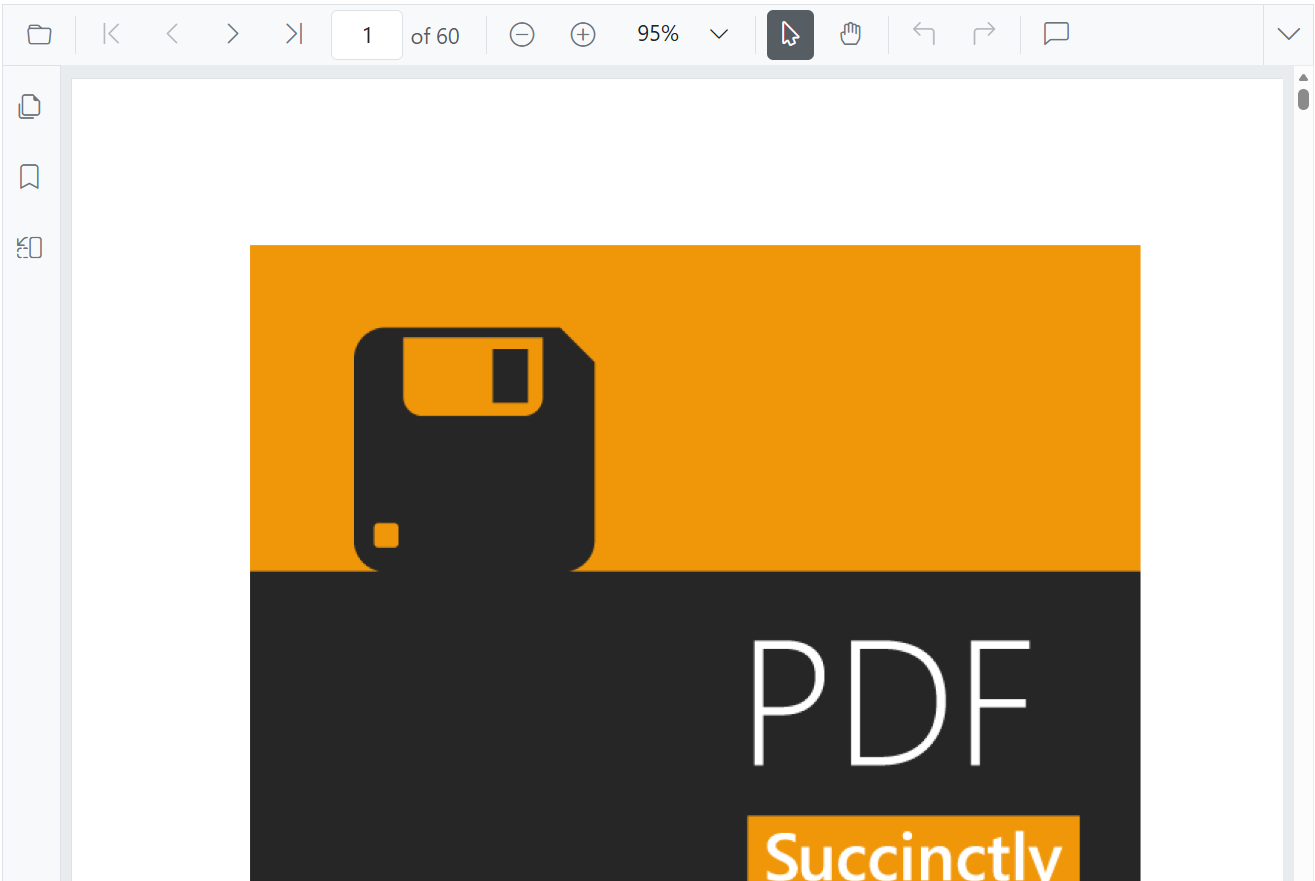
npx serve .After the application starts, open the localhost URL displayed in the terminal in your web browser. The PDF document will be rendered in the browser. The output will appear as follows:
You can also explore the PDF Viewer interactively using the live sample below.