Extract Pages in ASP.NET MVC PDF Viewer
15 Aug 20263 minutes to read
The PDF Viewer component lets you extract pages from a document using the Extract Pages option in the Organize Pages UI.
The Extract Pages tool is available by default in Organize Pages.
Extract Pages in Organize Pages
- Open the Organize Pages panel in the PDF Viewer toolbar.
- Locate and click the Extract Pages option.
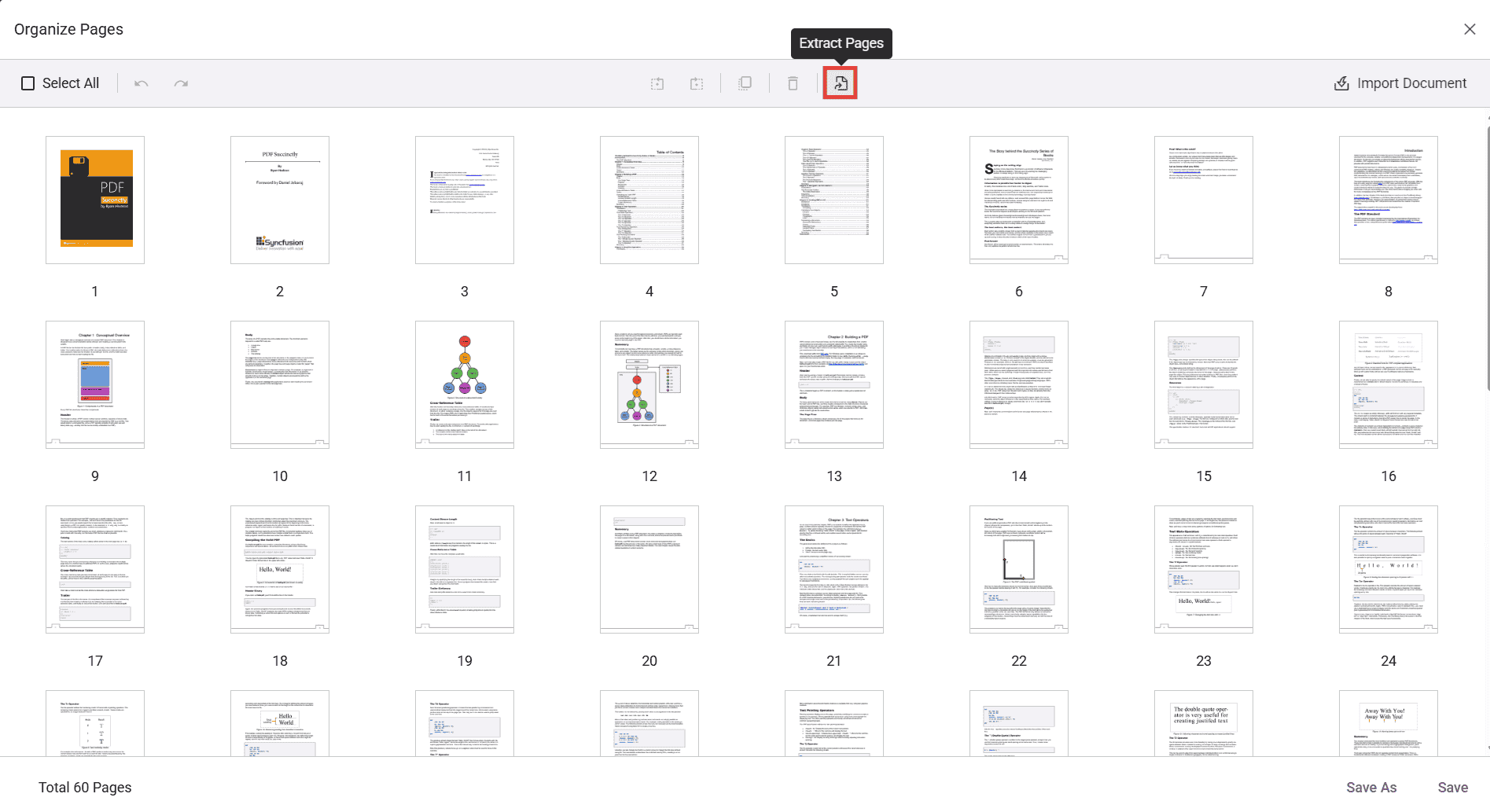
When selected, a secondary toolbar dedicated to extraction is displayed.
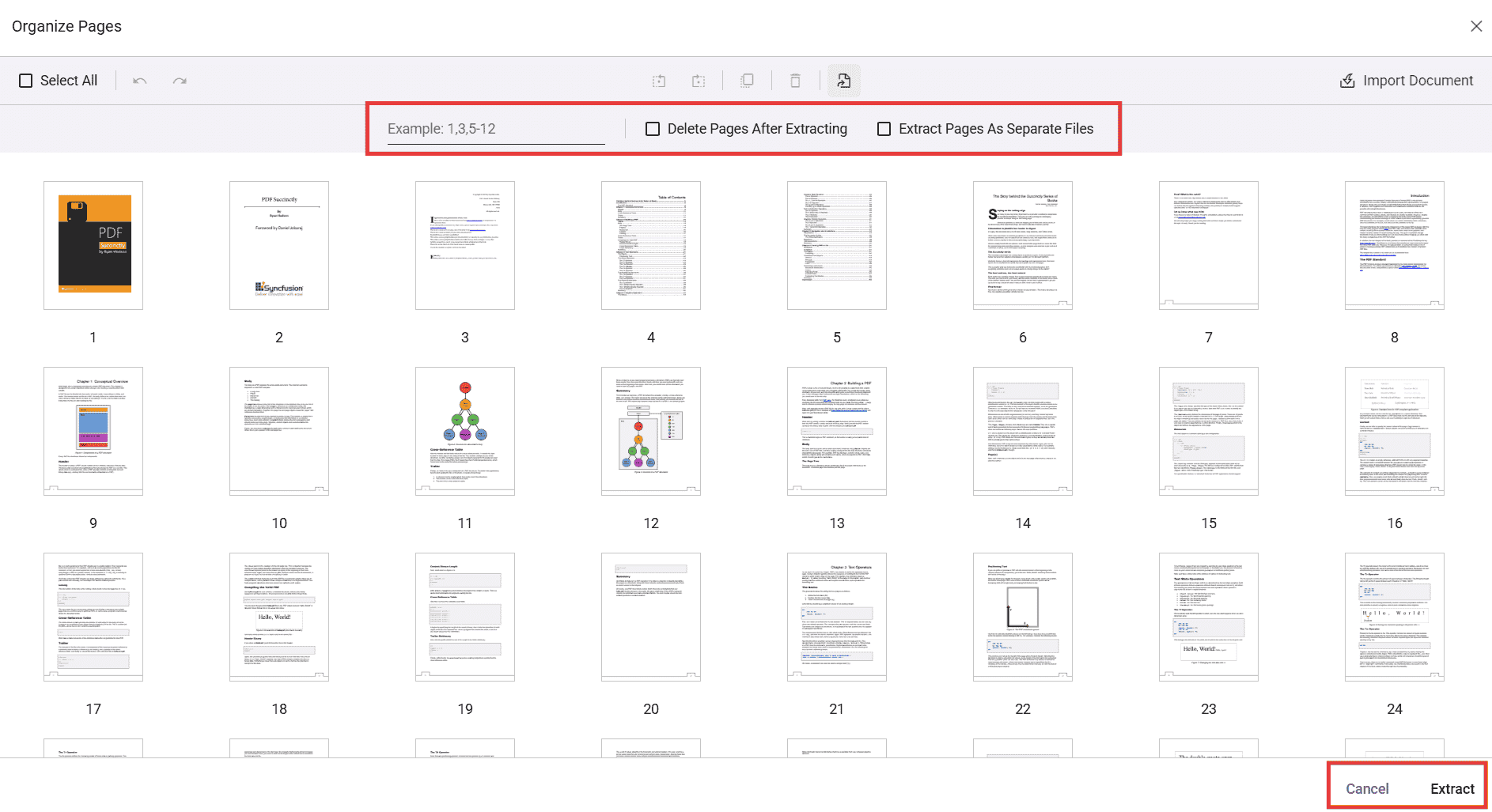
Extract pages using the UI
You can extract by typing page numbers/ranges or by selecting thumbnails.
- Click Extract Pages in the Organize Pages panel.
- In the input box, enter the pages to extract. Supported formats include:
- Single pages: 1,3,5
- Ranges: 2-6
- Combinations: 1,4,7-9
- Alternatively, select the page thumbnails you want instead of typing values.
- Click Extract to download the extracted pages as a new PDF. Click Cancel to close the tool.
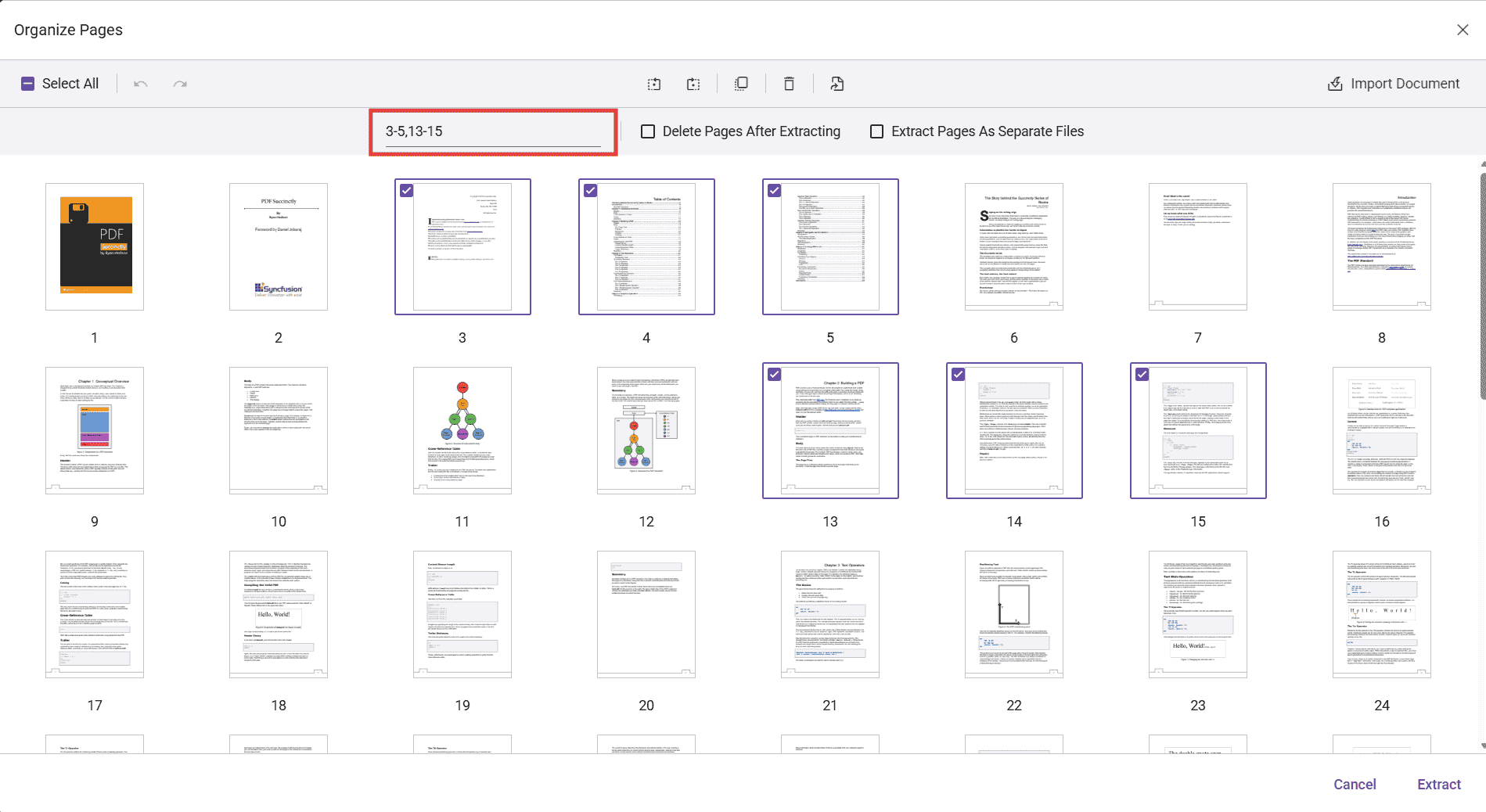
Page numbers are 1-based (first page is 1). Invalid or out-of-range entries are ignored.
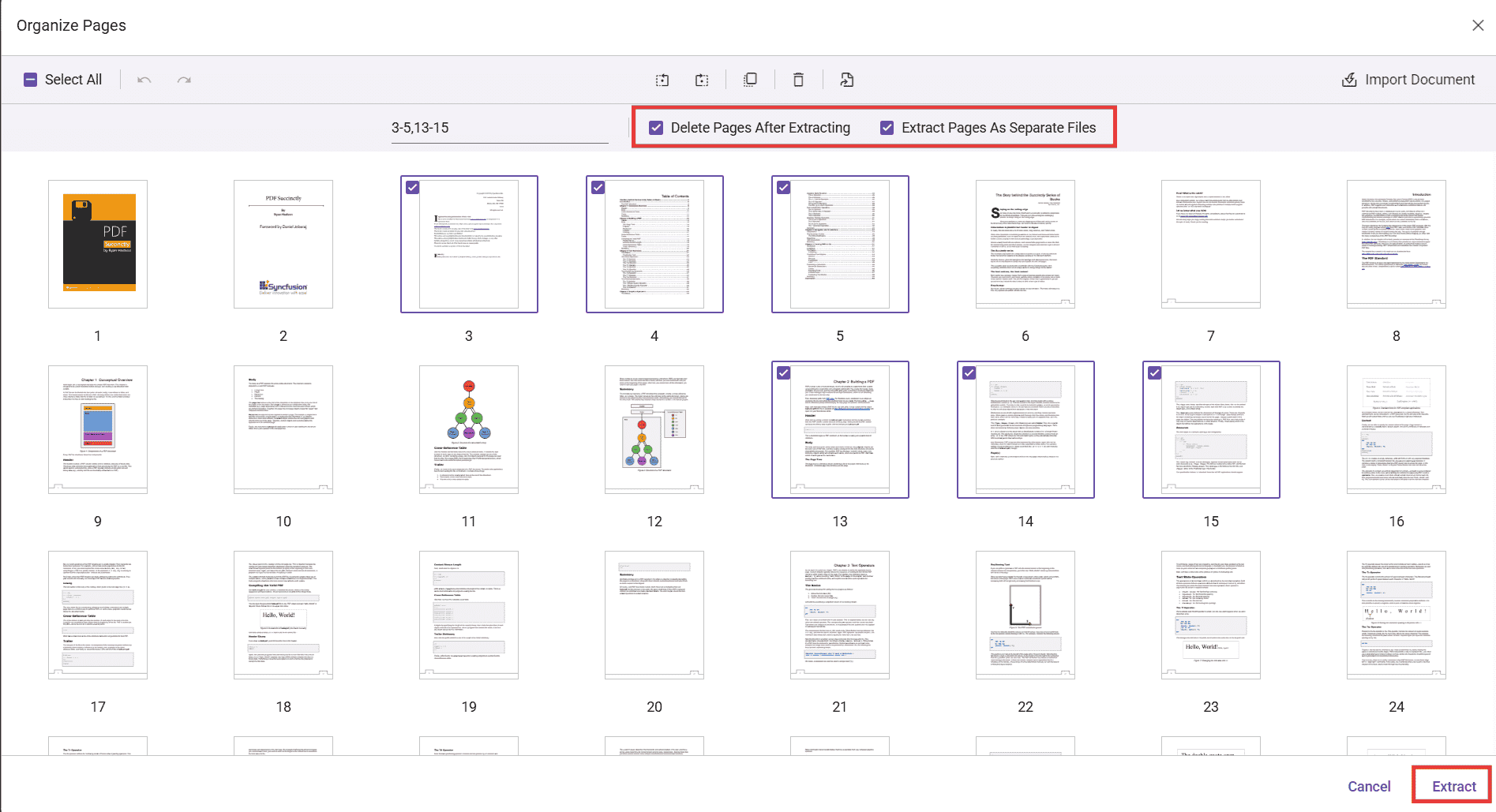
Extraction options (checkboxes)
Two options appear in the secondary toolbar:
-
Delete Pages After Extracting:
- When enabled, the selected/entered pages are removed from the document opened in the viewer after the extraction completes. The extracted pages are still downloaded as a new file.
-
Extract Pages As Separate Files:
- When enabled, every selected page is exported as an individual PDF file. Ranges such as 2-4 export pages 2, 3, and 4 as separate PDFs.
Programmatic options and APIs
You can control the Extract Pages experience via settings and invoke extraction through code.
Enable/disable Extract Pages
Use the canExtractPages API to enable or disable the Extract Pages option. When set to false, the Extract Pages tool is disabled in the toolbar. The default value is true.
Use the following code snippet to enable or disable the Extract Pages option:
<div style="width:100%;height:600px">
@Html.EJS().PdfViewer("pdfviewer").ResourceUrl("https://cdn.syncfusion.com/ej2/31.1.23/dist/ej2-pdfviewer-lib").DocumentPath("https://cdn.syncfusion.com/content/pdf/pdf-succinctly.pdf").PageOrganizerSettings(new {canExtractPages = false}).Render()
</div>
Use the showExtractPagesOption API to show or hide the Extract Pages option. When set to false, the Extract Pages tool is removed from the toolbar. The default value is true.
Use the following code snippet to remove the Extract Pages option:
<div style="width:100%;height:600px">
@Html.EJS().PdfViewer("pdfviewer").ResourceUrl("https://cdn.syncfusion.com/ej2/31.1.23/dist/ej2-pdfviewer-lib").DocumentPath("https://cdn.syncfusion.com/content/pdf/pdf-succinctly.pdf").PageOrganizerSettings(new {showExtractPagesOption = false}).Render()
</div>
Extract pages and load the result programmatically
You can extract pages programmatically using the extractPages method.
The following example extracts pages 1 and 2, then immediately loads the extracted pages back into the viewer. The returned value is a byte array (e.g., Uint8Array) representing the PDF file contents.
<button id="viewer" onclick="extractPage()">Extract Page</button>
<div style="width:100%;height:600px">
@Html.EJS().PdfViewer("pdfviewer").ResourceUrl("https://cdn.syncfusion.com/ej2/31.1.23/dist/ej2-pdfviewer-lib").DocumentPath("https://cdn.syncfusion.com/content/pdf/pdf-succinctly.pdf").PageOrganizerSettings(new {CanExtractPages = true}).Render()
</div>
<script>
    function extractPage() {
        var viewer = document.getElementById('pdfviewer').ej2_instances[0];
        //Extract Pages 1,2
        var array = viewer.extractPages('1,2');
        //Load the Extracted Pages
        viewer.load(array,'');
        //Print the Base64 for reference
        console.log(array);
    }
</script>