How can I help you?
Resolve “Web service is not listening” error
28 Feb 20262 minutes to read
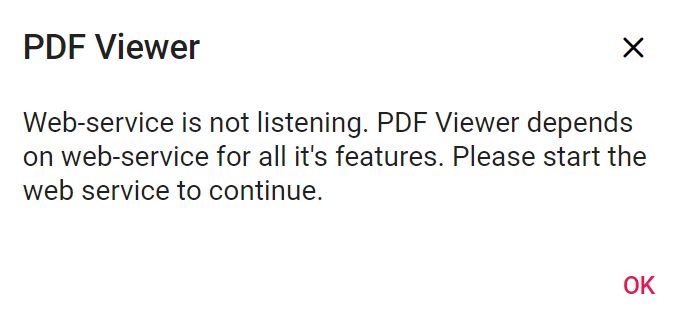
The Syncfusion® ASP.NET Core PDF Viewer displays the Web service is not listening message when the component cannot establish a connection with the backend service or the service encounters an unhandled exception. Follow these diagnostic steps to identify and resolve the issue.
Diagnose the service response
Step 1: Open the browser developer tools (press F12 or right-click and select Inspect) and navigate to the Network tab to monitor outgoing requests.
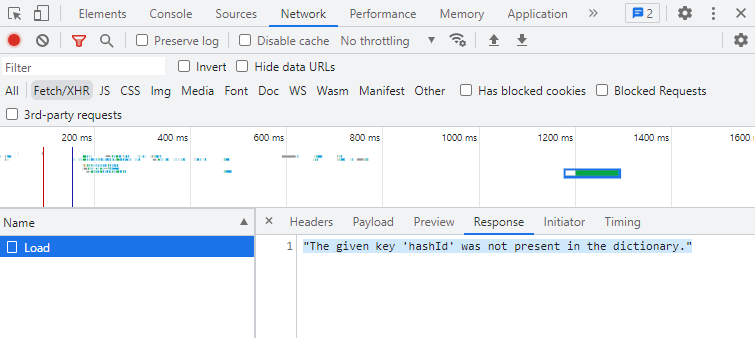
Step 2: Trigger the error again and select the failed request to inspect the response status, headers, and error payload. Record the stack trace or error message for detailed analysis.
Step 3: Verify that the request URL, HTTP method, and payload structure match the controller action signature. Routing mismatches or incorrect endpoint configurations prevent the service from processing document requests.
NOTE
Ensure the hosting environment has necessary network permissions, the PDF service endpoint URL is correctly configured, and all dependent resources—such as storage accounts or distributed caches—are accessible.
Common exceptions and resolutions
File not found errors
- Confirm that the
documentPathand server-side file references point to valid locations. - Ensure the deployment process includes all required PDF assets in the target directory.
- Update connection strings or environment variables if the document storage moves (e.g., from local storage to Azure Blob Storage).
Document cache exceptions
The Document cache not found exception occurs when the cache directory for rendered PDF pages is missing, inaccessible, or deleted. This often happens after environment migrations or manual directory cleanup.
- Validate Cache Path: Ensure the directory specified in the configuration exists and has write permissions.
- Persistent Storage: Use a persistent storage provider if the application runs in a containerized or stateless environment.
Multiple instances conflict
Simultaneous instances of the PDF Viewer may compete for the same cache resources, leading to locking issues.
- Check Processes: Review active processes in the Task Manager to ensure no orphaned instances are locking cache files.
- Distributed Caching: Implement Redis or another distributed caching provider to manage document state across multiple instances or scaled environments safely.
Network and service stability
- Verify the stability of the network connection between the client and the server.
- Restart the web service to clear transient state issues or blocked resources.
Document pointer missing from cache
The Document pointer does not exist in the cache exception indicates a mismatch between the client’s session state and the server’s cached data.
To resolve this issue:
- Clear the Cache: Manually clear the contents of the cache directory specified in the PDF Viewer settings to remove corrupted or stale data.
-
Reload the Document: Programmatically invoke the
Load()method via the controller to re-initialize the document session. - App Restart: Restart the application pool or service to refresh component states and clear memory-resident metadata.
Internal server error
Unspecified server-side failures often stem from malformed document content, missing dependencies, or permission restrictions. Review the server-side logs to capture the full exception details. If the issue persists, provide the failing document and logs to Syncfusion support for further investigation.