Getting Started with Server-Backed ASP.NET Core Viewer
14 Aug 20266 minutes to read
This section explains how to add the Syncfusion® Server-backed ASP.NET Core PDF Viewer to a ASP.NET Core Web application using Visual Studio or Visual Studio Code. A complete working sample is available on GitHub.
Deprecation notice: Starting with the 2026 Vol 2 main release (July 6, 2026), no new features will be added to the Server PDF Viewer, as almost all PDF Viewer functionality is now available in the Standalone PDF Viewer. If you are currently using the server-backed PDF Viewer, please refer to the migration documentation to transition to the Standalone PDF Viewer.
Prerequisites
Create a new ASP.NET Core Web App in Visual Studio
Create an ASP.NET Core Web App using Visual Studio 2022 by following the instructions here.
ASP.NET Core PDF Viewer NuGet package installation
To add the ASP.NET Core PDF Viewer component, open the NuGet package manager in Visual Studio (Tools → NuGet Package Manager → Manage NuGet Packages for Solution), then search for and install:
Create a new ASP.NET Core Web App in Visual Studio Code
Create an ASP.NET Core Web App in Visual Studio Code using the following commands:
dotnet new webapp -o WebApp
cd WebApp
ASP.NET Core PDF Viewer NuGet package installation
Install the Syncfusion® ASP.NET Core component NuGet packages within the project.
- Press Ctrl+` to open the integrated terminal in Visual Studio Code.
- Ensure you’re in the project root directory where your
.csprojfile is located. - Run the following commands to install the Syncfusion.EJ2.AspNet.Core and Syncfusion.EJ2.PdfViewer.AspNet.Core NuGet packages.
dotnet add package Syncfusion.EJ2.AspNet.Core -v 35.1.37
dotnet add package Syncfusion.EJ2.PdfViewer.AspNet.Core -v 35.1.37
dotnet restore
Add Syncfusion® ASP.NET Core Tag Helper
Open ~/Pages/_ViewImports.cshtml and add the Syncfusion EJ2 Tag Helper import. This makes all Syncfusion tag helpers available throughout the application.
@addTagHelper *, Syncfusion.EJ2Add style sheet and script reference
Reference the Syncfusion theme and JavaScript library using the CDN inside the <head> of ~/Pages/Shared/_Layout.cshtml. The stylesheet provides styling for all Syncfusion components including the PDF Viewer, and the script provides the core functionality for all Syncfusion components.
<!-- Syncfusion ASP.NET Core controls styles -->
<link rel="stylesheet" href="https://cdn.syncfusion.com/ej2/35.1.37/fluent.css" />

<!-- Syncfusion ASP.NET Core controls scripts -->
<script src="https://cdn.syncfusion.com/ej2/35.1.37/dist/ej2.min.js"></script>
To learn other ways to load themes or scripts (such as NPM packages or CRG), see the Themes topic and Adding Script Reference documentation. To use locally available script and style resources, follow these instructions
Register Syncfusion® Script Manager
Open the ~/Pages/Shared/_Layout.cshtml page and register the script manager <ejs-scripts> at the end of the <body> element. The script manager initializes Syncfusion components and manages their life cycle.
<!-- Syncfusion ASP.NET Core Script Manager -->
<ejs-scripts></ejs-scripts>
Add ASP.NET Core PDF Viewer control
Add the Syncfusion® ASP.NET Core PDF Viewer tag helper in ~/Pages/Index.cshtml. The serviceUrl property is essential for server-backed mode, as it specifies the server endpoint that handles all PDF processing operations.
<!-- documentPath specifies the PDF document to load -->
<ejs-pdfviewer id="pdfviewer" style="height:600px" serviceUrl="/Index" documentPath="https://cdn.syncfusion.com/content/pdf/pdf-succinctly.pdf">
</ejs-pdfviewer>
Implement server-side handlers
Add the server-side code to Index.cshtml.cs in the Pages folder. The class should contain handler methods that process all PDF operations on the server, such as loading documents, rendering pages, handling annotations, and managing downloads.
An implementation example can be found here.
Run the application
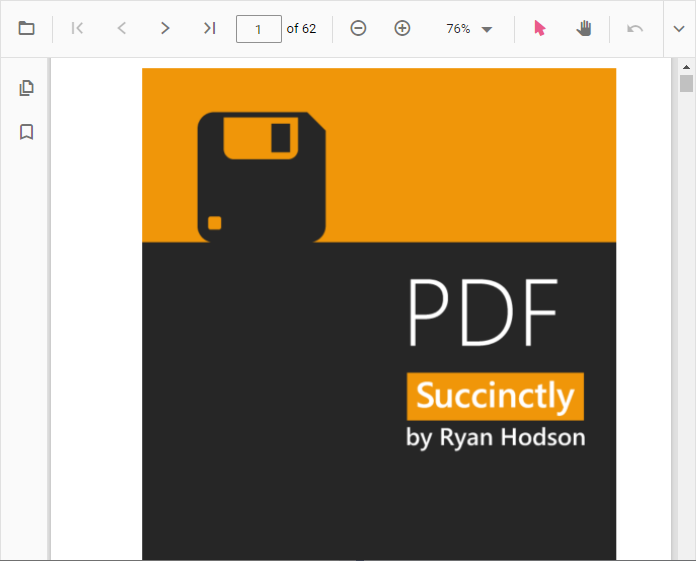
Press Ctrl+F5 (Windows) or ⌘+F5 (macOS) to run the app. Then, the Syncfusion® ASP.NET Core PDF Viewer control will be rendered in the default web browser.
Deployment notes
- Unlike the standalone PDF Viewer which performs client-side rendering, the server-backed PDF Viewer processes and renders PDFs entirely on the server. As a result, the following files are not required and should be omitted during deployment:
pdfium.jspdfium.wasm
-
For hosting the web service on Linux, include SkiaSharp.NativeAssets.Linux
-
For AWS environments, use the following packages:
Amazon Web Services (AWS) NuGet package name AWS Lambda SkiaSharp.NativeAssets.Linux AWS Elastic Beanstalk SkiaSharp.NativeAssets.Linux.NoDependencies v3.119.1 - The
serviceUrlcan be updated dynamically at runtime. After updating the value, invokepdfViewer.dataBind()to apply the change and then load the document. This feature is supported in version 23.1.36 or later.
function load() {
    var pdfViewer = document.getElementById('pdfviewer').ej2_instances[0];
    pdfViewer.serviceUrl = "/Index";
    pdfViewer.documentPath = "https://cdn.syncfusion.com/content/pdf/pdf-succinctly.pdf";
    pdfViewer.dataBind();
}