PDF Form Field Constraints in ASP.NET Core PDF Viewer
14 Aug 202612 minutes to read
The Syncfusion ASP.NET Core PDF Viewer allows controlling how users interact with form fields and how those fields behave during validation and printing by applying form field flags. These flags define whether a form field can be modified, whether it is mandatory, and whether it appears in printed output.
This topic explains:
- Supported form field flags
- How each constraint affects field behavior
- How to apply flags during field creation
- How to update flags on existing fields
- How flags work with validation and printing
Supported PDF Form Field Flags
The following flags are supported in the PDF Viewer:
-
isReadOnly
Prevents users from modifying the form field in the UI while still allowing updates through APIs. -
isRequired
Marks the form field as mandatory and includes it in form field validation. -
isPrint
Controls whether the form field appears when the document is printed.
Key Actions
Make Fields Read Only
The isReadOnly property prevents users from modifying a form field through the UI. This is useful for displaying filled or calculated values that should not be changed.
<div class="text-center">
    <ejs-pdfviewer id="pdfviewer" style="height:600px" resourceUrl="https://cdn.syncfusion.com/ej2/31.1.23/dist/ej2-pdfviewer-lib" documentPath="https://cdn.syncfusion.com/content/pdf/form-filling-document.pdf">
    </ejs-pdfviewer>
</div>
<script type="text/javascript">
document.addEventListener('DOMContentLoaded', function () {
  var pdfviewer = document.getElementById('pdfviewer').ej2_instances[0];
  pdfviewer.documentLoad = function () {
    // Read-only Textbox
    pdfviewer.formDesignerModule.addFormField('Textbox', {
      name: 'EmployeeId',
      bounds: { X: 146, Y: 229, Width: 150, Height: 24 },
      isReadOnly: true,
      value: 'EMP-0001'
    });

    // Read-only Signature field
    pdfviewer.formDesignerModule.addFormField('SignatureField', {
      name: 'ApplicantSign',
      bounds: { X: 57, Y: 923, Width: 200, Height: 43 },
      isReadOnly: true,
      tooltip: 'Sign to accept the terms'
    });
  };
});
</script>
Mark Fields as Required
The isRequired property marks form fields as mandatory. To enforce this constraint, enable form field validation and validate fields before allowing actions such as printing or downloading.
- Enable validation using enableFormFieldsValidation
- Validate fields using validateFormFields()
When required fields are empty, validation can prevent further actions.
<div class="text-center">
    <ejs-pdfviewer id="pdfviewer" style="height:600px" resourceUrl="https://cdn.syncfusion.com/ej2/31.1.23/dist/ej2-pdfviewer-lib" documentPath="https://cdn.syncfusion.com/content/pdf/form-filling-document.pdf">
    </ejs-pdfviewer>
</div>
<script type="text/javascript">
document.addEventListener('DOMContentLoaded', function () {
  var pdfviewer = document.getElementById('pdfviewer').ej2_instances[0];
  // 1) Default for new Textbox fields
  pdfviewer.textFieldSettings = { isRequired: true };

  // 2) Validation wiring
  pdfviewer.enableFormFieldsValidation = true;
  pdfviewer.validateFormFields = function (args) {
    // Triggers when required fields are empty on submit/validate
    if (args && args.formField && args.formField.length > 0) {
      alert('Please fill all required fields. Missing: ' + args.formField[0].name);
    }
  };

  // 3) Creation (add a Textbox form field once the document is loaded)
  pdfviewer.documentLoad = function () {
    pdfviewer.formDesignerModule.addFormField('Textbox', {
      name: 'Email',
      bounds: { X: 146, Y: 260, Width: 220, Height: 24 },
      isRequired: true,
      tooltip: 'Email is required'
    });
  };
});
</script>
Control Print Behavior
The isPrint property controls whether a form field appears in the printed output of the PDF document.
<div class="text-center">
    <ejs-pdfviewer id="pdfviewer" style="height:600px" resourceUrl="https://cdn.syncfusion.com/ej2/31.1.23/dist/ej2-pdfviewer-lib" documentPath="https://cdn.syncfusion.com/content/pdf/form-filling-document.pdf">
    </ejs-pdfviewer>
</div>
<script type="text/javascript">
document.addEventListener('DOMContentLoaded', function () {
  var pdfviewer = document.getElementById('pdfviewer').ej2_instances[0];
  // 1) Default for new signature fields
  pdfviewer.signatureFieldSettings = { isPrint: false };

  // 2) Creation (do not print a signature field)
  pdfviewer.documentLoad = function () {
    pdfviewer.formDesignerModule.addFormField('SignatureField', {
      name: 'ApplicantSign',
      bounds: { X: 57, Y: 923, Width: 200, Height: 43 },
      isPrint: false
    });

    // 3) Update existing field (toggle to print)
    var sign = pdfviewer.formFieldCollections.find(function (f) { return f.name === 'ApplicantSign'; });
    if (sign) {
      pdfviewer.formDesignerModule.updateFormField(sign, { isPrint: true });
    }
  };
});
</script>
Printing can be triggered programmatically using pdfviewer.print(). Form fields with isPrint: false are excluded from the printed output.
Apply PDF Form Field Flags Using the UI
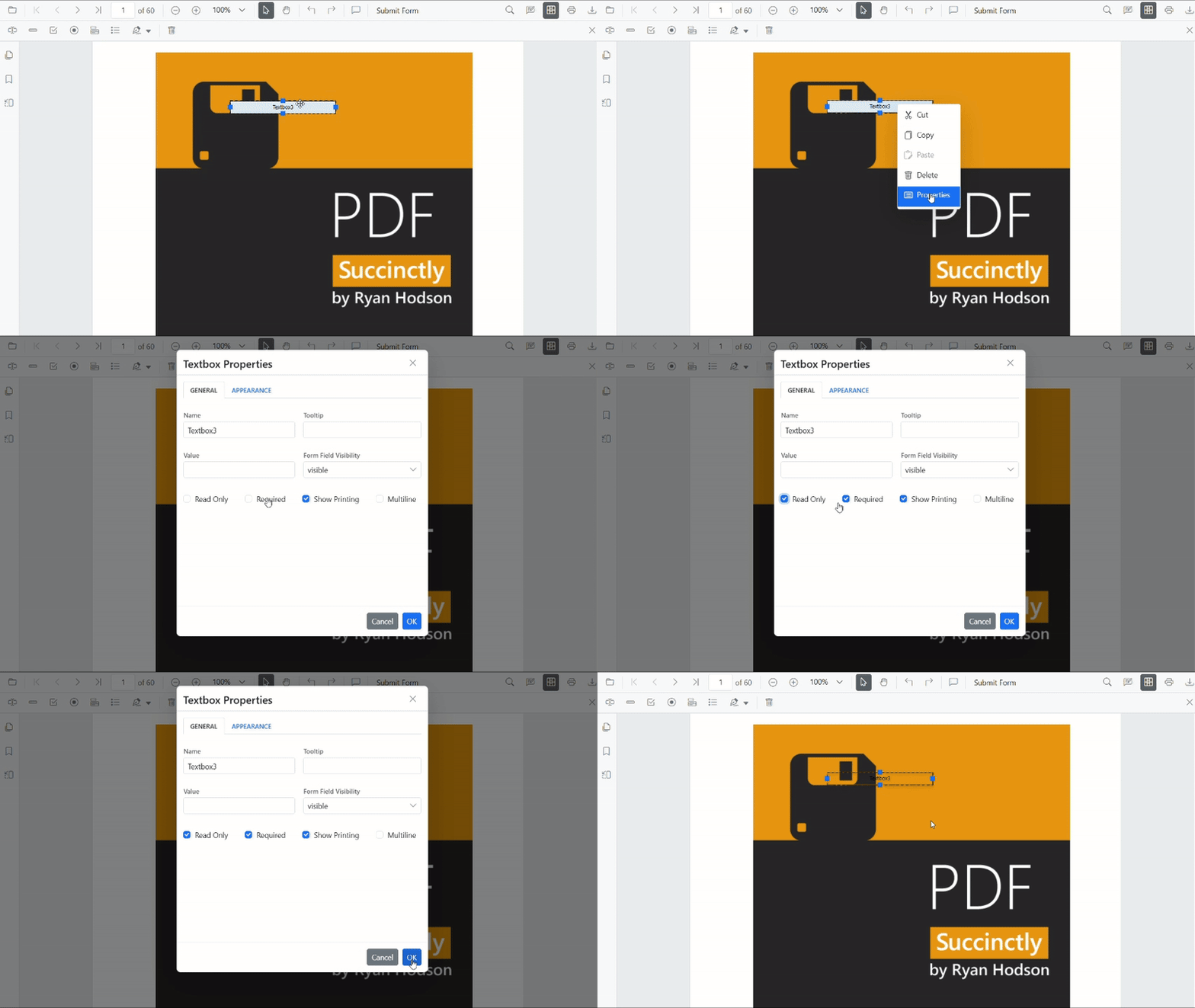
Steps
- Enable Form Designer mode in the PDF Viewer.
- Select an existing form field on the PDF page.
- Right-click to open the context menu and select Properties.
- Configure the required constraint options.
- Click OK to close the properties popover and apply changes.
Changes are reflected immediately in the viewer.
Apply PDF Form Field Flags Programmatically
Form field flags can be applied or modified in the following ways.
Apply Flags When Creating Fields
Flags properties can be passed in the settings object when creating form fields using addFormField().
<div class="text-center">
    <ejs-pdfviewer id="pdfviewer" style="height:600px" resourceUrl="https://cdn.syncfusion.com/ej2/31.1.23/dist/ej2-pdfviewer-lib" documentPath="https://cdn.syncfusion.com/content/pdf/form-filling-document.pdf">
    </ejs-pdfviewer>
</div>

<script type="text/javascript">
document.addEventListener('DOMContentLoaded', function () {
  var pdfviewer = document.getElementById('pdfviewer').ej2_instances[0];
  pdfviewer.documentLoad = function () {
    // Read-only Textbox that is printed but not required
    pdfviewer.formDesignerModule.addFormField('Textbox', {
      name: 'EmployeeId',
      bounds: { X: 146, Y: 229, Width: 150, Height: 24 },
      isReadOnly: true,
      isRequired: false,
      isPrint: true,
      value: 'EMP-0001'
    });

    // Required Signature field that is not included in print
    pdfviewer.formDesignerModule.addFormField('SignatureField', {
      name: 'ApplicantSign',
      bounds: { X: 57, Y: 923, Width: 200, Height: 43 },
      isReadOnly: false,
      isRequired: true,
      isPrint: false,
      tooltip: 'Sign to accept the terms'
    });
  };
});
</script>
Update Flags on Existing Fields Programmatically
The updateFormField() method modifies constraint values on existing form fields.
<div class="text-center">
    <ejs-pdfviewer id="pdfviewer" style="height:600px" resourceUrl="https://cdn.syncfusion.com/ej2/31.1.23/dist/ej2-pdfviewer-lib" documentPath="https://cdn.syncfusion.com/content/pdf/form-filling-document.pdf">
    </ejs-pdfviewer>
</div>

<script type="text/javascript">
document.addEventListener('DOMContentLoaded', function () {
  var pdfviewer = document.getElementById('pdfviewer').ej2_instances[0];
  pdfviewer.documentLoad = function () {
    // Add a sample textbox
    pdfviewer.formDesignerModule.addFormField('Textbox', {
      name: 'Email',
      bounds: { X: 146, Y: 260, Width: 220, Height: 24 }
    });

    // Retrieve it and update constraint flags
    var field = pdfviewer.formFieldCollections.find(function (f) { return f.name === 'Email'; });
    if (field) {
      pdfviewer.formDesignerModule.updateFormField(field, {
        isReadOnly: false,
        isRequired: true,
        isPrint: true,
        tooltip: 'Enter a valid email'
      });
    }
  };
});
</script>
Set Default Flags for New PDF Form Fields
Default flag values can be configured so that form fields added using the Form Designer toolbar automatically inherit them. This ensures consistent behavior for all newly created fields.
<div class="text-center">
    <ejs-pdfviewer id="pdfviewer" style="height:600px" resourceUrl="https://cdn.syncfusion.com/ej2/31.1.23/dist/ej2-pdfviewer-lib" documentPath="https://cdn.syncfusion.com/content/pdf/form-filling-document.pdf">
    </ejs-pdfviewer>
</div>

<script type="text/javascript">
document.addEventListener('DOMContentLoaded', function () {
  var pdfviewer = document.getElementById('pdfviewer').ej2_instances[0];
  // Textbox fields will be editable, required, and included in print by default
  pdfviewer.textFieldSettings = {
    isReadOnly: false,
    isRequired: true,
    isPrint: true,
    tooltip: 'Required field'
  };

  // Signature fields will be optional and hidden when printing
  pdfviewer.signatureFieldSettings = {
    isReadOnly: false,
    isRequired: false,
    isPrint: false,
    tooltip: 'Sign if applicable'
  };
});
</script>