Measurement annotation in ASP.NET Core PDF Viewer
27 Apr 202624 minutes to read
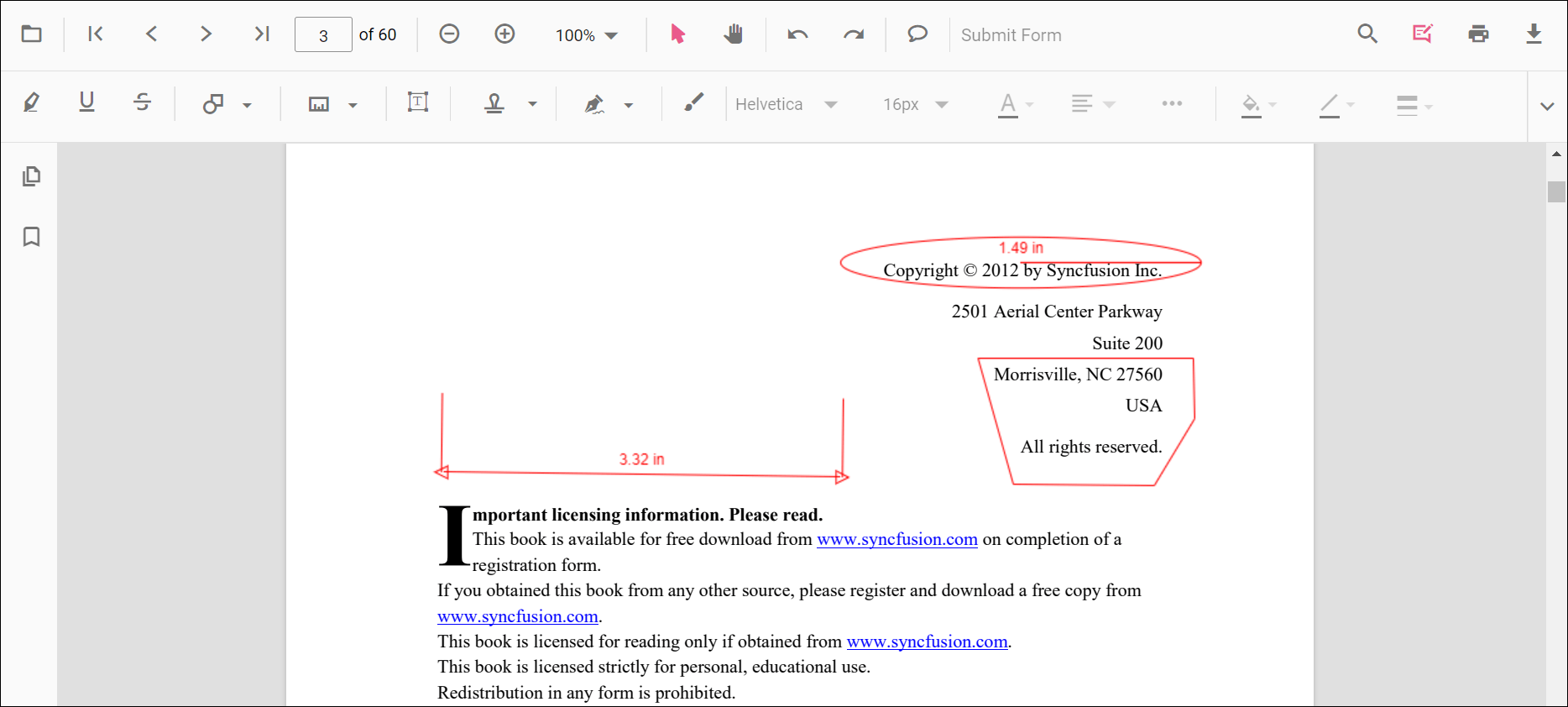
The PDF Viewer supports measurement annotations for capturing distances, perimeters, areas, radius, and volumes.
Supported measurement annotations:
- Distance
- Perimeter
- Area
- Radius
- Volume
Add measurement annotations
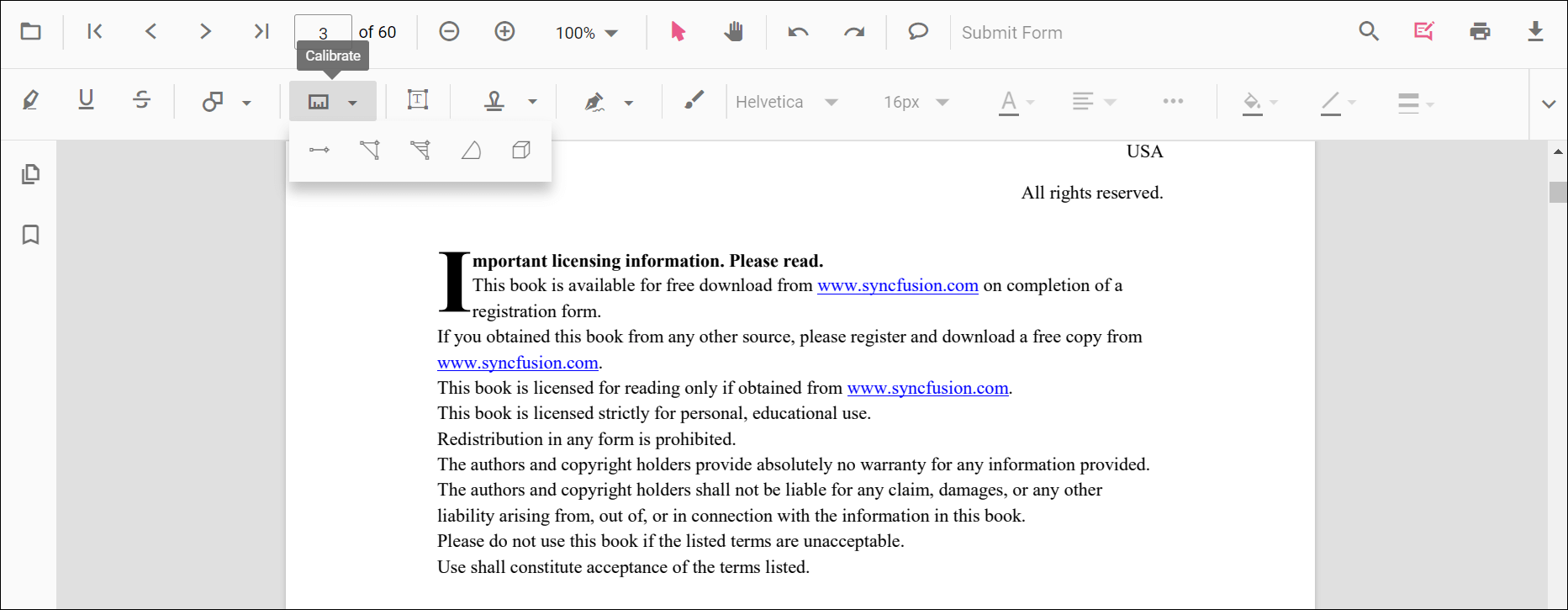
Measurement annotations are available from the annotation toolbar.
- Open the annotation toolbar using the Edit Annotation button in the PDF Viewer toolbar.
- Use the Measurement Annotation drop-down to choose a measurement type.
- Select a measurement type to enable its annotation mode, then place the measurement on the page.
If the viewer is in pan mode, selecting a measurement annotation activates text selection mode where applicable.
The following example switches the viewer to distance annotation mode.
<div style="width:100%;height:640px">
  <ejs-pdfviewer id="pdfviewer" style="height:640px" documentPath="https://cdn.syncfusion.com/content/pdf/pdf-succinctly.pdf" resourceUrl="https://cdn.syncfusion.com/ej2/31.2.2/dist/ej2-pdfviewer-lib"></ejs-pdfviewer>
</div>
<div style="margin-top:8px">
  <button onclick="distanceMode()">Distance</button>
</div>
<script>
  function distanceMode() {
    var viewer = document.getElementById('pdfviewer').ej2_instances[0];
    viewer.annotation.setAnnotationMode('Distance');
  }
</script>
<div style="width:100%;height:640px">
<ejs-pdfviewer id="pdfviewer" style="height:640px" documentPath="https://cdn.syncfusion.com/content/pdf/pdf-succinctly.pdf" serviceUrl="https://document.syncfusion.com/web-services/pdf-viewer/api/pdfviewer"></ejs-pdfviewer>
</div>
<div style="margin-top:8px">
<button onclick="distanceMode()">Distance</button>
</div>
<script>
function distanceMode() {
var viewer = document.getElementById('pdfviewer').ej2_instances[0];
viewer.annotation.setAnnotationMode('Distance');
}
</script>Add a measurement annotation to the PDF document programmatically
The PDF Viewer library allows adding an ink annotation programmatically using the addAnnotation() method.
The following examples demonstrate how to add measurement annotations programmatically using addAnnotation().
<div style="width:100%;height:640px">
  <ejs-pdfviewer id="pdfviewer" style="height:640px" documentPath="https://cdn.syncfusion.com/content/pdf/pdf-succinctly.pdf" resourceUrl="https://cdn.syncfusion.com/ej2/31.2.2/dist/ej2-pdfviewer-lib"></ejs-pdfviewer>
</div>
<div style="margin-top:8px">
  <button onclick="addDistanceAnnotation()">Add Distance Annotation</button>
  <button onclick="addPerimeterAnnotation()">Add Perimeter Annotation</button>
  <button onclick="addAreaAnnotation()">Add Area Annotation</button>
  <button onclick="addRadiusAnnotation()">Add Radius Annotation</button>
  <button onclick="addVolumeAnnotation()">Add Volume Annotation</button>
</div>
<script>
  function addDistanceAnnotation() {
    var viewer = document.getElementById('pdfviewer').ej2_instances[0];
    viewer.annotation.addAnnotation("Distance", {
      offset: { x: 200, y: 230 },
      pageNumber: 1,
      vertexPoints: [{ x: 200, y: 230 }, { x: 350, y: 230 }]
    });
  }
  function addPerimeterAnnotation() {
    var viewer = document.getElementById('pdfviewer').ej2_instances[0];
    viewer.annotation.addAnnotation("Perimeter", {
      offset: { x: 200, y: 350 },
      pageNumber: 1,
      vertexPoints: [{ x: 200, y: 350 }, { x: 285, y: 350 }, { x: 286, y: 412 }]
    });
  }
  function addAreaAnnotation() {
    var viewer = document.getElementById('pdfviewer').ej2_instances[0];
    viewer.annotation.addAnnotation("Area", {
      offset: { x: 200, y: 500 },
      pageNumber: 1,
      vertexPoints: [{ x: 200, y: 500 }, { x: 288, y: 499 }, { x: 289, y: 553 }, { x: 200, y: 500 }]
    });
  }
  function addRadiusAnnotation() {
    var viewer = document.getElementById('pdfviewer').ej2_instances[0];
    viewer.annotation.addAnnotation("Radius", {
      offset: { x: 200, y: 630 },
      pageNumber: 1,
      width: 90,
      height: 90
    });
  }
  function addVolumeAnnotation() {
    var viewer = document.getElementById('pdfviewer').ej2_instances[0];
    viewer.annotation.addAnnotation("Volume", {
      offset: { x: 200, y: 810 },
      pageNumber: 1,
      vertexPoints: [{ x: 200, y: 810 }, { x: 200, y: 919 }, { x: 320, y: 919 }, { x: 320, y: 809 }, { x: 200, y: 810 }]
    });
  }
</script>
<div style="width:100%;height:640px">
<ejs-pdfviewer id="pdfviewer" style="height:640px" documentPath="https://cdn.syncfusion.com/content/pdf/pdf-succinctly.pdf" serviceUrl="https://document.syncfusion.com/web-services/pdf-viewer/api/pdfviewer"></ejs-pdfviewer>
</div>
<div style="margin-top:8px">
<button onclick="addDistanceAnnotation()">Add Distance Annotation</button>
<button onclick="addPerimeterAnnotation()">Add Perimeter Annotation</button>
<button onclick="addAreaAnnotation()">Add Area Annotation</button>
<button onclick="addRadiusAnnotation()">Add Radius Annotation</button>
<button onclick="addVolumeAnnotation()">Add Volume Annotation</button>
</div>
<script>
function addDistanceAnnotation() {
var viewer = document.getElementById('pdfviewer').ej2_instances[0];
viewer.annotation.addAnnotation("Distance", {
offset: { x: 200, y: 230 },
pageNumber: 1,
vertexPoints: [{ x: 200, y: 230 }, { x: 350, y: 230 }]
});
}
function addPerimeterAnnotation() {
var viewer = document.getElementById('pdfviewer').ej2_instances[0];
viewer.annotation.addAnnotation("Perimeter", {
offset: { x: 200, y: 350 },
pageNumber: 1,
vertexPoints: [{ x: 200, y: 350 }, { x: 285, y: 350 }, { x: 286, y: 412 }]
});
}
function addAreaAnnotation() {
var viewer = document.getElementById('pdfviewer').ej2_instances[0];
viewer.annotation.addAnnotation("Area", {
offset: { x: 200, y: 500 },
pageNumber: 1,
vertexPoints: [{ x: 200, y: 500 }, { x: 288, y: 499 }, { x: 289, y: 553 }, { x: 200, y: 500 }]
});
}
function addRadiusAnnotation() {
var viewer = document.getElementById('pdfviewer').ej2_instances[0];
viewer.annotation.addAnnotation("Radius", {
offset: { x: 200, y: 630 },
pageNumber: 1,
width: 90,
height: 90
});
}
function addVolumeAnnotation() {
var viewer = document.getElementById('pdfviewer').ej2_instances[0];
viewer.annotation.addAnnotation("Volume", {
offset: { x: 200, y: 810 },
pageNumber: 1,
vertexPoints: [{ x: 200, y: 810 }, { x: 200, y: 919 }, { x: 320, y: 919 }, { x: 320, y: 809 }, { x: 200, y: 810 }]
});
}
</script>Edit an existing measurement annotation programmatically
Use the editAnnotation() method to modify existing measurement annotations programmatically.
The following example demonstrates editAnnotation().
<div style="width:100%;height:640px">
  <ejs-pdfviewer id="pdfviewer" style="height:640px" documentPath="https://cdn.syncfusion.com/content/pdf/pdf-succinctly.pdf" resourceUrl="https://cdn.syncfusion.com/ej2/31.2.2/dist/ej2-pdfviewer-lib"></ejs-pdfviewer>
</div>
<div style="margin-top:8px">
  <button onclick="editDistanceAnnotation()">Edit Distance Annotation</button>
  <button onclick="editPerimeterAnnotation()">Edit Perimeter Annotation</button>
  <button onclick="editAreaAnnotation()">Edit Area Annotation</button>
  <button onclick="editRadiusAnnotation()">Edit Radius Annotation</button>
  <button onclick="editVolumeAnnotation()">Edit Volume Annotation</button>
</div>
<script>
  function editDistanceAnnotation() {
    var viewer = document.getElementById('pdfviewer').ej2_instances[0];
    for (let i = 0; i < viewer.annotationCollection.length; i++) {
      if (viewer.annotationCollection[i].subject === "Distance calculation") {
        viewer.annotationCollection[i].annotationSelectorSettings.resizerShape = "Circle"
        viewer.annotationCollection[i].strokeColor = "#0000FF";
        viewer.annotationCollection[i].thickness = 2;
        viewer.annotationCollection[i].fillColor = "#FFFF00";
        viewer.annotation.editAnnotation(viewer.annotationCollection[i]);
      }
    }
  }
  function editPerimeterAnnotation() {
    var viewer = document.getElementById('pdfviewer').ej2_instances[0];
    for (let i = 0; i < viewer.annotationCollection.length; i++) {
      if (viewer.annotationCollection[i].subject === "Perimeter calculation") {
        viewer.annotationCollection[i].annotationSelectorSettings.resizerShape = "Circle"
        viewer.annotationCollection[i].strokeColor = "#0000FF";
        viewer.annotationCollection[i].thickness = 2;
        viewer.annotationCollection[i].fillColor = "#FFFF00";
        viewer.annotation.editAnnotation(viewer.annotationCollection[i]);
      }
    }
  }
  function editAreaAnnotation() {
    var viewer = document.getElementById('pdfviewer').ej2_instances[0];
    for (let i = 0; i < viewer.annotationCollection.length; i++) {
      if (viewer.annotationCollection[i].subject === "Area calculation") {
        viewer.annotationCollection[i].annotationSelectorSettings.resizerShape = "Circle"
        viewer.annotationCollection[i].strokeColor = "#0000FF";
        viewer.annotationCollection[i].thickness = 2;
        viewer.annotationCollection[i].fillColor = "#FFFF00";
        viewer.annotation.editAnnotation(viewer.annotationCollection[i]);
      }
    }
  }
  function editRadiusAnnotation() {
    var viewer = document.getElementById('pdfviewer').ej2_instances[0];
    for (let i = 0; i < viewer.annotationCollection.length; i++) {
      if (viewer.annotationCollection[i].subject === "Radius calculation") {
        viewer.annotationCollection[i].annotationSelectorSettings.resizerShape = "Circle"
        viewer.annotationCollection[i].strokeColor = "#0000FF";
        viewer.annotationCollection[i].thickness = 2;
        viewer.annotationCollection[i].fillColor = "#FFFF00";
        viewer.annotation.editAnnotation(viewer.annotationCollection[i]);
      }
    }
  }
  function editVolumeAnnotation() {
    var viewer = document.getElementById('pdfviewer').ej2_instances[0];
    for (let i = 0; i < viewer.annotationCollection.length; i++) {
      if (viewer.annotationCollection[i].subject === "Volume calculation") {
        viewer.annotationCollection[i].annotationSelectorSettings.resizerShape = "Circle"
        viewer.annotationCollection[i].strokeColor = "#0000FF";
        viewer.annotationCollection[i].thickness = 2;
        viewer.annotationCollection[i].fillColor = "#FFFF00";
        viewer.annotation.editAnnotation(viewer.annotationCollection[i]);
      }
    }
  }
</script>
<div style="width:100%;height:640px">
<ejs-pdfviewer id="pdfviewer" style="height:640px" documentPath="https://cdn.syncfusion.com/content/pdf/pdf-succinctly.pdf" serviceUrl="https://document.syncfusion.com/web-services/pdf-viewer/api/pdfviewer"></ejs-pdfviewer>
</div>
<div style="margin-top:8px">
<button onclick="editDistanceAnnotation()">Edit Distance Annotation</button>
<button onclick="editPerimeterAnnotation()">Edit Perimeter Annotation</button>
<button onclick="editAreaAnnotation()">Edit Area Annotation</button>
<button onclick="editRadiusAnnotation()">Edit Radius Annotation</button>
<button onclick="editVolumeAnnotation()">Edit Volume Annotation</button>
</div>
<script>
function editDistanceAnnotation() {
var viewer = document.getElementById('pdfviewer').ej2_instances[0];
for (let i = 0; i < viewer.annotationCollection.length; i++) {
if (viewer.annotationCollection[i].subject === "Distance calculation") {
viewer.annotationCollection[i].annotationSelectorSettings.resizerShape = "Circle"
viewer.annotationCollection[i].strokeColor = "#0000FF";
viewer.annotationCollection[i].thickness = 2;
viewer.annotationCollection[i].fillColor = "#FFFF00";
viewer.annotation.editAnnotation(viewer.annotationCollection[i]);
}
}
}
function editPerimeterAnnotation() {
var viewer = document.getElementById('pdfviewer').ej2_instances[0];
for (let i = 0; i < viewer.annotationCollection.length; i++) {
if (viewer.annotationCollection[i].subject === "Perimeter calculation") {
viewer.annotationCollection[i].annotationSelectorSettings.resizerShape = "Circle"
viewer.annotationCollection[i].strokeColor = "#0000FF";
viewer.annotationCollection[i].thickness = 2;
viewer.annotationCollection[i].fillColor = "#FFFF00";
viewer.annotation.editAnnotation(viewer.annotationCollection[i]);
}
}
}
function editAreaAnnotation() {
var viewer = document.getElementById('pdfviewer').ej2_instances[0];
for (let i = 0; i < viewer.annotationCollection.length; i++) {
if (viewer.annotationCollection[i].subject === "Area calculation") {
viewer.annotationCollection[i].annotationSelectorSettings.resizerShape = "Circle"
viewer.annotationCollection[i].strokeColor = "#0000FF";
viewer.annotationCollection[i].thickness = 2;
viewer.annotationCollection[i].fillColor = "#FFFF00";
viewer.annotation.editAnnotation(viewer.annotationCollection[i]);
}
}
}
function editRadiusAnnotation() {
var viewer = document.getElementById('pdfviewer').ej2_instances[0];
for (let i = 0; i < viewer.annotationCollection.length; i++) {
if (viewer.annotationCollection[i].subject === "Radius calculation") {
viewer.annotationCollection[i].annotationSelectorSettings.resizerShape = "Circle"
viewer.annotationCollection[i].strokeColor = "#0000FF";
viewer.annotationCollection[i].thickness = 2;
viewer.annotationCollection[i].fillColor = "#FFFF00";
viewer.annotation.editAnnotation(viewer.annotationCollection[i]);
}
}
}
function editVolumeAnnotation() {
var viewer = document.getElementById('pdfviewer').ej2_instances[0];
for (let i = 0; i < viewer.annotationCollection.length; i++) {
if (viewer.annotationCollection[i].subject === "Volume calculation") {
viewer.annotationCollection[i].annotationSelectorSettings.resizerShape = "Circle"
viewer.annotationCollection[i].strokeColor = "#0000FF";
viewer.annotationCollection[i].thickness = 2;
viewer.annotationCollection[i].fillColor = "#FFFF00";
viewer.annotation.editAnnotation(viewer.annotationCollection[i]);
}
}
}
</script>Edit properties of measurement annotations
Change fill color, stroke color, thickness, and opacity using the annotation toolbar tools: Edit Color, Edit Stroke Color, Edit Thickness, and Edit Opacity.
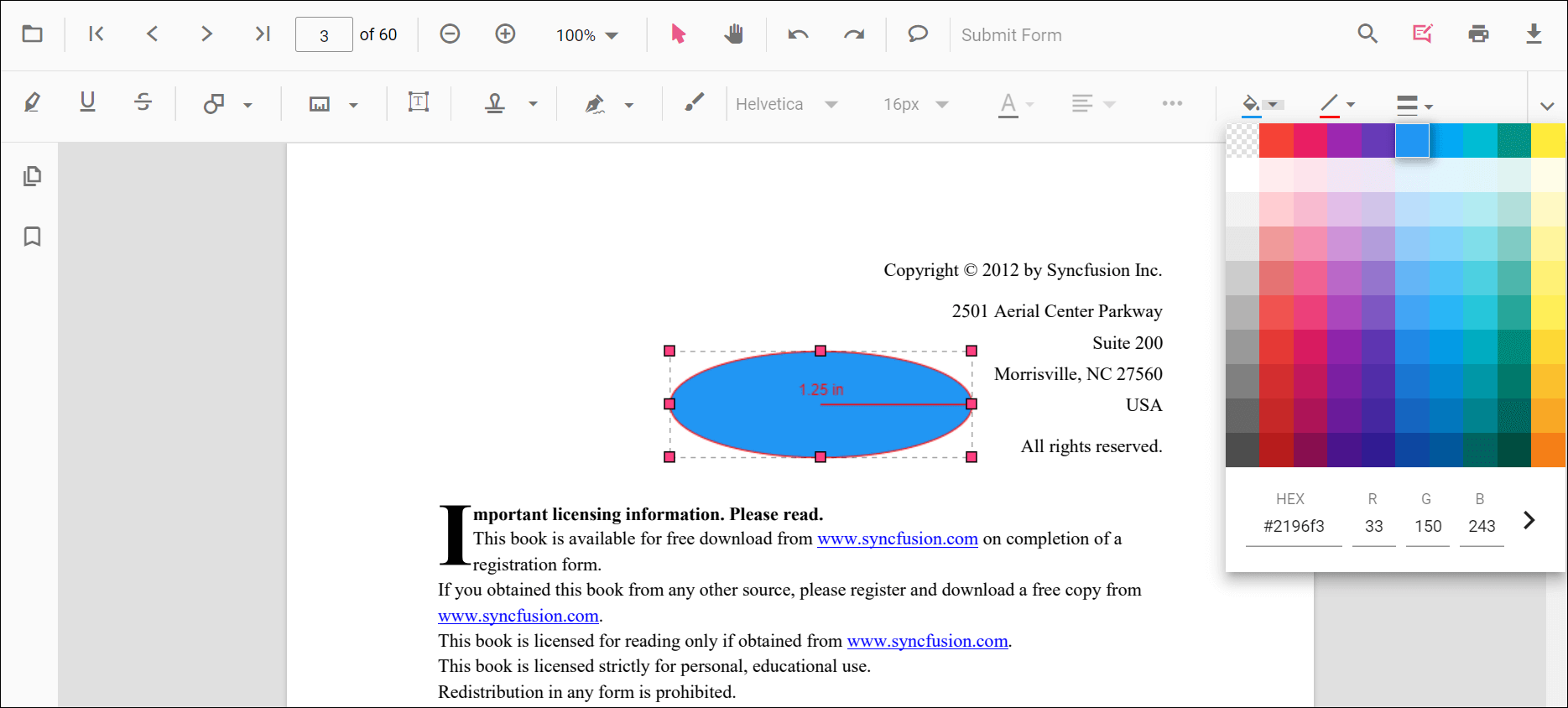
Edit fill color
Change the fill color with the color palette in the Edit Color tool.
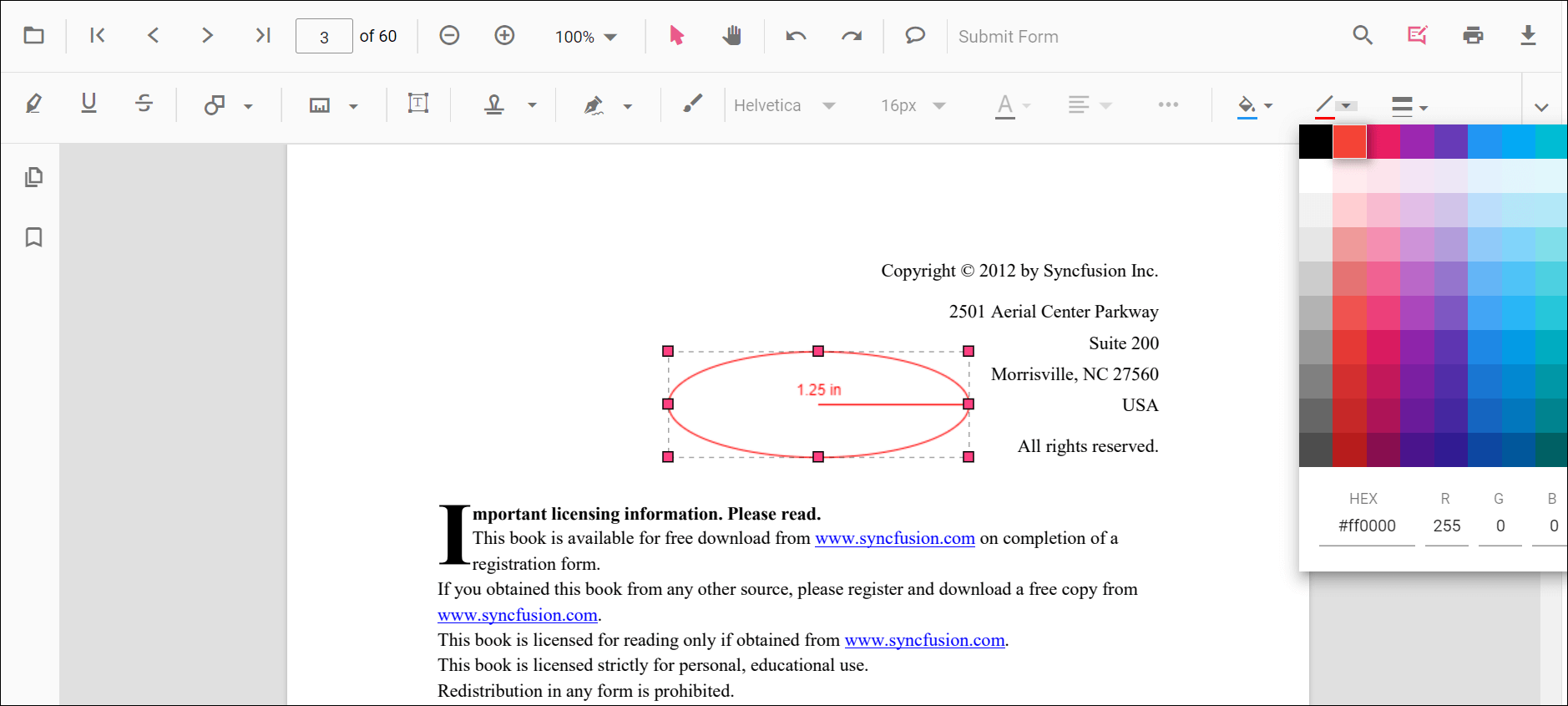
Edit stroke color
Change the stroke color with the Edit Stroke Color tool.
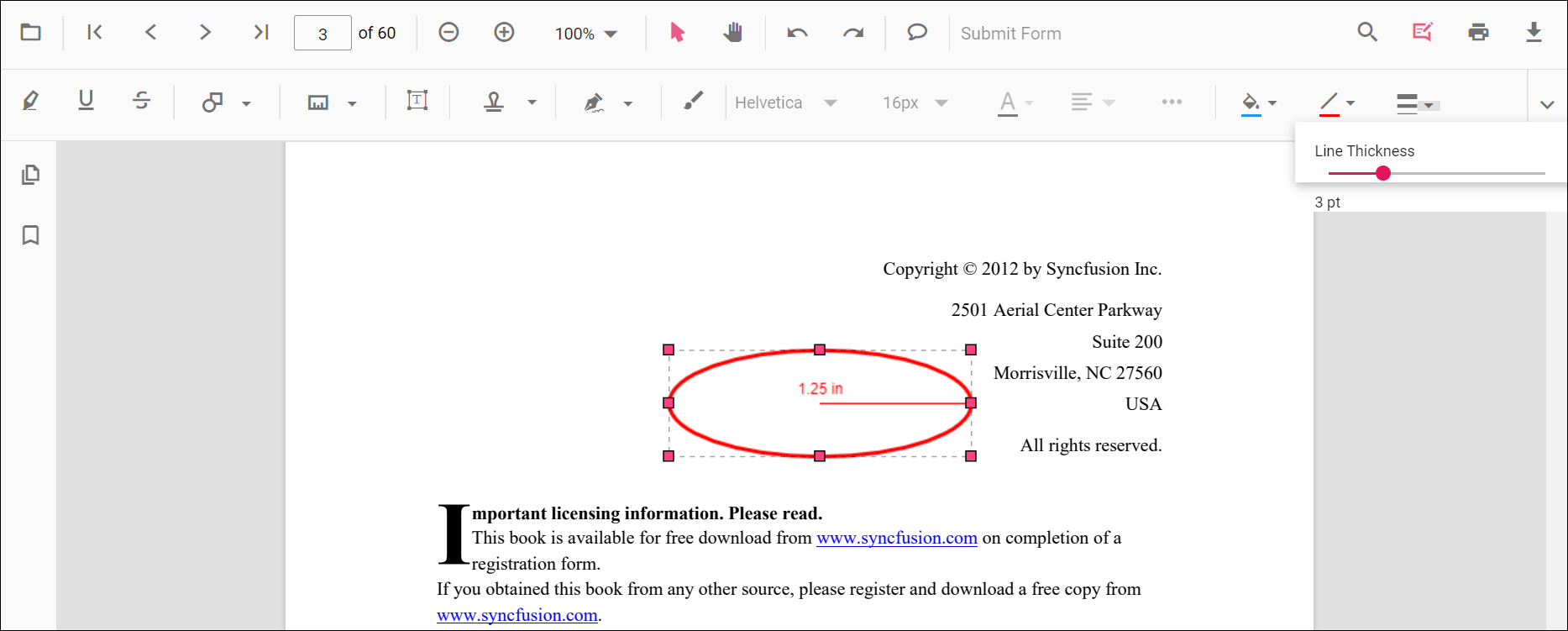
Edit thickness
Adjust border thickness with the range slider in the Edit Thickness tool.
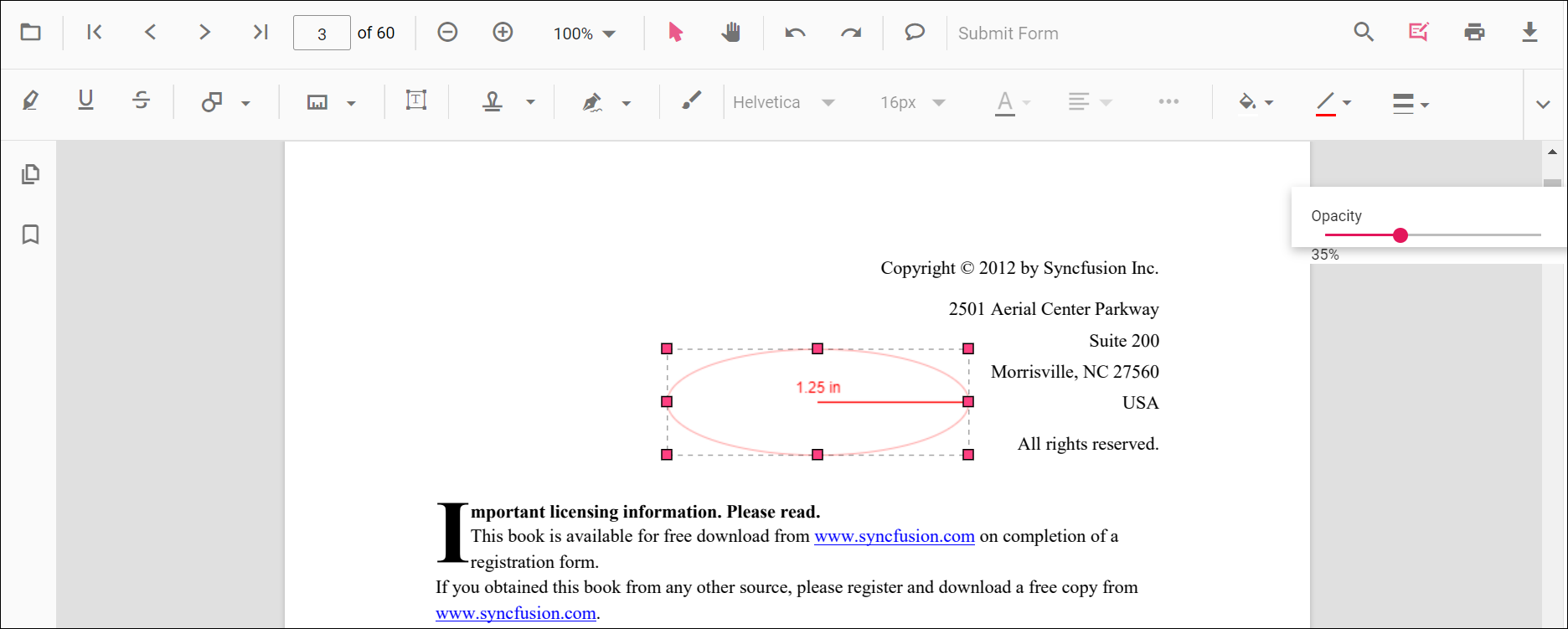
Edit opacity
Adjust annotation opacity with the range slider in the Edit Opacity tool.
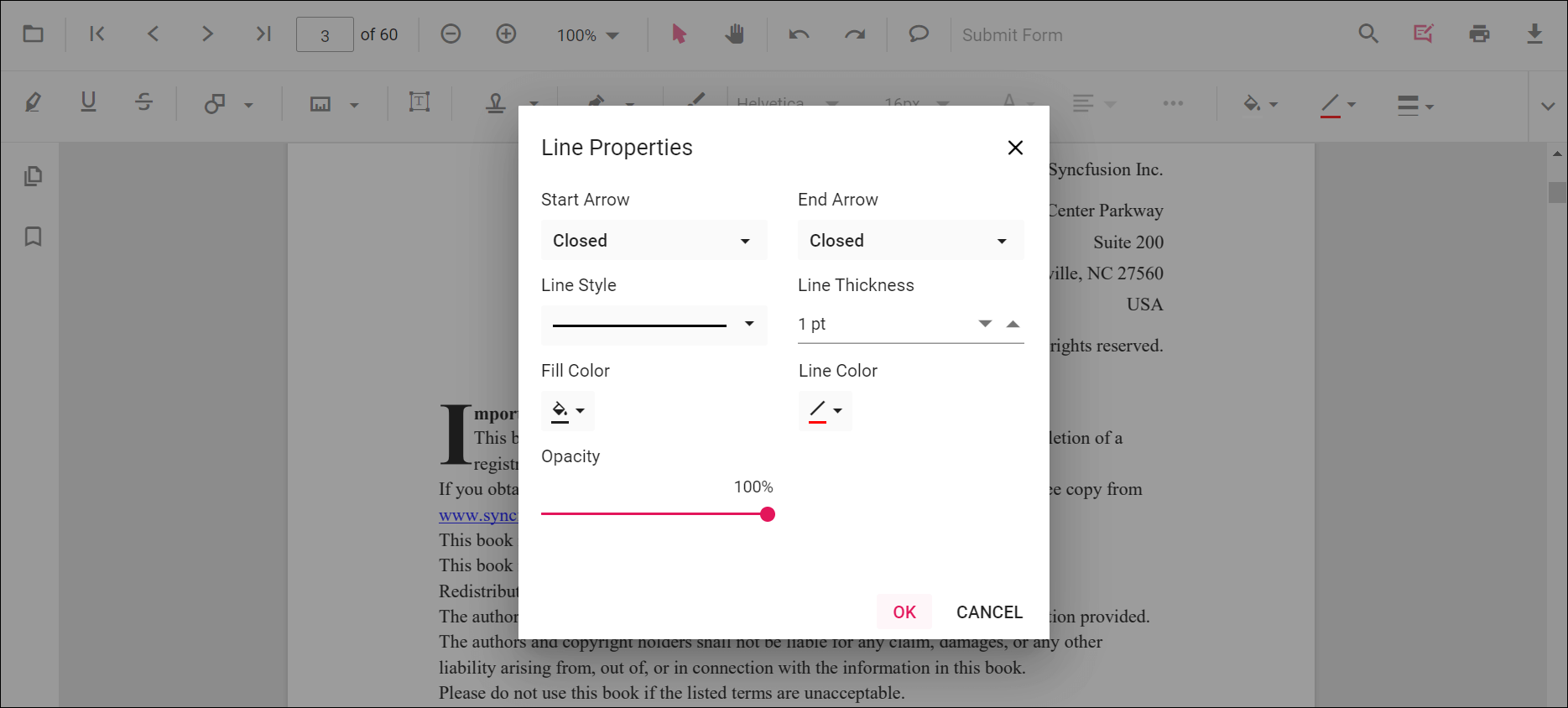
Edit line properties
Line-based measurement annotations (distance and perimeter) include additional options in the Line Properties window. Open it by right-clicking the annotation and choosing Properties.
Set default properties during initialization
Default properties for measurement annotations can be configured on the viewer before creation using the distanceSettings, perimeterSettings, areaSettings, radiusSettings, and volumeSettings properties.
The following code snippet shows how to set default measurement annotation settings on initialization.
<div style="width:100%;height:650px">
  <ejs-pdfviewer id="pdfviewer" style="height:650px" documentPath="https://cdn.syncfusion.com/content/pdf/pdf-succinctly.pdf" resourceUrl="https://cdn.syncfusion.com/ej2/31.2.2/dist/ej2-pdfviewer-lib">
  </ejs-pdfviewer>
</div>
<script>
window.onload = function () {
  var viewer = document.getElementById('pdfviewer').ej2_instances[0];
  if (viewer) {
    viewer.distanceSettings = { fillColor: 'blue', opacity: 0.6, strokeColor: 'green' };
    viewer.perimeterSettings = { fillColor: 'green', opacity: 0.6, strokeColor: 'blue' };
    viewer.areaSettings = { fillColor: 'yellow', opacity: 0.6, strokeColor: 'orange' };
    viewer.radiusSettings = { fillColor: 'orange', opacity: 0.6, strokeColor: 'pink' };
    viewer.volumeSettings = { fillColor: 'pink', opacity: 0.6, strokeColor: 'yellow' };
  }
};
</script>
<div style="width:100%;height:650px">
<ejs-pdfviewer id="pdfviewer" style="height:650px" documentPath="https://cdn.syncfusion.com/content/pdf/pdf-succinctly.pdf" serviceUrl="https://document.syncfusion.com/web-services/pdf-viewer/api/pdfviewer">
</ejs-pdfviewer>
</div>
<script>
window.onload = function () {
var viewer = document.getElementById('pdfviewer').ej2_instances[0];
if (viewer) {
viewer.distanceSettings = { fillColor: 'blue', opacity: 0.6, strokeColor: 'green' };
viewer.perimeterSettings = { fillColor: 'green', opacity: 0.6, strokeColor: 'blue' };
viewer.areaSettings = { fillColor: 'yellow', opacity: 0.6, strokeColor: 'orange' };
viewer.radiusSettings = { fillColor: 'orange', opacity: 0.6, strokeColor: 'pink' };
viewer.volumeSettings = { fillColor: 'pink', opacity: 0.6, strokeColor: 'yellow' };
}
};
</script>Scale ratio and measurement units
Modify the scale ratio and measurement unit via the Scale Ratio option in the viewer’s context menu.
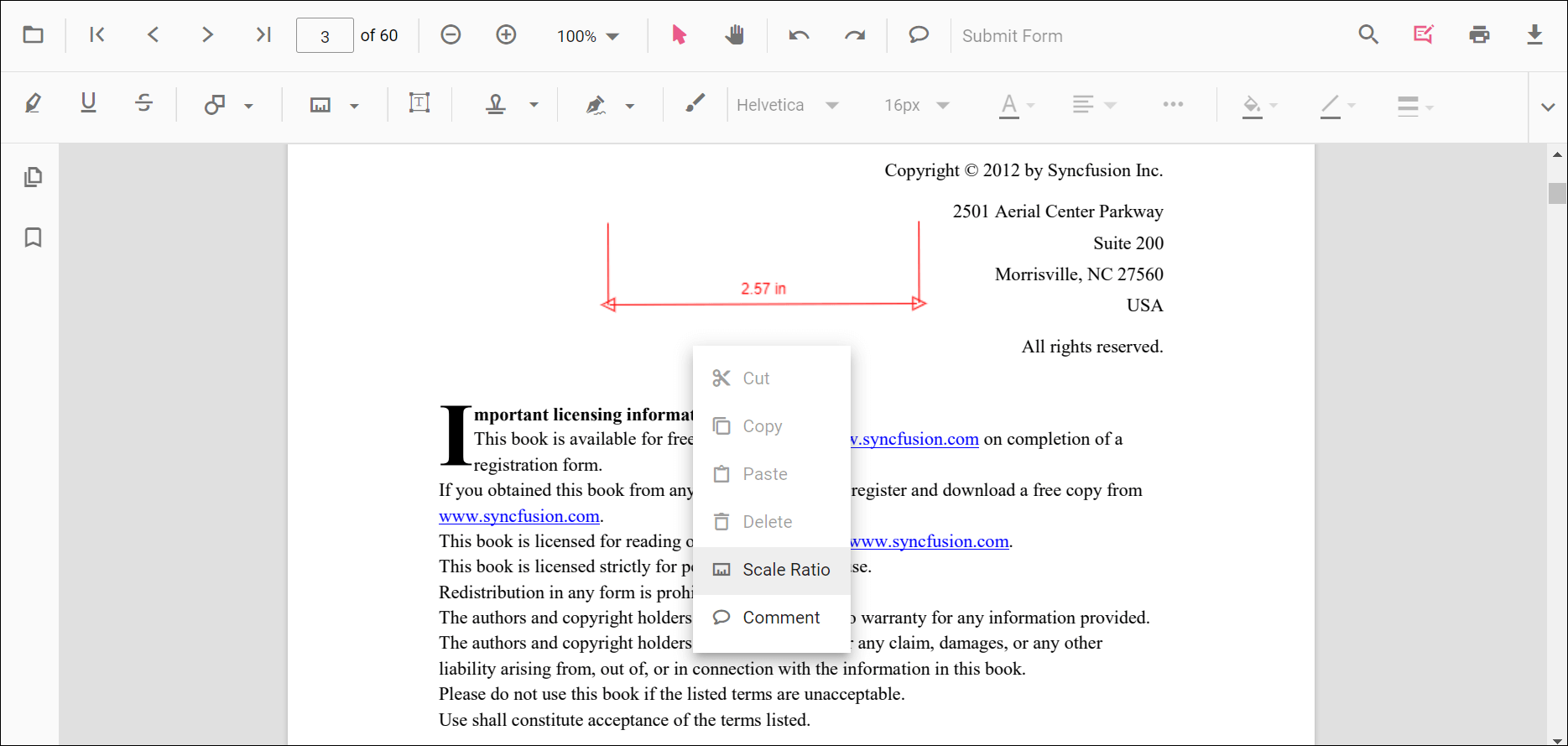
Supported units for measurement annotations:
- Inch
- Millimeter
- Centimeter
- Point
- Pica
- Feet
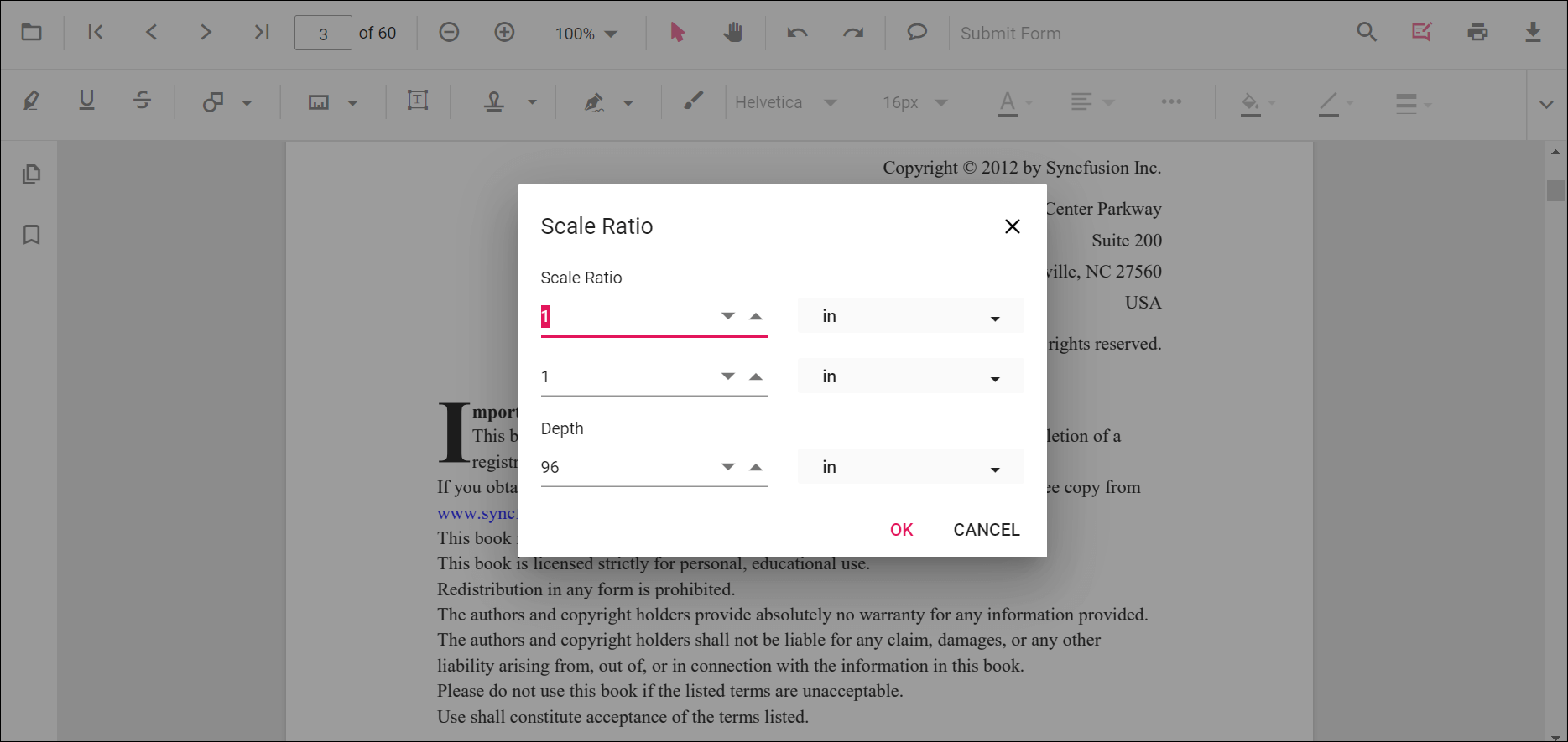
Set default scale ratio during initialization
Configure scale ratio defaults using measurementSettings (for example, scaleRatio, conversionUnit, and displayUnit) before creating the viewer. The following snippet demonstrates these settings.
<div style="width:100%;height:650px">
  <ejs-pdfviewer id="pdfviewer"
                 style="height:650px"
                 documentPath="https://cdn.syncfusion.com/content/pdf/pdf-succinctly.pdf"
                 resourceUrl="https://cdn.syncfusion.com/ej2/31.2.2/dist/ej2-pdfviewer-lib">
  </ejs-pdfviewer>
</div>
<script>
window.onload = function () {
  var viewer = document.getElementById('pdfviewer').ej2_instances[0];
  if (viewer) {
    viewer.measurementSettings = {
      scaleRatio: 2,
      conversionUnit: 'cm',
      displayUnit: 'cm'
    };
  }
};
</script>
<div style="width:100%;height:650px">
<ejs-pdfviewer id="pdfviewer"
style="height:650px"
documentPath="https://cdn.syncfusion.com/content/pdf/pdf-succinctly.pdf"
serviceUrl="/api/PdfViewer">
</ejs-pdfviewer>
</div>
<script>
window.onload = function () {
var viewer = document.getElementById('pdfviewer').ej2_instances[0];
if (viewer) {
viewer.measurementSettings = {
scaleRatio: 2,
conversionUnit: 'cm',
displayUnit: 'cm'
};
}
};
</script>