Free text annotation in ASP.NET Core PDF Viewer component
27 Apr 202612 minutes to read
The PDF Viewer provides tools to add, edit, and remove free-text annotations.
Add a free-text annotation
To add a free-text annotation:
- Click the Edit Annotation button in the PDF Viewer toolbar to reveal the annotation toolbar.
- Select the Free Text Annotation button to enter free*text annotation mode.
- Tap or click anywhere on the page to add text.
When the viewer is in pan mode, selecting the Free Text annotation switches the viewer to text-selection mode.
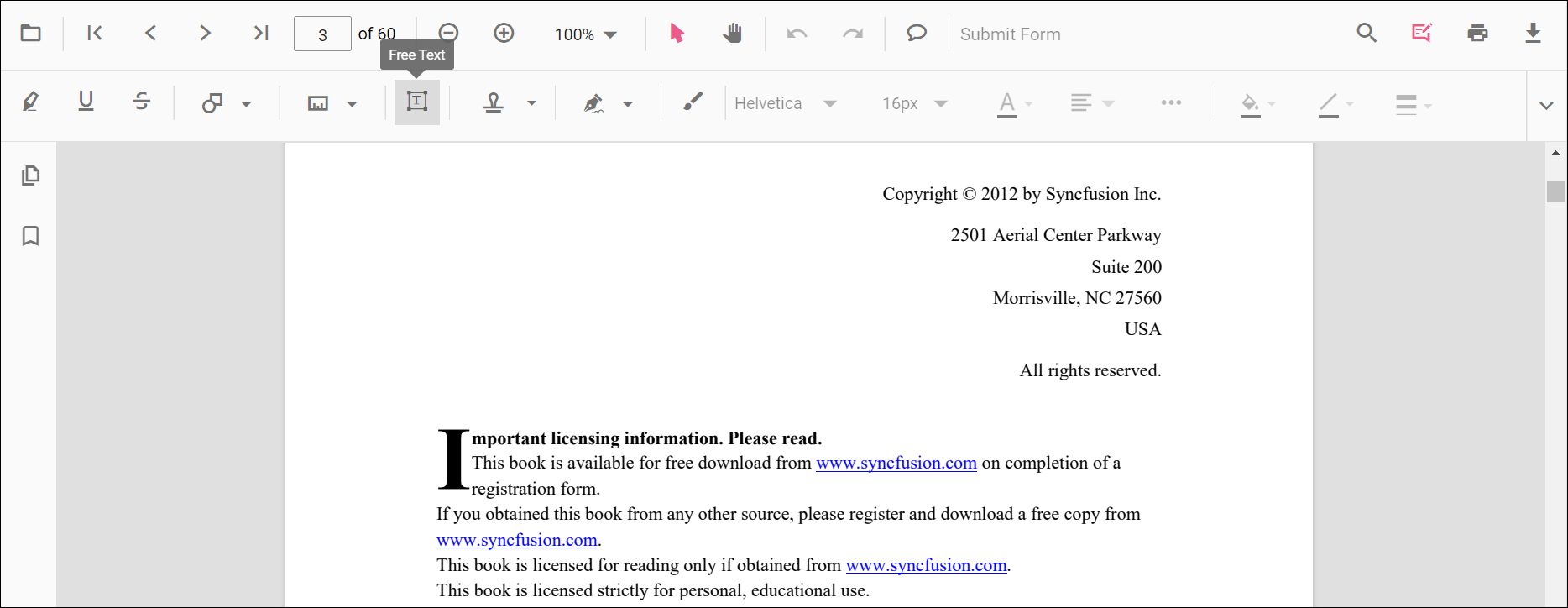
The example below shows switching to free-text annotation mode via a button click.
<div style="width:100%;height:680px">
  <button onclick="freetextMode()">FreeText</button>
  <ejs-pdfviewer id="container" style="height:600px" resourceUrl="https://cdn.syncfusion.com/ej2/31.2.2/dist/ej2-pdfviewer-lib" documentPath="https://cdn.syncfusion.com/content/pdf/pdf-succinctly.pdf"></ejs-pdfviewer>
</div>
<script>
window.onload = function() {
  var viewer = document.getElementById('container').ej2_instances[0];
};

function freetextMode() {
  var viewer = document.getElementById('container').ej2_instances[0];
  if (viewer) {
    viewer.annotation.setAnnotationMode('FreeText');
  }
}
</script>
<div style="width:100%;height:680px">
<button onclick="freetextMode()">FreeText</button>
<ejs-pdfviewer id="container" style="height:600px" serviceUrl="https://document.syncfusion.com/web-services/pdf-viewer/api/pdfviewer" documentPath="https://cdn.syncfusion.com/content/pdf/pdf-succinctly.pdf"></ejs-pdfviewer>
</div>
<script>
window.onload = function() {
var viewer = document.getElementById('container').ej2_instances[0];
};
function freetextMode() {
var viewer = document.getElementById('container').ej2_instances[0];
if (viewer) {
viewer.annotation.setAnnotationMode('FreeText');
}
}
</script>Add a free-text annotation programmatically
You can add a free-text annotation programmatically using the addAnnotation() method.
Example: add a free-text annotation using addAnnotation().
<div style="width:100%;height:680px">
  <button onclick="addAnnotation()">Add Annotation programmatically</button>
  <ejs-pdfviewer id="container" style="height:600px" resourceUrl="https://cdn.syncfusion.com/ej2/31.2.2/dist/ej2-pdfviewer-lib" documentPath="https://cdn.syncfusion.com/content/pdf/pdf-succinctly.pdf"></ejs-pdfviewer>
</div>
<script>
window.onload = function() {
  var viewer = document.getElementById('container').ej2_instances[0];
};

function addAnnotation() {
  var viewer = document.getElementById('container').ej2_instances[0];
  if (viewer) {
    viewer.annotation.addAnnotation("FreeText", {
      offset: { x: 100, y: 150 },
      fontSize: 16,
      fontFamily: "Helvetica",
      pageNumber: 1,
      width: 200,
      height: 40,
      isLock: false,
      textAlignment: 'Center',
      borderStyle: 'solid',
      borderWidth: 2,
      borderColor: 'red',
      fillColor: 'blue',
      fontColor: 'white',
      defaultText: "Syncfusion"
    });
  }
}
</script>
<div style="width:100%;height:680px">
<button onclick="addAnnotation()">Add Annotation programmatically</button>
<ejs-pdfviewer id="container" style="height:600px" serviceUrl="https://document.syncfusion.com/web-services/pdf-viewer/api/pdfviewer" documentPath="https://cdn.syncfusion.com/content/pdf/pdf-succinctly.pdf"></ejs-pdfviewer>
</div>
<script>
window.onload = function() {
var viewer = document.getElementById('container').ej2_instances[0];
};
function addAnnotation() {
var viewer = document.getElementById('container').ej2_instances[0];
if (viewer) {
viewer.annotation.addAnnotation("FreeText", {
offset: { x: 100, y: 150 },
fontSize: 16,
fontFamily: "Helvetica",
pageNumber: 1,
width: 200,
height: 40,
isLock: false,
textAlignment: 'Center',
borderStyle: 'solid',
borderWidth: 2,
borderColor: 'red',
fillColor: 'blue',
fontColor: 'white',
defaultText: "Syncfusion"
});
}
}
</script>Change the content of an existing free-text annotation programmatically
To update the content of an existing free-text annotation, use the editAnnotation() method. Example below demonstrates editing an annotation’s bounds and text.
<div style="width:100%;height:680px">
  <button onclick="editAnnotation()">Edit Annotation programmatically</button>
  <ejs-pdfviewer id="container" style="height:600px" resourceUrl="https://cdn.syncfusion.com/ej2/31.2.2/dist/ej2-pdfviewer-lib" documentPath="https://cdn.syncfusion.com/content/pdf/pdf-succinctly.pdf"></ejs-pdfviewer>
</div>
<script>
window.onload = function() {
  var viewer = document.getElementById('container').ej2_instances[0];
};

function editAnnotation() {
  var viewer = document.getElementById('container').ej2_instances[0];
  if (viewer && viewer.annotationCollection) {
    for (var i = 0; i < viewer.annotationCollection.length; i++) {
      if (viewer.annotationCollection[i].subject === "Text Box") {
        var width = viewer.annotationCollection[i].bounds.width;
        var height = viewer.annotationCollection[i].bounds.height;
        viewer.annotationCollection[i].bounds = { x: 100, y: 100, width: width, height: height };
        viewer.annotationCollection[i].dynamicText = 'syncfusion';
        viewer.annotation.editAnnotation(viewer.annotationCollection[i]);
      }
    }
  }
}
</script>
<div style="width:100%;height:680px">
<button onclick="editAnnotation()">Edit Annotation programmatically</button>
<ejs-pdfviewer id="container" style="height:600px" serviceUrl="https://document.syncfusion.com/web-services/pdf-viewer/api/pdfviewer" documentPath="https://cdn.syncfusion.com/content/pdf/pdf-succinctly.pdf"></ejs-pdfviewer>
</div>
<script>
window.onload = function() {
var viewer = document.getElementById('container').ej2_instances[0];
};
function editAnnotation() {
var viewer = document.getElementById('container').ej2_instances[0];
if (viewer && viewer.annotationCollection) {
for (var i = 0; i < viewer.annotationCollection.length; i++) {
if (viewer.annotationCollection[i].subject === "Text Box") {
var width = viewer.annotationCollection[i].bounds.width;
var height = viewer.annotationCollection[i].bounds.height;
viewer.annotationCollection[i].bounds = { x: 100, y: 100, width: width, height: height };
viewer.annotationCollection[i].dynamicText = 'syncfusion';
viewer.annotation.editAnnotation(viewer.annotationCollection[i]);
}
}
}
}
</script>NOTE
The PDF Viewer does not edit original document text. You can add and modify free-text annotations only.
Edit free-text annotation properties
Use the annotation toolbar to configure font family, size, style, font color, text alignment, fill color, stroke color, border thickness, and opacity.
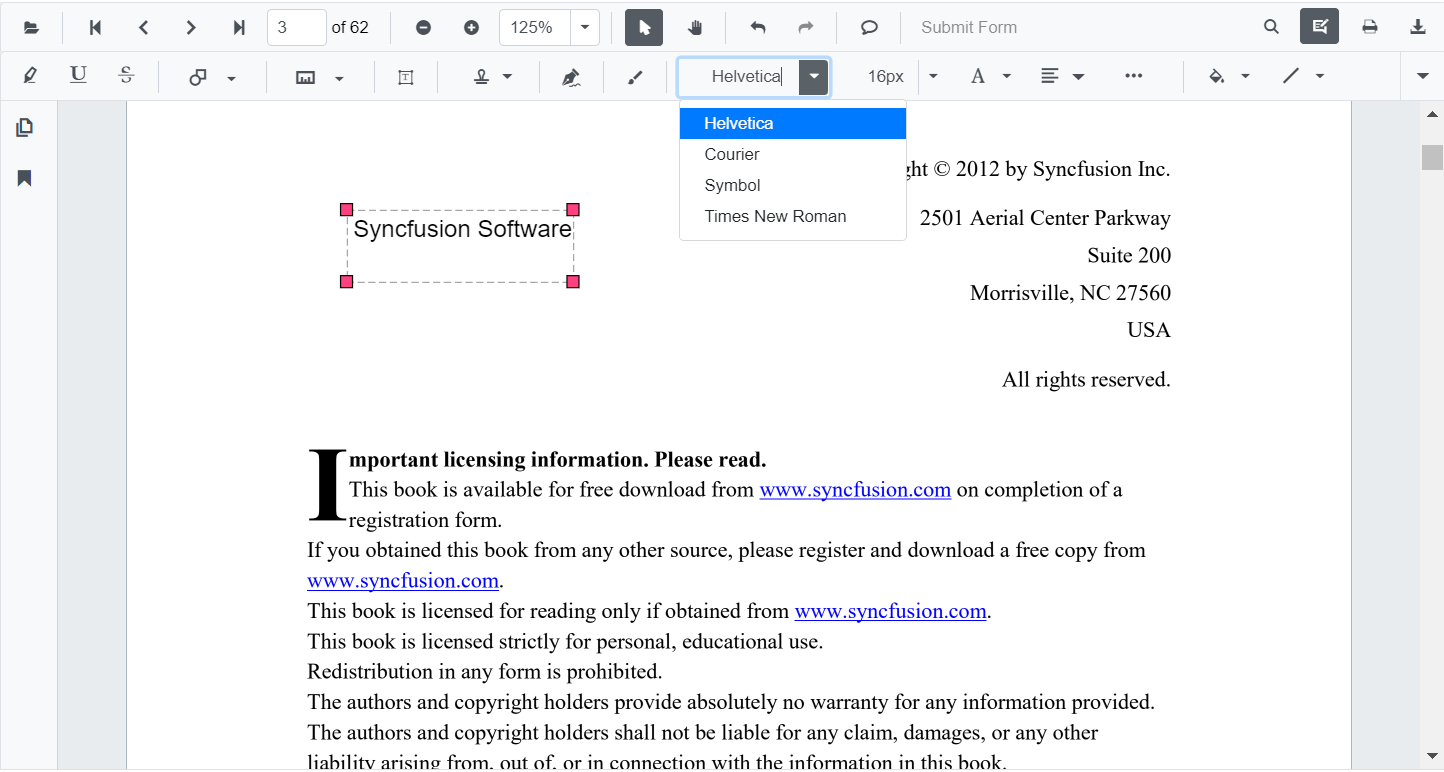
Font family
Choose a font from the Font Family tool.
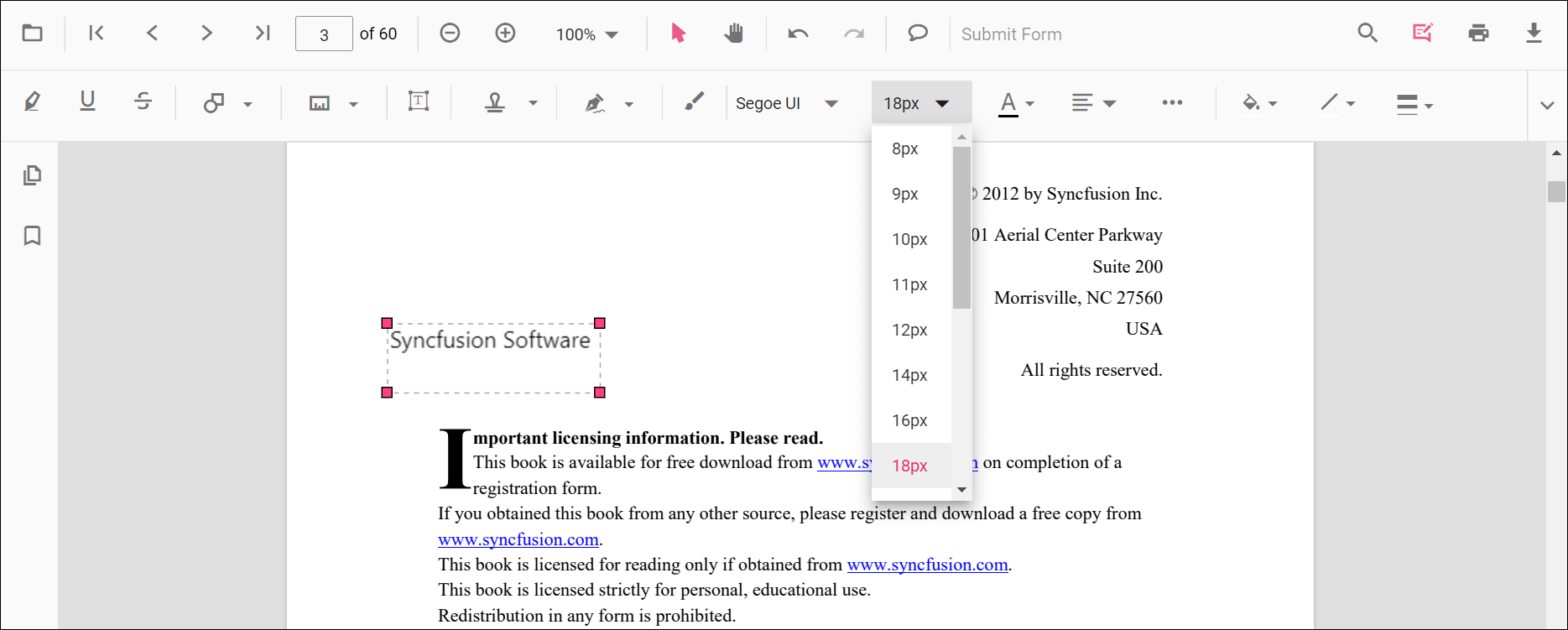
Font size
Select a size in the Font Size tool.
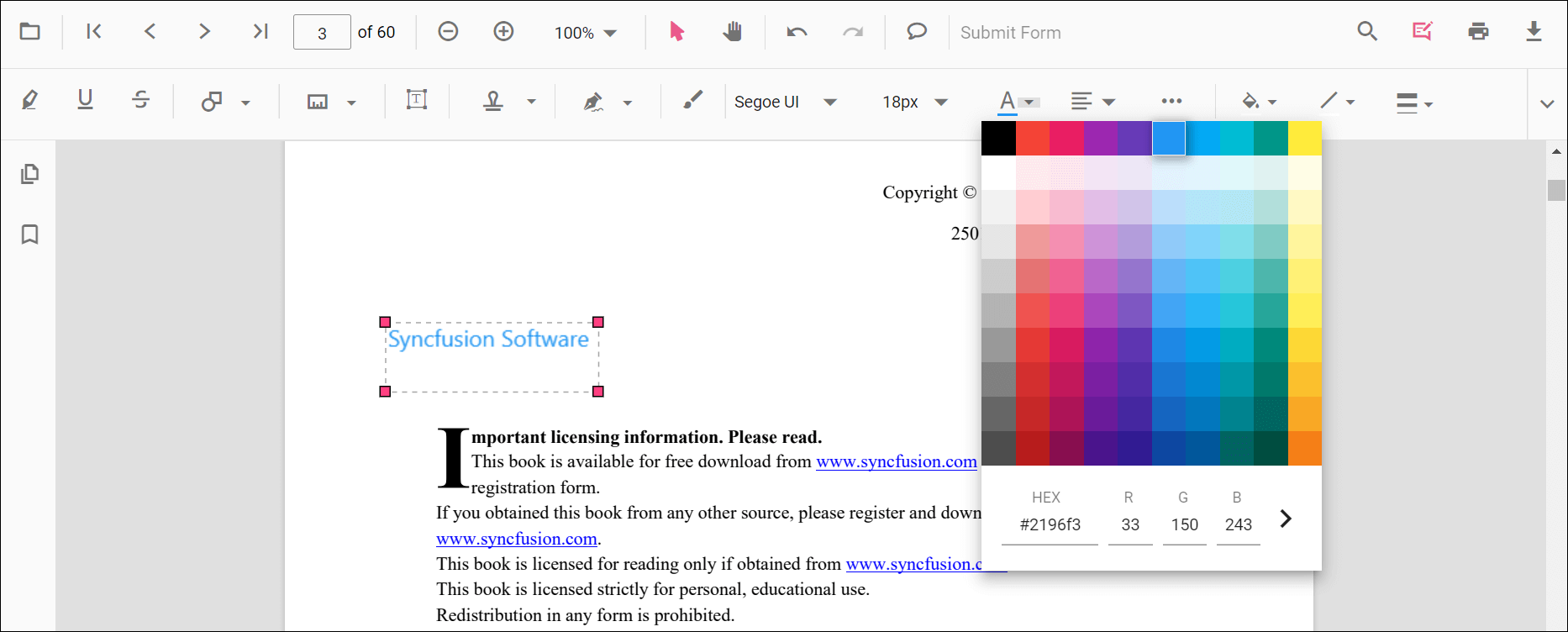
Font color
Pick a color from the Font Color palette.
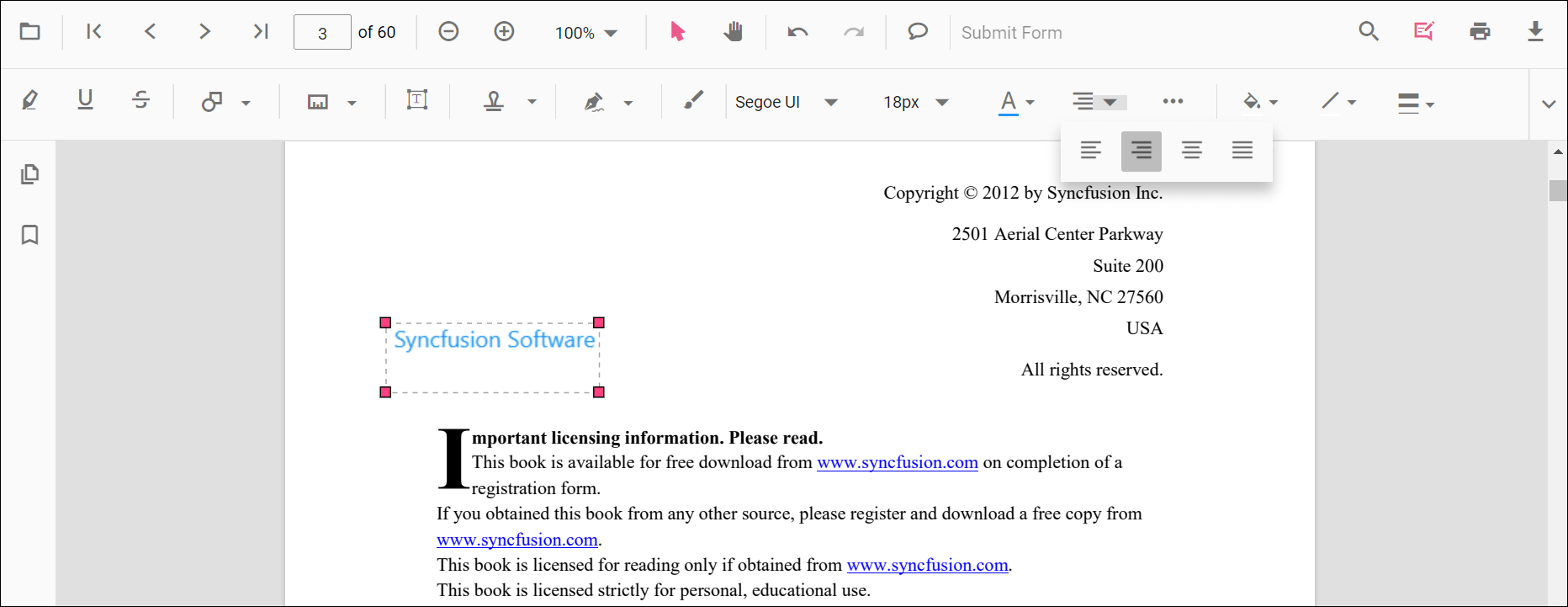
Text alignment
Set alignment using the Text Align tool.
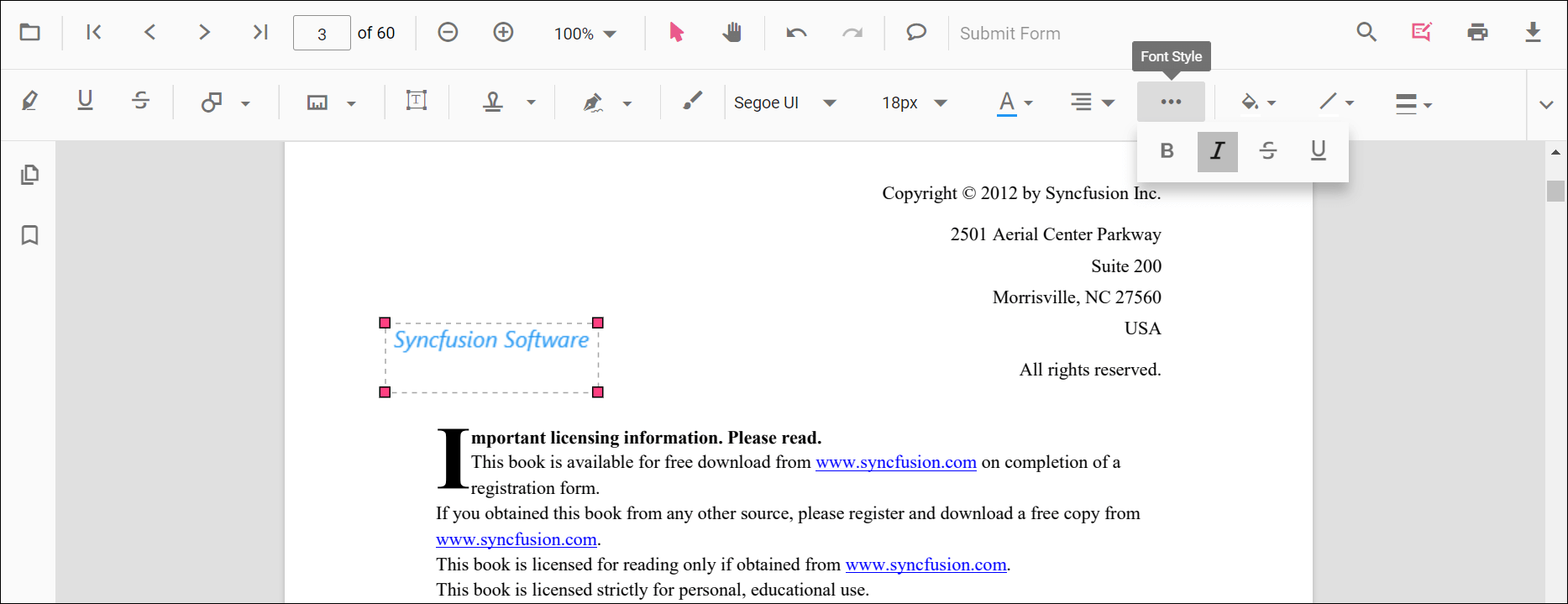
Text styles
Toggle styles in the Font Style tool.
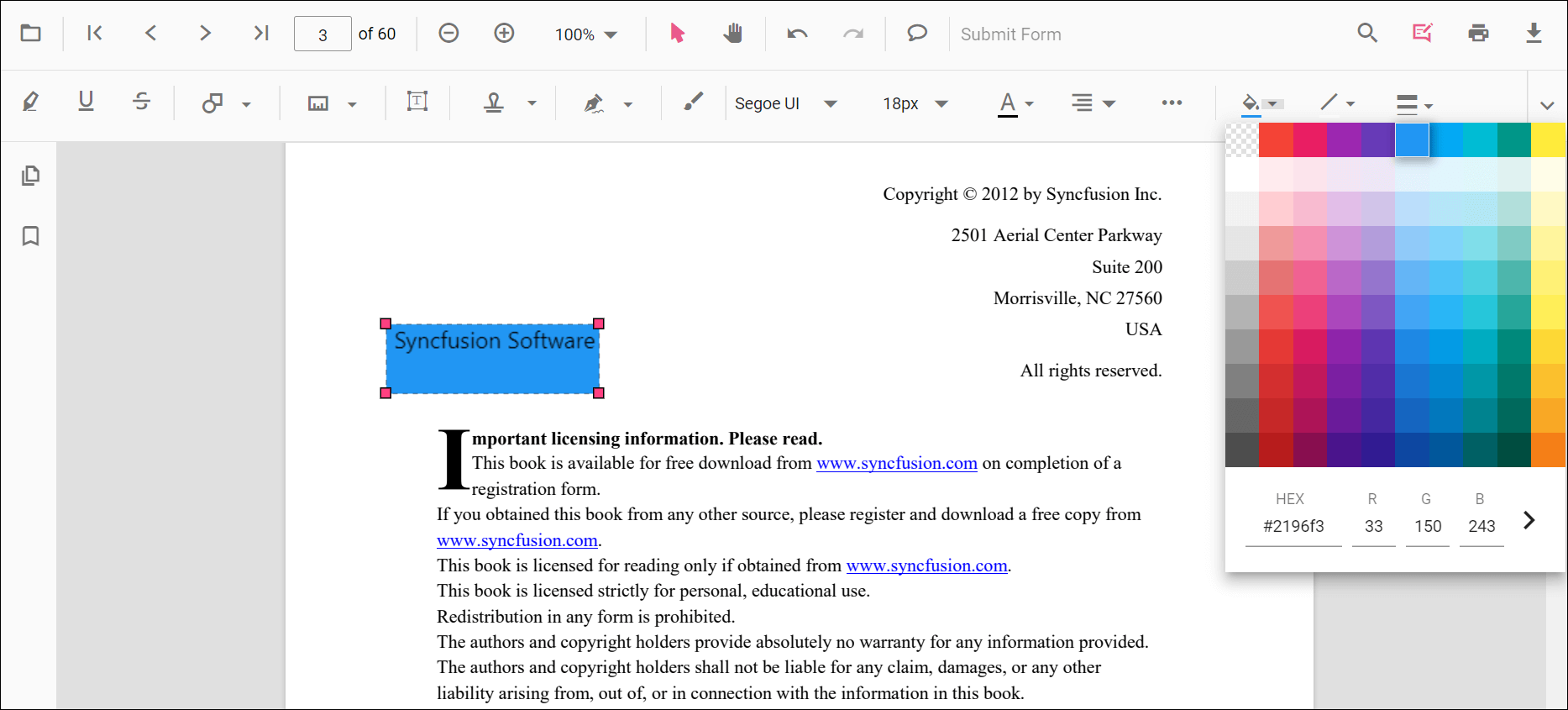
Fill color
Set the annotation’s fill color with the Edit Color tool.
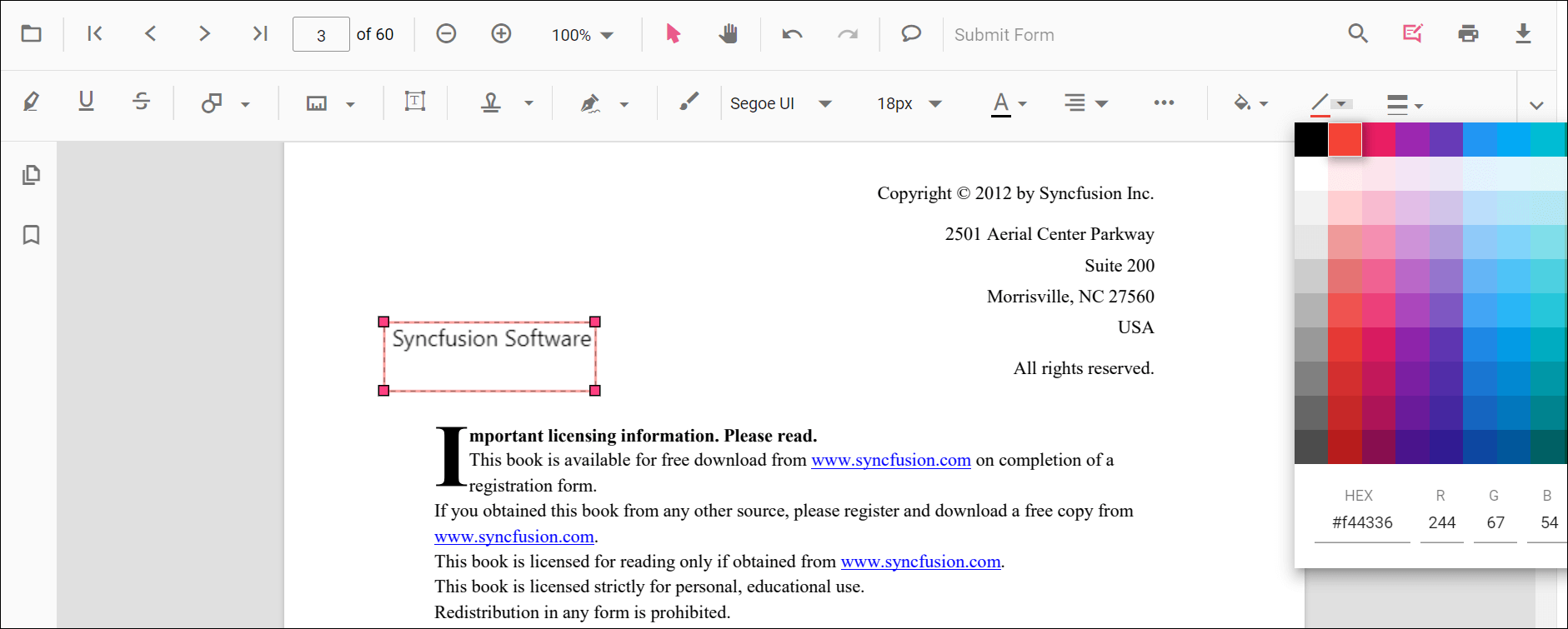
Stroke color
Set the stroke color with the Edit Stroke Color tool.
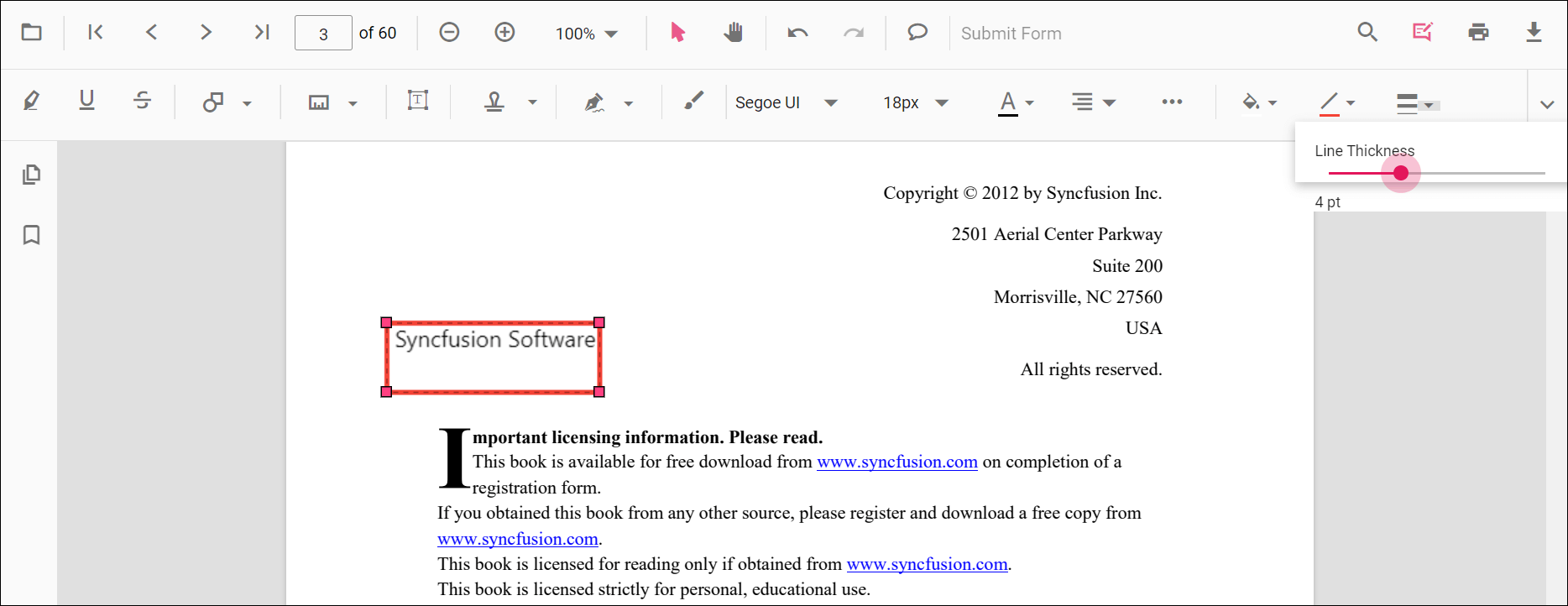
Thickness
Adjust border thickness with the Edit Thickness slider.
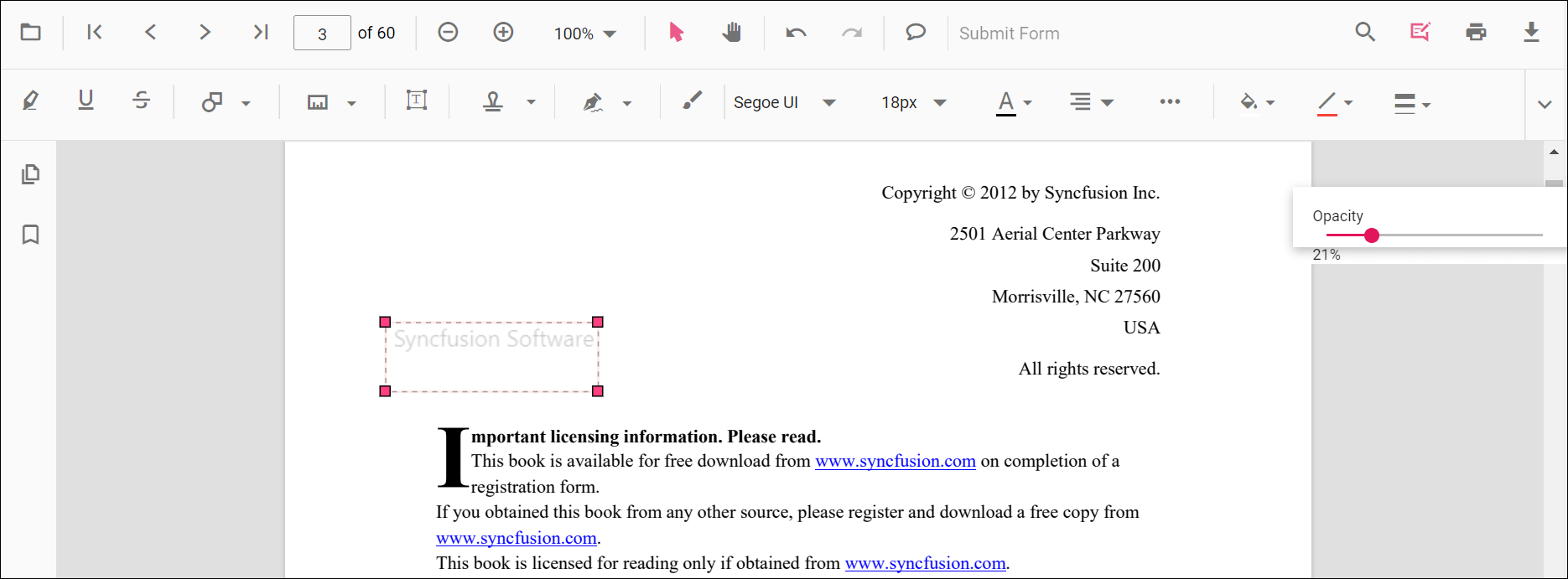
Opacity
Adjust opacity with the Edit Opacity slider.
Set default properties during control initialization
Set default properties for free-text annotations using freeTextSettings when initializing the control. The selected defaults are applied when annotations are created. The example below sets default values.
<div style="width:100%;height:680px">
  <ejs-pdfviewer id="container" style="height:600px" resourceUrl="https://cdn.syncfusion.com/ej2/31.2.2/dist/ej2-pdfviewer-lib" documentPath="https://cdn.syncfusion.com/content/pdf/pdf-succinctly.pdf"></ejs-pdfviewer>
</div>
<script>
window.onload = function() {
  var viewer = document.getElementById('container').ej2_instances[0];
  if (viewer) {
    viewer.freeTextSettings = {
      fillColor: 'green',
      borderColor: 'blue',
      fontColor: 'yellow'
    };
  }
};
</script>
<div style="width:100%;height:680px">
<ejs-pdfviewer id="container" style="height:600px" serviceUrl="https://document.syncfusion.com/web-services/pdf-viewer/api/pdfviewer" documentPath="https://cdn.syncfusion.com/content/pdf/pdf-succinctly.pdf"></ejs-pdfviewer>
</div>
<script>
window.onload = function() {
var viewer = document.getElementById('container').ej2_instances[0];
if (viewer) {
viewer.freeTextSettings = {
fillColor: 'green',
borderColor: 'blue',
fontColor: 'yellow'
};
}
};
</script>You can also enable the autofit support for free text annotation by using the enableAutoFit boolean property in freeTextSettings as below. The width of the free text rectangle box will be increased based on the text added to it.
<div style="width:100%;height:680px">
  <ejs-pdfviewer id="container" style="height:600px" resourceUrl="https://cdn.syncfusion.com/ej2/31.2.2/dist/ej2-pdfviewer-lib" documentPath="https://cdn.syncfusion.com/content/pdf/pdf-succinctly.pdf"></ejs-pdfviewer>
</div>
<script>
window.onload = function() {
  var viewer = document.getElementById('container').ej2_instances[0];
  if (viewer) {
    viewer.freeTextSettings = {
      enableAutoFit: true
    };
  }
};
</script>
<div style="width:100%;height:680px">
<ejs-pdfviewer id="container" style="height:600px" serviceUrl="https://document.syncfusion.com/web-services/pdf-viewer/api/pdfviewer" documentPath="https://cdn.syncfusion.com/content/pdf/pdf-succinctly.pdf"></ejs-pdfviewer>
</div>
<script>
window.onload = function() {
var viewer = document.getElementById('container').ej2_instances[0];
if (viewer) {
viewer.freeTextSettings = {
enableAutoFit: true
};
}
};
</script>