Navigation in Angular PDF Viewer
14 Aug 202622 minutes to read
The Angular PDF Viewer supports several internal and external navigation methods.
Toolbar page navigation option
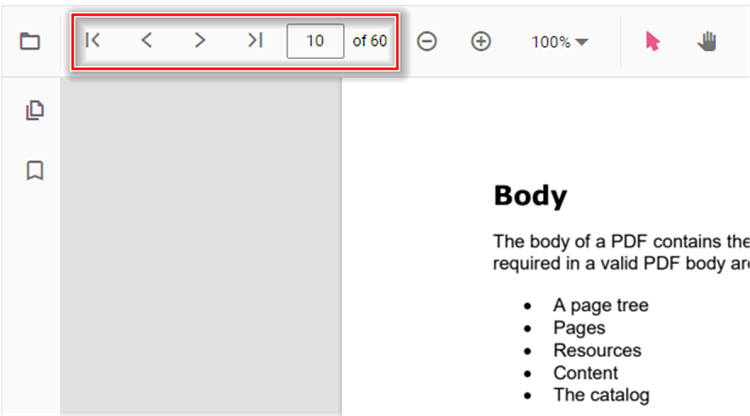
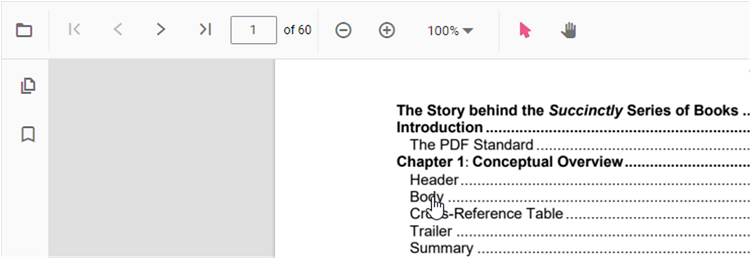
The default toolbar of PDF Viewer contains the following navigation options
- Go to page:- Navigates to the specific page of a PDF document.
- Show next page:- Navigates to the next page of a PDF document.
- Show previous page:- Navigates to the previous page of a PDF document.
- Show first page:- Navigates to the first page of a PDF document.
- Show last page:- Navigates to the last page of a PDF document.
You can enable or disable page navigation in the PDF Viewer using the following code snippet.
import { Component, OnInit } from '@angular/core';
import { LinkAnnotationService, BookmarkViewService, MagnificationService,
         ThumbnailViewService, ToolbarService,  NavigationService,
         TextSearchService, AnnotationService, TextSelectionService,
         PrintService
       } from '@syncfusion/ej2-angular-pdfviewer';

@Component({
  selector: 'app-container',
  // specifies the template string for the PDF Viewer component
  template: `<div class="content-wrapper">
                <ejs-pdfviewer id="pdfViewer"
                          [documentPath]='document'
                          [enableNavigation]='true'
                          style="height:640px;display:block">
                </ejs-pdfviewer>
              </div>`,
  providers: [ LinkAnnotationService, BookmarkViewService, MagnificationService,
               ThumbnailViewService, ToolbarService, NavigationService,
               AnnotationService, TextSearchService, TextSelectionService,
               PrintService]
  })
  export class AppComponent implements OnInit {
      public document = 'https://cdn.syncfusion.com/content/pdf/pdf-succinctly.pdf';
  }
import { Component, OnInit } from '@angular/core';
import { LinkAnnotationService, BookmarkViewService, MagnificationService,
ThumbnailViewService, ToolbarService, NavigationService,
TextSearchService, AnnotationService, TextSelectionService,
PrintService
} from '@syncfusion/ej2-angular-pdfviewer';
@Component({
selector: 'app-container',
// specifies the template string for the PDF Viewer component
template: `<div class="content-wrapper">
<ejs-pdfviewer id="pdfViewer"
[serviceUrl]='service'
[documentPath]='document'
[enableNavigation]='true'
style="height:640px;display:block">
</ejs-pdfviewer>
</div>`,
providers: [ LinkAnnotationService, BookmarkViewService, MagnificationService,
ThumbnailViewService, ToolbarService, NavigationService,
AnnotationService, TextSearchService, TextSelectionService,
PrintService]
})
export class AppComponent implements OnInit {
public service = 'https://document.syncfusion.com/web-services/pdf-viewer/api/pdfviewer';
public document = 'https://cdn.syncfusion.com/content/pdf/pdf-succinctly.pdf';
}
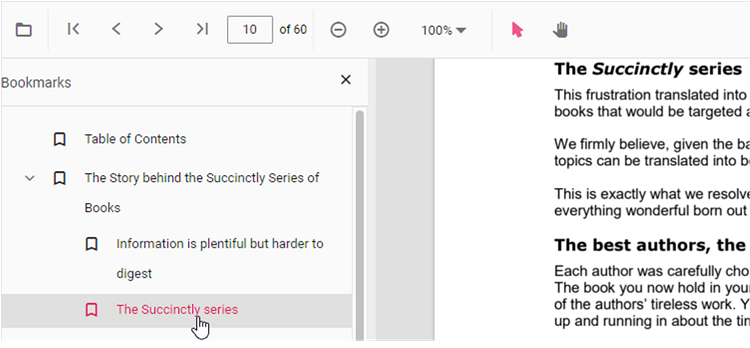
Bookmark navigation
Bookmarks stored in a PDF are loaded for quick navigation to document sections. You can enable or disable bookmark navigation using the following code snippet.
import { Component, OnInit } from '@angular/core';
import { LinkAnnotationService, BookmarkViewService, MagnificationService,
         ThumbnailViewService,ToolbarService, NavigationService,
         TextSearchService, AnnotationService, TextSelectionService,
         PrintService
       } from '@syncfusion/ej2-angular-pdfviewer';

@Component({
  selector: 'app-container',
  // specifies the template string for the PDF Viewer component
  template: `<div class="content-wrapper">
                <ejs-pdfviewer id="pdfViewer"
                            [documentPath]='document'
                            [enableBookmark]='true'
                            style="height:640px;display:block">
                </ejs-pdfviewer>
            </div>`,
  providers: [ LinkAnnotationService, BookmarkViewService, MagnificationService,
               ThumbnailViewService, ToolbarService, NavigationService,
               AnnotationService, TextSearchService, TextSelectionService,
               PrintService]
})
export class AppComponent implements OnInit {
  public document = 'https://cdn.syncfusion.com/content/pdf/pdf-succinctly.pdf';
}
import { Component, OnInit } from '@angular/core';
import { LinkAnnotationService, BookmarkViewService, MagnificationService,
ThumbnailViewService,ToolbarService, NavigationService,
TextSearchService, AnnotationService, TextSelectionService,
PrintService
} from '@syncfusion/ej2-angular-pdfviewer';
@Component({
selector: 'app-container',
// specifies the template string for the PDF Viewer component
template: `<div class="content-wrapper">
<ejs-pdfviewer id="pdfViewer"
[serviceUrl]='service'
[documentPath]='document'
[enableBookmark]='true'
style="height:640px;display:block">
</ejs-pdfviewer>
</div>`,
providers: [ LinkAnnotationService, BookmarkViewService, MagnificationService,
ThumbnailViewService, ToolbarService, NavigationService,
AnnotationService, TextSearchService, TextSelectionService,
PrintService]
})
export class AppComponent implements OnInit {
public service = 'https://document.syncfusion.com/web-services/pdf-viewer/api/pdfviewer';
public document = 'https://cdn.syncfusion.com/content/pdf/pdf-succinctly.pdf';
}
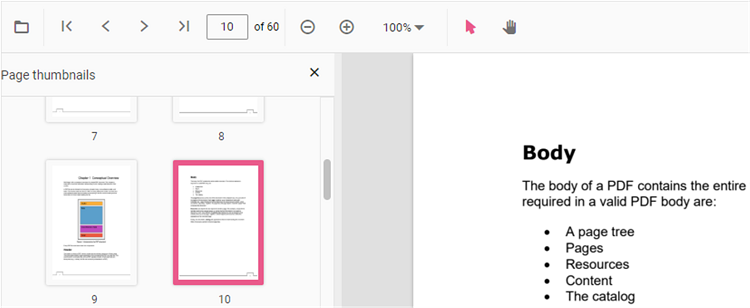
Thumbnail navigation
Thumbnails are miniature representations of PDF pages. This feature displays page thumbnails to help users jump directly to a page. You can enable or disable thumbnail navigation using the following code snippet.
import { Component, OnInit } from '@angular/core';
import { LinkAnnotationService, BookmarkViewService, MagnificationService,
         ThumbnailViewService, ToolbarService, NavigationService,
         TextSearchService, AnnotationService, TextSelectionService,
         PrintService
       } from '@syncfusion/ej2-angular-pdfviewer';
@Component({
  selector: 'app-container',
  // specifies the template string for the PDF Viewer component
  template: `<div class="content-wrapper">
                <ejs-pdfviewer id="pdfViewer"
                            [documentPath]='document'
                            [enableThumbnail]='true'
                            style="height:640px;display:block">
                </ejs-pdfviewer>
            </div>`,
  providers: [ LinkAnnotationService, BookmarkViewService, MagnificationService,
               ThumbnailViewService, ToolbarService, NavigationService,
               AnnotationService,TextSearchService,TextSelectionService,
               PrintService]
  })
  export class AppComponent implements OnInit {
      public document = 'https://cdn.syncfusion.com/content/pdf/pdf-succinctly.pdf';
  }
import { Component, OnInit } from '@angular/core';
import { LinkAnnotationService, BookmarkViewService, MagnificationService,
ThumbnailViewService, ToolbarService, NavigationService,
TextSearchService, AnnotationService, TextSelectionService,
PrintService
} from '@syncfusion/ej2-angular-pdfviewer';
@Component({
selector: 'app-container',
// specifies the template string for the PDF Viewer component
template: `<div class="content-wrapper">
<ejs-pdfviewer id="pdfViewer"
[serviceUrl]='service'
[documentPath]='document'
[enableThumbnail]='true'
style="height:640px;display:block">
</ejs-pdfviewer>
</div>`,
providers: [ LinkAnnotationService, BookmarkViewService, MagnificationService,
ThumbnailViewService, ToolbarService, NavigationService,
AnnotationService,TextSearchService,TextSelectionService,
PrintService]
})
export class AppComponent implements OnInit {
public service = 'https://document.syncfusion.com/web-services/pdf-viewer/api/pdfviewer';
public document = 'https://cdn.syncfusion.com/content/pdf/pdf-succinctly.pdf';
}
Hyperlink navigation
Hyperlink navigation enables opening external URLs embedded in a PDF file.
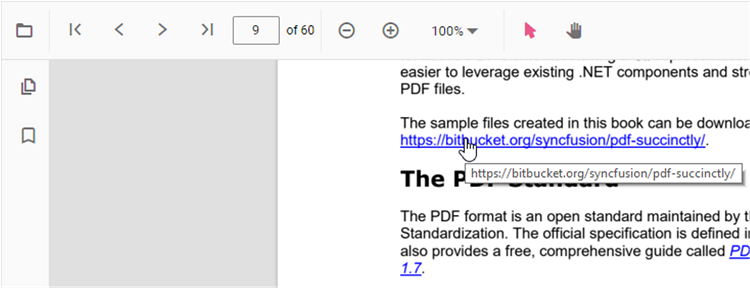
Table of contents navigation
Table of contents navigation allows users to jump to sections listed in the PDF’s table of contents. You can enable or disable table of contents navigation using the following code snippet.
import { Component, OnInit } from '@angular/core';
  import { LinkAnnotationService,BookmarkViewService, MagnificationService,
           ThumbnailViewService, ToolbarService, NavigationService,
           TextSearchService, AnnotationService, TextSelectionService,
           PrintService
         } from '@syncfusion/ej2-angular-pdfviewer';
  @Component({
    selector: 'app-container',
    // specifies the template string for the PDF Viewer component
    template: `<div class="content-wrapper">
                 <ejs-pdfviewer id="pdfViewer"
                         [documentPath]='document'
                         [enableHyperlink]='true'
                         style="height:640px;display:block">
                 </ejs-pdfviewer>
               </div>`,
    providers: [ LinkAnnotationService, BookmarkViewService, MagnificationService,
                 ThumbnailViewService, ToolbarService, NavigationService,
                 AnnotationService, TextSearchService, TextSelectionService,
                 PrintService]
    })
    export class AppComponent implements OnInit {
      public document = 'https://cdn.syncfusion.com/content/pdf/pdf-succinctly.pdf';
    }
import { Component, OnInit } from '@angular/core';
import { LinkAnnotationService,BookmarkViewService, MagnificationService,
ThumbnailViewService, ToolbarService, NavigationService,
TextSearchService, AnnotationService, TextSelectionService,
PrintService
} from '@syncfusion/ej2-angular-pdfviewer';
@Component({
selector: 'app-container',
// specifies the template string for the PDF Viewer component
template: `<div class="content-wrapper">
<ejs-pdfviewer id="pdfViewer"
[serviceUrl]='service'
[documentPath]='document'
[enableHyperlink]='true'
style="height:640px;display:block">
</ejs-pdfviewer>
</div>`,
providers: [ LinkAnnotationService, BookmarkViewService, MagnificationService,
ThumbnailViewService, ToolbarService, NavigationService,
AnnotationService, TextSearchService, TextSelectionService,
PrintService]
})
export class AppComponent implements OnInit {
public service = 'https://document.syncfusion.com/web-services/pdf-viewer/api/pdfviewer';
public document = 'https://cdn.syncfusion.com/content/pdf/pdf-succinctly.pdf';
}You can change how hyperlinks open in the PDF Viewer (for example, in a new tab) using the following code snippet.
import { Component, OnInit } from '@angular/core';
import { LinkAnnotationService, BookmarkViewService, MagnificationService,
         ThumbnailViewService, ToolbarService, NavigationService,
         TextSearchService, AnnotationService, TextSelectionService,
         PrintService
       } from '@syncfusion/ej2-angular-pdfviewer';
@Component({
  selector: 'app-container',
  // specifies the template string for the PDF Viewer component
  template: `<div class="content-wrapper">
                <ejs-pdfviewer id="pdfViewer"
                              [documentPath]='document'
                              [hyperlinkOpenState]='linkOpenState'
                              style="height:640px;display:block">
                </ejs-pdfviewer>
              </div>`,
  providers: [ LinkAnnotationService, BookmarkViewService, MagnificationService,
               ThumbnailViewService, ToolbarService, NavigationService,
               AnnotationService, TextSearchService, TextSelectionService,
               PrintService]
  })
  export class AppComponent implements OnInit {
      public document = 'https://cdn.syncfusion.com/content/pdf/pdf-succinctly.pdf';
      public linkOpenState = 'NewTab';
  }
import { Component, OnInit } from '@angular/core';
import { LinkAnnotationService, BookmarkViewService, MagnificationService,
ThumbnailViewService, ToolbarService, NavigationService,
TextSearchService, AnnotationService, TextSelectionService,
PrintService
} from '@syncfusion/ej2-angular-pdfviewer';
@Component({
selector: 'app-container',
// specifies the template string for the PDF Viewer component
template: `<div class="content-wrapper">
<ejs-pdfviewer id="pdfViewer"
[serviceUrl]='service'
[documentPath]='document'
[hyperlinkOpenState]='linkOpenState'
style="height:640px;display:block">
</ejs-pdfviewer>
</div>`,
providers: [ LinkAnnotationService, BookmarkViewService, MagnificationService,
ThumbnailViewService, ToolbarService, NavigationService,
AnnotationService, TextSearchService, TextSelectionService,
PrintService]
})
export class AppComponent implements OnInit {
public service = 'https://document.syncfusion.com/web-services/pdf-viewer/api/pdfviewer';
public document = 'https://cdn.syncfusion.com/content/pdf/pdf-succinctly.pdf';
public linkOpenState = 'NewTab';
}
Keyboard navigation with Tab and Shift+Tab keys
The Syncfusion® PDF Viewer supports keyboard navigation across form fields using the Tab and Shift+Tab keys, allowing users to move focus forward and backward through form fields when filling forms.
Pressing Tab moves focus to the next form field in document order.

Pressing Shift+Tab moves focus to the previous form field in document order.
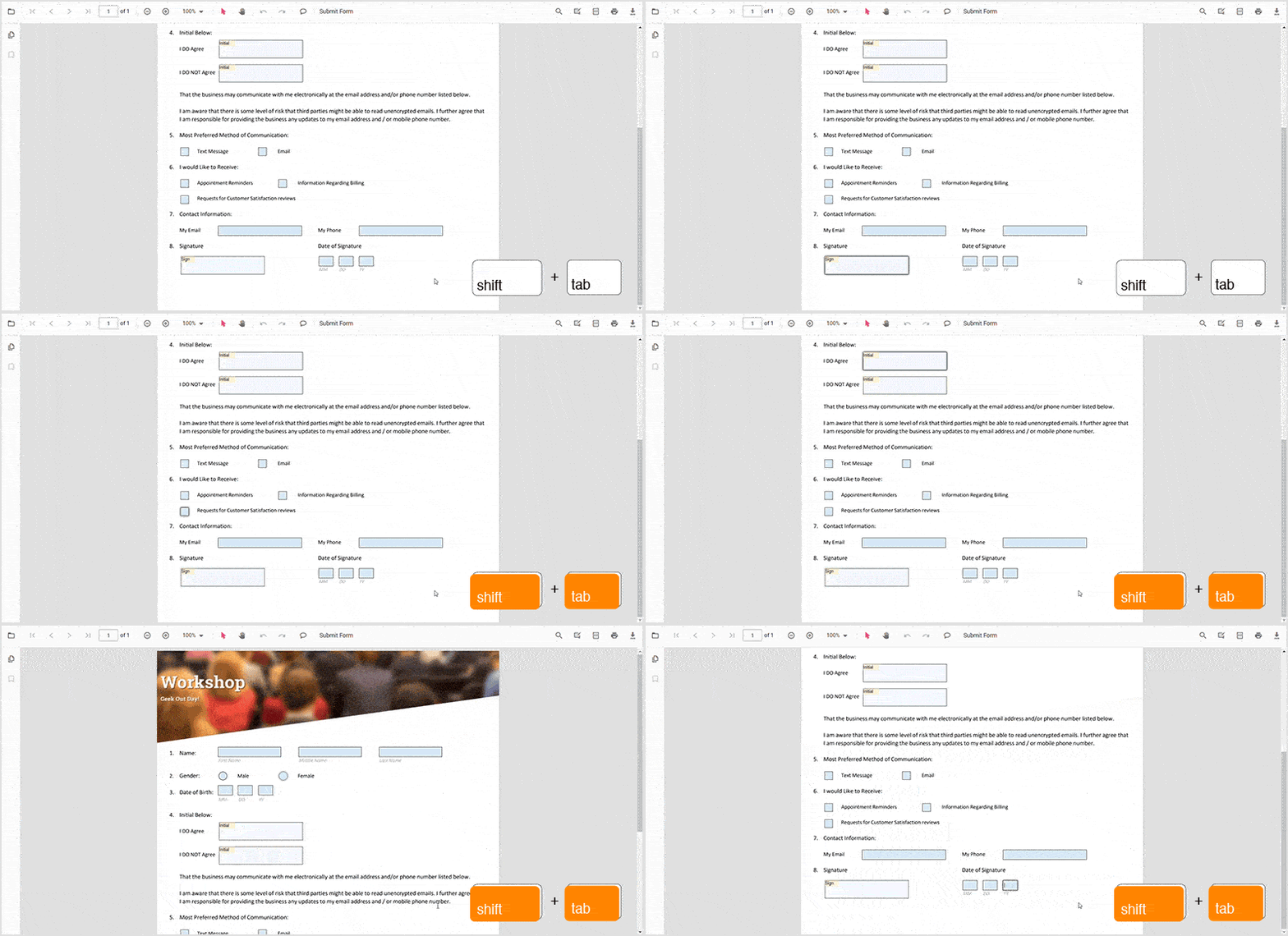
The tab order is defined by the order of form fields in the PDF file.