Preprocess PDF Document in Angular PDF Viewer
14 Aug 20268 minutes to read
This section explains why preprocessing is useful, what operations you can perform using the Syncfusion PDF Library, and how to load the processed document in the Angular PDF Viewer.
Why Preprocessing Is Needed
Preprocessing a PDF before sending it to the viewer helps you:
- Reduce file size and improve load time
- Merge multiple documents into one
- Extract only required pages for faster loading
- Flatten form fields and annotations for performance & security
- Apply branding elements such as watermarks or stamps
These enhancements ensure a better, faster, and more controlled viewing experience.
Merge PDF Documents
UI-Level Merging
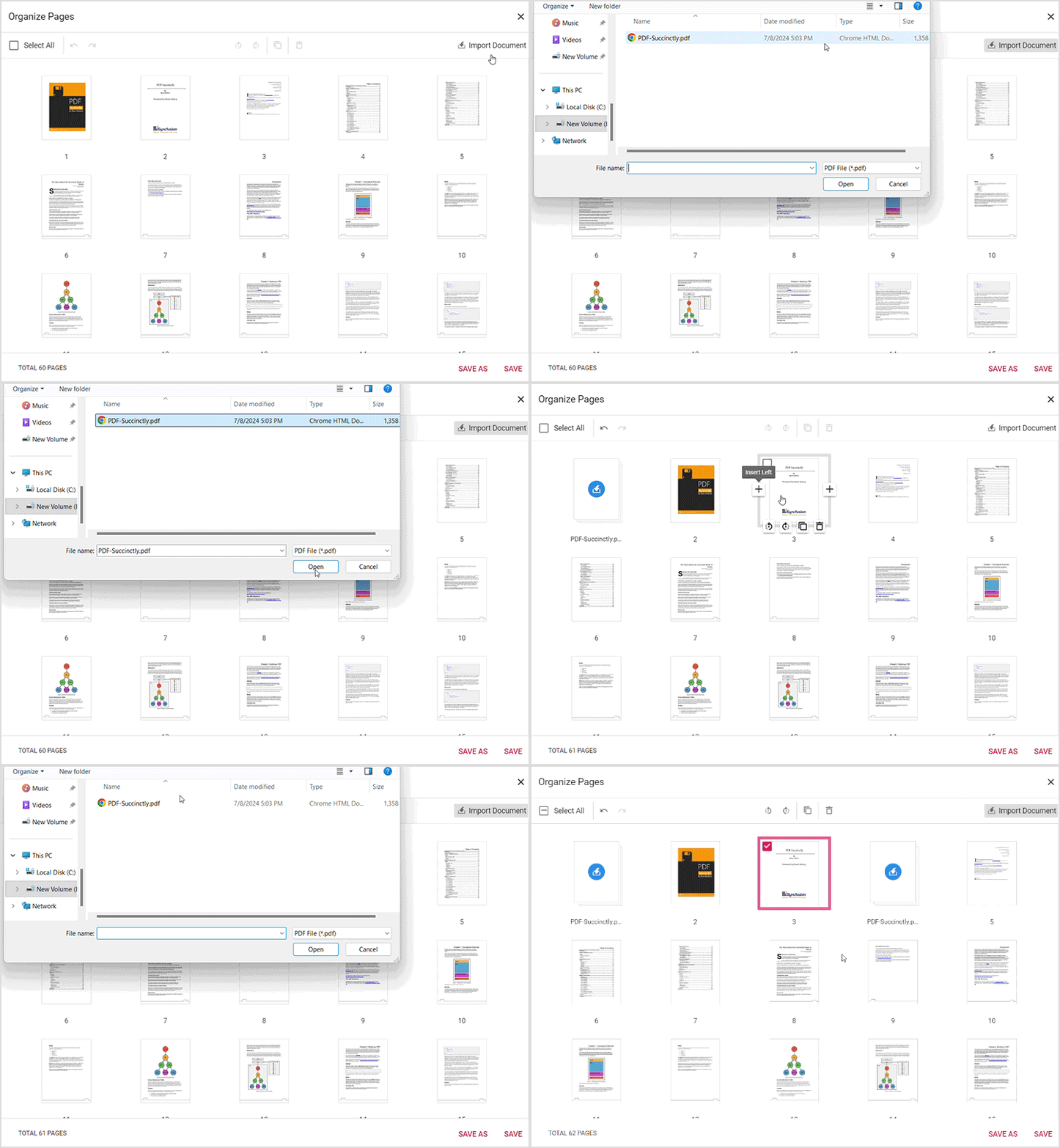
You can visually merge pages in the Organize Pages UI inside the PDF Viewer. Users can import another PDF, insert its pages into the current file, reorder pages, or delete unwanted pages.
Programmatically Merge PDFs
Using the Syncfusion PDF Library, you can merge documents before loading them into the viewer.
import { PdfDocument } from '@syncfusion/ej2-pdf';

const document1 = await PdfDocument.load('file1.pdf');
const document2 = await PdfDocument.load('file2.pdf');

document1.merge(document2);
const mergedBytes = await document1.save();
You can then load the merged PDF into the viewer using Blob or Base64.
Extract Pages
UI-Level Extraction
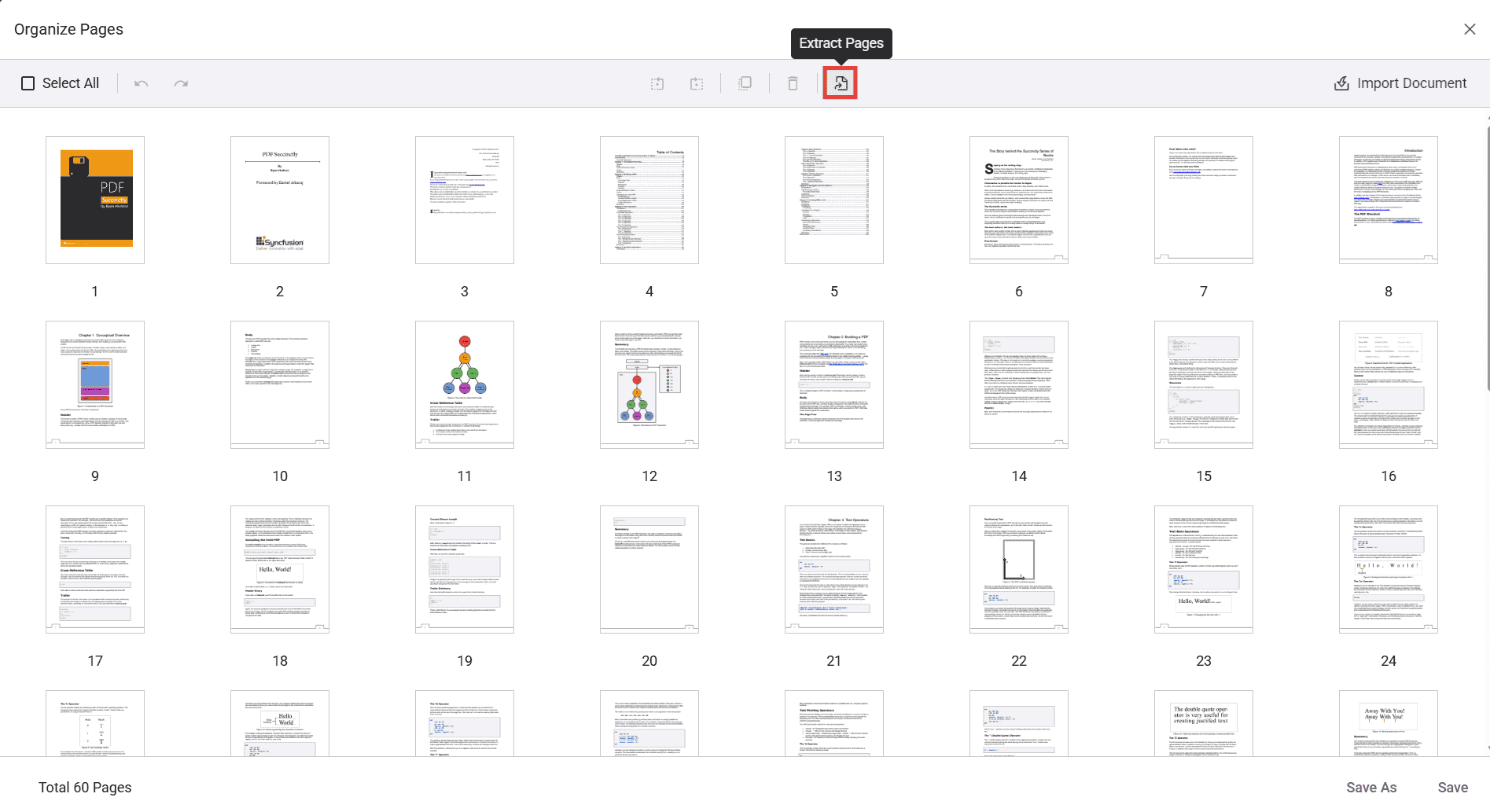
Using the Viewer’s Organize Pages window, users can select and extract required pages and download them separately.
Programmatically Extract Pages
import { PdfDocument } from '@syncfusion/ej2-pdf';

const original = await PdfDocument.load('sample.pdf');
const extracted = original.extractPages([2,3,4]);
const resultBytes = await extracted.save();
This reduces file size and improves performance when loading large documents.
Flatten Form Fields & Annotations
Why Flattening Helps
- Prevents users from editing form fields
- Improves rendering speed
- Ensures consistent appearance across all devices
Programmatic Flattening
import { PdfDocument } from '@syncfusion/ej2-pdf';

const doc = await PdfDocument.load('form.pdf');
doc.formFields.flattenAllFields();
doc.annotations.flattenAllAnnotations();
const bytes = await doc.save();
Flatten on Load
Use the following code snippet when you want uploaded PDFs to be flattened before they are loaded into the viewer.
import { Component, AfterViewInit, ViewChild } from '@angular/core';
import {
  ToolbarService,
  MagnificationService,
  NavigationService,
  AnnotationService,
  FormFieldsService,
  PdfViewerModule,
} from '@syncfusion/ej2-angular-pdfviewer';
import { PdfDocument } from '@syncfusion/ej2-pdf';
import { UploaderModule } from '@syncfusion/ej2-angular-inputs';

@Component({
  selector: 'app-root',
  standalone: true,
  imports: [PdfViewerModule, UploaderModule],
  template: `
    <div class="control-section">
      <div style="display: none;">
        <ejs-uploader
          #fileUpload
          id="fileUpload"
          [allowedExtensions]="'.pdf'"
          (selected)="onSelect($event)">
        </ejs-uploader>
      </div>
      <!-- Render the PDF Viewer -->
      <ejs-pdfviewer
        #pdfViewer
        id="container"
        [resourceUrl]="resourceUrl"
        [documentPath]="document"
        [enableAnnotation]="true"
        [enableFormFields]="true"
        [toolbarSettings]="toolbarSettings"
        (toolbarClick)="toolbarClick($event)"
        style="height: 640px; display: block;">
      </ejs-pdfviewer>
    </div>
  `,
  providers: [
    ToolbarService,
    MagnificationService,
    NavigationService,
    AnnotationService,
    FormFieldsService,
  ],
})
export class AppComponent implements AfterViewInit {
  @ViewChild('pdfViewer') public pdfviewer: any;
  @ViewChild('fileUpload') public uploader: any;

  public document: string =
    'https://cdn.syncfusion.com/content/pdf/pdf-succinctly.pdf';
  public resourceUrl: string =
    'https://cdn.syncfusion.com/ej2/23.2.6/dist/ej2-pdfviewer-lib';

  public toolbarSettings = {
    showTooltip: true,
    toolbarItems: [
      { prefixIcon: 'e-icons e-folder', id: 'openPdf', tooltipText: 'Open File', align: 'left' },
      'PageNavigationTool',
      'MagnificationTool',
      'PanTool',
      'SelectionTool',
      'SearchOption',
      'PrintOption',
      'UndoRedoTool',
      'AnnotationEditTool',
      'FormDesignerEditTool',
      'CommentTool',
      'SubmitForm',
      'DownloadOption',
    ],
  };

  ngAfterViewInit(): void {
    // Initialize viewer
  }

  toolbarClick(args: any): void {
    if (args.item && args.item.id === 'openPdf') {
      document
        .getElementsByClassName('e-file-select-wrap')[0]
        .querySelector('button')
        ?.click();
    }
  }

  onSelect(args: any): void {
    let validFiles = args.filesData;
    if (validFiles.length === 0) {
      args.cancel = true;
      return;
    }
    if (!'.pdf'.includes(validFiles[0].type)) {
      args.cancel = true;
      return;
    }

    let file = validFiles[0].rawFile;
    let reader = new FileReader();

    reader.addEventListener('load', () => {
      let base64Data = reader.result as string;
      let pdf = base64Data.split(',')[1];
      const doc = new PdfDocument(pdf);

      // Flatten the annotation and form fields
      doc.flatten = true;

      var flattened = doc.save();
      // Load the flattened PDF in PDF Viewer
      this.pdfviewer.load(flattened, null);
    });

    reader.readAsDataURL(file);
  }
}
Refer to the Flatten on Download section for more information about flattening documents on download.
Add Watermark or Stamp
UI-Level Stamps
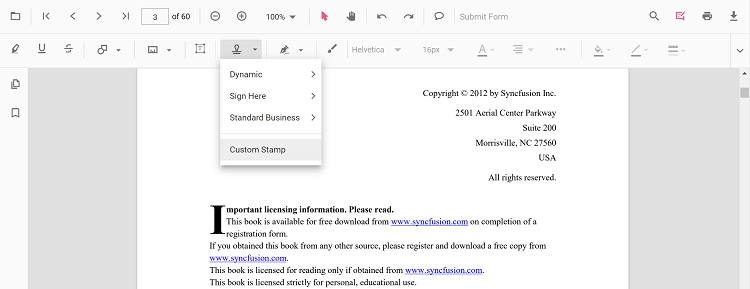
The PDF Viewer toolbar allows users to:
- Add standard stamps (Approved, Draft, etc.)
- Insert custom image stamps
Programmatically Add a Watermark
import { PdfDocument, PdfGraphics, PdfBrushes } from '@syncfusion/ej2-pdf';

const doc = await PdfDocument.load('input.pdf');
const page = doc.getPage(0);
const g = page.graphics;

g.drawString('CONFIDENTIAL', {
    x: 150,
    y: 300,
    fontSize: 48,
    brush: PdfBrushes.gray,
    opacity: 0.3,
    rotateAngle: 45
});

const outputBytes = await doc.save();
How-To Guide: Load the Preprocessed PDF in the Viewer
You can load the processed PDF using Blob, Base64, or a URL.
Load Using Blob (Recommended)
fetch('/api/processed-pdf')
  .then(res => res.blob())
  .then(blob => {
      const url = URL.createObjectURL(blob);
      viewer.load(url);
  });
Best for large or dynamically processed PDFs.
Load Using Base64
viewer.load('data:application/pdf;base64,BASE64_STRING');Use for small files.
Load Using URL
viewer.load('https://yourdomain.com/files/doc.pdf');Ideal for stored/static files.