Sticky Note Annotation in Angular PDF Viewer
14 Aug 20266 minutes to read
Sticky Notes allow users to place comment markers on the PDF. When clicked, the note opens a popup containing comments, replies, and discussions. Use them to capture review feedback without altering the original content.
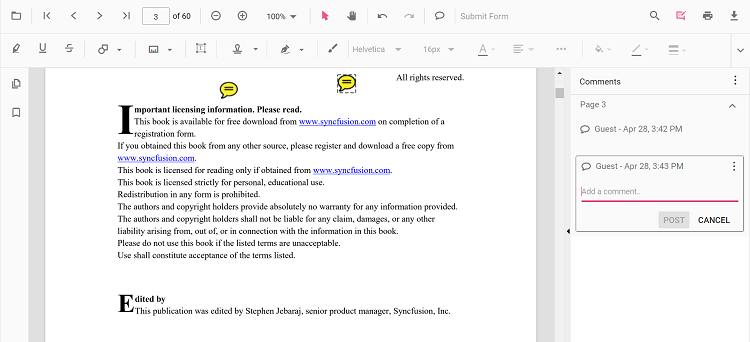
Enable Sticky Notes Annotation
Inject the minimal modules required to work with Sticky Notes in the Angular PDF Viewer. (Toolbar is optional but recommended for UI access.)
import { Component } from '@angular/core';
import {
  PdfViewerModule,
  ToolbarService,
  AnnotationService
} from '@syncfusion/ej2-angular-pdfviewer';

@Component({
  selector: 'app-root',
  template: `
    <div class="content-wrapper">
      <ejs-pdfviewer
        id="pdfViewer"
        [documentPath]="document"
        [resourceUrl]="resource"
        [stickyNotesSettings]="stickyNotesSettings"
        style="height:650px;display:block">
      </ejs-pdfviewer>
    </div>
  `,
  imports: [PdfViewerModule],
  providers: [ToolbarService, AnnotationService]
})
export class AppComponent {
  public document: string =
    'https://cdn.syncfusion.com/content/pdf/pdf-succinctly.pdf';

  public resource: string =
    'https://cdn.syncfusion.com/ej2/31.2.2/dist/ej2-pdfviewer-lib';

  public stickyNotesSettings = { author: 'Guest User' };
}
The Sticky Note tool appears in the Annotation toolbar when annotation features are enabled.
Add Sticky Notes
Add Sticky Notes Using the Toolbar
- Open the Annotation Toolbar.
- Select the Sticky Note tool.
- Click anywhere on the page to place the note; click the note to open its popup and start commenting.
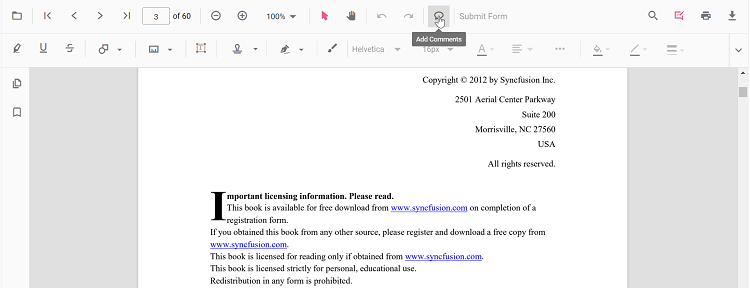
Use the Comments panel to add replies or update status for the selected note.
Add Sticky Notes Programmatically
Create a note at specific coordinates using addAnnotation.
addStickyNote(): void {
  const pdfViewer = (document.getElementById('pdfViewer') as any).ej2_instances[0];
  pdfViewer.annotation.addAnnotation('StickyNotes', {
    offset: { x: 120, y: 220 },
    pageNumber: 1,
    isLock: false
  });
}
Customize Sticky Note Appearance
Configure default properties using the stickyNotesSettings property (for example, default fill color, stroke color, opacity).
import { Component } from '@angular/core';
import {
  PdfViewerModule,
  ToolbarService,
  AnnotationService
} from '@syncfusion/ej2-angular-pdfviewer';

@Component({
  selector: 'app-root',
  template: `
    <div class="content-wrapper">
      <ejs-pdfviewer
        id="pdfViewer"
        [documentPath]="document"
        [resourceUrl]="resource"
        [stickyNotesSettings]="{ author: 'Guest User' }"
        style="height:650px;display:block">
      </ejs-pdfviewer>
    </div>
  `,
  imports: [PdfViewerModule],
  providers: [ToolbarService, AnnotationService]
})
export class AppComponent {
  public document: string =
    'https://cdn.syncfusion.com/content/pdf/pdf-succinctly.pdf';

  public resource: string =
    'https://cdn.syncfusion.com/ej2/31.2.2/dist/ej2-pdfviewer-lib';
}
Move, Edit, or Delete Sticky Notes
- Move: Drag the note icon to a new location.
- Edit: Click the note icon to open the popup; edit text, add replies, or change status in the Comments panel.
Edit Sticky Notes Annotation
Edit Sticky Notes (UI)
- Icon style: Open Right Click → Properties on a note to choose a different note icon style (e.g., classic note icon).
- Color: Change the note color using the Edit Color tool in the annotation toolbar.
-
Opacity: Adjust transparency using the Edit Opacity tool.
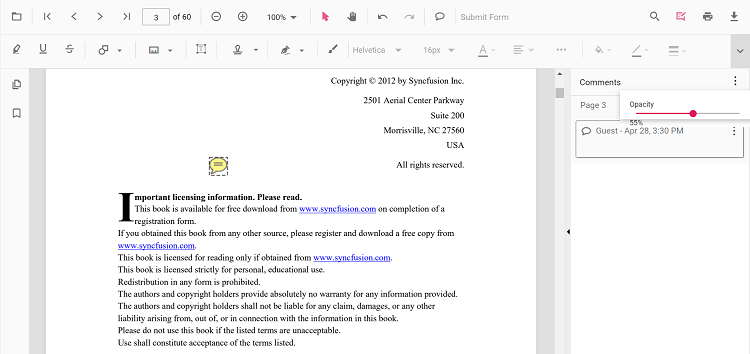
To tailor right‑click actions (Delete, Properties, etc.), see Customize Context Menu.
Edit Sticky Notes Programmatically
Update properties and call editAnnotation().
editStickyProgrammatically(): void {
  const pdfViewer = (document.getElementById('pdfViewer') as any).ej2_instances[0];
  for (const ann of pdfViewer.annotationCollection) {
    if (ann.subject === 'Sticky Note') {
      ann.strokeColor = '#0000FF';
      ann.thickness = 2;
      ann.opacity = 0.8;
      pdfViewer.annotation.editAnnotation(ann);
      break;
    }
  }
}
Delete Sticky Note
Delete Annotation via UI (toolbar/context menu) or programmatically. For supported workflows and APIs, see Delete Annotation.
Set Default Properties During Initialization
Configure sticky note defaults using stickyNotesSettings.
import { Component } from '@angular/core';
import {
  PdfViewerModule,
  ToolbarService,
  AnnotationService
} from '@syncfusion/ej2-angular-pdfviewer';

@Component({
  selector: 'app-root',
  template: `
    <div class="content-wrapper">
      <ejs-pdfviewer
        id="pdfViewer"
        [documentPath]="document"
        [resourceUrl]="resource"
        [stickyNotesSettings]="{ author: 'Guest User' }"
        style="height:650px;display:block">
      </ejs-pdfviewer>
    </div>
  `,
  imports: [PdfViewerModule],
  providers: [ToolbarService, AnnotationService]
})
export class AppComponent {
  public document: string =
    'https://cdn.syncfusion.com/content/pdf/pdf-succinctly.pdf';

  public resource: string =
    'https://cdn.syncfusion.com/ej2/31.2.2/dist/ej2-pdfviewer-lib';
}
Sticky Note Events
Listen to annotation life-cycle events and filter for sticky notes. See Annotation Events for the full list and argument details.
Export and Import
Sticky Notes are included when exporting or importing annotations. For supported formats and workflows, see Export and Import annotations.