Radius Annotation in Angular PDF Viewer
14 Aug 20269 minutes to read
Radius measurement annotations allow users to draw circular regions and calculate the radius visually.
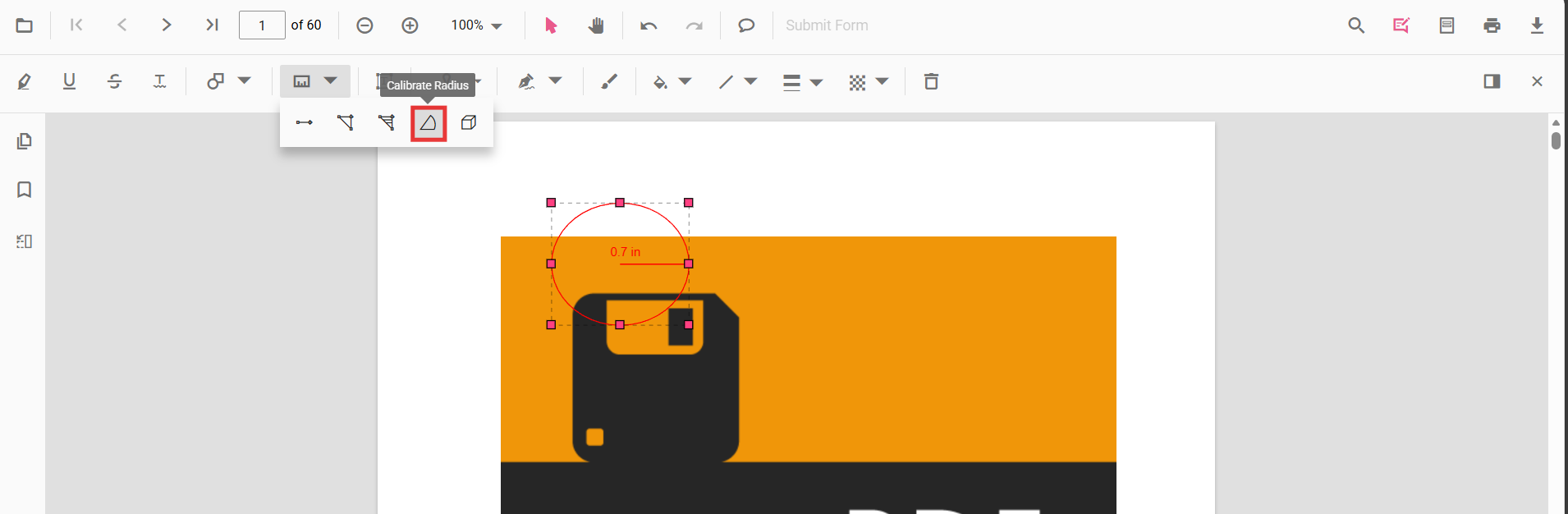
Enable Radius Measurement
To enable Radius annotations, inject the following modules into the Angular PDF Viewer:
import { Component } from '@angular/core';
import {
  PdfViewerModule,
  ToolbarService,
  AnnotationService
} from '@syncfusion/ej2-angular-pdfviewer';

@Component({
  selector: 'app-root',
  template: `
    <div class="content-wrapper">
      <ejs-pdfviewer
        id="pdfViewer"
        [documentPath]="document"
        [resourceUrl]="resource"
        style="height:650px;display:block">
      </ejs-pdfviewer>
    </div>
  `,
  imports: [PdfViewerModule],
  providers: [ToolbarService, AnnotationService]
})
export class AppComponent {

  public document: string =
    'https://cdn.syncfusion.com/content/pdf/pdf-succinctly.pdf';

  public resource: string =
    'https://cdn.syncfusion.com/ej2/31.2.2/dist/ej2-pdfviewer-lib';
}
Add Radius Annotation
Add Radius Using the Toolbar
- Open the Annotation Toolbar.
- Select Measurement → Radius.
- Click and drag on the page to draw the radius.
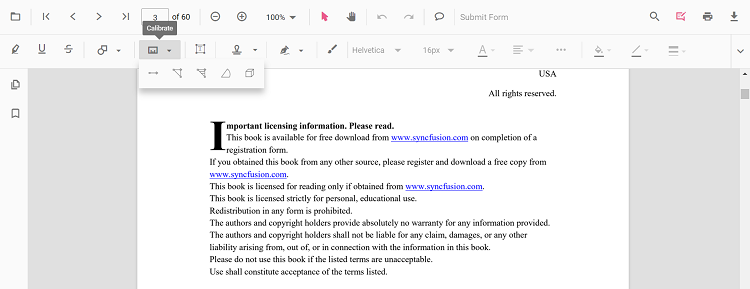
If Pan mode is active, selecting the Radius tool automatically switches interaction mode.
Enable Radius Mode
Programmatically switch the viewer into Radius mode.
enableRadiusMode(): void {
  const pdfViewer = (document.getElementById('pdfViewer') as any).ej2_instances[0];
  pdfViewer.annotation.setAnnotationMode('Radius');
}
Exit Radius Mode
exitRadiusMode(): void {
  const pdfViewer = (document.getElementById('pdfViewer') as any).ej2_instances[0];
  pdfViewer.annotation.setAnnotationMode('None');
}
Add Radius Programmatically
Configure default properties using the Radius Settings property (for example, default fill color, stroke color, opacity).
addRadius(): void {
  const pdfViewer = (document.getElementById('pdfViewer') as any).ej2_instances[0];
  pdfViewer.annotation.addAnnotation('Radius', {
    offset: { x: 200, y: 630 },
    pageNumber: 1,
    width: 90,
    height: 90
  });
}
Customize Radius Appearance
Configure default properties using the Radius Settings property (for example, default fill color, stroke color, opacity).
import { Component } from '@angular/core';
import {
  PdfViewerModule,
  ToolbarService,
  AnnotationService
} from '@syncfusion/ej2-angular-pdfviewer';

@Component({
  selector: 'app-root',
  template: `
    <div class="content-wrapper">
      <ejs-pdfviewer
        id="pdfViewer"
        [documentPath]="document"
        [resourceUrl]="resource"
        [radiusSettings]="radiusSettings"
        style="height:650px;display:block">
      </ejs-pdfviewer>
    </div>
  `,
  imports: [PdfViewerModule],
  providers: [ToolbarService, AnnotationService]
})
export class AppComponent {

  public document: string =
    'https://cdn.syncfusion.com/content/pdf/pdf-succinctly.pdf';

  public resource: string =
    'https://cdn.syncfusion.com/ej2/31.2.2/dist/ej2-pdfviewer-lib';

  public radiusSettings = {
    fillColor: 'yellow',
    strokeColor: 'orange',
    opacity: 0.6
  };
}
Manage Radius (Move, Reshape, Edit, Delete)
- Move: Drag inside the circle to reposition it.
- Reshape: Drag any vertex handle to adjust points and shape.
Edit Radius Annotation
Edit Radius (UI)
- Edit the fill color using the Edit Color tool.
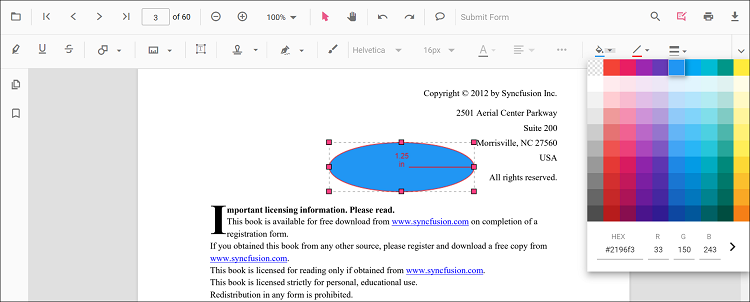
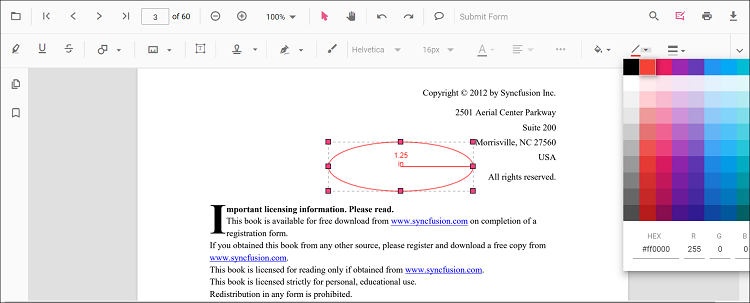
- Edit the stroke color using the Edit Stroke Color tool.
- Edit the border thickness using the Edit Thickness tool.
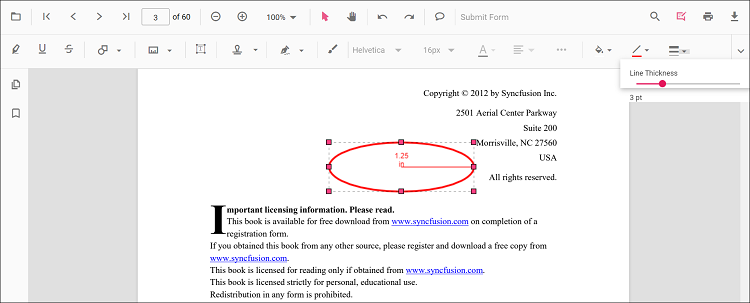
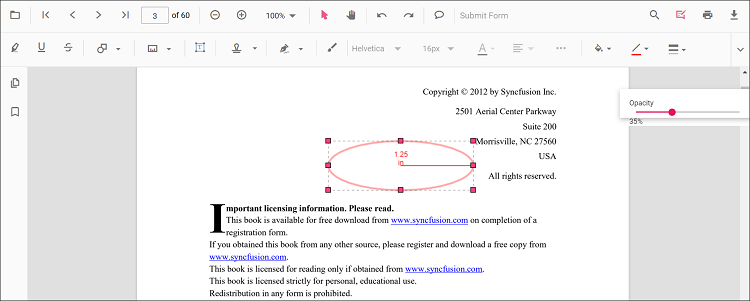
- Edit the opacity using the Edit Opacity tool.
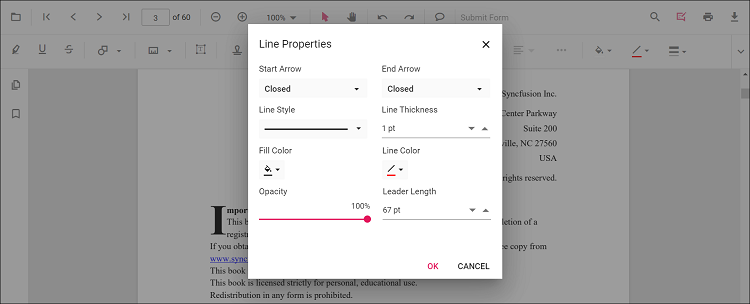
- Open Right Click → Properties for additional line‑based options.
Edit Radius Programmatically
Update properties and call editAnnotation().
editRadiusProgrammatically(): void {
  const pdfViewer = (document.getElementById('pdfViewer') as any).ej2_instances[0];
  for (const ann of pdfViewer.annotationCollection) {
    if (ann.subject === 'Radius calculation') {
      ann.strokeColor = '#0000FF';
      ann.thickness = 2;
      ann.opacity = 0.8;
      pdfViewer.annotation.editAnnotation(ann);
      break;
    }
  }
}
Delete Radius Annotation
Delete Radius Annotation via UI (toolbar/context menu) or programmatically. For supported workflows and APIs, see Delete Annotation.
Set Default Properties During Initialization
Apply defaults for Radius using the radiusSettings property.
import { Component } from '@angular/core';
import {
  PdfViewerModule,
  ToolbarService,
  AnnotationService
} from '@syncfusion/ej2-angular-pdfviewer';

@Component({
  selector: 'app-root',
  template: `
    <div class="content-wrapper">
      <ejs-pdfviewer
        id="pdfViewer"
        [documentPath]="document"
        [resourceUrl]="resource"
        [radiusSettings]="radiusSettings"
        style="height:650px;display:block">
      </ejs-pdfviewer>
    </div>
  `,
  imports: [PdfViewerModule],
  providers: [ToolbarService, AnnotationService]
})
export class AppComponent {

  public document: string =
    'https://cdn.syncfusion.com/content/pdf/pdf-succinctly.pdf';

  public resource: string =
    'https://cdn.syncfusion.com/ej2/31.2.2/dist/ej2-pdfviewer-lib';

  public radiusSettings = {
    fillColor: 'orange',
    opacity: 0.6,
    strokeColor: 'pink'
  };
}
Set Properties While Adding Individual Annotation
Apply defaults for Radius using the radiusSettings property.
addStyledRadius(): void {
  const pdfViewer = (document.getElementById('pdfViewer') as any).ej2_instances[0];
  pdfViewer.annotation.addAnnotation('Radius', {
    offset: { x: 200, y: 630 },
    pageNumber: 1,
    width: 90,
    height: 90,
    fillColor: 'orange',
    opacity: 0.6,
    strokeColor: 'pink'
  });
}
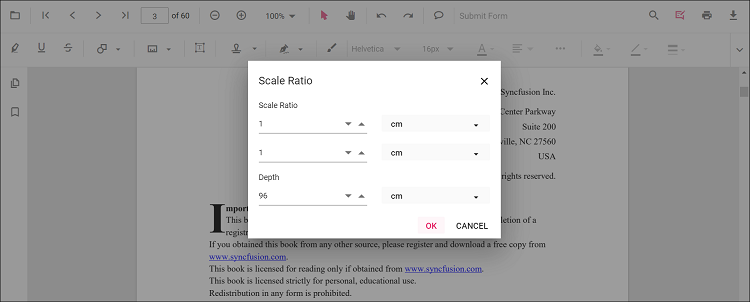
Scale Ratio & Units
- Use Scale Ratio from the context menu.
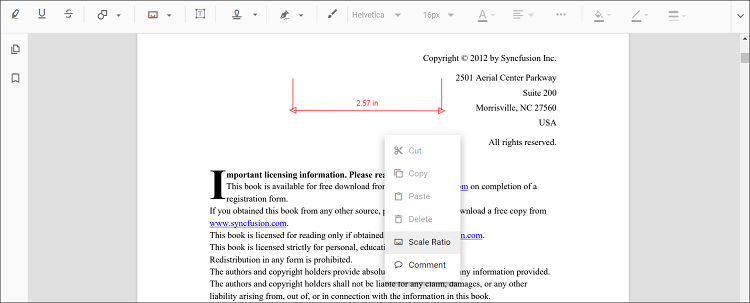
- Supported units: Inch, Millimeter, Centimeter, Point, Pica, Feet.
Set Default Scale Ratio During Initialization
Configure scale defaults using measurementSettings.
import { Component } from '@angular/core';
import {
  PdfViewerModule,
  ToolbarService,
  AnnotationService
} from '@syncfusion/ej2-angular-pdfviewer';

@Component({
  selector: 'app-root',
  template: `
    <div class="content-wrapper">
      <ejs-pdfviewer
        id="pdfViewer"
        [documentPath]="document"
        [resourceUrl]="resource"
        [measurementSettings]="measurementSettings"
        style="height:650px;display:block">
      </ejs-pdfviewer>
    </div>
  `,
  imports: [PdfViewerModule],
  providers: [ToolbarService, AnnotationService]
})
export class AppComponent {

  public document: string =
    'https://cdn.syncfusion.com/content/pdf/pdf-succinctly.pdf';

  public resource: string =
    'https://cdn.syncfusion.com/ej2/31.2.2/dist/ej2-pdfviewer-lib';

  public measurementSettings = {
    scaleRatio: 2,
    conversionUnit: 'cm',
    displayUnit: 'cm'
  };
}
Handle Radius Events
Listen to annotation life-cycle events (add/modify/select/remove). For the full list and parameters, see Annotation Events.
Export and Import
Radius measurements can be exported or imported with other annotations. For workflows and supported formats, see Export and Import annotations.