Link Annotation in Angular PDF Viewer
25 Sep 202612 minutes to read
This guide explains how to enable, add, customize, and manage link annotations in the Syncfusion Angular PDF Viewer. Link annotations can navigate to another page in the same PDF or open an external URL in the browser.
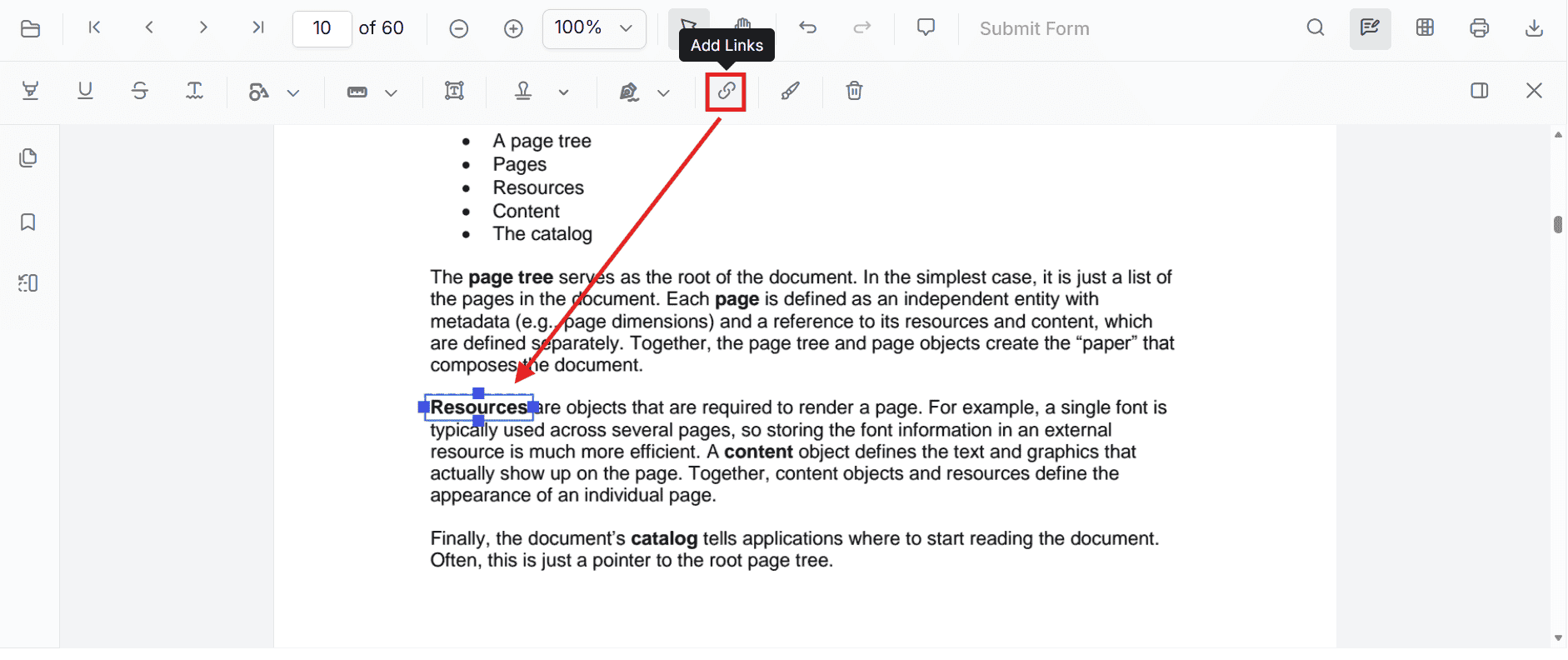
Enable Link Annotation in the Viewer
To enable link annotations, inject the following services into the Angular PDF Viewer:
import { Component, ViewChild } from '@angular/core';
import { CommonModule } from '@angular/common';

import {
  PdfViewerModule,
  LinkAnnotationService,
  BookmarkViewService,
  MagnificationService,
  ThumbnailViewService,
  ToolbarService,
  NavigationService,
  TextSearchService,
  TextSelectionService,
  PrintService,
  AnnotationService,
  FormFieldsService,
  FormDesignerService,
  PageOrganizerService,
  PdfViewerComponent
} from '@syncfusion/ej2-angular-pdfviewer';

@Component({
  selector: 'app-pdf-viewer',
  standalone: true,
  imports: [CommonModule, PdfViewerModule],
  providers: [
    LinkAnnotationService,
    BookmarkViewService,
    MagnificationService,
    ThumbnailViewService,
    ToolbarService,
    NavigationService,
    TextSearchService,
    TextSelectionService,
    PrintService,
    AnnotationService,
    FormFieldsService,
    FormDesignerService,
    PageOrganizerService
  ],
  template: `
    <div class="pdf-viewer-container" style="margin: 50px 90px">
      <button id="addInternalLink" (click)="addInternalLink()">Add Internal Link</button>
      <button id="addExternalLink" (click)="addExternalLink()">Add External Link</button>
      <button id="editLinkAnnotation" (click)="editLinkAnnotation()">Edit Link Annotation</button>
      <ejs-pdfviewer
        #pdfViewer
        id="container"
        [documentPath]="documentPath"
        [resourceUrl]="resourceUrl"
        hyperlinkOpenState="NewTab"
        style="height: 640px; display: block">
      </ejs-pdfviewer>
    </div>
  `
})
export class PDFViewerComponent {
  @ViewChild('pdfViewer') public pdfViewer: PdfViewerComponent | undefined;

  public documentPath: string = 'https://cdn.syncfusion.com/content/pdf/pdf-succinctly.pdf';
  public resourceUrl: string = 'https://cdn.syncfusion.com/ej2/23.2.6/dist/ej2-pdfviewer-lib';

  addInternalLink(): void {
    this.pdfViewer?.annotation.addAnnotation('Link', {
      offset: { x: 200, y: 480 },
      pageNumber: 1,
      width: 150,
      height: 75,
      destinationPageIndex: 4,
      destinationLocation: { x: 100, y: 200 },
      zoomValue: 4,
      strokeColor: '#1433e3'
    } as any);
  }

  addExternalLink(): void {
    this.pdfViewer?.annotation.addAnnotation('Link', {
      offset: { x: 450, y: 480 },
      pageNumber: 1,
      width: 150,
      height: 75,
      url: 'https://www.syncfusion.com',
      strokeColor: '#FF0000'
    } as any);
  }

  editLinkAnnotation(): void {
    const pdfViewer = this.pdfViewer as any;

    for (const linkAnnotation of pdfViewer.annotationCollection) {
      if (linkAnnotation.subject === 'Link') {
        linkAnnotation.strokeColor = '#1fcbd4';
        linkAnnotation.thickness = 2;
        linkAnnotation.bounds = { left: 100, top: 100, width: 100, height: 100 };
        linkAnnotation.url = 'https://www.google.com';
        linkAnnotation.destinationPageIndex = 3;
        linkAnnotation.destinationLocation = { x: 300, y: 300 };
        linkAnnotation.zoomValue = 1;
        pdfViewer.annotation.editAnnotation(linkAnnotation);
        break;
      }
    }
  }
}
The
hyperlinkOpenStateproperty controls how external URLs open when the user clicks a link. UseNewTabto open a URL in a new browser tab orNewWindowto open it in a separate browser window.
Add Link Annotation
Add Link Using the Toolbar
- Click the Add Link button from the annotation toolbar.
- Choose the target type as URL or Page.
- Enter the target URL or page number.
- Set properties such as stroke color and thickness.
- Click Insert to create the link annotation.
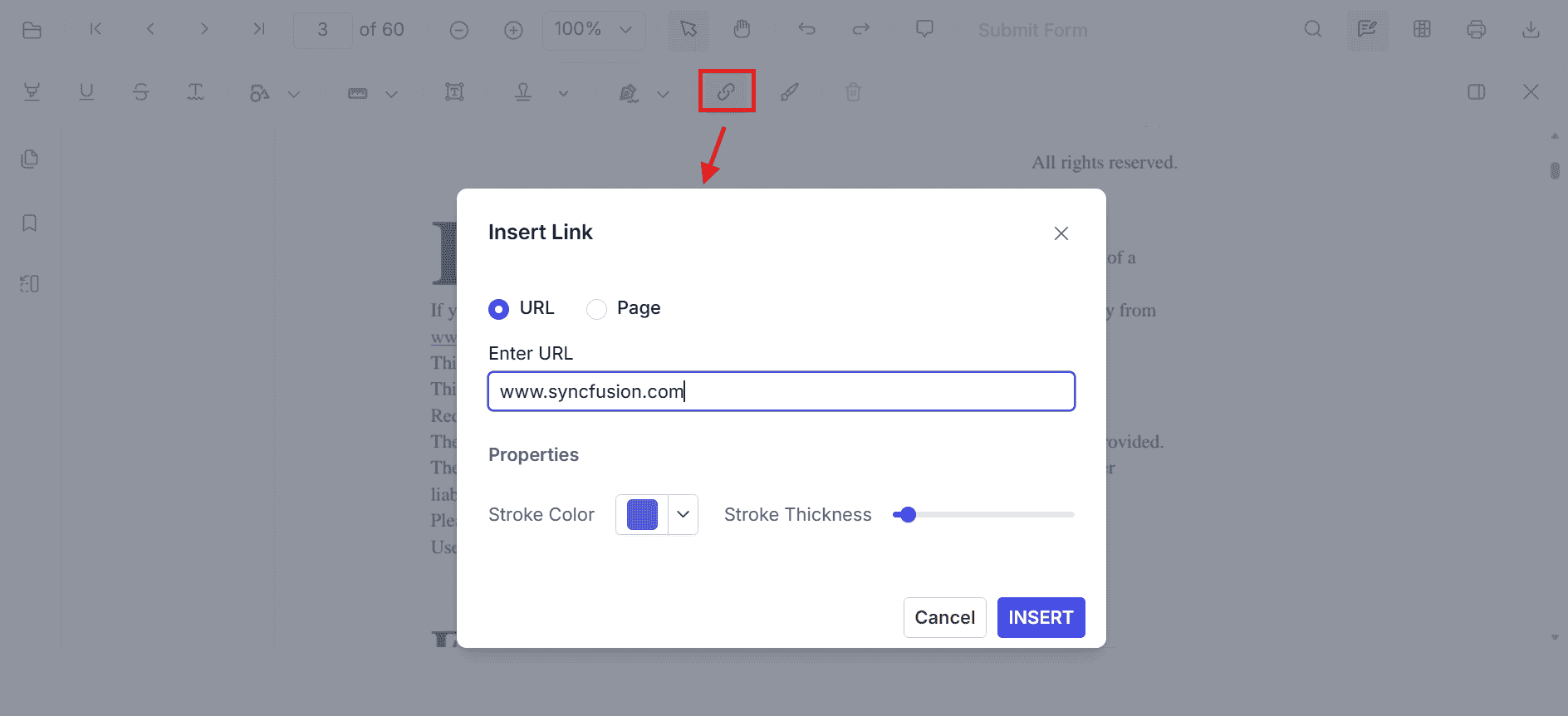
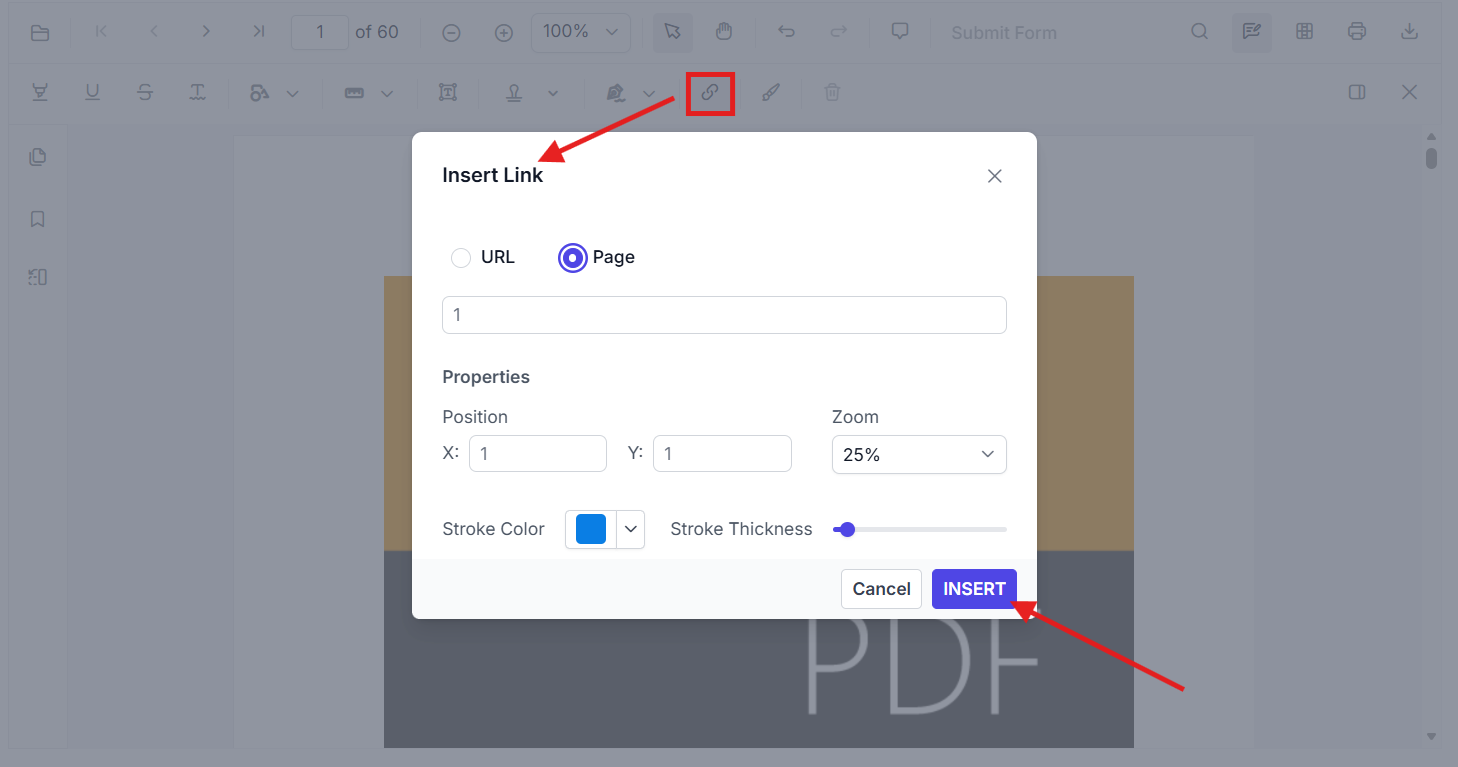
The inserted link is shown as a rectangular annotation region. Users can drag and resize it to align with the desired content.
Add Link Annotation Programmatically
Use addAnnotation() to create a link annotation at a specific location.
Add Internal Page Link
addInternalLink(): void {
  this.pdfViewer?.annotation.addAnnotation('Link', {
    offset: { x: 200, y: 480 },
    pageNumber: 1,
    width: 150,
    height: 75,
    destinationPageIndex: 4,
    destinationLocation: { x: 100, y: 200 },
    zoomValue: 4,
    strokeColor: '#1433e3'
  } as any);
}
This adds a link rectangle that navigates to page index 4 and zooms to the specified location when clicked.
Add External URL Link
addExternalLink(): void {
  this.pdfViewer?.annotation.addAnnotation('Link', {
    offset: { x: 450, y: 480 },
    pageNumber: 1,
    width: 150,
    height: 75,
    url: 'https://www.syncfusion.com',
    strokeColor: '#FF0000'
  } as any);
}
Customize Link Appearance
Use the hyperlinkOpenState property to control whether external URLs open in a new tab or a new window. The following example opens external links in a separate browser window.
import { Component } from '@angular/core';
import { CommonModule } from '@angular/common';
import {
  PdfViewerModule,
  ToolbarService,
  AnnotationService,
  LinkAnnotationService,
  PdfViewerComponent
} from '@syncfusion/ej2-angular-pdfviewer';

@Component({
  selector: 'app-root',
  standalone: true,
  imports: [CommonModule, PdfViewerModule],
  providers: [ToolbarService, AnnotationService, LinkAnnotationService],
  template: `
    <div class="content-wrapper">
      <ejs-pdfviewer
        #pdfViewer
        id="pdfViewer"
        [documentPath]="document"
        [resourceUrl]="resource"
        hyperlinkOpenState="NewWindow"
        style="height:650px;display:block">
      </ejs-pdfviewer>
    </div>
  `
})
export class AppComponent {
  public document: string = 'https://cdn.syncfusion.com/content/pdf/pdf-succinctly.pdf';
  public resource: string = 'https://cdn.syncfusion.com/ej2/31.2.2/dist/ej2-pdfviewer-lib';
}
Manage Link Annotations
Edit Link Annotation in the UI
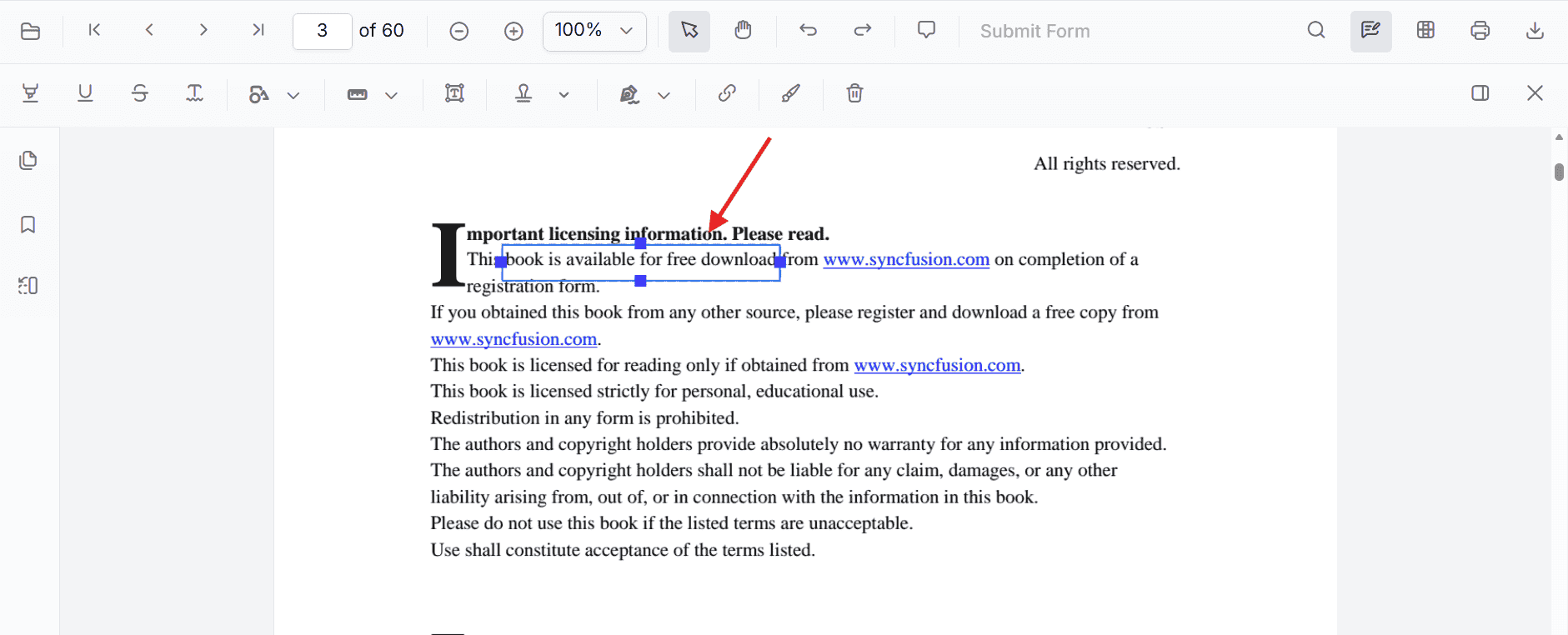
After a link annotation is inserted, the user can:
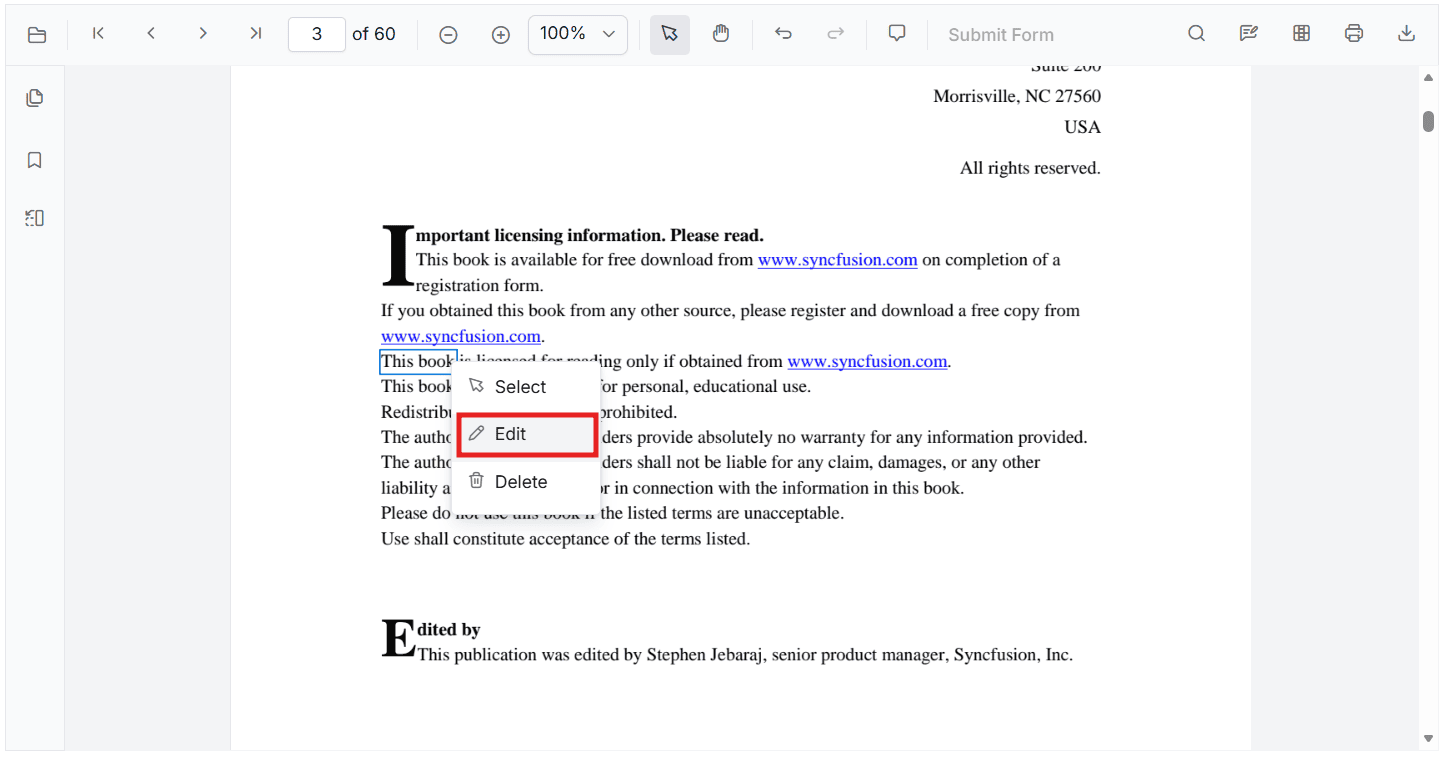
- Right-click the selected link annotation to open the context menu
- Choose Select and drag the rectangle to a new position
- Resize the link rectangle using the handles
- Right-click again and choose Edit to change the page or URL settings
Edit Link Annotation Programmatically
Use editAnnotation() to update an existing link annotation.
editLinkAnnotation(): void {
  const pdfViewer = this.pdfViewer as any;

  for (const linkAnnotation of pdfViewer.annotationCollection) {
    if (linkAnnotation.subject === 'Link') {
      linkAnnotation.strokeColor = '#1fcbd4';
      linkAnnotation.thickness = 2;
      linkAnnotation.bounds = { left: 100, top: 100, width: 100, height: 100 };
      linkAnnotation.url = 'https://www.google.com';
      linkAnnotation.destinationPageIndex = 3;
      linkAnnotation.destinationLocation = { x: 300, y: 300 };
      linkAnnotation.zoomValue = 1;
      pdfViewer.annotation.editAnnotation(linkAnnotation);
      break;
    }
  }
}
Delete Link Annotation
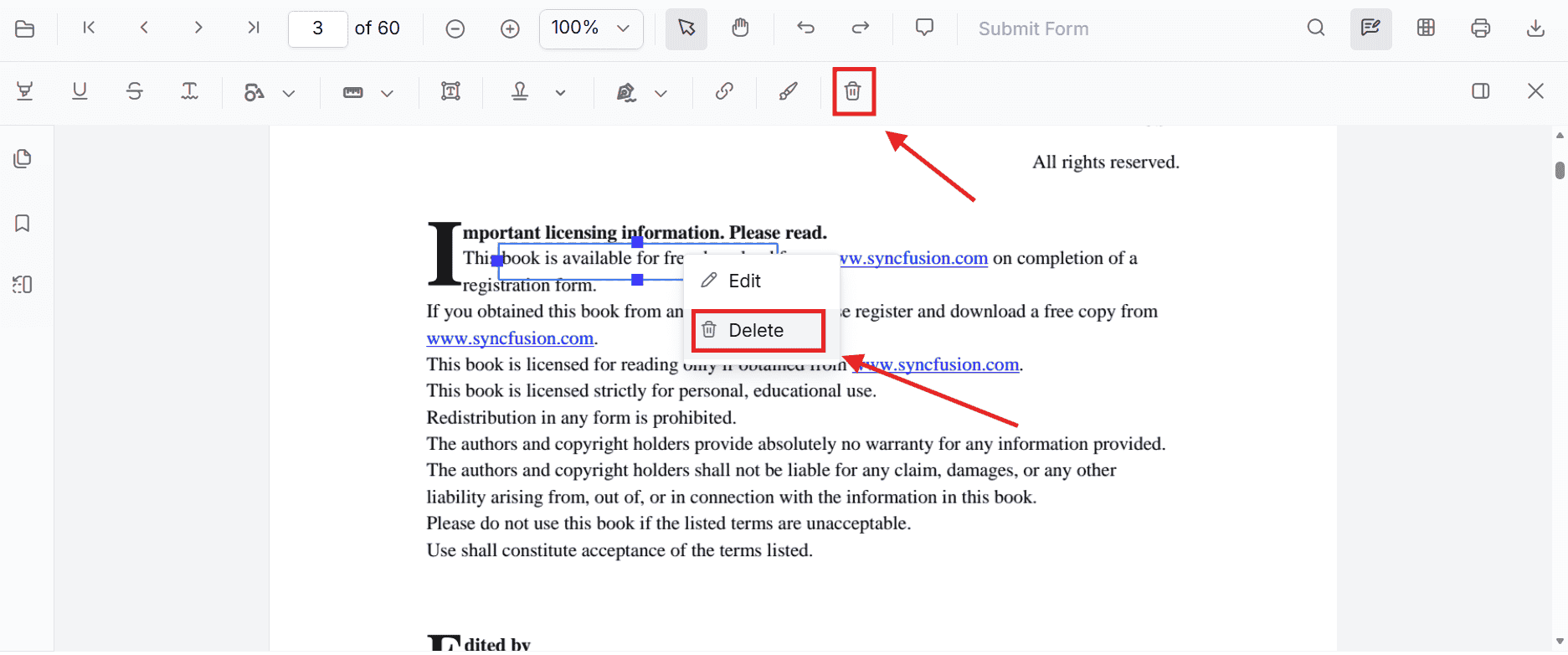
The PDF Viewer supports deleting link annotations through the UI and API.
Delete a link annotation by ID
deleteLinkById(): void {
  const pdfViewer = this.pdfViewer as any;
  const linkAnnotation = pdfViewer.annotationCollection.find((item: any) => item.subject === 'Link');

  if (linkAnnotation) {
    pdfViewer.annotation.deleteAnnotationById(linkAnnotation.annotationId);
  }
}
Set Properties While Adding an Individual Link
You can set link properties directly while creating a link annotation in the addAnnotation('Link', ...) call.
addMultipleLinks(): void {
  const pdfViewer = this.pdfViewer as any;

  pdfViewer.annotation.addAnnotation('Link', {
    offset: { x: 100, y: 150 },
    pageNumber: 1,
    width: 180,
    height: 60,
    url: 'https://www.syncfusion.com',
    strokeColor: '#ff0000'
  });

  pdfViewer.annotation.addAnnotation('Link', {
    offset: { x: 320, y: 180 },
    pageNumber: 1,
    width: 150,
    height: 60,
    destinationPageIndex: 2,
    destinationLocation: { x: 100, y: 200 },
    zoomValue: 2,
    strokeColor: '#1433e3'
  });
}
Link Annotation Events
The PDF Viewer raises annotation life cycle events for link annotations. For the complete event list and details, see Annotation Events.