Getting Started with .NET PDF Library in ASP.NET Core Web API
13 Aug 20269 minutes to read
The .NET PDF library is used to create, read, and edit PDF documents. This library also offers functionality to merge, split, stamp, work with forms, and secure PDF documents.
To include the .NET PDF library into your ASP.NET Core Web API, please refer to the NuGet Package Required or Assemblies Required documentation.
Prerequisites
- .NET 8.0 SDK or later.
- Visual Studio 2022 or Visual Studio Code
- A valid Syncfusion license key (required for production use; a free Community License is available)
Steps to create a PDF document in ASP.NET Core Web API
Step 1: Create a new C# ASP.NET Core Web API project.
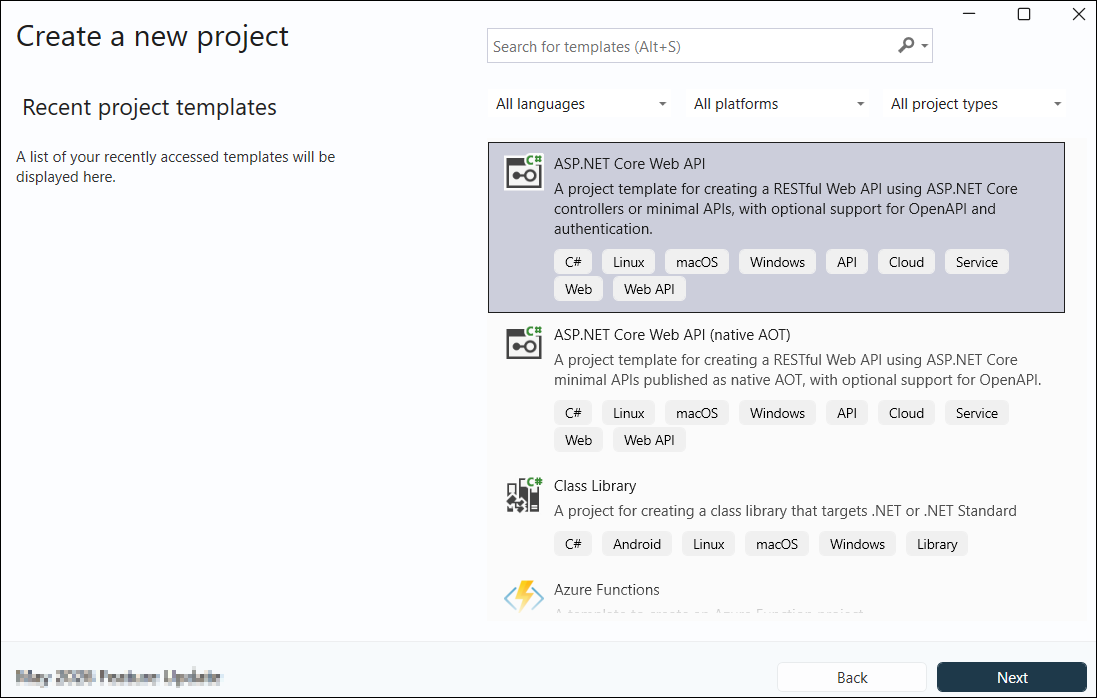
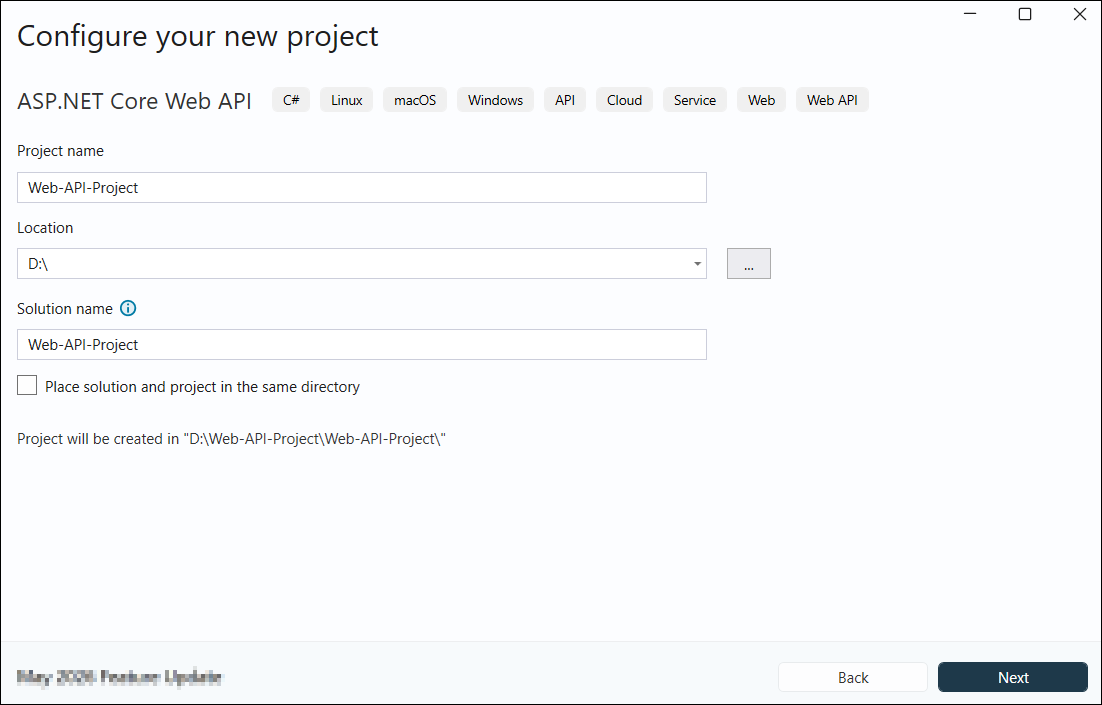
Step 2: In the project configuration window, name your project and click Create.
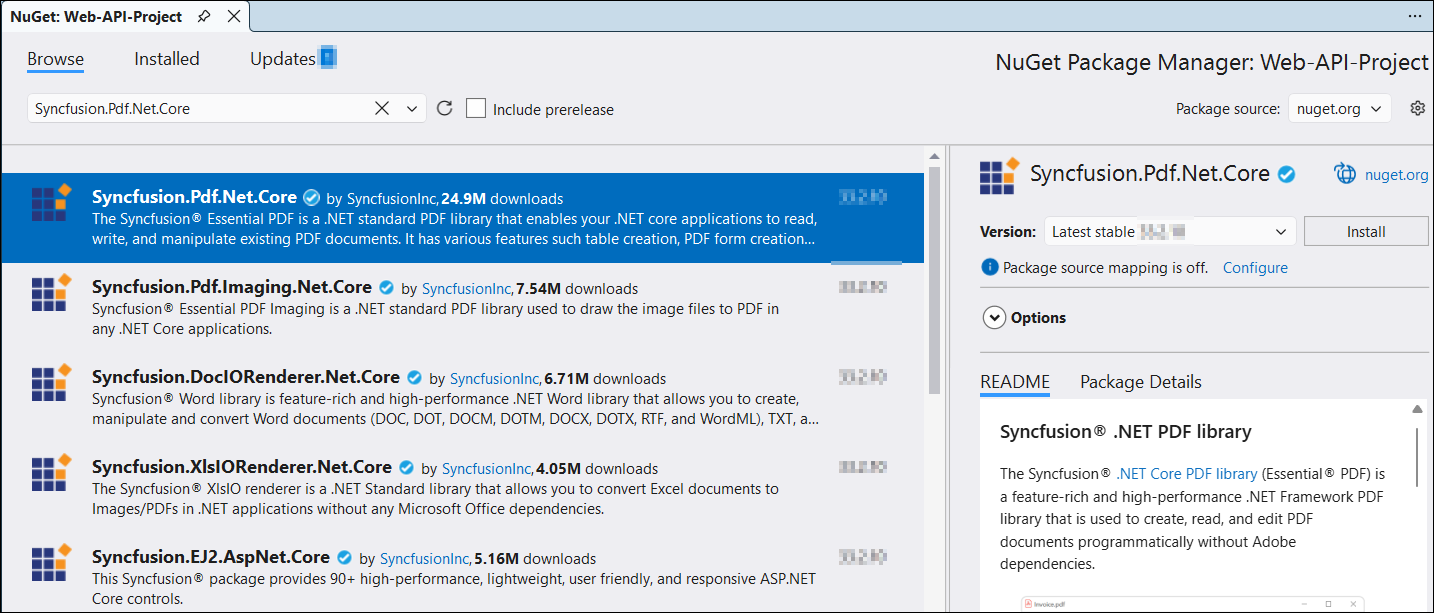
Step 3: Install the Syncfusion.Pdf.Net.Core NuGet package as a reference to your ASP.NET Core Web API application from NuGet.org.
Step 4: Register the Syncfusion® license key. A trial watermark is added to every page of the generated PDF until a valid key is registered. Include the license key in Program.cs before initializing any Syncfusion® component:
using Syncfusion.Licensing;

var builder = WebApplication.CreateBuilder(args);
// Register the Syncfusion license
Syncfusion.Licensing.SyncfusionLicenseProvider.RegisterLicense("YOUR LICENSE KEY");

// Add services to the container.
builder.Services.AddControllers();
// Learn more about configuring Swagger/OpenAPI at https://aka.ms/aspnetcore/swashbuckle
builder.Services.AddEndpointsApiExplorer();
builder.Services.AddSwaggerGen();

var app = builder.Build();
Replace "YOUR LICENSE KEY" with the license key associated with your Syncfusion® account. If you do not have a license key, you can request a free 30-day trial or apply for a Community License from the Syncfusion® website. For more information about registering a license key in your application, refer to the Syncfusion® Licensing Documentation.
Step 5: Ensure that Swagger and controller routing are enabled in Program.cs.
var builder = WebApplication.CreateBuilder(args);

// Add services to the container.
builder.Services.AddControllers();
// Learn more about configuring Swagger/OpenAPI at https://aka.ms/aspnetcore/swashbuckle
builder.Services.AddEndpointsApiExplorer();
builder.Services.AddSwaggerGen();

var app = builder.Build();

// Configure the HTTP request pipeline.
if (app.Environment.IsDevelopment())
{
    app.UseSwagger();
    app.UseSwaggerUI();
}

app.UseHttpsRedirection();

app.UseAuthorization();

app.MapControllers();

app.Run();
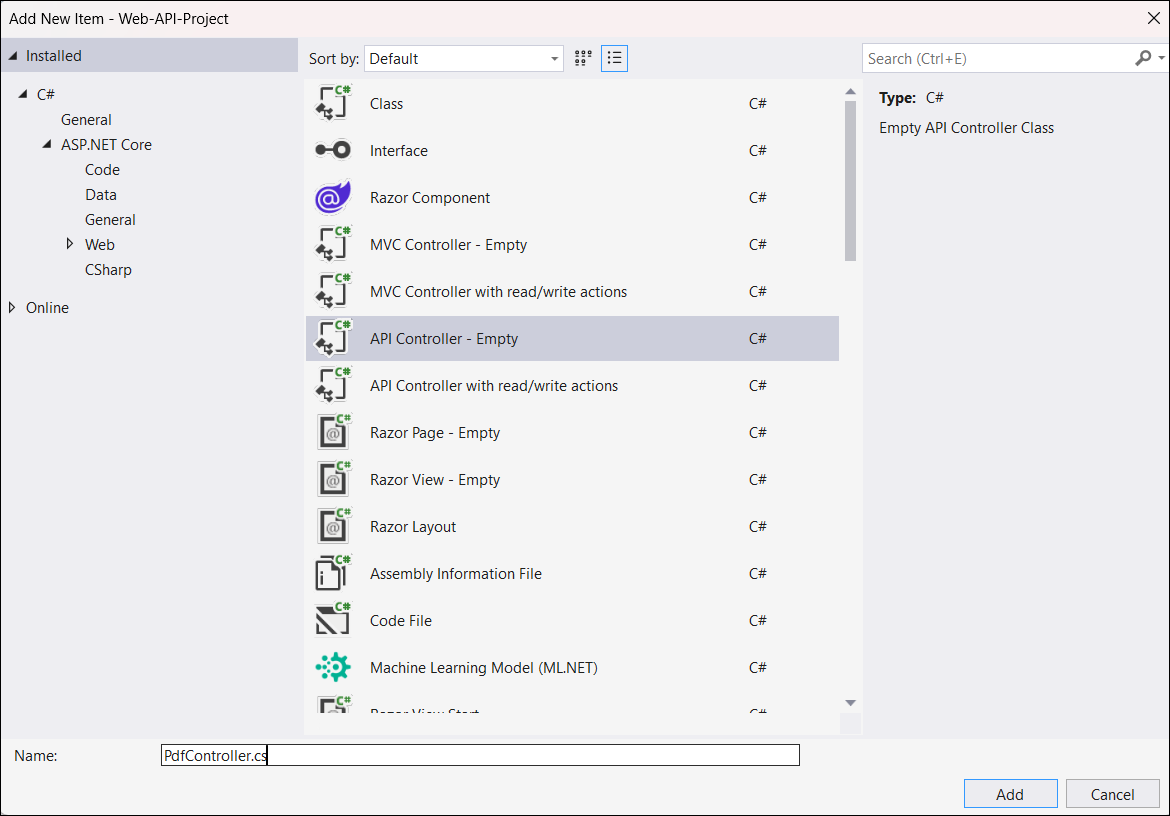
Step 6: Add a new empty API controller named PdfController.cs in the Controllers folder.
Step 7: Include the following namespaces in the PdfController.cs file.
using Syncfusion.Drawing;
using Syncfusion.Pdf;
using Syncfusion.Pdf.Graphics;
using Syncfusion.Pdf.Grid;
Step 8: The PdfDocument object represents an entire PDF document that is being created. The PdfTextElement is used to add text in a PDF document and which provides the layout result of the added text by using the location of the next element that decides to prevent content overlapping. The PdfGrid allows you to create table by entering data manually or from an external data sources.
Add the following code sample in the PdfController class which illustrates how to create a simple PDF document using PdfTextElement and PdfGrid.
[HttpGet("/api/Pdf")]
public IActionResult CreatePdfDocument()
{
    try
    {
        const string fileDownloadName = "Output.pdf";
        const string contentType = "application/pdf";
        var stream = ExportWeatherForecastToPdf();
        stream.Position = 0;
        return File(stream, contentType, fileDownloadName);
    }
    catch (Exception ex)
    {
        return BadRequest($"Error occurred while creating PDF file: {ex.Message}");
    }
}

private MemoryStream ExportWeatherForecastToPdf()
{
    var forecasts = Enumerable.Range(1, 5).Select(index => new WeatherForecast
    {
        Date = DateOnly.FromDateTime(DateTime.Now.AddDays(index)),
        TemperatureC = Random.Shared.Next(-20, 55),
        Summary = Summaries[Random.Shared.Next(Summaries.Length)]
    }).ToList();

    using (PdfDocument pdfDocument = new PdfDocument())
    {
        int paragraphAfterSpacing = 8;
        int cellMargin = 8;
        PdfPage page = pdfDocument.Pages.Add();
        PdfStandardFont font = new PdfStandardFont(PdfFontFamily.TimesRoman, 16);
        PdfTextElement title = new PdfTextElement("Weather Forecast", font, PdfBrushes.Black);
        PdfLayoutResult result = title.Draw(page, new PointF(0, 0));
        PdfStandardFont contentFont = new PdfStandardFont(PdfFontFamily.TimesRoman, 12);
        PdfTextElement content = new PdfTextElement("This component demonstrates fetching data from a service and exporting the data to a PDF document using Syncfusion .NET PDF library.", contentFont, PdfBrushes.Black);
        PdfLayoutFormat format = new PdfLayoutFormat
        {
            Layout = PdfLayoutType.Paginate
        };
        result = content.Draw(page, new RectangleF(0, result.Bounds.Bottom + paragraphAfterSpacing, page.GetClientSize().Width, page.GetClientSize().Height), format);
        PdfGrid pdfGrid = new PdfGrid();
        pdfGrid.Style.CellPadding.Left = cellMargin;
        pdfGrid.Style.CellPadding.Right = cellMargin;
        pdfGrid.ApplyBuiltinStyle(PdfGridBuiltinStyle.GridTable4Accent1);
        pdfGrid.DataSource = forecasts;
        pdfGrid.Style.Font = contentFont;
        pdfGrid.Draw(page, new PointF(0, result.Bounds.Bottom + paragraphAfterSpacing));

        using (MemoryStream stream = new MemoryStream())
        {
            pdfDocument.Save(stream);
            return new MemoryStream(stream.ToArray());
        }
    }
}
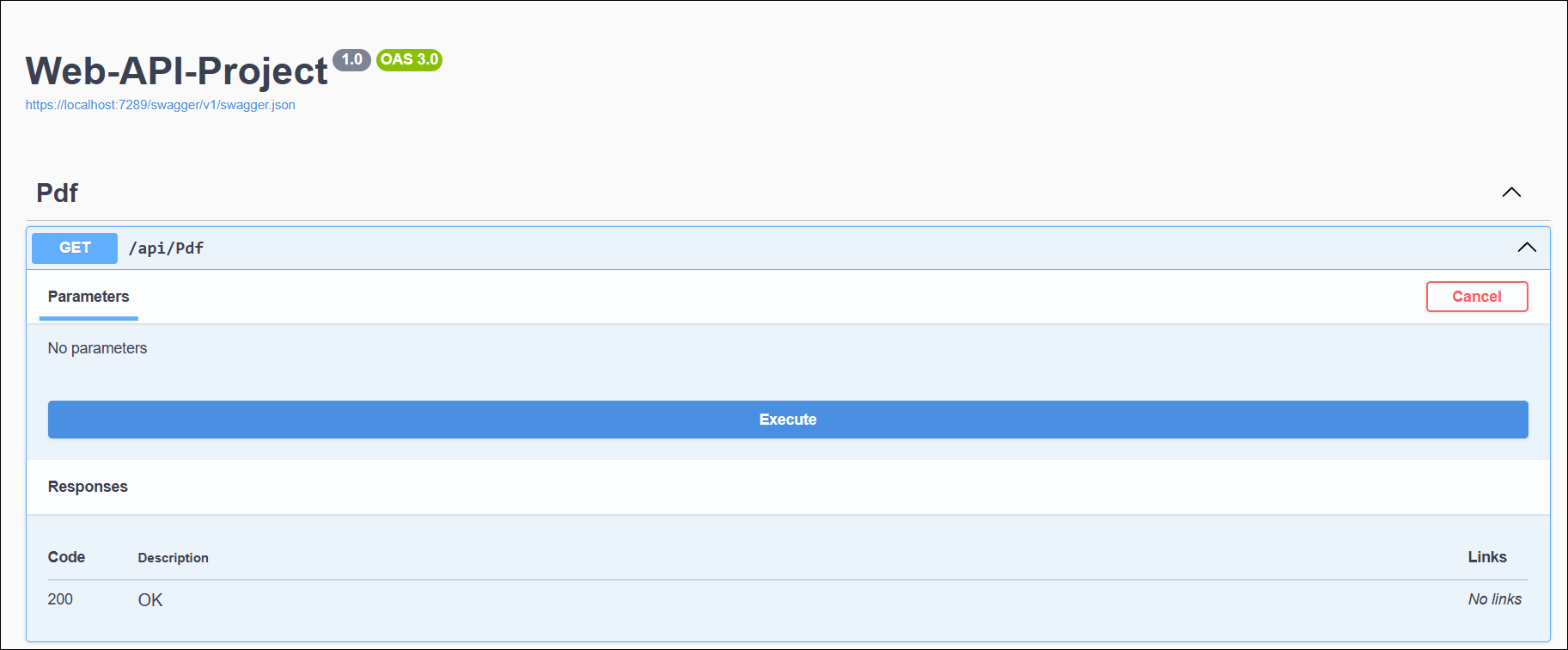
Step 9: Navigate to the Swagger UI, expand the GET /api/Pdf API, click Execute, and then download the response output.
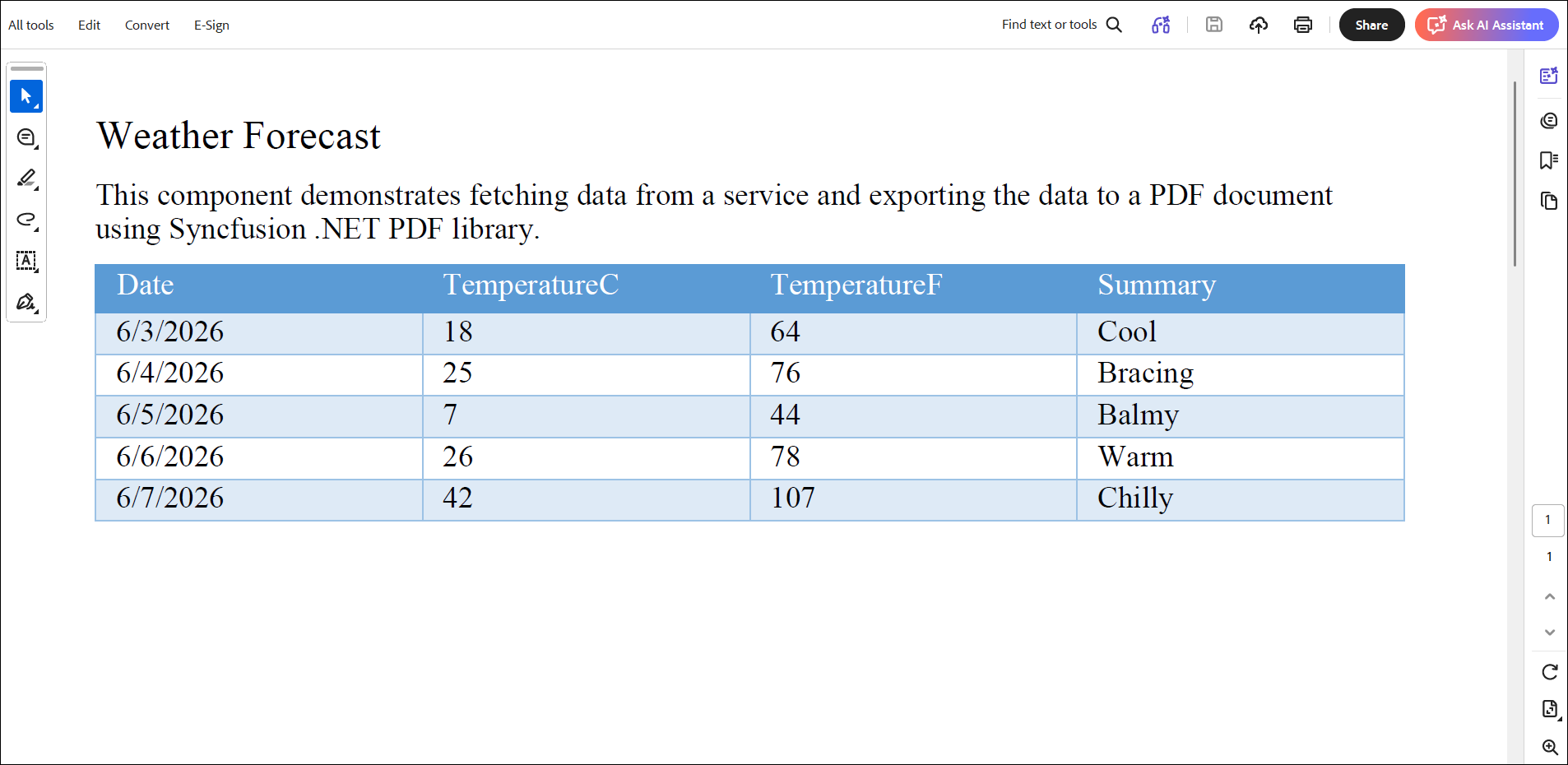
By executing the program, you will get the PDF document as follows.
You can download a complete working sample from GitHub.
Troubleshooting
| Issue | Possible Cause | Solution |
|---|---|---|
| License key not registered exception |
SyncfusionLicenseProvider.RegisterLicense not called |
Add license registration in Program.cs before app build |
| Swagger UI not visible | Swagger middleware not enabled | Ensure app.UseSwagger() and app.UseSwaggerUI() are configured |
WeatherForecast not found |
Model class not added | Add the WeatherForecast model class shown in Step 8 |
| 404 on API endpoint | Routing not configured | Confirm app.MapControllers() is called in Program.cs
|
| File download returns empty PDF |
MemoryStream disposed before return |
Ensure the using block does not dispose the returned stream |
Click here to explore the rich set of Syncfusion® PDF library features.
An online sample link to create a PDF document.